
You've just connected to a coffee shop Wi-Fi and want to make sure nothing unexpected phones home while you check orders. That's the kind of moment a hybrid firewall earns its keep—watching traffic in both directions without getting in your way.
Runs on Intel and Apple Silicon from Big Sur onward
Scudo asks for macOS 11.3 (Big Sur) or newer and runs natively on both Intel and Apple Silicon machines. If your Mac is from the last several years, you're almost certainly covered. The app itself is lean—built by Davide Feroldi, the developer behind Murus and Vallum—and won't drag down an older machine. Interface languages include English, Spanish, and Italian, so you can work in whichever feels most comfortable.
Network-level incoming and app-level outgoing filtering
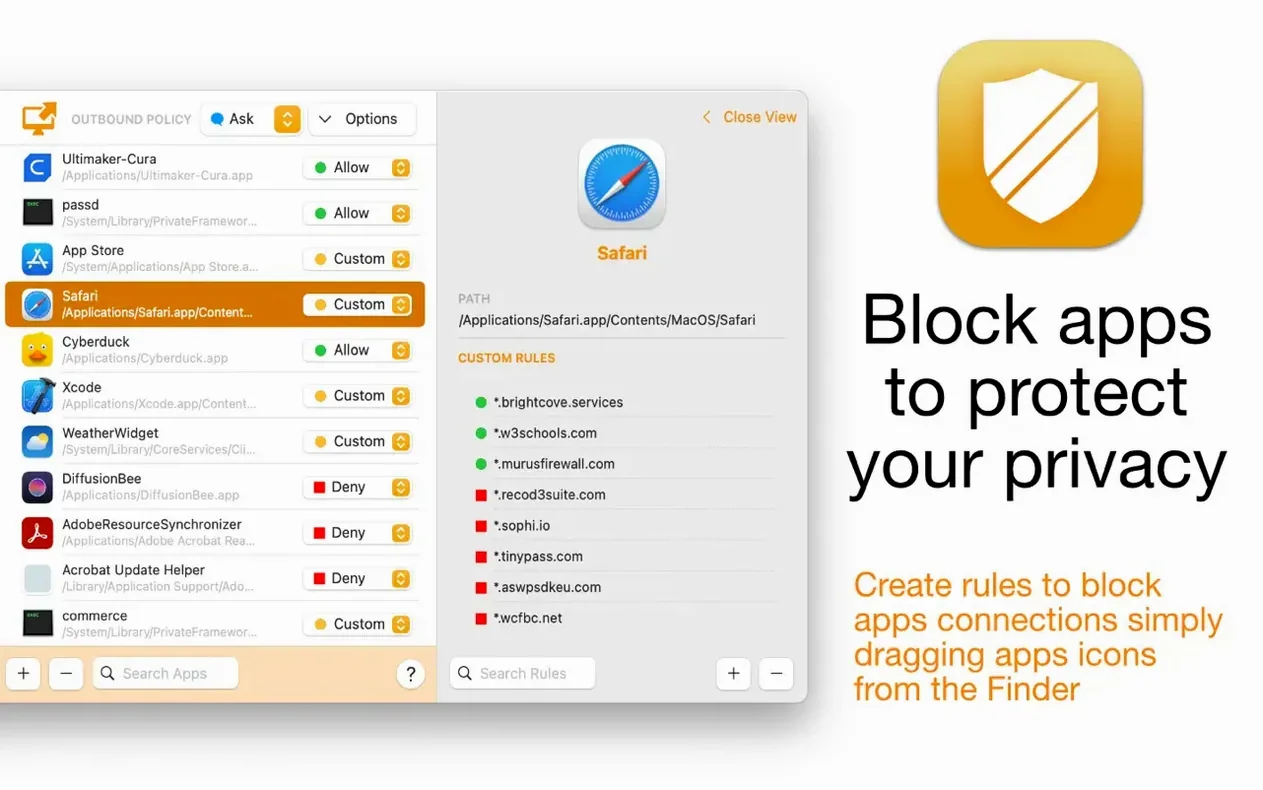
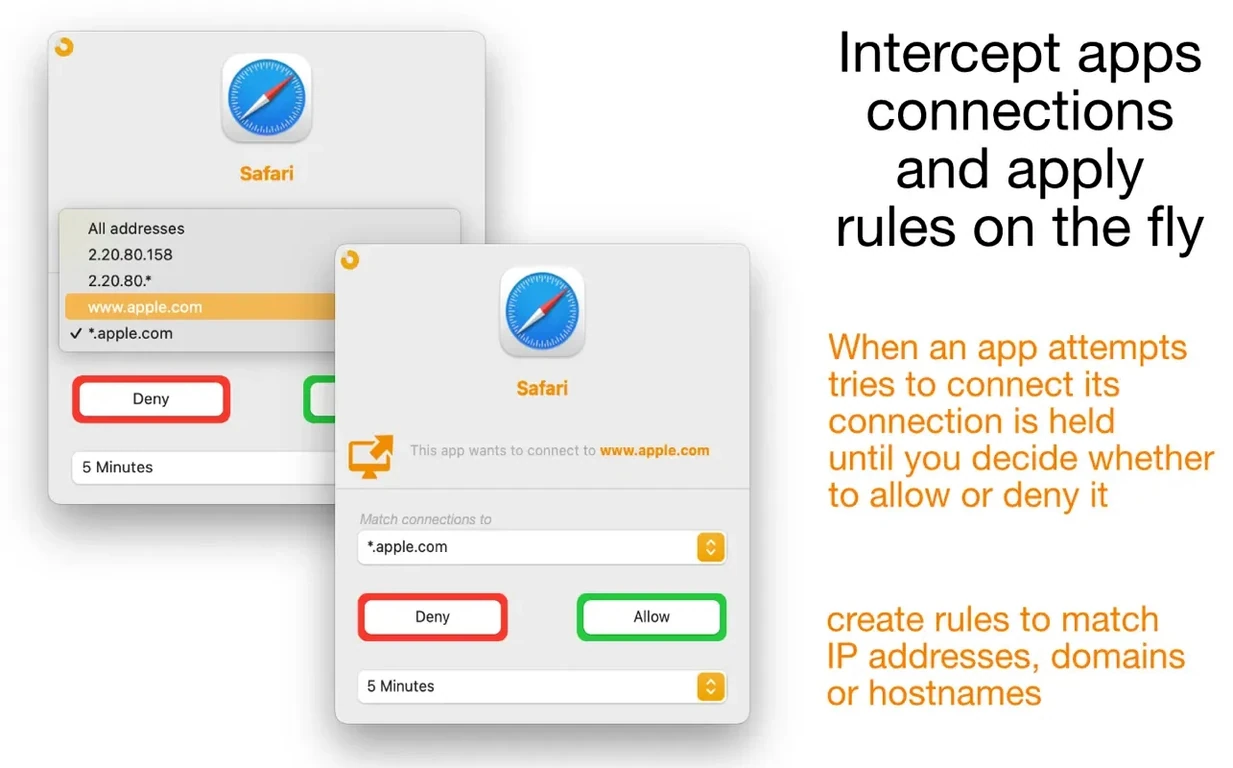
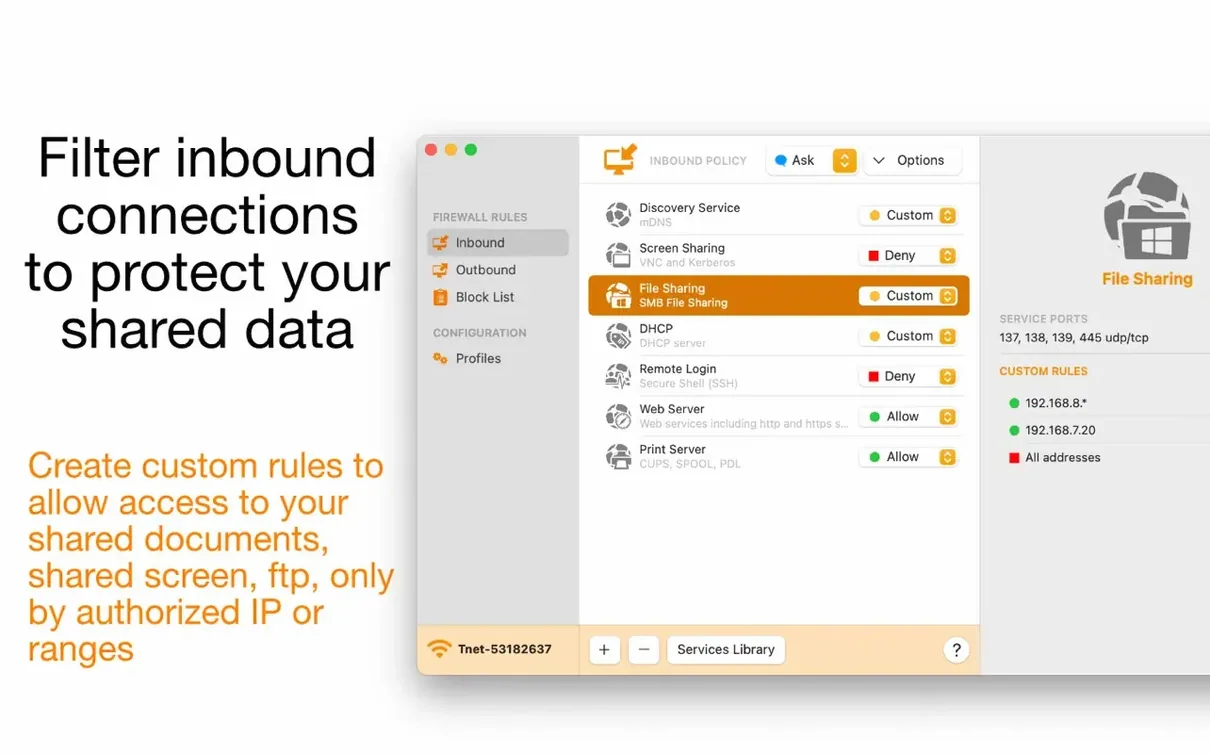
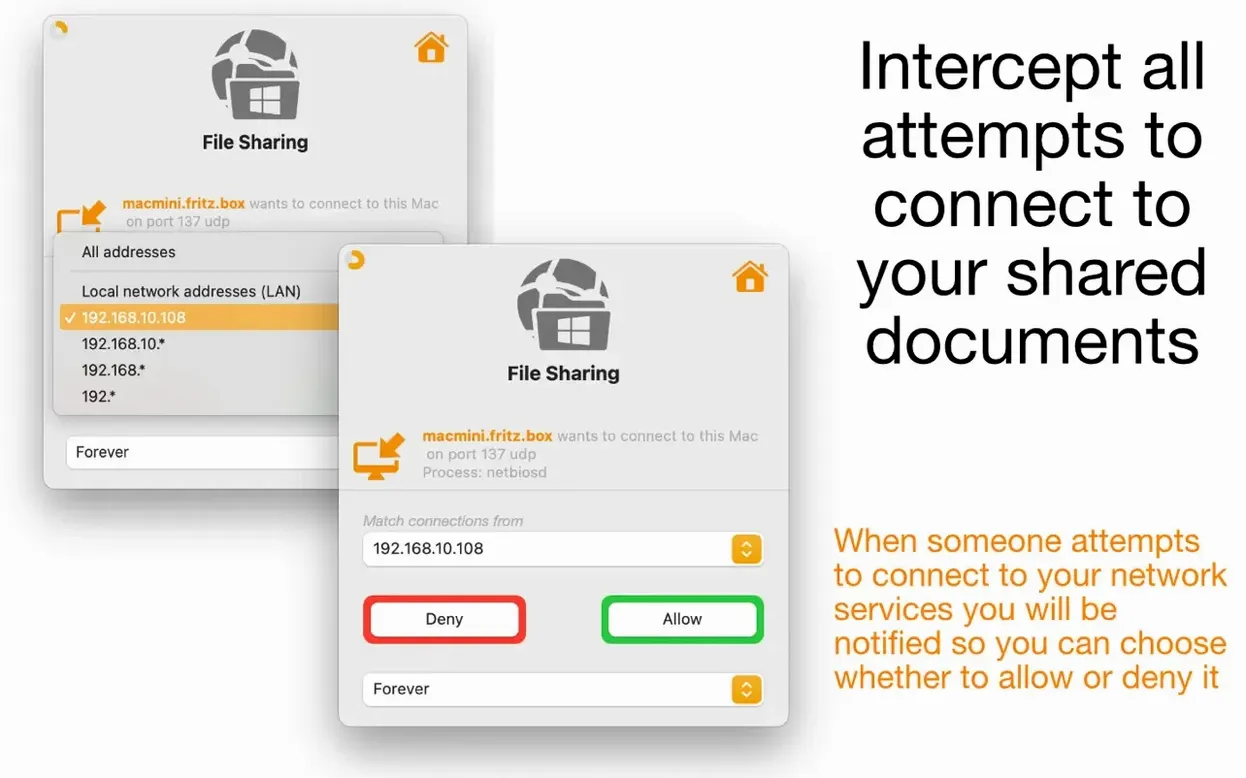
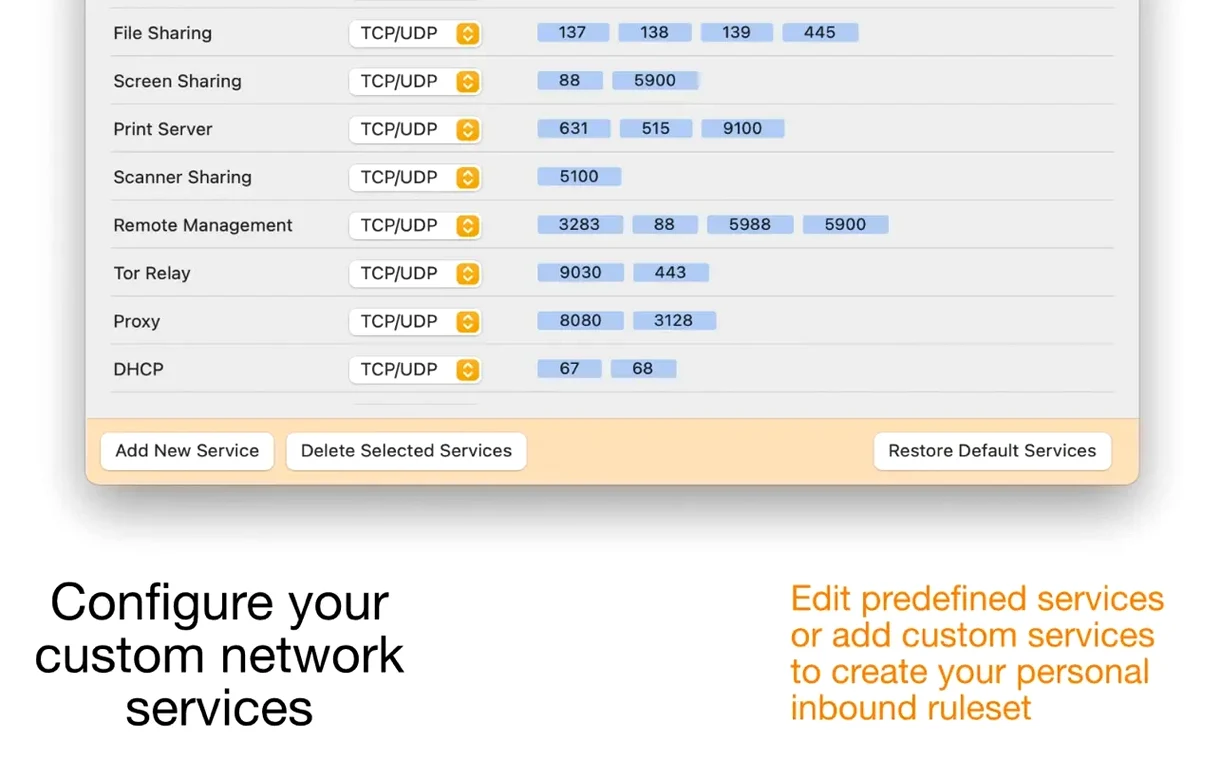
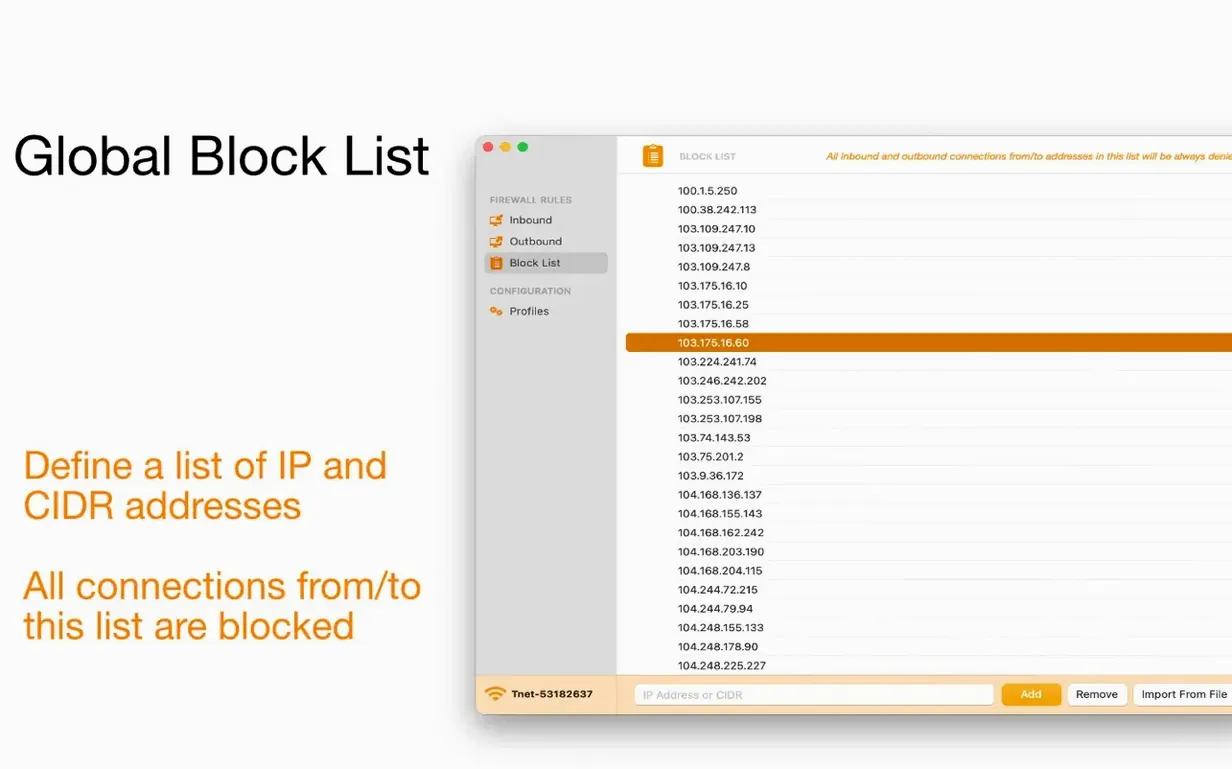
Scudo filters incoming traffic at the network level and outgoing connections at the application level, giving you a clear view of both sides. Rules can match IP addresses, ranges, hostnames, and domains—handy for allowing your bookkeeping tool while blocking everything else during reconciliation. You can make a rule temporary for a quick test or permanent once you trust it. A built-in library of service rules saves you from looking up common port numbers, and global block lists let you shut down traffic to listed addresses with a single toggle. Switching between configuration profiles takes one click, so you can have a tighter ruleset for public Wi-Fi and a relaxed one for the studio. The developer states plainly that Scudo collects no data and doesn't access your personal information or files—a refreshing stance for a tool that sees this much network activity.
Settings I'd change right after installing
Out of the box, Scudo is cautious but not annoying. A few tweaks make it fit a small shop routine better.
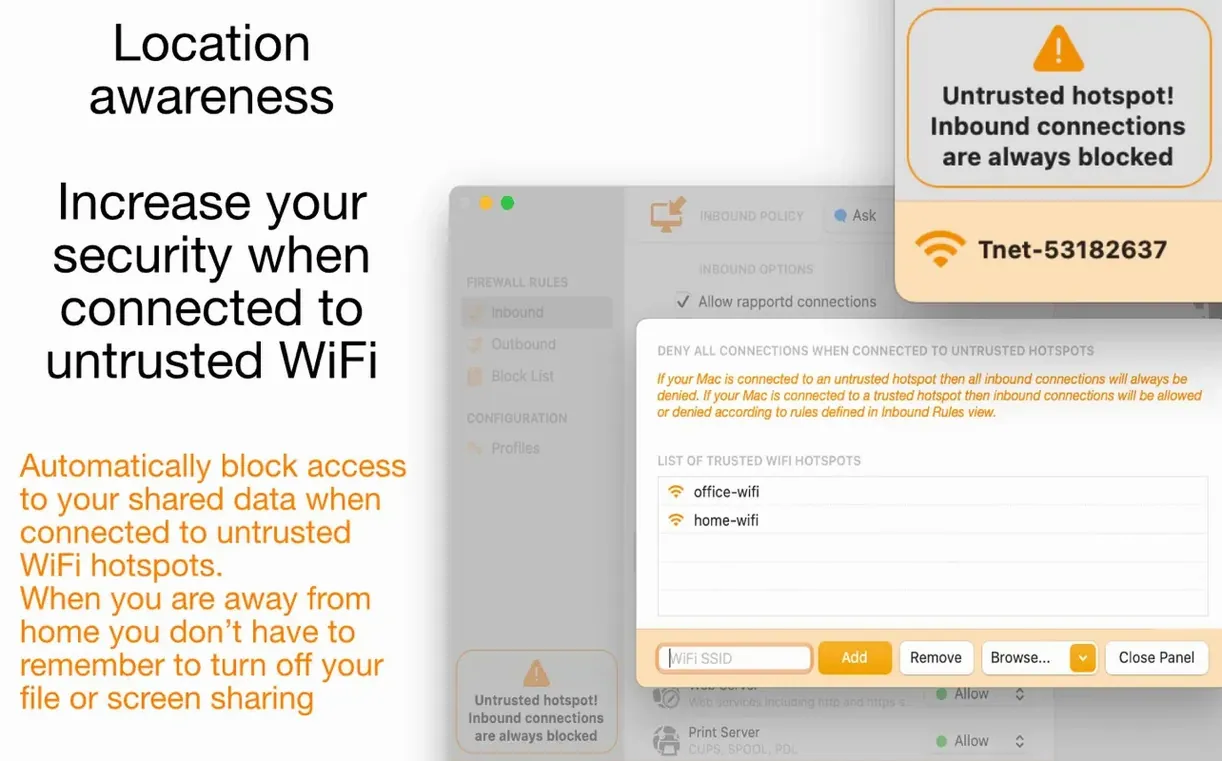
- Turn on location awareness. It's off by default. Once enabled, Scudo tightens inbound rules automatically on untrusted networks—exactly what you want when you're doing bookkeeping at a café. You pick which profiles count as "untrusted Wi‑Fi" and the app handles the switching.
- Set notification behavior to match your patience. I found the default notification for every new outgoing connection useful for the first few days, then a bit much. You can tone it down to only alert on blocked attempts, which keeps the menu bar quiet without losing visibility.
- Build a small global block list early. If there are IP ranges or domains you already know you don't want touching your Mac—ad trackers, telemetry endpoints from apps you've removed—add them now. Scudo applies the global list to all managed apps, so ten minutes of housekeeping pays off across everything you run.
- Create at least two configuration profiles. I keep one profile named "Studio" with relaxed outbound rules for design software and file sharing, and one called "Public" that locks down inbound connections and restricts outbound traffic to the essentials. Switching takes one click from the menu bar icon.
When an app silently fails to connect
Scudo sits deep enough in the network stack that a few things can trip you up. Here's what I've seen and what fixes it.
An app silently fails to connect. This usually means Scudo blocked its first outbound attempt and the notification got missed or dismissed. Open Scudo's managed apps list, find the app, and look at its ruleset. If it has no allow rule, that's the culprit. Add one for the domains or IP ranges it needs, or temporarily set it to allow all outbound while you watch the logs to build a precise rule.
File sharing stops working on a trusted local network. Inbound service rules are ordered—the first match wins. If you added a custom rule that blocks a port range and it sits above the built-in file sharing rule, the block takes priority. Drag the allow rule higher in the list and the problem disappears.
Notifications pile up after installing several new apps. That's normal. Scudo asks about each new app's first connection attempt. Work through them once—decide allow or block, temporary or permanent—and the flood stops. After that, only genuinely new apps trigger a prompt.
A Torrent client or other peer-to-peer app can't accept inbound connections. Scudo's inbound filtering will block unsolicited incoming traffic unless you explicitly allow it. Create a custom inbound rule for the port your client uses, or add the client as a managed app and give it the inbound access it needs. The same logic applies to any service that listens for remote connections.
A task walkthrough: locking down a design laptop for client Wi‑Fi
Say you're heading to a client's office and bringing your MacBook to show work in progress. You want internet access for Slack and a browser, but nothing else talking outbound, and no inbound connections at all.
Before you leave the studio: Open Scudo and duplicate your everyday profile. Name the copy "Client Visit." In this profile, head to the global settings and enable location awareness, tying it to any network that isn't your studio's. Set the default inbound policy to block all—this shuts the door on anything trying to reach your Mac from the outside. For outbound, switch the default to block as well. Now add allow rules only for what you'll need: your browser (Safari, Firefox, whatever you use) and Slack. If you need your email client or a cloud sync tool for asset files, add those too. Give each app a specific ruleset—domain-based rules work well here, so Slack can reach slack.com and associated domains but nothing else.
At the client's office: Connect to their guest Wi‑Fi. Scudo detects it's not your trusted network and switches to the "Client Visit" profile automatically. Your browser and Slack work normally. Any background updater, analytics call, or forgotten helper tool hits the outbound block and stays silent. The menu bar icon changes subtly to confirm the restrictive profile is active, so you can glance up and know you're protected.
Back home: Reconnect to your studio network. Scudo switches profiles again, restoring your everyday rules. The "Client Visit" profile sits there for next time—tweak it as you learn what you actually need on-site.
Scudo 3.0.4 is out with the latest round of refinements from the developer.
- macOS 11.3 or newer
- Runs on Intel and Apple Silicon Macs
- Interface languages: English, Spanish, Italian
Questions from the stall
How is Scudo different from Murus and Vallum?
Scudo comes from the same developer as Murus and Vallum but is built as a simpler hybrid firewall, focusing on straightforward inbound and outbound control without the deeper complexity of its siblings.
Notes from other shops 0
Sign in or open a shop account to leave a note.
No notes yet. If you've used this on a shop Mac, tell me how it went.