
Gemini 2 runs on Intel Macs with macOS 10.13 High Sierra or later, so most Macs from the last several years are covered.
What does Gemini 2 do?
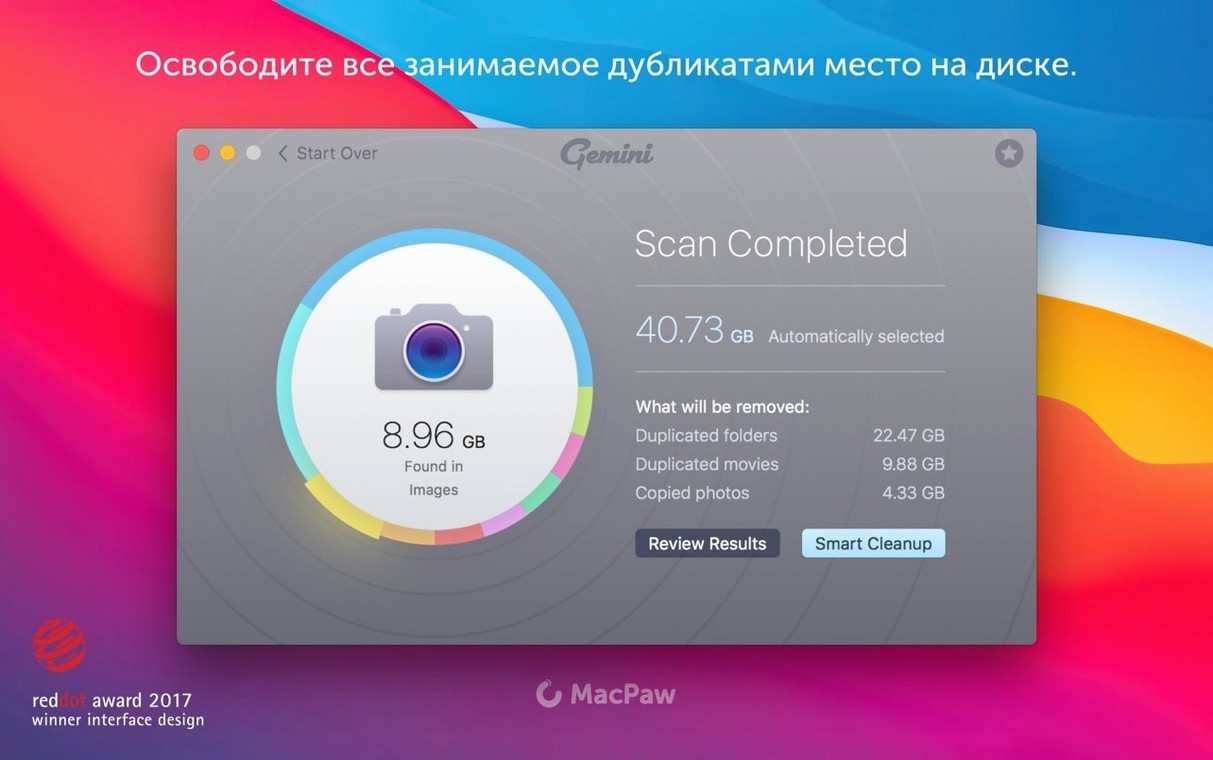
It's a duplicate file finder. It scans your whole Mac — Photos, iTunes, the hard drive, old folders — and shows you copies sitting in places you might never think to look.
Reclaim space from duplicate downloads and synced libraries
Anyone whose storage fills up with old downloads, repeated photo imports, or music libraries that got synced one too many times. It helps when you want space back without hunting file by file.
How does the review process work?
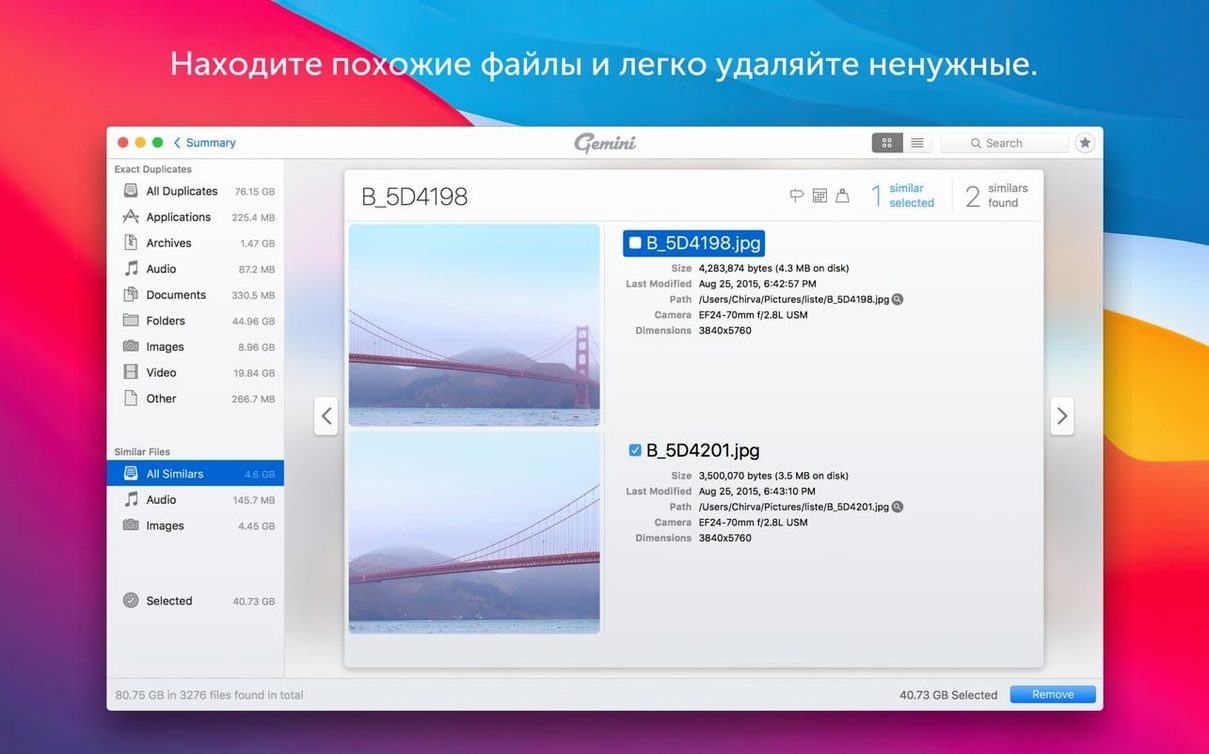
Scan results appear in an interface where you can look through what it found before deleting anything. The app also remembers your previous deletion choices and applies them to later scans, which saves time on repeat cleanups.
Skip system folders before your first full scan
Before you launch a full scan, open Gemini's preferences and flip a couple of switches. The defaults work, but a minute of tuning makes the results feel more like your choices.
- Skip system folders. Under the Scan tab, tell Gemini to ignore the System and Library folders. Duplicates inside the operating system exist for a reason, and removing them can cause trouble. Checking this box keeps the scan focused on your own files.
- Set a minimum file size. By default, Gemini flags every duplicate, including tiny cache files and thumbnails under 100 KB. Raising the threshold to 1 MB or more cuts out noise you would ignore anyway and speeds up the review stage considerably.
- Turn off "Similar Files" for your first pass. The similar-files feature is clever — it groups photos that are nearly identical — but it adds time and produces softer matches that need more thinking. Start with exact duplicates only, then run a second scan with similar files turned on once the obvious copies are gone.
How Gemini fits together with other apps and macOS features
Gemini does not work in a bubble. It slots into a cleanup routine that involves Finder, Photos, and a couple of built-in Mac tools.
After a scan, you will often want to preview files in Quick Look. Select any result and press the spacebar — the standard macOS preview pops right up. This is essential for images and documents where file names alone do not tell you enough.
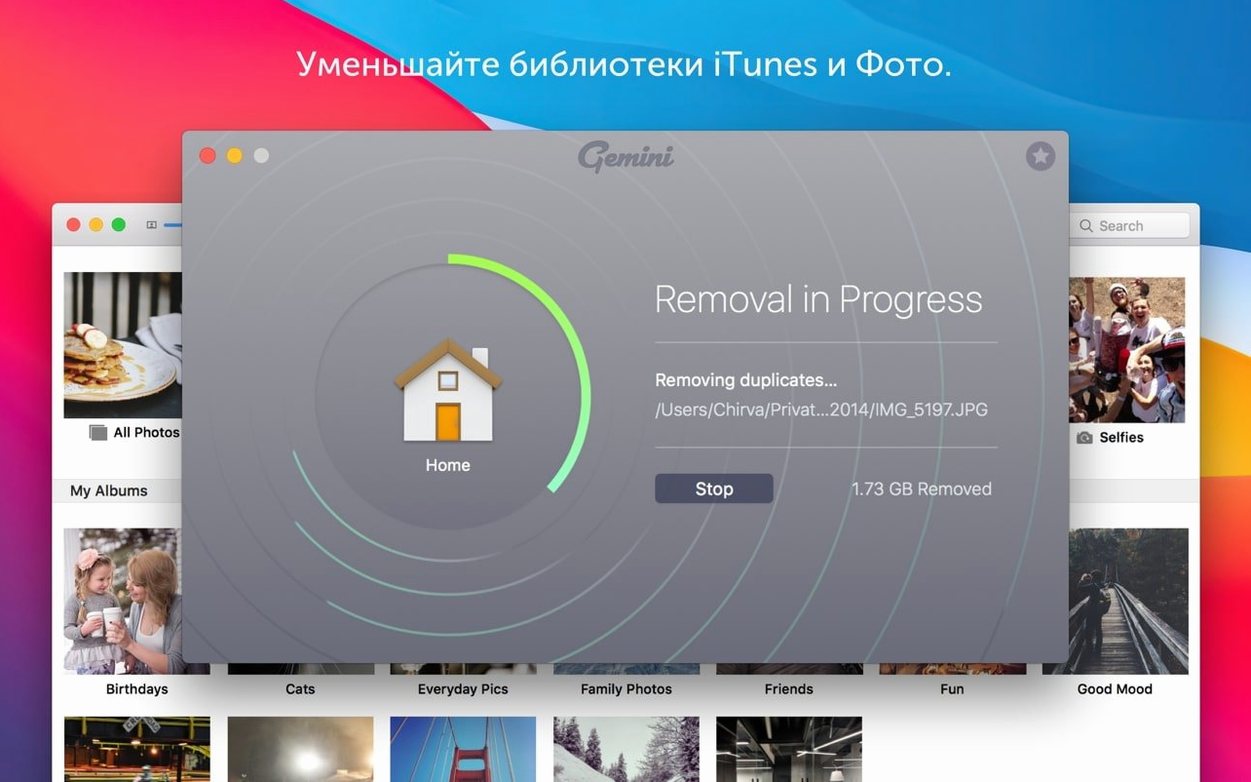
For Photos libraries, Gemini reads the library structure directly instead of asking you to export anything first. That means duplicates sitting inside your Photos.app library show up without you having to drag folders around. Once they are removed inside Gemini, the changes reflect in Photos the next time you open it.
If you use iCloud Drive with "Optimize Mac Storage" turned on, some files exist only as placeholders on your local disk. Gemini sees the local representation, so a scan might flag a stub file and the full original as duplicates. In those cases, keep the full file and remove the stub — Gemini's path column helps you tell which is which.
Many people pair Gemini with a dedicated uninstaller or a large-file scanner. Gemini handles the copies; another tool clears out old apps or finds single giant files. Together they cover what neither does alone.
People looking for the gemini 2 macpaw download often ask whether it plays nicely with Time Machine backups. It does, but do not point Gemini directly at your Time Machine volume. Those snapshots use hard links that Gemini would interpret as separate copies, and deleting them can corrupt the backup. Stick to your home folder and external drives that hold your working files.
Check a file's context with right-click, show in Finder
- Right-click to show in Finder. In the results list, control-click any file and choose "Show in Finder." Gemini opens the enclosing folder with the file selected. This is the fastest way to check context — what else lives in that folder, when it was last modified — without leaving the app.
- Smart Select learns you. The algorithm does not just pick the oldest file and call it a day. After you manually select which copies to remove a few times, Smart Select starts matching your pattern. If you always keep files in a specific folder and delete copies elsewhere, it picks up on that.
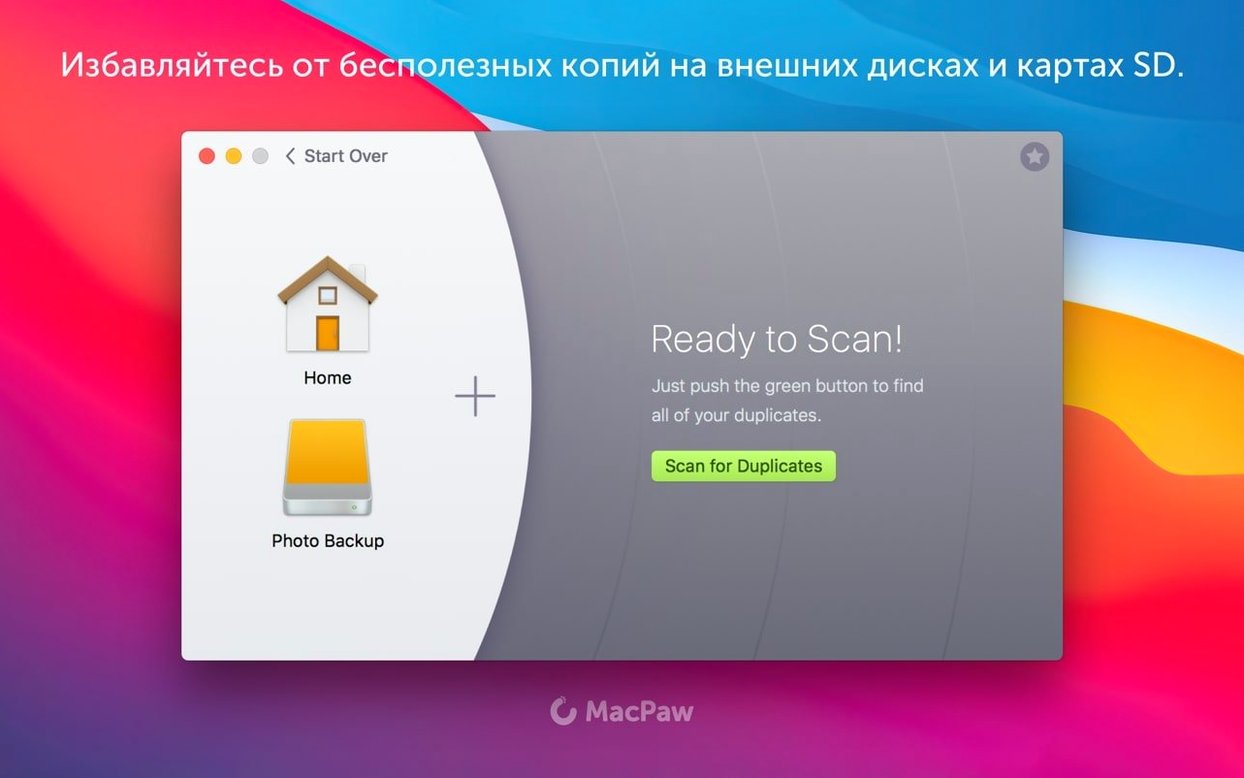
- Drag-and-drop target folders. You do not have to scan your whole Mac. Drop a single folder onto Gemini's window or dock icon, and it scans only that location. Useful when you know exactly which client project folder ballooned.
- The "Recently Deleted" safety net. Gemini keeps removed files in its own Recently Deleted area, independent of the macOS Trash. If you delete something and realize an hour later it was the wrong copy, open Gemini and restore it there. The app holds files for a set period before permanent removal.
- Keyboard navigation in results. Arrow keys move through groups, and the spacebar opens Quick Look. Pressing Return marks a file for deletion. You can review a hundred matches without touching the mouse.
- Sort by path column. Click the path column header to group results by location. Duplicates scattered across your Downloads folder jump to the top, and you can often delete whole clusters at once because they clearly come from the same forgotten unzip.
Drag your home folder to clear months of buildup
Say it is a Thursday afternoon. You notice your MacBook's storage bar is nudging red, and you have not done a proper cleanup since last spring. You open Gemini.
Step one: You drag your home folder into the scan area rather than scanning the entire drive. You skip external drives for now — one mess at a time. You leave "Exact Duplicates" on and toggle "Similar Files" off for this first run. Then you click Scan and go make tea.
Step two: Fifteen minutes later, Gemini presents the damage: over 2,000 duplicates across folders you barely remember. The results group by file type — images, documents, audio, archives — and within each group, matches are stacked together. You see three copies of a client presentation from 2022, each in a different folder: one in Downloads, one in Documents/Proposals, one on the Desktop. Smart Select already highlights the two copies outside Documents/Proposals, and you agree with a click.
Step three: You move through the image groups next. Quick Look confirms that the vacation photos in "Exports" are identical to the ones still in the Photos library, so you mark the exports folder copies. You keep the originals inside Photos where they belong.
Step four: You reach a group of audio files — voice memos you dragged off your phone months ago and then imported again later. The file names differ but the sizes match exactly. You trust Smart Select and let it keep the set inside your organized Voice Memos folder while marking the loose copies on the Desktop.
Step five: You scan the path column for anything sitting in a "gemini torrent" folder you downloaded last year. Indeed, a folder of sample packs appears — duplicates of files you later bought legitimately. You mark the entire folder group and move on.
Step six: Before hitting the final Delete button, you glance at the summary: 1.8 GB of exact duplicates across 340 groups. You click Delete, and Gemini clears them. The files move to Gemini's Recently Deleted area, and your storage bar breathes a little easier.
Step seven: A week later, you run a smaller scan — just the similar files in your Photos library, looking for burst-mode shots where you took five nearly identical frames and only need one. Gemini groups them, you keep the sharpest shot from each burst, and suddenly your library is tidier without losing a single memory.
- macOS 10.13 High Sierra or later
- Intel 64-bit Mac
- Interface languages: Russian, English, German, Spanish, Italian, Simplified Chinese, Dutch, Polish, Portuguese, Ukrainian, French, Japanese
Questions from the stall
Which macOS versions does Gemini 2 support?
Gemini 2 is fully supported on macOS 10.13 High Sierra and later.
Does Gemini 2 work on Apple Silicon Macs?
The app is built for Intel 64-bit Macs. Check with MacPaw for Apple Silicon compatibility details.
Where does Gemini 2 look for duplicates?
It searches Photos, iTunes, the hard drive, and old folders across the system.
Notes from other shops 0
Sign in or open a shop account to leave a note.
No notes yet. If you've used this on a shop Mac, tell me how it went.