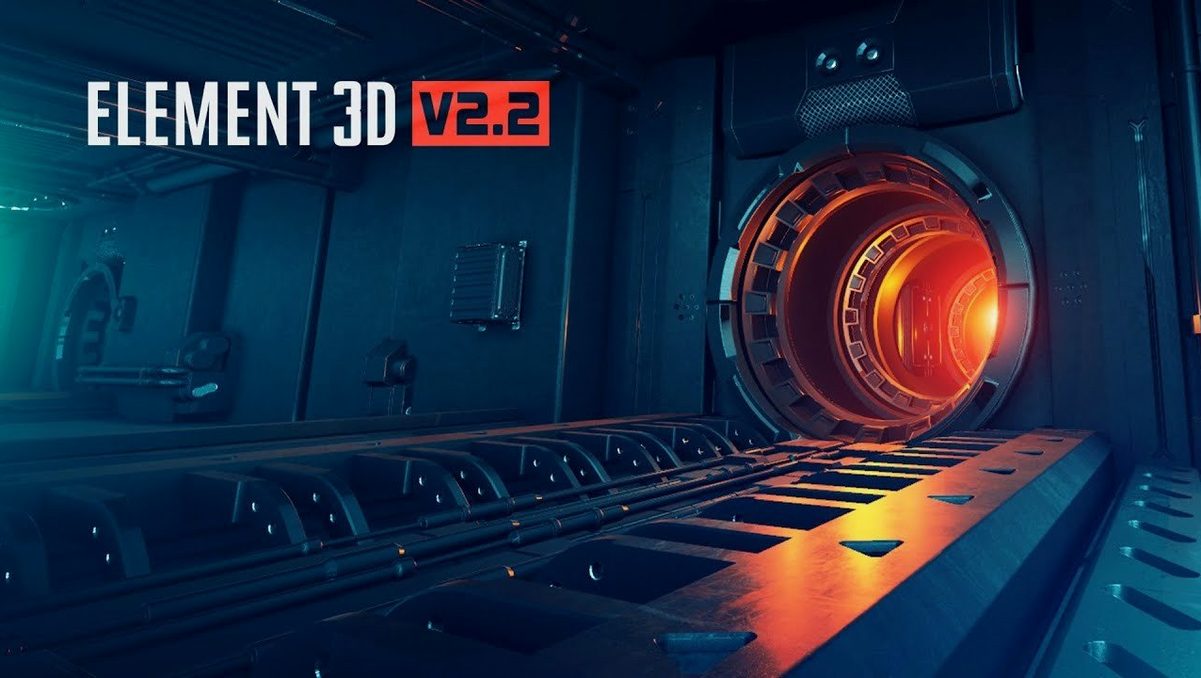
Element 3D is an After Effects plug-in from Video Copilot that turns 3D models into a high-performance, object-based particle system right inside your compositions.
Building a particle array from a model
Drag in a 3D object, then use the 3D Object Groups controls to clone and scatter it across a scene. It is a fast way to build crowd shots, flying debris, or geometric landscapes without leaving After Effects.
Mixing it with your existing motion-graphics toolkit
Since it lives inside After Effects, Element 3D sits comfortably next to your usual type layers, shape animations, and camera moves. It renders through its own OpenGL engine, so complex scenes stay responsive while you keep tweaking.
Creating looks that feel physical and fast
The replicator settings let you distribute objects with a natural sense of weight and randomness. Pair that with After Effects lights and depth-of-field, and your 3D elements blend into a shot more convincingly than flat stock footage ever could.
Drop in an OBJ from your favorite modeler
Element 3D does not replace your 3D software — it gives you a faster path from model to finished shot. Build or download an OBJ in Blender, Cinema 4D, or any modeling tool that exports standard geometry, then bring it into After Effects and start cloning it immediately. The OBJ import is the quiet workhorse here: it lets you keep using the modeling app you already know without rebuilding assets from scratch.
On the macOS side, the plug-in plays well with the tools you already use for file management and previews. Keep your OBJ and texture folders organized in Finder, and Element 3D will read them directly from disk. Quick Look still handles the file previews you need before importing, while After Effects handles the composition, keyframes, and final render. The Intel architecture means it runs on older Macs that many newer 3D tools have left behind — useful if your shop computer is a few years old and still doing daily work.
Spend your first afternoon on one-object experiments
Give yourself a short runway. This is a deep plug-in, and the first afternoon is best spent on small, controlled experiments rather than a full client project.
- Start with one object and one group. Import a simple OBJ, drop it into a scene, and move the replicator sliders one at a time. You will learn more from ten minutes of slow adjustments than from an hour of random clicking.
- Keep textures beside your models. When you download or create a model, store its texture files in the same folder as the OBJ. Element 3D finds materials more reliably that way, and your project folder stays portable.
- Use a simple camera move early. Add a one-node camera and animate a slow push-in. Seeing your particle array from a moving viewpoint reveals depth issues and scale problems that a static frame hides.
- Duplicate before you experiment. After Effects layers are cheap. Duplicate a working Element 3D layer before trying wild settings, so you can always return to the version that worked.
- Save a test composition. Build one composition with a few favorite models, lighting, and replicator presets. You will reuse it constantly as a starting point, and it doubles as a personal reference for how the controls behave.
Tip: Watch the viewport while you drag a slider, not the final render. The OpenGL preview is close enough to judge scale and distribution, and it updates instantly.
What to check before you download
Runs on Intel Macs with your current After Effects
Element 3D runs on Intel-based Macs, which covers a lot of older and mid-range hardware still in daily use. If your Mac has an Intel processor, the plug-in should sit comfortably inside your current After Effects setup. You do not need a separate GPU renderer or a high-end graphics card to get started, though a decent GPU helps when scenes get dense.
No modeling background needed
No. You can download ready-made OBJ files and start distributing them the same day. The particle array system does the cloning and placement for you. That said, if you already model in Cinema 4D or Blender, you will get more out of it because you can bring your own assets in and push them further.
OpenGL keeps light scenes responsive
Element 3D renders through its own OpenGL engine, so it does not lean on After Effects' standard 3D renderer for its heavy lifting. Light scenes stay responsive, and even complex arrays preview faster than you might expect. When things get dense, you can lower the preview quality inside the plug-in without changing your final render settings.
From flying debris to product mockups
Not at all. The same tools that build flying debris also build product mockups, logo reveals, and abstract backgrounds. Small shops use it for simple animated graphics that need a bit of depth — no explosion necessary.
Can I keep using my old 3D files?
In most cases, yes. OBJ is a widely supported format, and many modeling apps export it natively. If your files are already OBJ or C4D-based, you have a direct path into After Effects without conversion steps.
Dial down preview quality while you block out shots
Out of the box, Element 3D is usable, but a few adjustments make the first projects feel less like fighting defaults.
- Preview quality. Lower it while you work on placement and animation. You can always raise it for a final look before render. This keeps the viewport snappy on older Intel Macs.
- Ambient occlusion. Turn it on early, even at a low sample setting. It adds contact shadows between cloned objects and makes arrays feel grounded instead of floating.
- Depth of field in After Effects. Match your camera's focus distance to the main object group. A shallow depth of field hides repetition in cloned arrays and directs the eye where you want it.
- Group count. The help files describe five independent 3D groups. Do not feel you need all five. Most small projects only need one or two; fewer groups means easier troubleshooting and faster previews.
- Replicator distribution. Switch from the default pattern early. A grid looks mechanical; random or surface distribution often reads as more natural for debris, crowds, or organic scatter.
These are starting points, not rules. The plug-in rewards small adjustments — change one setting, look at the viewport, move on. After a few projects, you will know which defaults to reach for without thinking.
Version 2.2.3 fine-tunes the existing V2.2 release. It keeps the focus on what Element 3D does best — acting as a fast OpenGL 3D rendering engine for object-based particle work inside After Effects.
- macOS (Intel architecture)
- Adobe After Effects (compatible version)
Notes from other shops 0
Sign in or open a shop account to leave a note.
No notes yet. If you've used this on a shop Mac, tell me how it went.