DVDFab 12 lists macOS 10.10 through 15.x as its supported range, so most Macs from the last decade can run it.
Architecture — runs on both Apple Silicon and 64-bit Intel Macs.
DVD-9 — the dual-layer format this suite can split across two DVD-5 discs.
IFO file — the DVD index file; DVDFab can restore information even when it becomes unreadable.
Authoring — building a custom DVD with only the titles you pick, with or without the original menu.
What I'd use it for: making a working copy of a disc that's starting to show wear, before the IFO file gives up entirely.
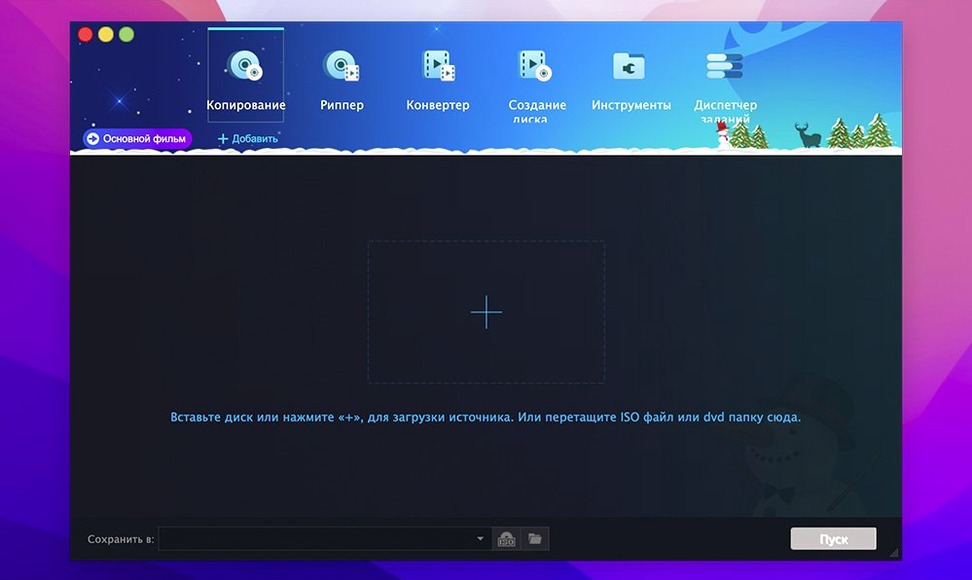
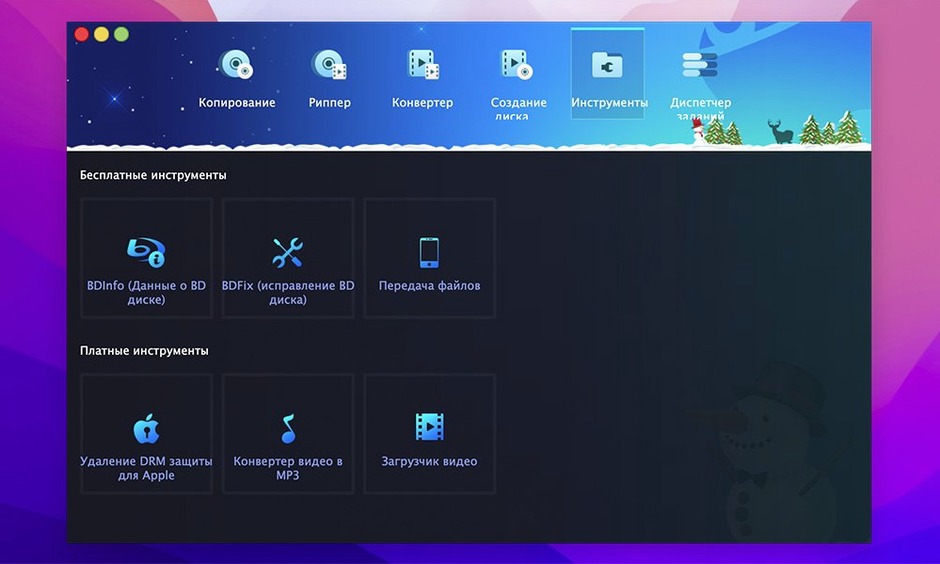
The suite handles copying, ripping, burning, and authoring in one place. It creates identical copies that keep menus and trailers, and converts DVD video for older devices like the iPod, PSP, and Zune.
Choosing full disc without checking your blank media size
Picking the wrong copy mode is the big one. Someone wants a quick backup of a movie, so they hit Full Disc without checking the size. A dual-layer DVD-9 lands on a single-layer blank, the burn fails, and they think the software is broken. Check the disc size first — the source info panel shows it plainly. If it exceeds 4.7 GB, either switch to Main Movie to drop the extras, or use Split and let the app handle the two-disc spread.
Another classic: ignoring the output folder. The default location fills up a small boot drive fast. I point mine to an external SSD before the rip starts, every time.
Beginners also assume any blank DVD will work. DVDFab supports DVD+R/RW, DVD-R/RW, and both dual-layer variants, but not all burners like all media equally. A spindle of cheap DVD-R discs from a brand you've never heard of will cause more coasters than successes. Stick with Verbatim or Taiyo Yuden media for dual-layer burns especially — those Verbatim DVD+R DL discs have saved me more than once.
Finally, people forget that ripping and converting are two different steps. You rip the disc to a folder or ISO first, then convert that file for an iPod or phone. Trying to go straight from disc to device profile skips the copy protection removal step, and that's when you get cryptic error messages.
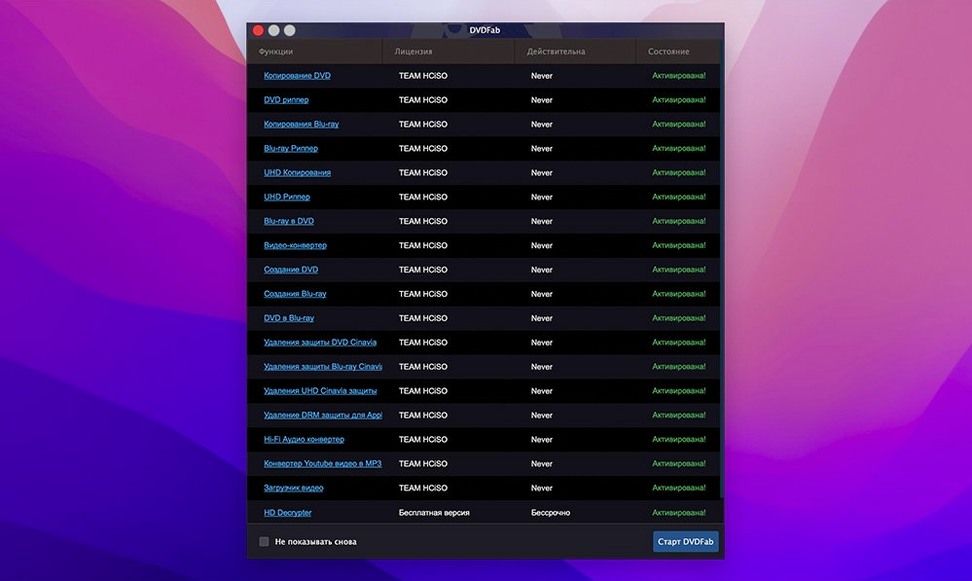
What the free HD Decrypter trial actually includes
Does it handle the newer Disney and Sony protections?
Yes. The disc decryption layer gets updated regularly, and version 12 handles CSS, region coding, RCE, Macrovision, and UOPs without extra configuration. If you're working with a very recent release, the cloud-based decryption server usually catches what the local engine misses. That said, no tool is instant with every new title — there's sometimes a day or two gap after a major studio release drops.
Apple Silicon support and the external drive you’ll need
It will. The build runs native on Apple Silicon and 64-bit Intel, so nothing runs through Rosetta. The disc drive question is separate — you'll need an external USB optical drive regardless, since no MacBook shipped after 2012 has an internal drive. Any LG or Pioneer external burner that macOS recognizes works fine; I use an LG BP60NB10 without issues.
Can I merge episodes from different discs onto one DVD?
You can, and it's one of the features that makes the Merge mode stand out. Pick titles from multiple sources, arrange the order, and burn them to a single disc. The resulting disc won't have a fancy menu unless you build one during authoring, but the titles play back sequentially without hiccups.
Is a dvdfab for mac version really the same as the Windows one?
Functionally, yes — the copy modes, decryption engine, and conversion profiles match. The interface feels more at home on macOS than earlier versions did, though it's not a native AppKit design. You get the same eight DVD-to-DVD modes, the same device profiles, and the same disc format support.
What if my IFO file is corrupted?
That's exactly when the IFO restore feature earns its keep. A scratched disc might mount but fail to read its navigation structure. DVDFab can reconstruct the IFO data well enough to extract the main movie, even if the menus are beyond saving. Start with Main Movie mode and let the scanner do its work.
How DVDFab fits with other apps and macOS features
DVDFab sits in the middle of a small chain. Before it, there's the disc and the optical drive — macOS reads the physical media through its built-in UDF driver, and DVDFab taps that. After it, you've got your media player or burning app. I often rip a DVD folder with DVDFab, then open the VIDEO_TS folder in VLC to check the copy before burning. That extra verification step has caught a bad rip more than once.
For device conversion, the output files drop right into the Apple ecosystem. An MP4 made for an iPad shows up in the TV app (formerly iTunes) when you drag it in, and it syncs over USB or iCloud just like a purchased video. The PSP and Zune profiles produce MPEG-4 files that any modern media server — Plex, Jellyfin, Emby — can catalog without transcoding.
If you're authoring a custom disc, DVDFab's output is a standard DVD folder or ISO. That means you can burn it with Disk Utility if you prefer, or mount the ISO in Finder to preview it. The integration is deliberately file-based and simple: DVDFab doesn't try to become your media library, it just hands off playable files.
Time Machine users, take note: a DVD rip folder can easily run 4–8 GB. Exclude your output folder from Time Machine backups unless you want your backup drive filling up with disc images you can re-rip anytime.
Backing up a pristine movie, a scratched disc, and a merged set
I'll walk through what a Saturday afternoon backup session looks like for me. Say I have three discs to handle: a pristine movie, a scratched TV season disc, and a two-disc set I want merged.
The movie. I insert the disc, wait for DVDFab to scan it, and check the source panel. It shows 6.8 GB — too big for a single-layer DVD-5. The disc itself is a DVD-9. I switch to Main Movie, select the English audio track and subtitles, and point the output to my external drive. The rip takes about 15 minutes on my USB 3.0 drive. When it finishes, I open the VIDEO_TS folder in VLC, skip through a few chapters, and confirm the audio sync is solid. Then I burn it to a Verbatim DVD+R DL using Write Data mode, loading the folder as the source.
The scratched TV disc. The drive churns for a while, and macOS struggles to mount it. DVDFab's scanner takes longer than usual — about three minutes — and then reports that the IFO file is partially unreadable. I don't panic. I switch to Main Movie, select the longest title (episode 4, the one I'm missing), and enable the IFO restore option. The rip proceeds slowly, with the drive retrying bad sectors, but after 25 minutes I have a clean MPEG-2 file. No menus, no extras — but the episode plays perfectly.
The two-disc set. I rip both discs to folders first, using Full Disc mode for each. Then I open Merge, add both folders as sources, and tick the titles I want: the main feature from disc one, the documentary and commentary from disc two. I arrange them in order, skip re-encoding since they're all DVD-compliant already, and burn the result. The final disc holds a custom collection that plays straight through.
Wrapping up. I eject the last disc, label it with a Sharpie (old habit), and delete the intermediate folders from my external drive. The whole session took about two hours, and I have reliable copies of discs that were one bad scratch away from being lost. That's the rhythm of the tool — scan, choose a mode, rip, verify, then burn or archive. Once you settle into it, the eight copy modes stop feeling like a menu and start feeling like a toolkit
- macOS 10.10 or later (listed through 15.x)
- Apple Silicon or 64-bit Intel Mac
Questions from the stall
Does DVDFab for Mac run on Apple Silicon?
Yes, DVDFab 12 supports both ARM-based Apple Silicon Macs and 64-bit Intel Macs.
What disc formats can DVDFab for Mac read?
It supports DVD-5, DVD-9, DVD+R/RW, DVD-R/RW, DVD+R DL, and DVD-R DL, in both NTSC and PAL.
Notes from other shops 0
Sign in or open a shop account to leave a note.
No notes yet. If you've used this on a shop Mac, tell me how it went.