
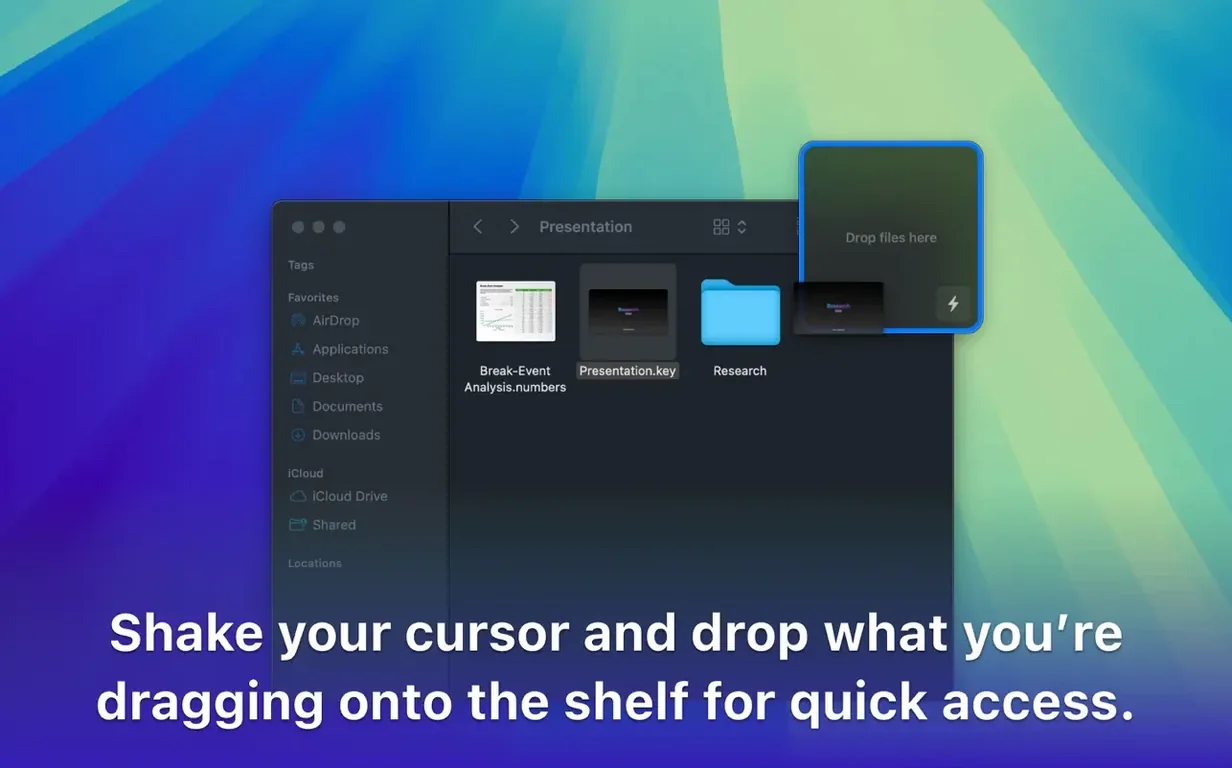
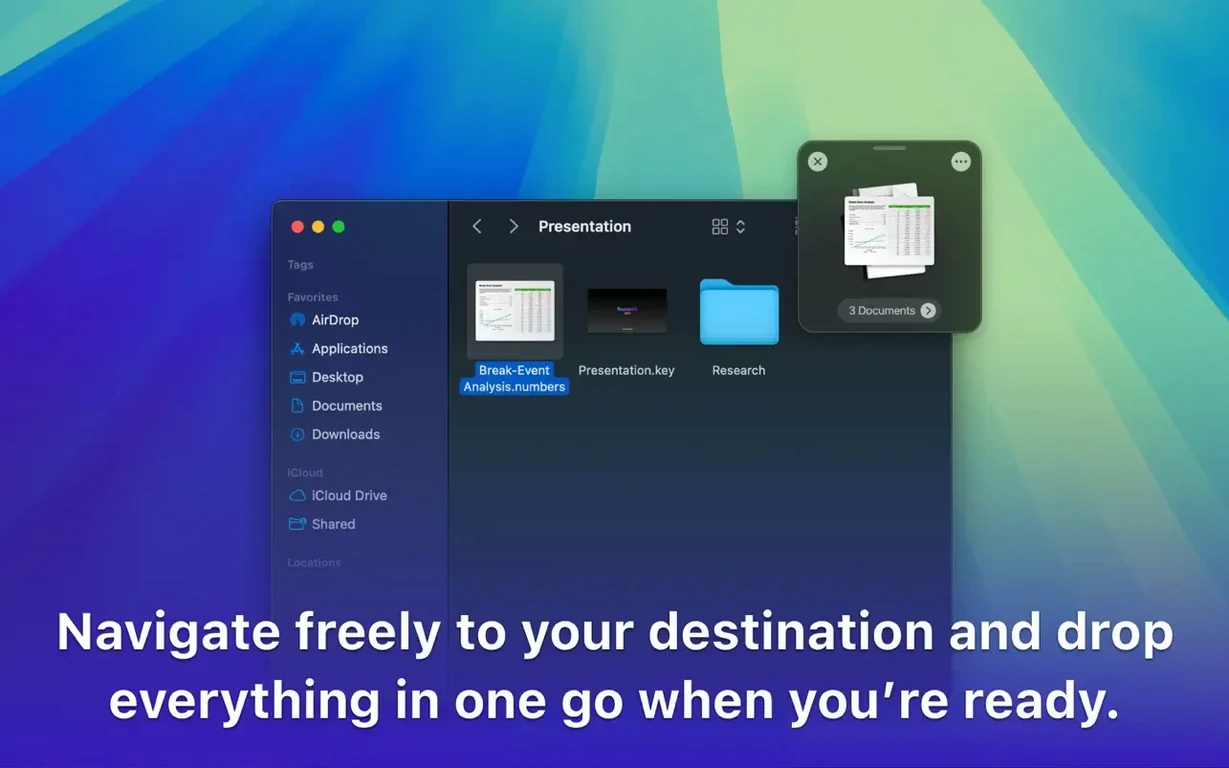
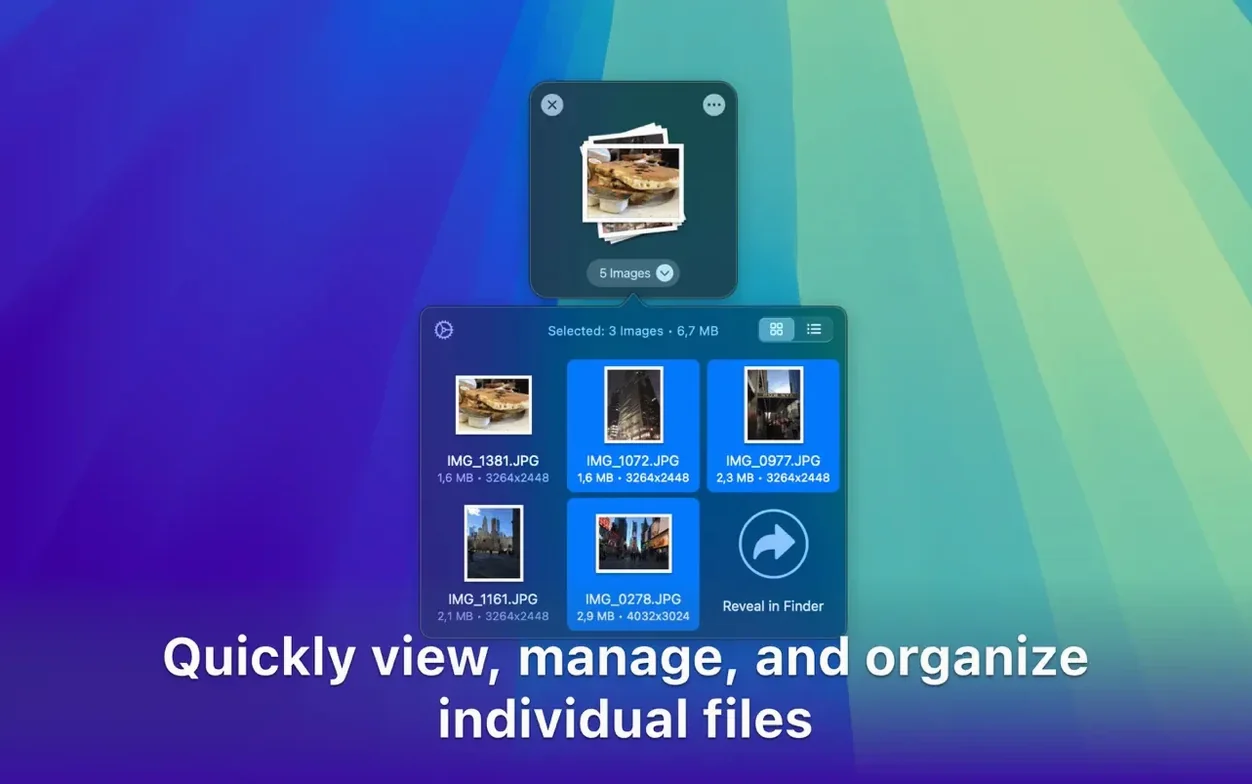
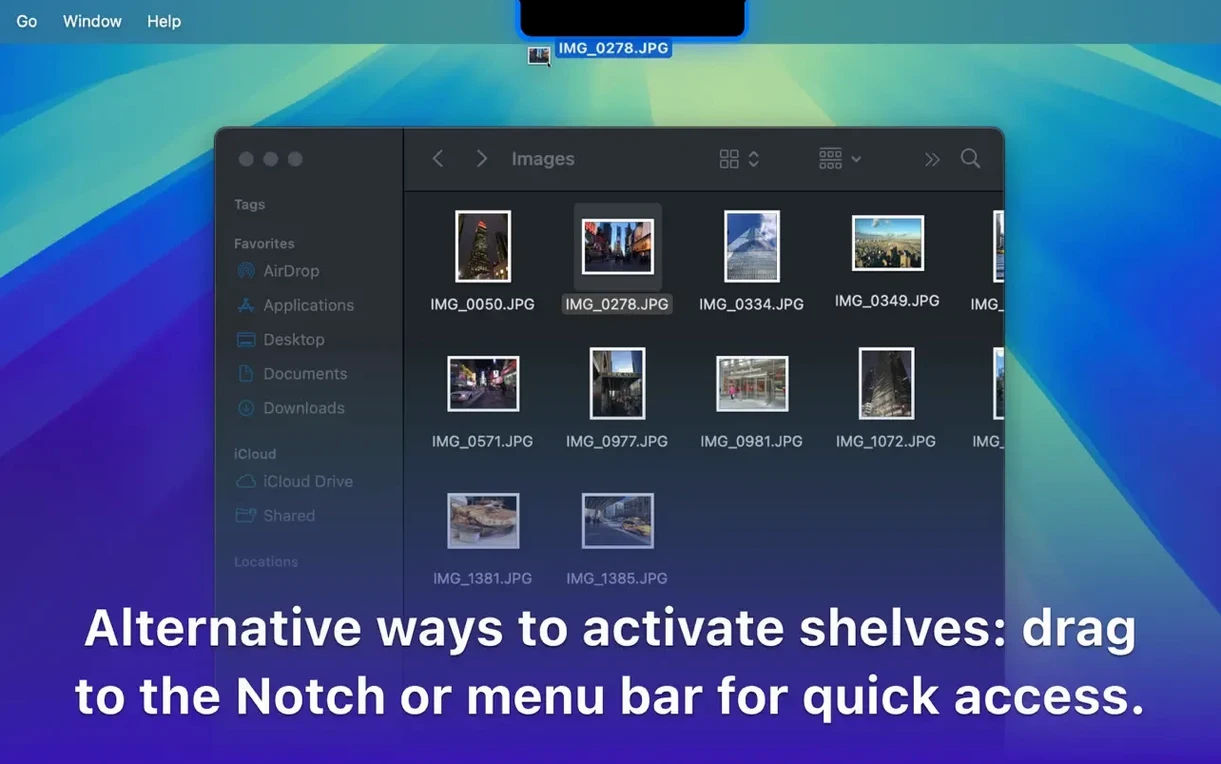
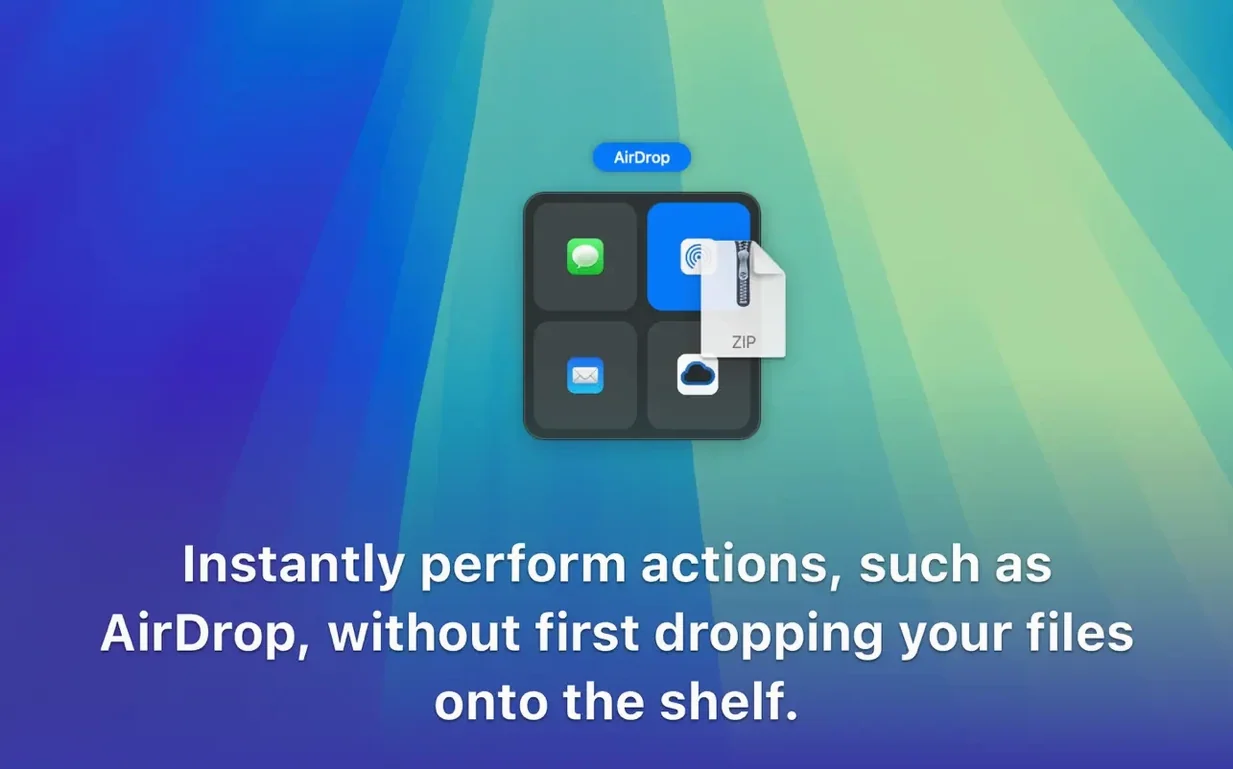
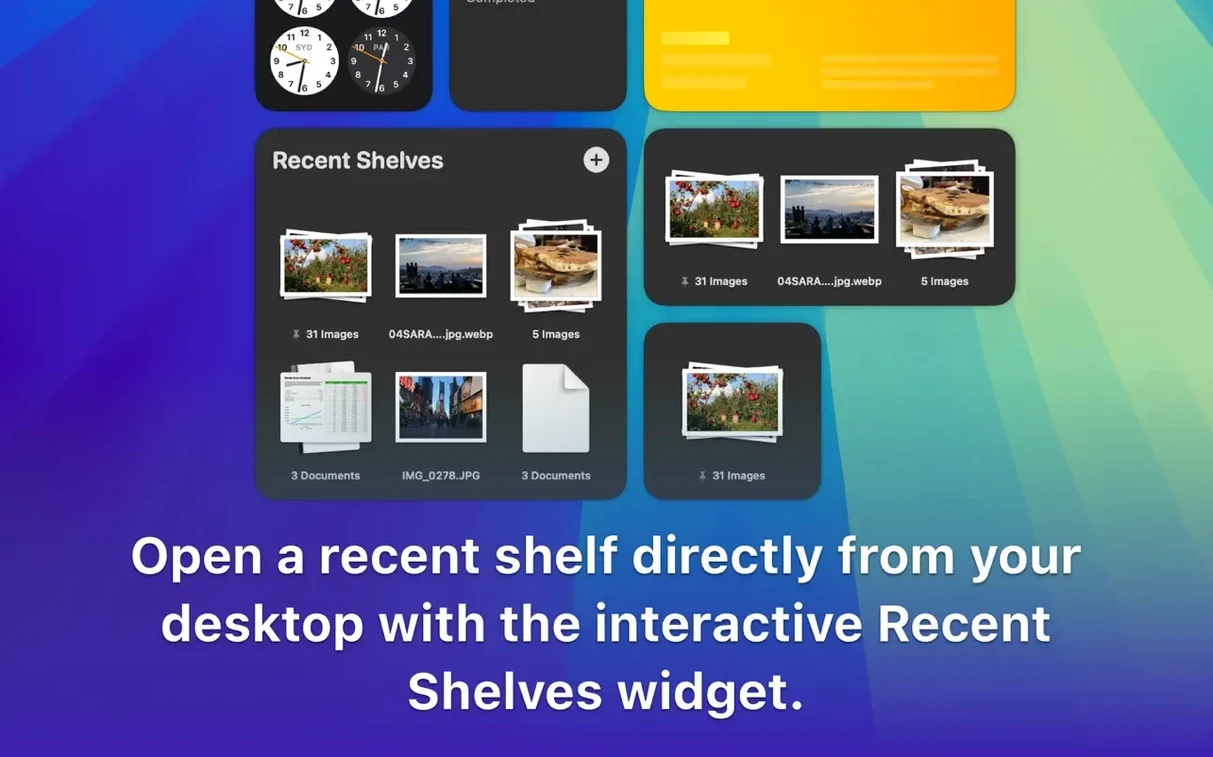
Every drag starts with a shelf that holds up to 100 items at once. Grab a photo, a PDF, a folder of audio files — anything you need to relocate — and let them sit in plain sight while you find the right destination.
Stage a multi-file move
Drag a handful of files from different folders onto the shelf, switch to the target window, then drop them all in one motion. No more shuttling between Finder tabs with a trembling trackpad.
Group before you share
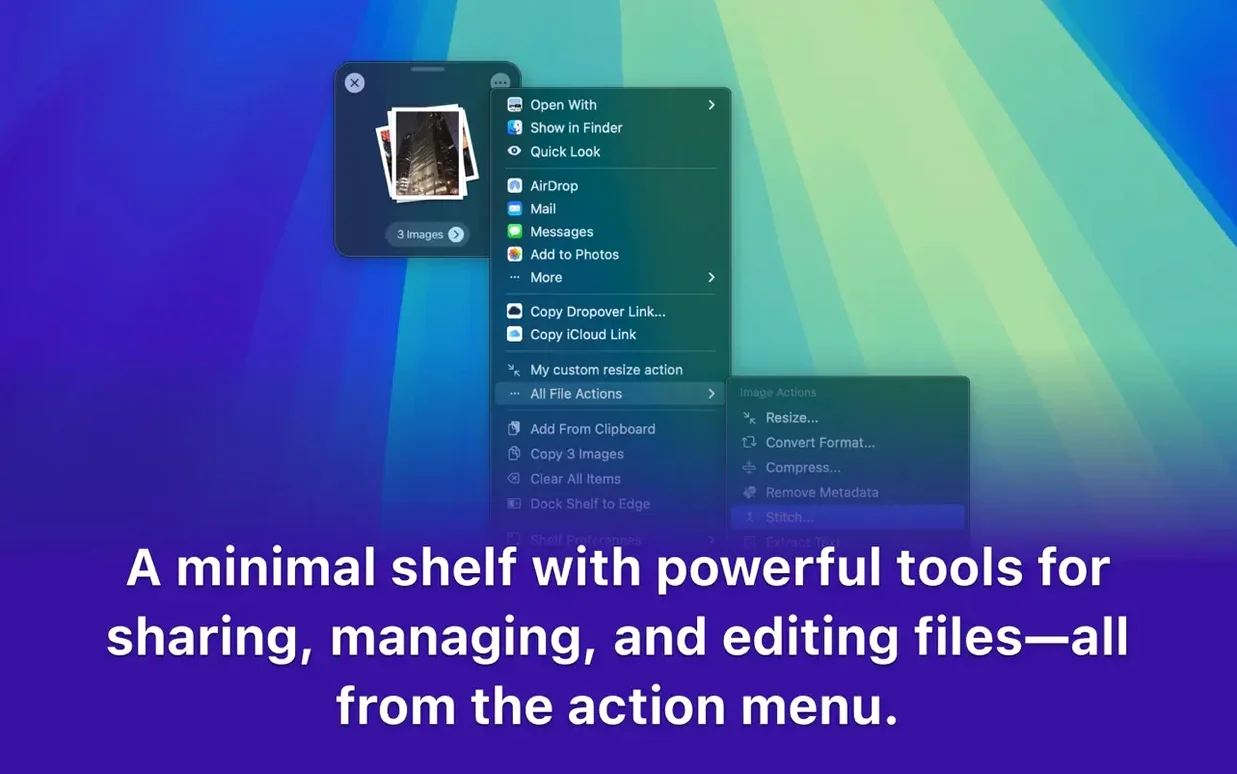
Collect screenshots, invoices or design assets on the shelf, right-click and copy them as a single cluster. Paste the whole group into an email or a chat thread without attaching one by one.
Send straight to the cloud
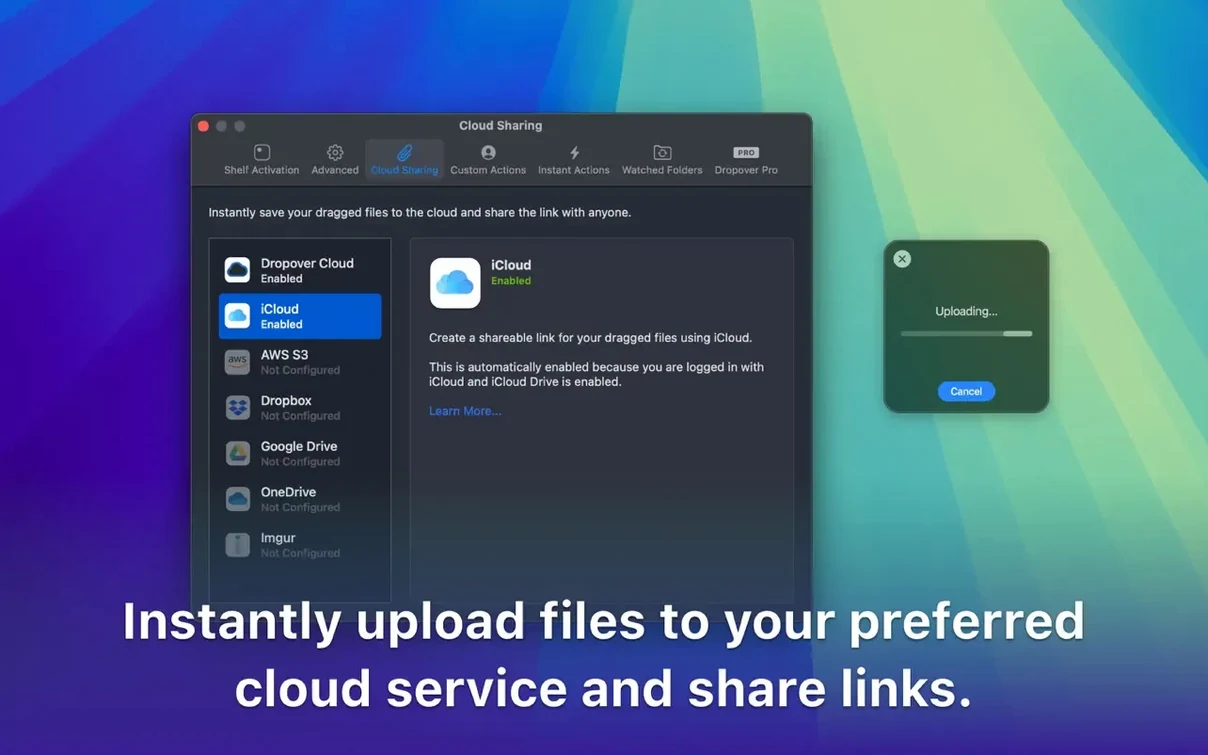
Drop gathered files onto the shelf and flick them to a Google Drive or Dropbox upload zone. The shelf remembers your cloud shortcuts, so a drag becomes a shareable link almost instantly.
Settings I’d change right away
Out of the box, Dropover works fine, but a few quick tweaks make it feel like it’s reading your mind. Open the preferences from the menu bar icon — it’s the little circle with an upward arrow — and start here.
- Hotkey for instant shelf. The default shortcut is
Shift-Command-X, but I’d remap it to something one-handed likeControl-Option-Space. That way you can summon a shelf mid-drag without stretching both hands across the keyboard. - Shelf auto-dismiss. Turn on “Close shelf after dropping items.” It keeps the screen clean and prevents orphaned shelves from piling up behind open windows.
- Opacity and size. Dial the transparency down to about 85% and set the shelf to a compact size. It stays visible without hogging space when you’re working on a 13-inch screen.
- Cloud shortcuts. In the Actions tab, add your most-used Google Drive or Dropbox folders. After that, dragging a file onto the shelf and hitting the cloud icon creates a shareable link in one move.
First days with Dropover: what actually helps
The shelf is instinctive, but the muscle memory for when to use it takes a few days. Here’s what smooths the transition.
Start with two-app transfers. Before you attempt a five-folder gather, just drag a single image from Photos into a Pages document via the shelf. It feels redundant at first — until you realize you didn’t have to resize either window or leave the document to hunt for the file.
Teach yourself the right-click share. Select a few files in Finder, right-click, and choose “Add to Dropover.” The shelf appears without a drag at all. This becomes second nature for compiling assets before uploading to a client portal.
Let the shelf hold text and links too. Highlight a URL or a paragraph in Safari, drag it to the shelf, and it sits there as a clippable snippet. Useful for research threads where you’re pulling quotes from multiple pages and pasting them into a note later.
Don’t ignore the Shortcuts integration. If you already use Shortcuts for repetitive tasks, you’ll find Dropover actions waiting. A simple shortcut can grab the contents of a folder, push them to a shelf, and trigger a cloud upload while you keep typing in another app.
Frequent context-switchers notice this first
Some Mac users install Dropover and wonder how they lived without it. Others try it once and forget it. The difference usually comes down to how many context switches you make in a day.
Designers and photo editors who bounce between Lightroom, Photoshop, Finder and a client communication app get immediate relief. A single shelf holds exported JPEGs, a PSD, and a font file while you compose an email — no hunting through Recent Items.
Writers and researchers dragging text snippets, PDFs and reference images between Safari, a word processor and a notes app find the shelf acts like a temporary research board. The ability to hold mixed content types — a link, a paragraph, a screenshot — changes how they assemble drafts.
Anyone who uploads to cloud services regularly. If your workflow involves “find file, upload to Drive, copy link, paste into Slack,” Dropover collapses three of those steps into a drag and a click. The time savings compound fast.
People who work across Spaces or multiple monitors. Dragging a file from one full-screen app to another is clumsy with Mission Control alone. A shelf sits in the same screen position regardless of which Space you’re in, so you can drop items into it from one workspace and retrieve them in another.
If you spend most of your day inside a single app with few file transfers, the utility is thinner — though the right-click “Add to Dropover” option still beats cluttering the Desktop with staging folders.
Your original files stay untouched
Does it create extra files or duplicates? No. The shelf holds references to the original items, not copies. When you drop a file from the shelf, the system moves or copies it exactly as if you’d dragged it directly. Nothing lingers or multiplies unless you explicitly tell the shelf to duplicate something.
Will it slow down an older Mac? The app is lightweight and runs natively on both Intel and Apple Silicon machines. On a Mac meeting the macOS 12 requirement, the shelf uses minimal resources — it’s essentially a floating window, not a background indexer or sync engine. You won’t feel it.
What happens to the shelf when I restart? By default, shelves clear when you quit the app or shut down. If you want items to survive a restart, toggle “Restore shelves on launch” in preferences. Otherwise, treat each shelf as a temporary workspace that vanishes when you’re done.
Can I use it without the menu bar icon? Yes. Once you set a hotkey and enable Finder and share-sheet integration, you can hide the menu bar icon entirely. The shelf still responds to keyboard shortcuts, right-click commands, and drag-and-shake gestures.
Is it safe for sensitive files? The shelf never uploads anything on its own. Cloud actions are manual and use the sharing APIs of the services you connect. Files stay local unless you explicitly send them somewhere.
- macOS 12 or later
- Runs on Intel and Apple Silicon Macs
Notes from other shops 0
Sign in or open a shop account to leave a note.
No notes yet. If you've used this on a shop Mac, tell me how it went.