
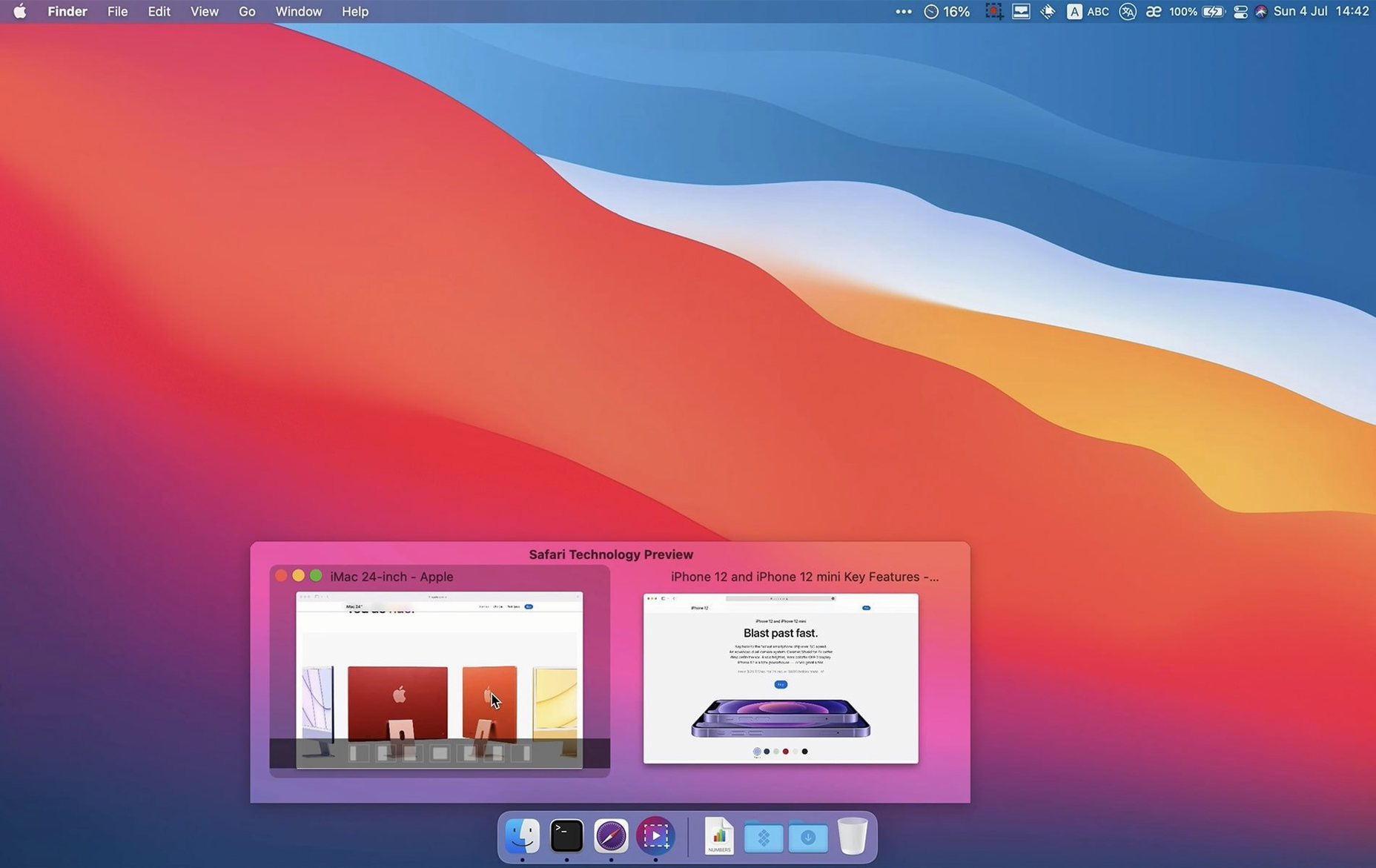
App Exposé does a fine job showing every window belonging to the frontmost app, but it asks for a gesture or a key press first. If you spend a lot of time hopping between windows from the Dock, that extra step adds up.
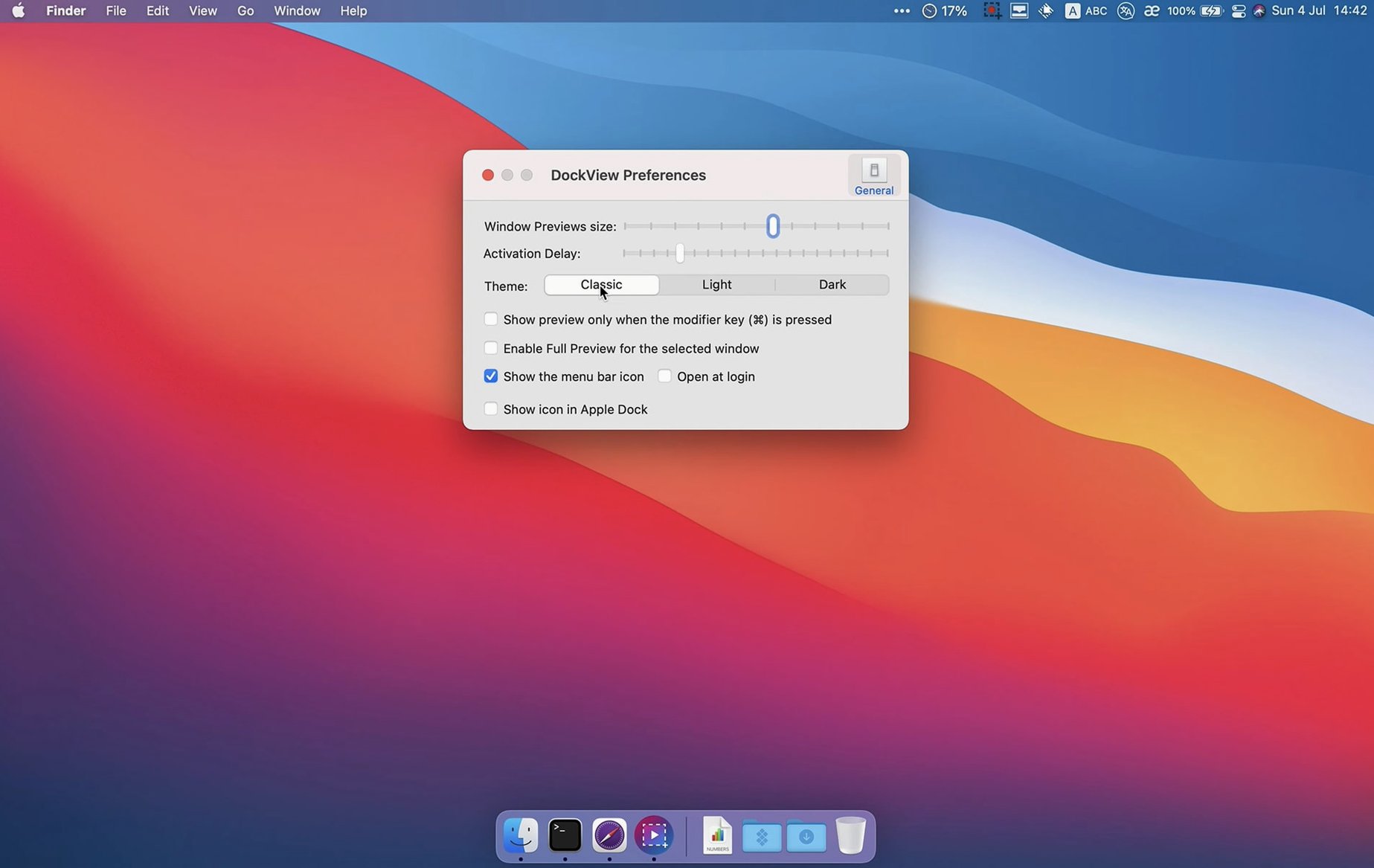
- Quit DockView from the menu bar if it's running, then open its Preferences. Under the Preview tab, decide whether you want thumbnails to appear on hover or on a click-and-hold — both are there in version 2.2.4, so pick whichever feels less jumpy day to day.
- While you're in settings, glance at the Appearance tab (newly split out) and set a preview size that doesn't cover too much of what's behind it. Medium works well on a laptop screen.
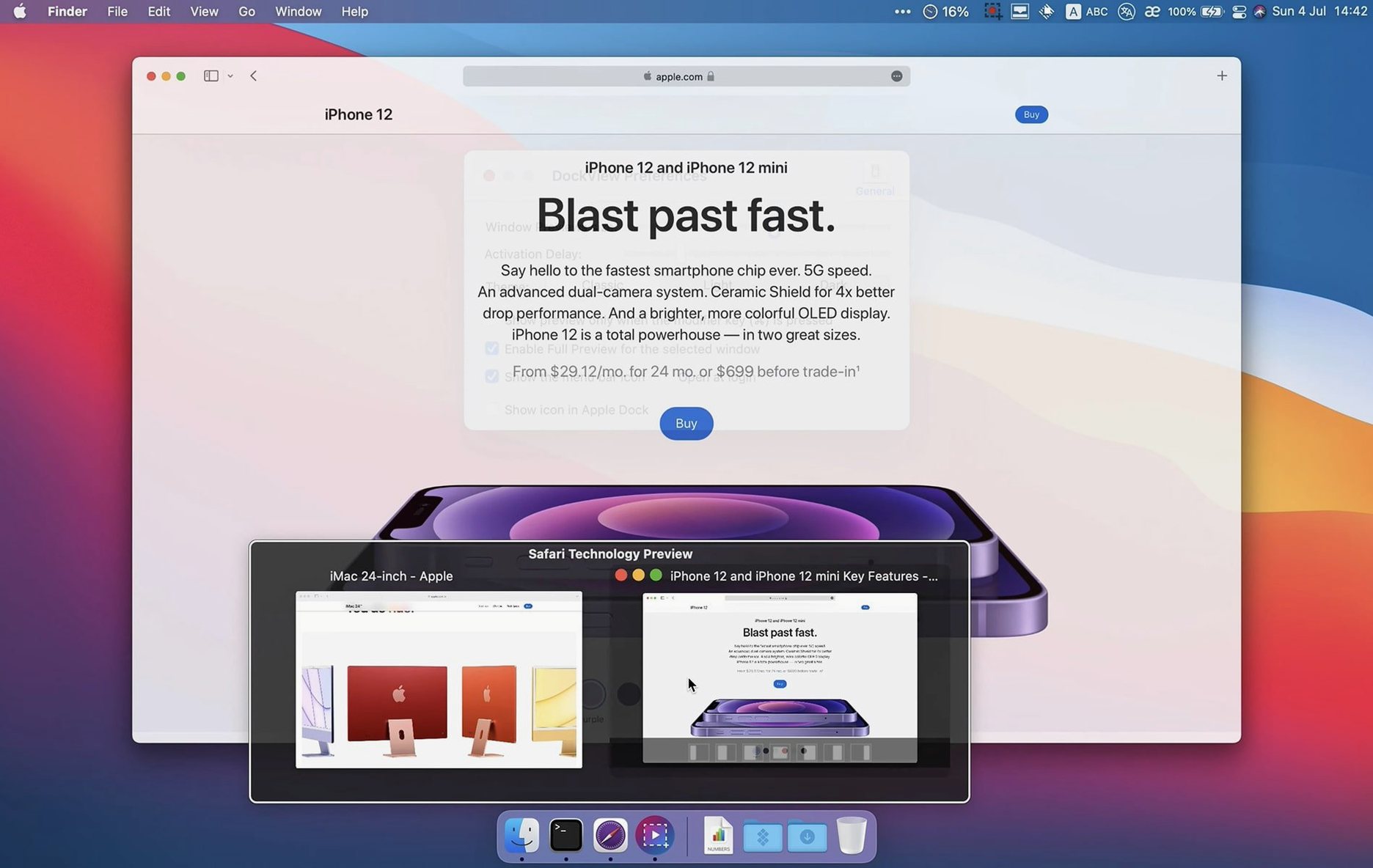
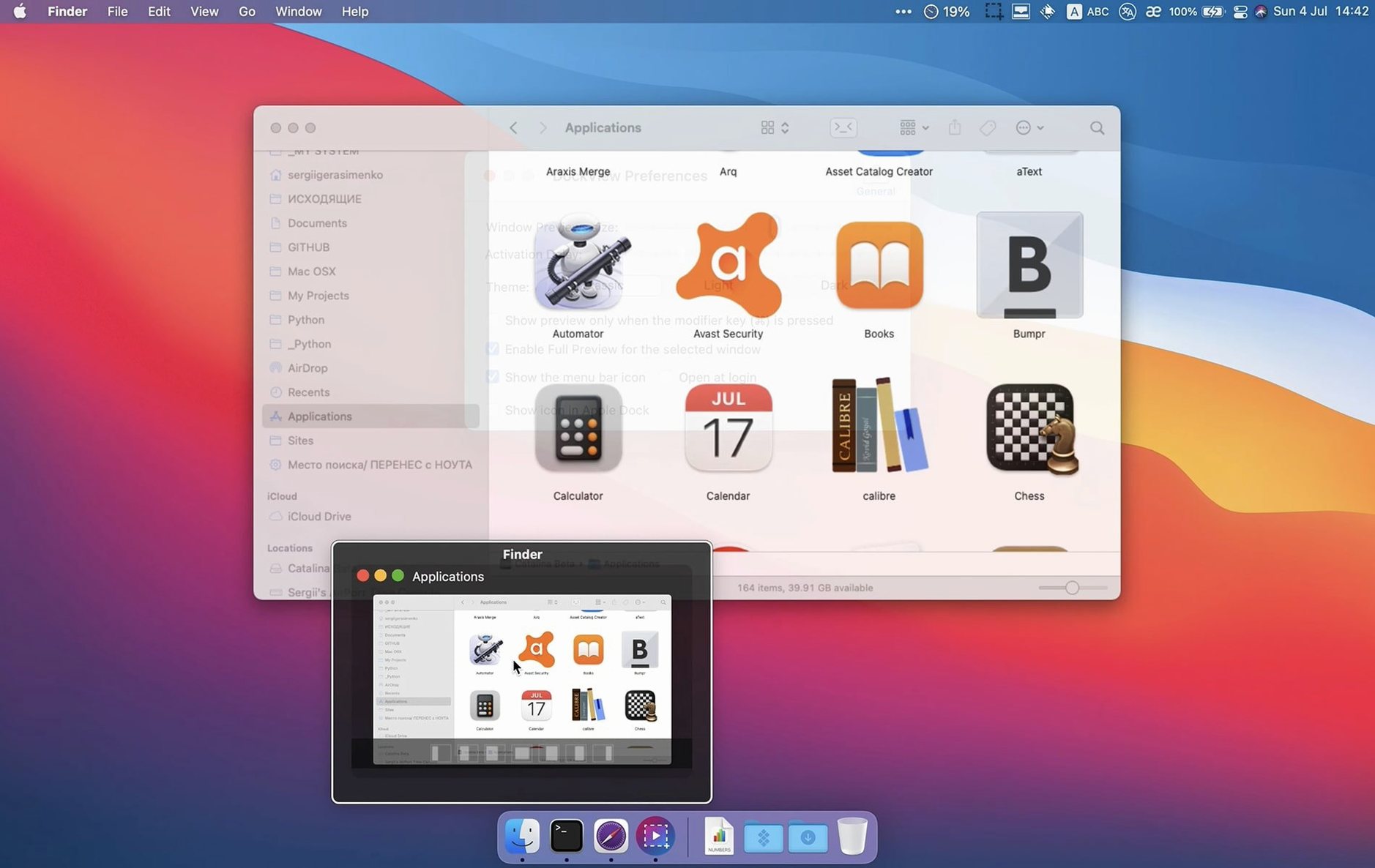
- Now just hover over any app icon in the Dock. A tidy panel pops up showing every window that app has open. Click a thumbnail and you're taken straight to that window — no hunting through tabs.
- If an app has more windows than you want to count, use the numbered shortcuts or the new Show All Windows button that sits right in the preview panel. It's a small addition that saves a trip back to the keyboard.
- Need to tidy up from the preview itself? You can minimize, maximize, or close windows right there. It's a quick way to clear the clutter without pulling an app to the front first.
DockView doesn't try to rethink the Dock or replace how you switch apps. It adds a thin, practical layer on top of what's already there. If you juggle Finder windows, multiple Safari windows, or a scattered set of documents across one app, it fits neatly next to the tools you already use.
I see a couple of habits trip people up early on, and they're easy to fix once you know about them. The first is forgetting that DockView needs two permissions — not just Accessibility, but also Screen Recording. Without the second one, you get blank thumbnails and a lot of head-scratching. The setup prompt mentions it, but it's easy to click past. A quick trip to System Settings clears it up.
The other mistake is expecting every app icon to show previews. DockView works on whichever app you hover over, but it only activates for the one currently under your cursor — not all of them at once. New users sometimes wiggle the mouse between icons too fast and wonder why nothing appears. Give it a beat. The hover delay is deliberate, and once your muscle memory adjusts, it feels natural rather than sluggish.
On performance, I'd call it unobtrusive. On an Apple Silicon Mac it sits around 40–60 MB of RAM in normal use, with barely a blip on CPU until you actually trigger a preview. Even then, the spike is tiny — it's generating a handful of static thumbnails, not streaming video. On older Intel hardware it's still well-behaved; a 2018 Mac mini I keep around runs it without any fan drama or Dock stutter.
Stability has been uneventful in the best way. I haven't hit a crash across a few weeks of daily use, and it doesn't interfere with Stage Manager or other window-management tools I've tried alongside it. The one thing worth knowing: if you use a Dock replacement or a tool that heavily skins the Dock, DockView may not play well with it. For the stock macOS Dock, though, it's a quiet, steady companion — the kind of utility you forget is running until you hover over an icon and the previews just show up, exactly when you need them.
A fresh build of DockView 2.6.0 has landed. The developer's official notes cover the full list of tweaks, but if you were waiting for a sign to grab the update, this is it.
- macOS 11 or newer
- Works on Apple Silicon and Intel Macs
Notes from other shops 0
Sign in or open a shop account to leave a note.
No notes yet. If you've used this on a shop Mac, tell me how it went.