
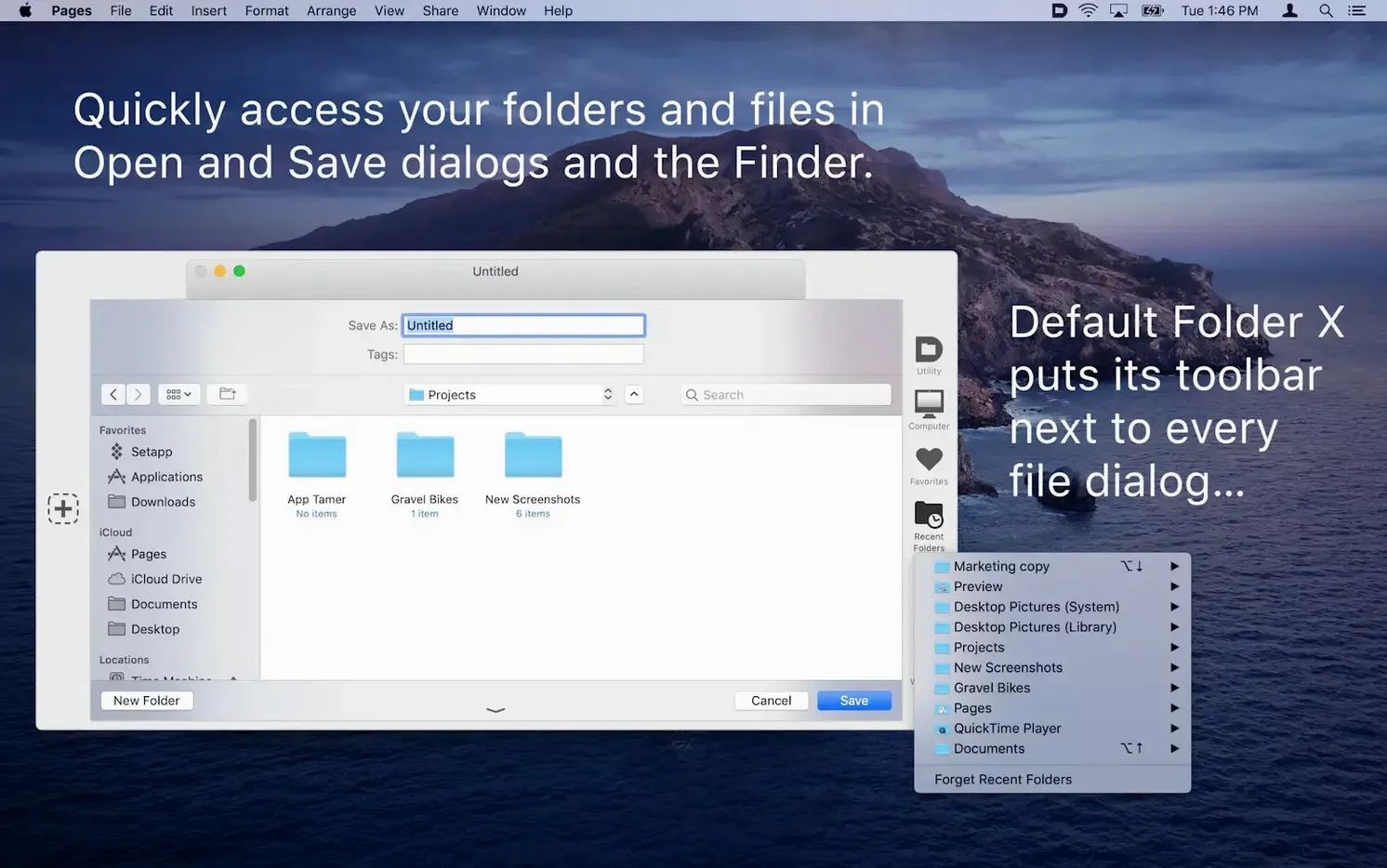
Your Mac’s Open and Save dialogs always land in the same generic spots, making you hunt through folders for the same handful of project directories every time. Default Folder fixes that by adding a toolbar and real file commands right inside those dialogs—and the deeper tools are what make it stick.
- Manage files without leaving the dialog. Select any file and press a shortcut to rename it, duplicate it, or move it to the trash. You can also add Spotlight keywords, tags, and Finder labels in the Save dialog so files are organized the moment you create them.
- Set per-application default folders. Tell your design app to always open its dialogs in your “Client Work” folder, while your text editor points to “Blog Drafts.” The app remembers the location for each program, so you stop navigating the same paths daily.
- Work visually with previews. Turn on thumbnail previews in Open dialogs and click to enlarge them. Spotting the right image or PDF without opening it saves time when you are skimming a packed folder.
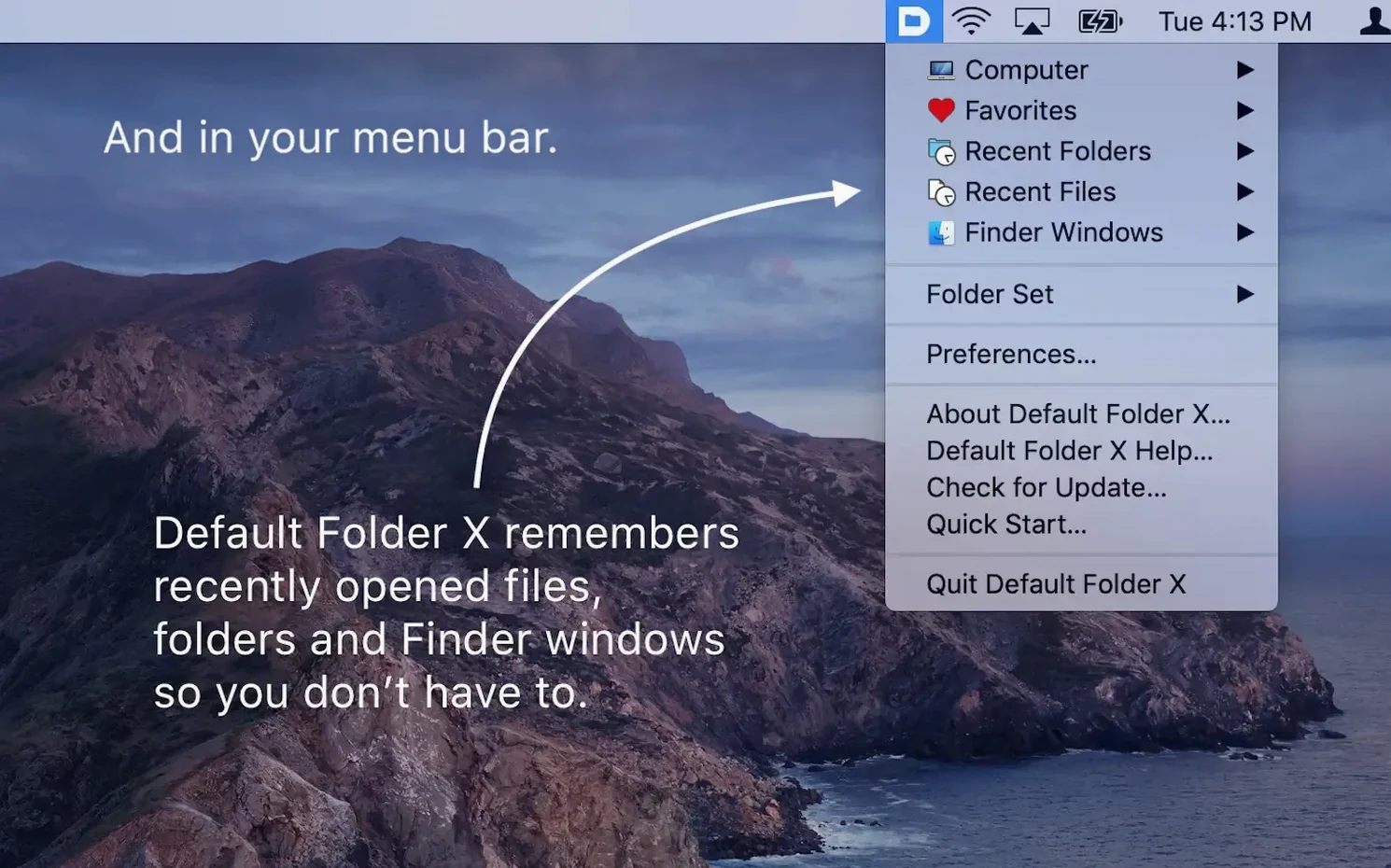
The menu bar icon gives you a single place to jump to default, favorite, and recent folders without opening a dialog at all, and the Finder window integration pulls those same shortcuts into your regular browsing. It is a quiet set of upgrades that reshapes how you move through your files.
When the toolbar stays missing in file dialogs
Most issues come down to permissions. Default Folder needs access under System Settings > Privacy & Security > Automation so it can talk to Finder and file dialogs. If the toolbar doesn’t appear in Open and Save sheets, that’s the first thing to check. On macOS 27, the wording uses Device Control and Data Access instead of the older Accessibility label, which trips people up—look for both.
Another sticking point: the app’s menu bar icon can seem unresponsive after a system update. Usually that’s iCloud sync catching up. Version 6.3.1 made pinned-folder changes sync immediately, but if you’ve just enabled iCloud and nothing shows, quit and relaunch the app to force a refresh.
If clicking a folder in a Save dialog’s List View instantly opens it rather than selecting it, that was a known bug on macOS 27—fixed in this release. Make sure you’re running 6.3.1.
Skipping per-app folder defaults leaves it half-used
The biggest one is treating Default Folder like a passive add-on and never setting per-app defaults. Open a program you use heavily, summon its Open or Save dialog, and use the toolbar to pick a folder. Then tell Default Folder that’s where that app should always start. Skip this step and you’re leaving most of the utility on the table.
Another beginner habit: ignoring the file management shortcuts. People still switch to the Finder to rename something they just spotted in an Open dialog. Press Return on any selected file inside the dialog—you can rename it, get info, or trash it without ever leaving. It feels odd the first time, then it becomes automatic.
It hooks into your dialogs instead of slowing them down
Does this slow down my Mac or mess with system dialogs? No—Default Folder hooks into the existing macOS dialog system rather than replacing it. The overhead is negligible, and you can toggle individual features off from its settings if you want a lighter touch. The standard Open and Save sheets still look and behave like macOS; they simply gain a toolbar and a few extra keyboard shortcuts.
Will it clash with other Finder utilities? Generally not. It plays nicely with most launchers and clipboard managers. If you use another tool that also modifies dialogs or hooks into Finder windows, you might see overlapping shortcuts, but you can remap Default Folder’s keys or disable the conflicting feature. The drag target below the menu bar icon—new in 6.3.1—is entirely optional and stays out of the way when you’re not dragging files.
Can I try it on an older Mac? As long as you’re on macOS 10.13 or later and running an Intel or Apple Silicon machine, you’re set. The High Sierra issue that blocked switching between folders in dialogs was patched in this version, so even older hardware gets a smooth experience now.
What's new in 6.3.3: the developer's latest round of fixes and improvements. Head to St. Clair Software's site for the full breakdown if you like reading through every detail.
- macOS 10.13 or later
- Apple Silicon and Intel 64-bit Macs
Questions from the stall
Can Default Folder set different default locations for different apps?
Yes. You can assign a specific default folder for each application, so your graphics app and your word processor each open their dialogs in the folders you choose.
Does it let me rename or delete files inside an Open dialog?
It does. You can rename, duplicate, delete, and get info on files directly from Open and Save dialogs without switching to the Finder.
Which languages does the interface support?
The interface is available in English, German, Danish, French, and Japanese.
Notes from other shops 0
Sign in or open a shop account to leave a note.
No notes yet. If you've used this on a shop Mac, tell me how it went.