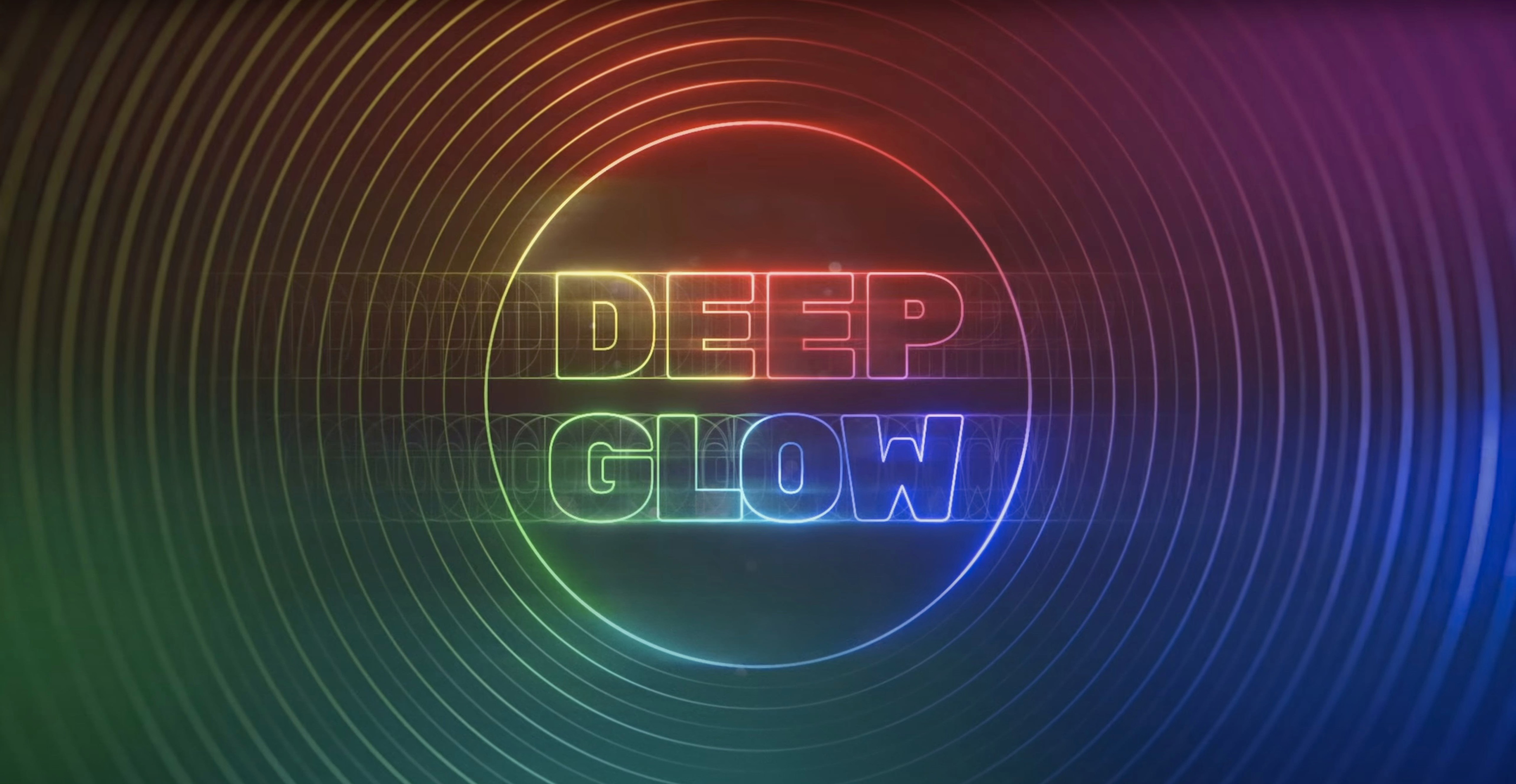

Deep Glow runs natively on Apple Silicon and Intel Macs, so it slots right into any modern After Effects setup without a hiccup.
Building a natural falloff
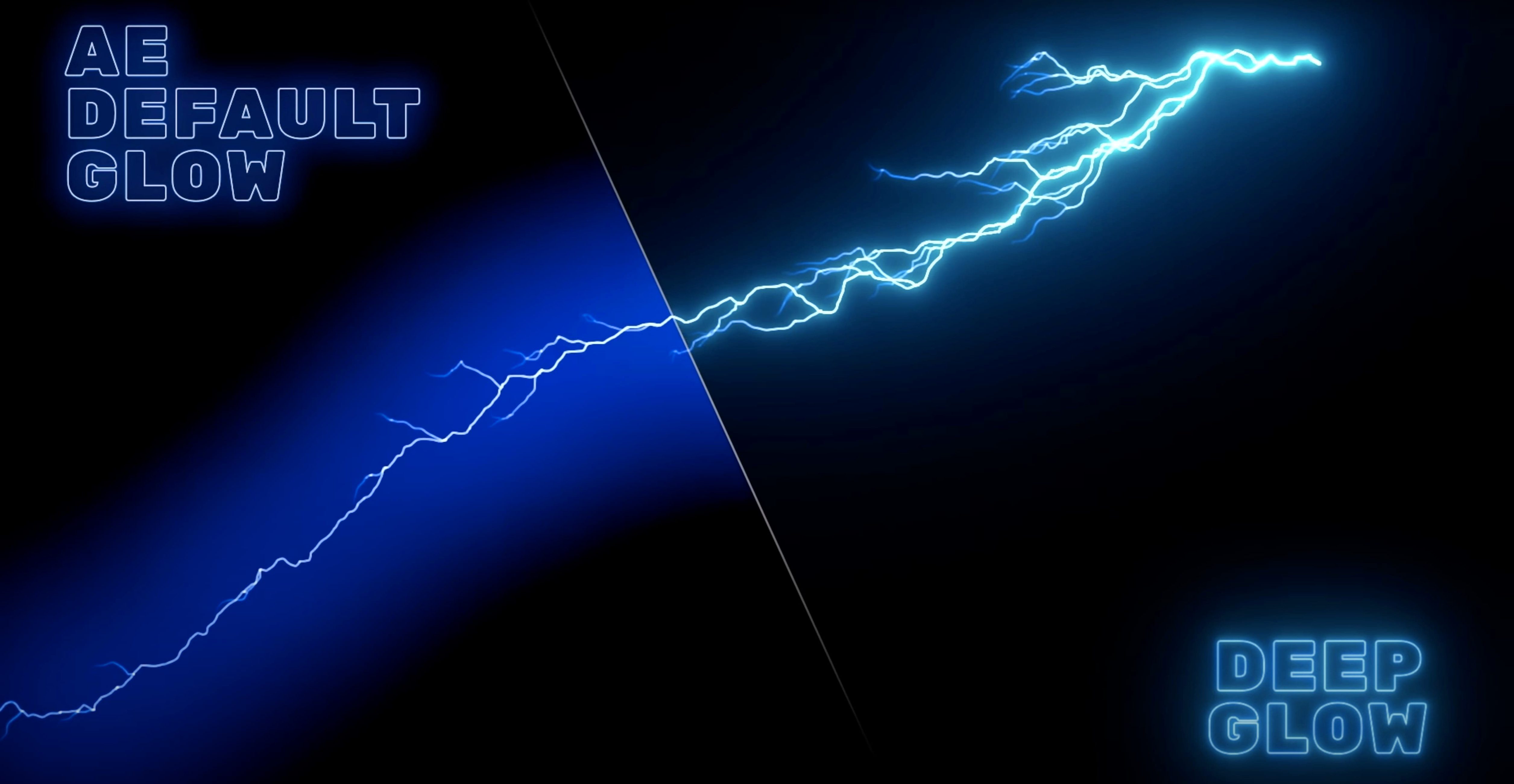
The core of this plugin is its simulation of real inverse-square falloff—the way light actually dissipates in physical space. Instead of a flat, uniform halo, you get a volumetric spread that feels grounded in the shot.
Dialing in stylized grain
The grain controls let you push into textured, gritty territory without leaving the host app. You can add subtle film-like noise to the glow pass or crank it up for a distressed, analog look that sits on top of your clean vector layers.
Managing quality and composite
Downsampling and quality toggles keep previews snappy when you are blocking out a scene, then you can flip to full resolution for the final render. The built-in compositing controls let you refine how the glow blends with your base footage, so you can isolate it to midtones or pull it back from the shadows without stacking a dozen adjustment layers.
Where Deep Glow fits in a real project
On its own, a glow plugin does one thing. The moment you drop it into a comp with other effects, expression-driven rigs and a few adjustment layers, it starts to matter how cleanly it plays with everything else. Deep Glow respects the render order inside After Effects, so it sits predictably in the stack. That means you can feed it a matte from a shape layer above, drive its threshold with a luma key from below, or let it bloom only in areas where a fractal noise map overlaps.
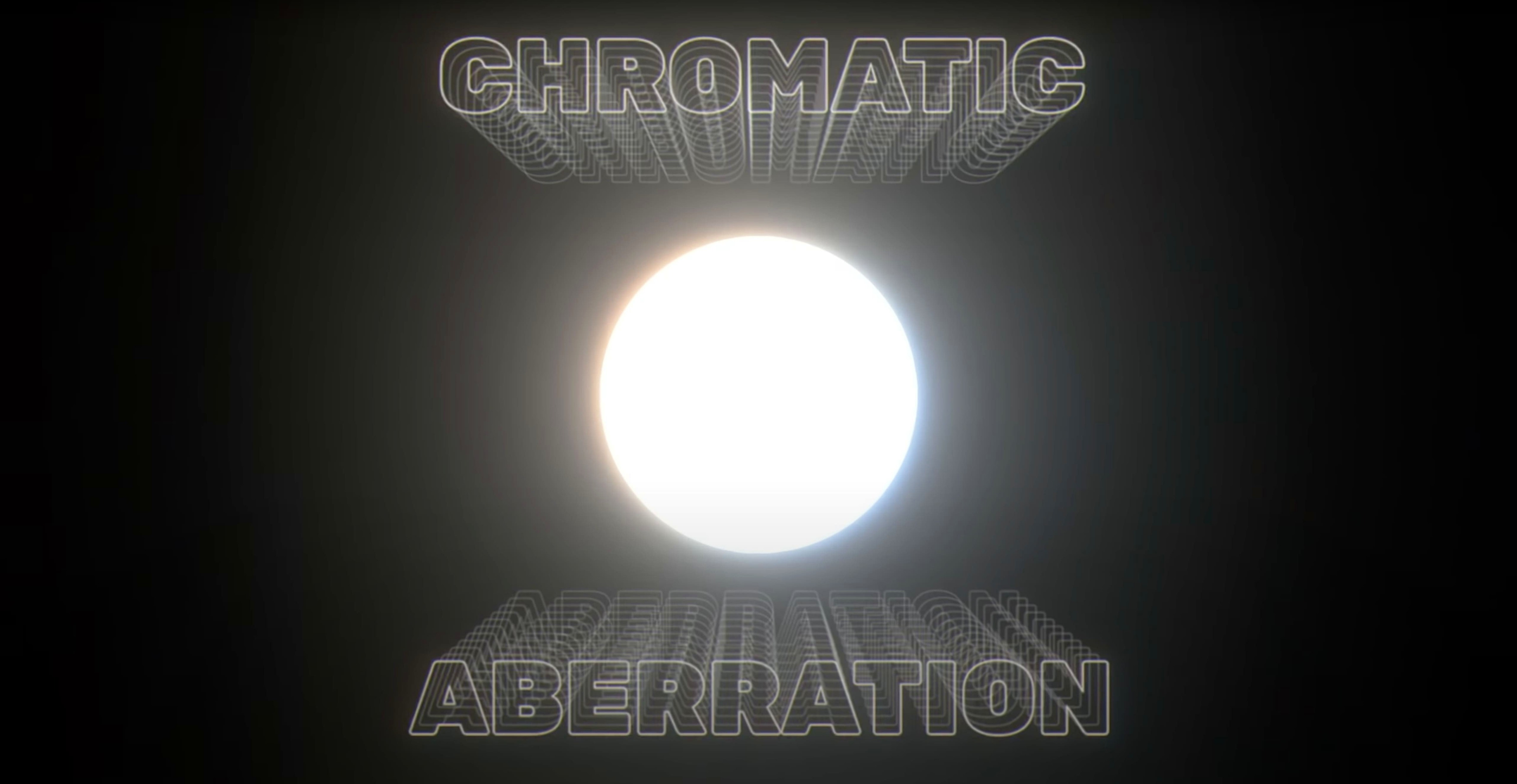
I like pairing it with the native Camera Lens Blur effect. A little defocus on the glow pass softens the edges without touching the crisp falloff curve Deep Glow calculates internally. You get the kind of halation you would expect from a real lens, not a Gaussian blur hack. The same idea works with Displacement Map—push the glow through a subtle heat-ripple pattern and suddenly a title card feels like it is radiating warmth rather than just sitting on top of the frame.
macOS color management flows through as well. Since Deep Glow works in a non-linear color space, it does not fight the project-wide color settings the way older 8-bit-minded effects sometimes do. If your comp is set to a wide-gamut working space, the glow expands into those saturated edges naturally. Render it out to ProRes 4444 and the bloom survives the trip to DaVinci Resolve or Final Cut without banding surprises.
Learn the three controls that do most of the work
When you first install it, resist the urge to slap it on everything. The plugin is fast enough that you can, but the real time-saver is learning which three controls do most of the heavy lifting so you are not hunting through sliders while a client waits.
Start with Radius and Threshold. Radius governs the spread, and Threshold decides which luminance levels trigger the glow at all. A low threshold grabs midtones; a high threshold restricts it to specular highlights. Get those two dialed in before touching anything else, and you will have a usable look in under a minute. After that, Intensity adjusts the overall brightness of the glow pass without re-tweaking the falloff shape you already set.
For the first few comps, tick the Half Resolution toggle during layout. It downsamples the internal glow calculation and keeps the preview responsive, especially on a MacBook Air where GPU bandwidth is tighter. Switch it back to Full before you render, and the quality jump is immediate. I also recommend pinning the Effect Controls panel open for Deep Glow specifically—the sliders are responsive enough that you will want to scrub values in real time while watching the comp window, rather than typing numbers blind.
If you work with others, save a preset once you land on a base glow you like. Motion designers on the team can drop it in without reconstructing the look from scratch. The preset carries over downsampling settings too, so nobody accidentally renders three-minute previews because they left it at full quality.
Switch to Glow Only view to check falloff
The View dropdown is one of them. By default it shows the composite result, but you can switch it to Glow Only mode. That isolates the glow pass on a black background, which is perfect for checking whether the falloff is smooth or if the grain pattern has any repeating artifacts. It also makes it trivial to export a glow pass as a separate render for a compositor who wants to fine-tune the blend later.
Another hidden gem: the Composite menu. It is not just an on/off blend. You can set it to Screen, Add, or a handful of other transfer modes directly inside the plugin, bypassing the need for a separate blending layer. If you are stacking multiple glows—say a tight, bright core glow and a wide, dim halo—stacking them with Add mode inside the effect keeps the math in floating-point without clipping.
Keyboard shortcuts work too, but only if you click into a value first. Once a slider field is active, the up and down arrow keys nudge it by one unit. Hold Shift while nudging and the increment jumps by ten. It sounds minor, but when you are fine-tuning a 2.7-pixel radius against a 4K plate, that precision matters.
On multi-monitor rigs, undock the Effect Controls panel and drag it to a secondary display. Deep Glow's controls are compact enough that they do not eat the whole panel, but having them always visible while the comp fills the main screen makes the feedback loop almost tactile.
Faster than stacking three native glow effects
GPU acceleration is doing real work here. On an Apple Silicon Mac, a single Deep Glow instance on a 1080p comp updates perceptibly faster than a stack of three native glow effects trying to approximate the same look. The difference is not academic—it is the kind of thing that keeps you in flow state instead of staring at a spinning beach ball.
Memory usage stays modest. I see the plugin hold steady in the low hundreds of megabytes even at 4K with grain enabled. It releases resources cleanly when you close a comp, so After Effects does not slowly bloat over a long session the way it does with certain third-party particle engines. That matters if you are bouncing between a dozen comps in a single project file.
Stability has been uneventful, which is exactly what you want from a plugin you lean on for client deadlines. I have not seen it trigger a render failure or force-quit After Effects, even when stacked five instances deep on an 8K timeline. The plugin is mature enough at version 1.6 that the edge cases—odd comp sizes, non-square pixel aspect ratios, nested precomps with continuously rasterize turned on—all behave predictably.
One thing worth knowing: the grain engine is the most computationally expensive part. If you are previewing on battery and need to stretch the charge, toggle grain off while you work on timing and turn it back on for the render. The visual difference is easy to remember, and the GPU thanks you with cooler temps.
Native ARM support means no Rosetta slowdown
Does it work with the latest After Effects on Apple Silicon? Yes. The plugin ships as a universal binary, so it runs natively on ARM and Intel. There is no Rosetta translation layer slowing things down. You install it once and After Effects picks up the right architecture automatically.
Will it slow down my whole comp? Only if you let it. The downsampling control is the lever you pull to balance speed and quality. At quarter resolution, even an older Intel MacBook Pro from 2019 holds real-time playback on a simple text animation with Deep Glow applied. Crank it to full quality and high samples for the final export, and the render engine takes its time—but that is true of any high-quality effect.
Can I get the grainy, filmic look I see in tutorials? Yes, and you do not need to stack additional noise effects to get there. The built-in grain controls let you dial in the intensity, size and softness of the grain directly on the glow pass. It interacts with the falloff curve, so grain naturally tapers off at the edges of the glow rather than sitting as a uniform blanket over the frame. That is the detail that sells the look.
Is it just for titles and logos? That is where most people start, but it pulls its weight on live-action plates too. Drop it on a window reflection or a rim light and set the threshold high. The glow clings to the bright edge and blooms outward without lifting the shadows. It works as a subtle lighting enhancement that does not scream "plugin." If you search for deep glow ae examples, you will see it used on everything from lyric videos to sci-fi UI comps.
Does it share settings with the Windows version? The plugin file is cross-platform. A project saved with Deep Glow on a PC opens fine on a Mac and vice versa. Presets also transfer without any conversion step, which keeps things moving if your studio has a mixed-OS render farm.
- macOS with Intel or Apple Silicon processor
- Adobe After Effects
- Interface language: English
Questions from the stall
Does Deep Glow work natively on Apple Silicon Macs?
Yes, the plugin supports both ARM and x86 64-bit architectures, so it runs natively on Apple Silicon and Intel Macs.
Can I get a grainy, stylized look with Deep Glow?
Absolutely. The grain controls are built specifically for creating textured, stylized glow results right inside After Effects.
What version of Deep Glow is currently available?
Version 1.6 is listed as a previous version on the developer's releases page, and it includes full compositing controls for refining your glow.
Notes from other shops 0
Sign in or open a shop account to leave a note.
No notes yet. If you've used this on a shop Mac, tell me how it went.