Hard drives rarely give you a polite warning before they fail. One day a project folder won't open, or the beach ball overstays its welcome. DriveDx exists so you can spot trouble before it reaches that point, by checking SMART status and watching for early signs of wear.
Run a quick health check
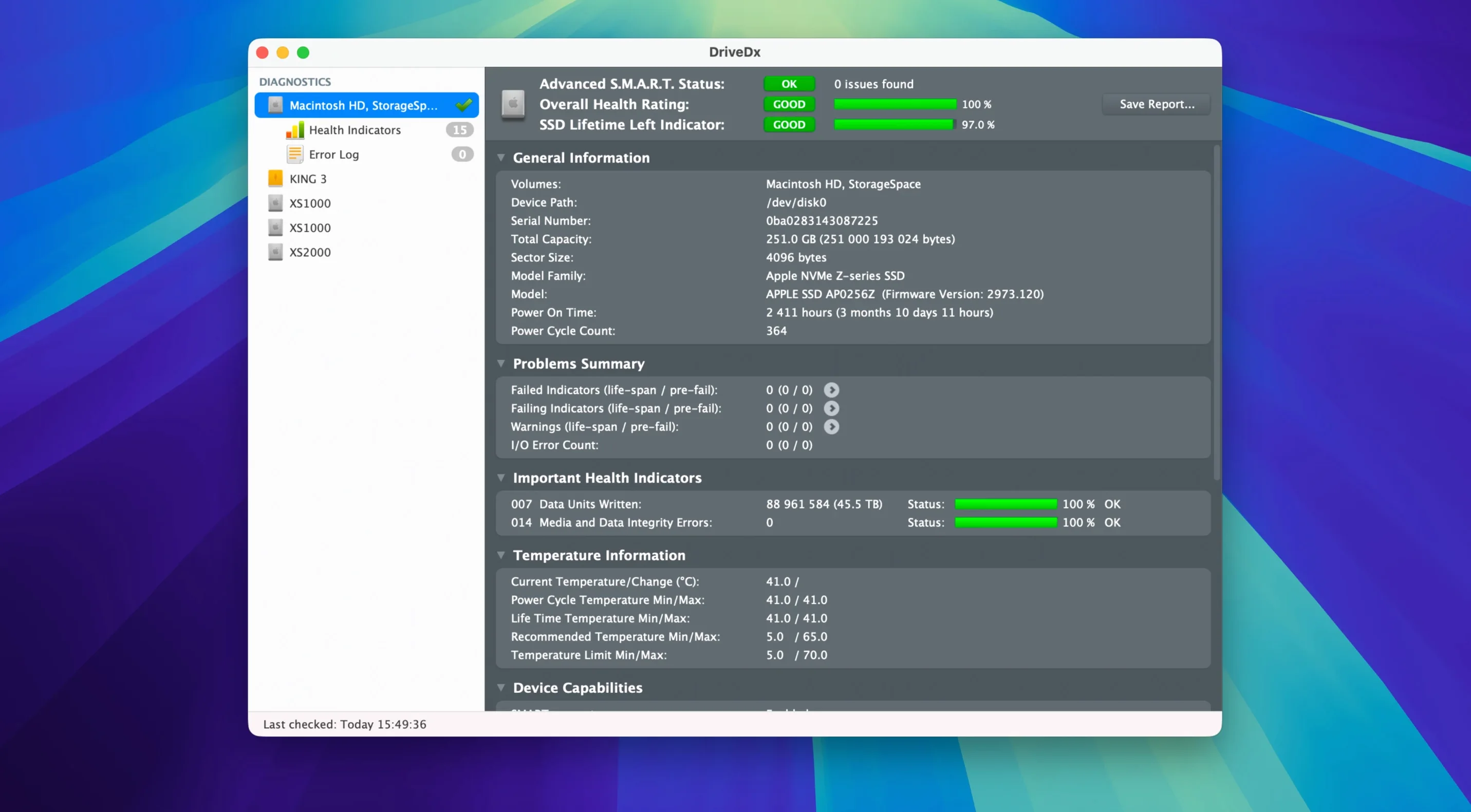
Open DriveDx and it reads the drive's SMART data right away, showing an OK, warning, failing, or failed state. It is a third-party utility, so it digs into details the Finder never mentions.
Run a deeper self-test
When a quick check feels too light, the short and full self-tests give the drive more work to do and report back what they find. Good for drives that have been acting vague.
Get warned before things go bad
DriveDx uses heuristic algorithms to predict failures, and it can send notifications when it detects problems. That means you hear about a worrying drive before it takes your work with it.
Wednesday morning: spotting a sluggish drive in seconds
Let’s say it’s Wednesday morning and my shop Mac has been sluggish saving large design files. I don’t panic — I open DriveDx instead.
- Launch the app. It scans all connected drives immediately. Within seconds I see my internal SSD and the external drive I use for daily backups listed with their health status.
- Read the at-a-glance verdict. The internal SSD shows “OK,” but the external backup drive has slipped to “Warning.” I click its row to dig in.
- Check what changed. The drive details panel shows the culprit: reallocated sector count has ticked up since last month. The health indicator bar sits in the yellow zone, not red, so I have time to act.
- Run a short self-test. I click the self-test button and pick the short option. It takes about two minutes. The result confirms the drive is still functional but recommends keeping an eye on it.
- Make a plan. I drag the last few weeks of catalog photos and product designs to another drive while the warning is still just a warning. Nothing was lost, and I order a replacement drive before the next craft fair rush.
The whole check took less than ten minutes, and most of that was me deciding which files to copy first.
SSD wear and the other pre‑install questions I hear most
Over the years, a few questions come up again and again in my inbox and at maker meetups. Here’s the short version.
Does DriveDx work with SSDs as well as old spinning drives? Yes. It monitors SSD wear indicators like total data written, wear leveling count, and media wearout. The heuristics adjust based on whether it’s talking to an HDD or an SSD, so the health state you see reflects the right kind of stress for that drive type.
Will it slow down my Mac while it runs in the background? Barely. The periodic checks are lightweight — they read SMART attributes and compare them against previous values. On my 2019 iMac, I never notice it unless I open the main window.
Do I need to know what “raw read error rate” means? Not really. DriveDx translates all those cryptic SMART codes into plain English health indicators and a simple color-coded status. You can ignore the technical table if you want, but it’s there when curiosity strikes.
Can it warn me before I lose files? That’s the whole idea. The heuristic prediction looks for patterns that typically show up weeks or months before total failure. If you act when the status hits “Warning,” you’re usually ahead of the problem.
Run a full self‑test before you trust the quick status
A few things worth doing right away, especially if you rely on your Mac for income.
Let it run a full scan on every connected drive. The quick status check is instant, but I like to run a full self-test on each drive within the first day. It gives DriveDx a solid baseline to compare against later. Expect a full test on a large spinning drive to take a couple of hours — start it before lunch.
Turn on background monitoring. Open preferences and make sure “Periodic drive status checks” is enabled. I set mine to check every few hours. It’s a small checkbox that does a lot of quiet work.
Set up notifications you’ll actually notice. The built-in notification support can ping you when a drive’s health changes. I keep it simple: alert me on any drop from OK to Warning or worse. No need for a notification every time an attribute nudges a decimal point.
Label your drives physically. After a session with DriveDx, I write the date and health status on a piece of washi tape and stick it to the drive enclosure. Low-tech, but when I’m in a hurry I can glance at the shelf and know which external drive needs retiring soon.
Don’t obsess over a single wobbly attribute. One pending bad sector on an older drive isn’t always a crisis. Watch it over a week. If the number stays flat, the drive probably worked around it. If it climbs, take the warning seriously.
DriveDx warns you before Disk Utility has to rescue anything
DriveDx doesn’t try to replace Disk Utility or your backup tool — it sits earlier in the chain, telling you when to act so those other apps never have to perform heroics.
With Disk Utility. Disk Utility is for formatting, partitioning, and running First Aid on the file system. DriveDx works at the physical drive level. When First Aid finds directory damage, the underlying cause might be a failing drive. I run DriveDx first, then Disk Utility if the drive passes.
With backup apps. Time Machine, Carbon Copy Cloner, and ChronoSync all fall back on the assumption that the destination drive is healthy. DriveDx watches that destination drive. If your backup target starts showing wear, you want to know before you need to restore from it.
With macOS notifications. DriveDx hooks into Notification Center cleanly. Alerts show up like any other Mac notification, and you can control them from System Settings under Notifications. No custom growl-like popup that feels out of place.
With Finder and file management. In a roundabout way, DriveDx supports how I use Finder tags. When a drive hits Warning status, I tag its icon on the desktop with a red “replace soon” tag. That way the visual reminder follows the drive even when DriveDx isn’t open.
With system monitors. Some people run iStat Menus or similar tools that show disk activity. Those tell you how busy a drive is; DriveDx tells you how healthy it is under all that activity. The two together paint a much fuller picture.
Version 1.12.1 is a maintenance release that keeps DriveDx running cleanly. Here's what changed:
- Ready for macOS Sonoma.
- The driver installer no longer requires Rosetta 2.
- Drive diagnostic algorithms and heuristics were improved.
- Support for Patriot P200 SSDs was improved.
- macOS 10.9 Mavericks or later
- Runs on both Intel and Apple Silicon Macs
Questions from the stall
Does DriveDx work on older Macs?
Yes, DriveDx requires macOS 10.9 Mavericks or later, and it runs on both Intel and Apple Silicon Macs.
What health states does DriveDx report?
DriveDx reports OK, warning, failing, and failed states, which gives you more notice than a simple pass-or-fail check.
Notes from other shops 0
Sign in or open a shop account to leave a note.
No notes yet. If you've used this on a shop Mac, tell me how it went.