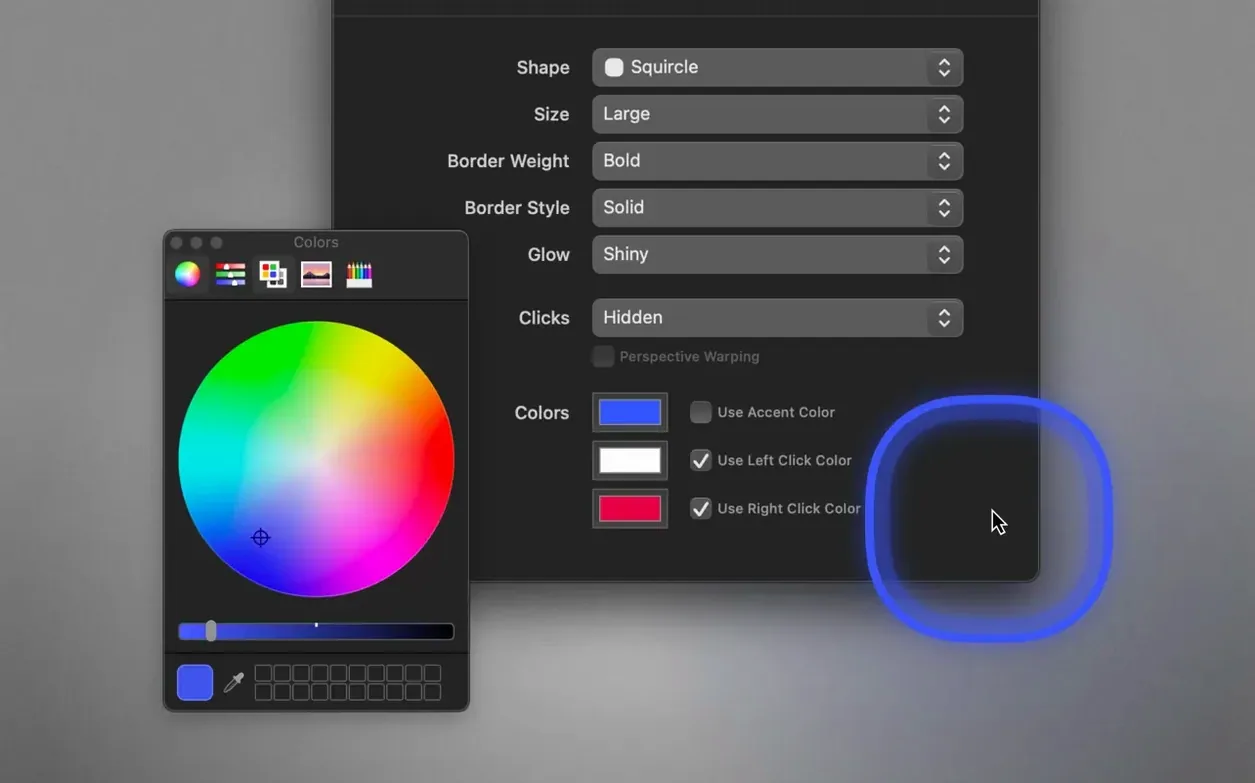
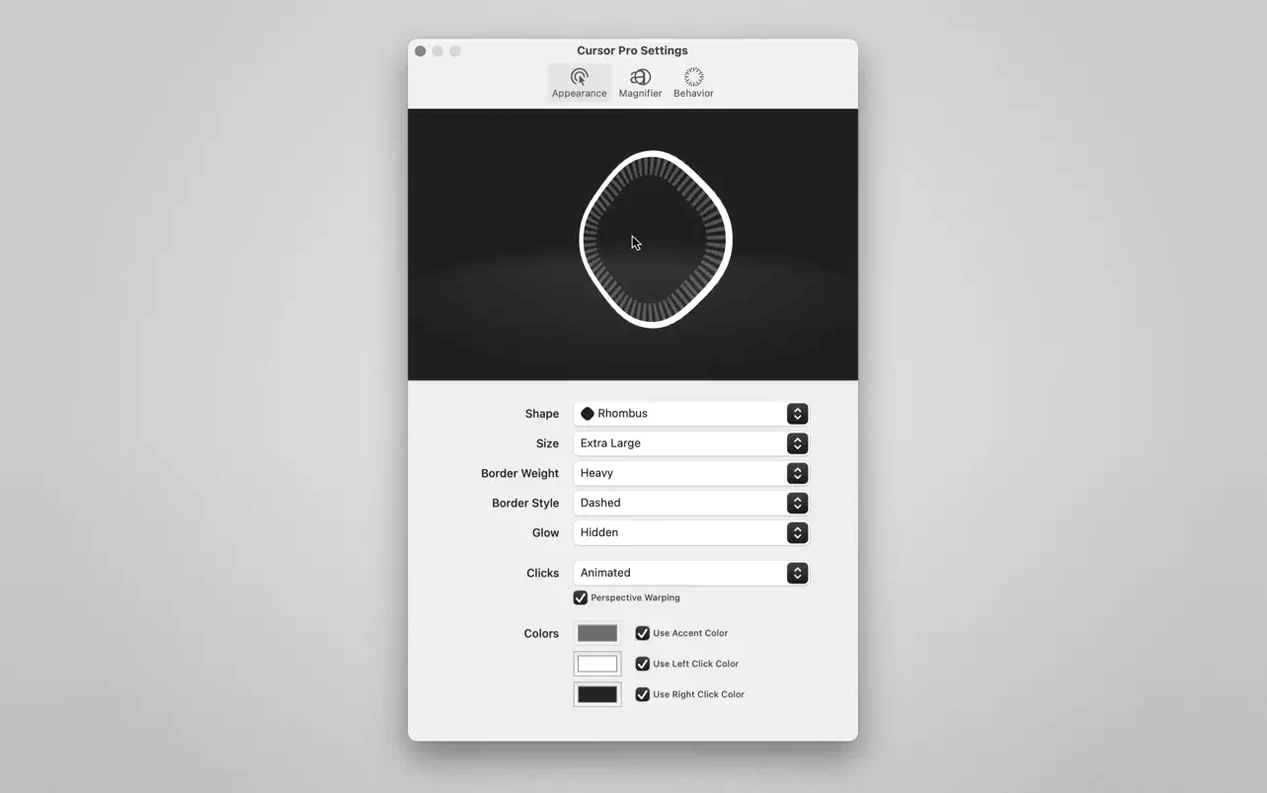
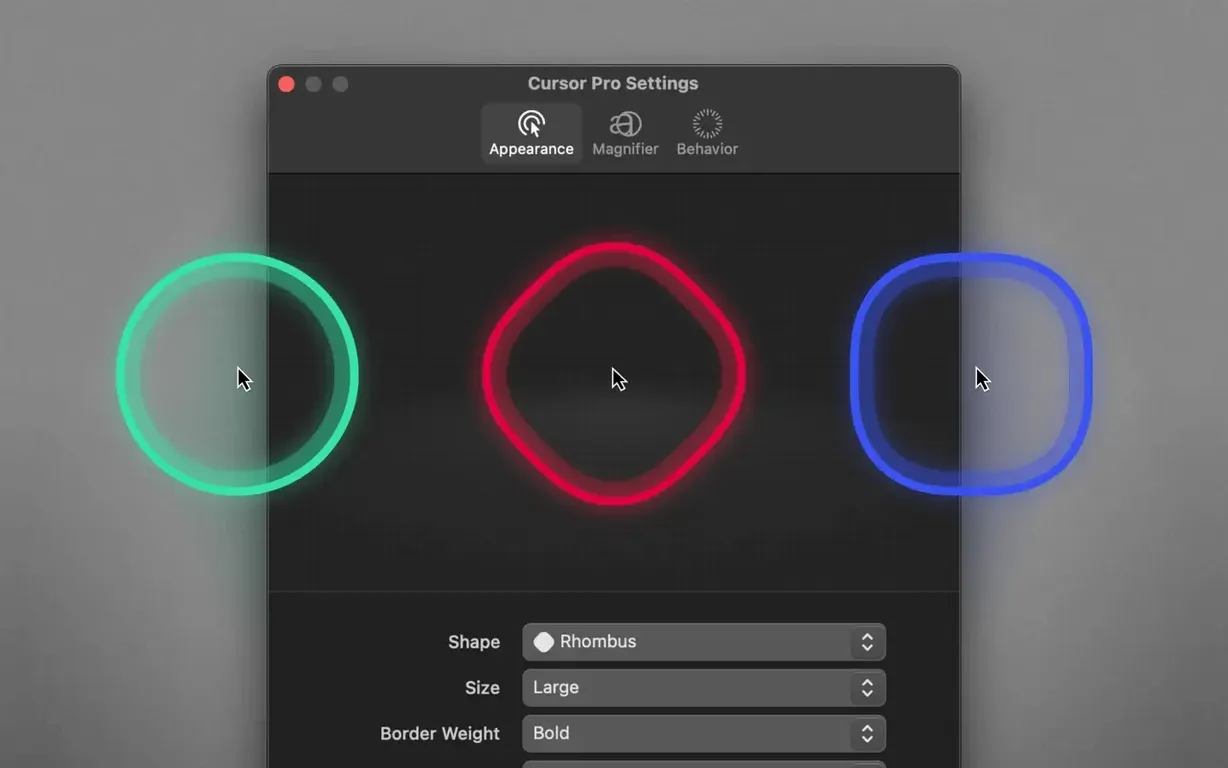
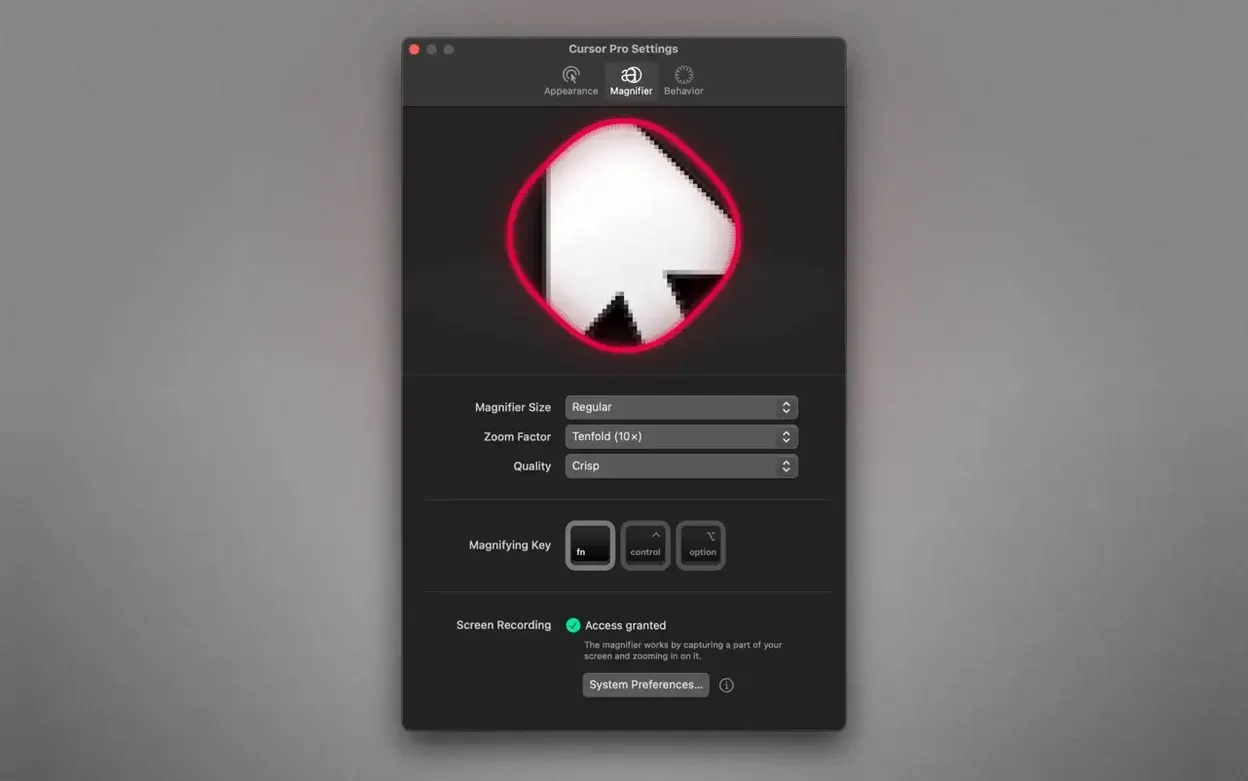
You're walking a client through a dense spreadsheet over Zoom, and their eyes keep losing your tiny mouse pointer. You turn on a glowing, diamond-shaped highlight around it and magnify the active cell. Suddenly, they're following along without a hitch.
How does the pointer highlight work?
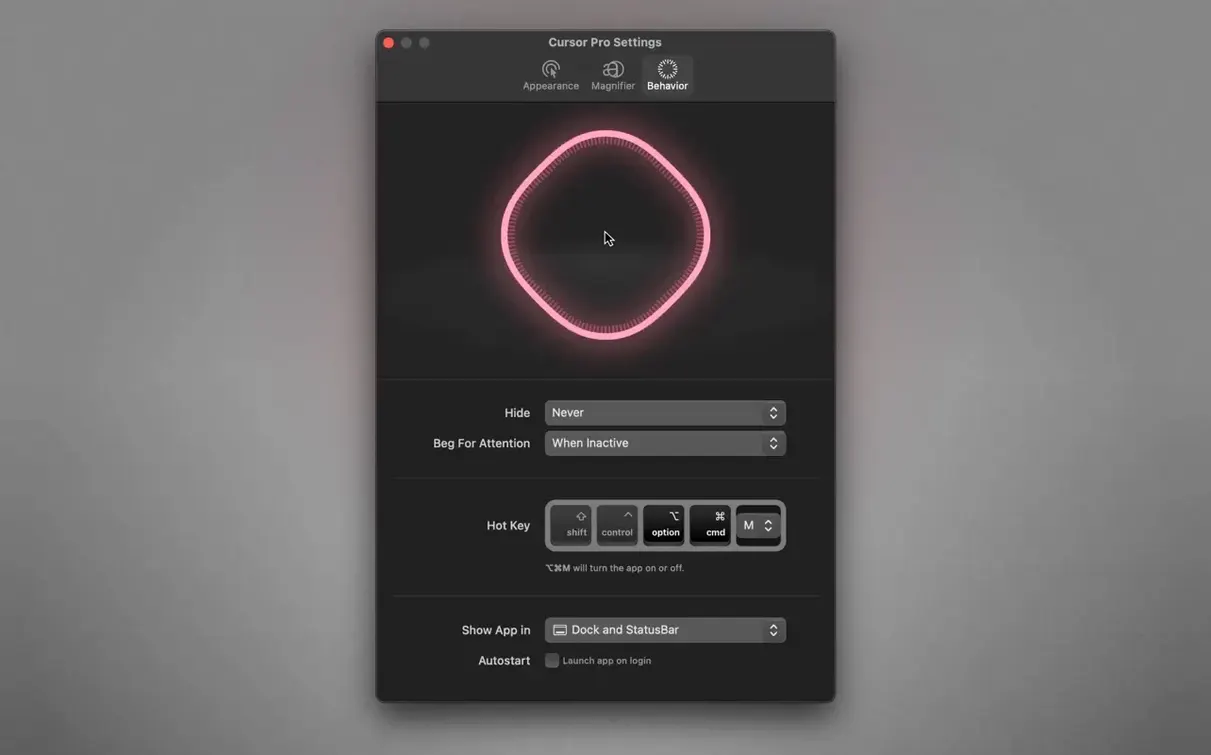
It places a customizable shape around your cursor so it’s impossible to miss. You can pick a circle or a diamond and set the color and glow to something that stands out against your work.
What does the magnifier do?
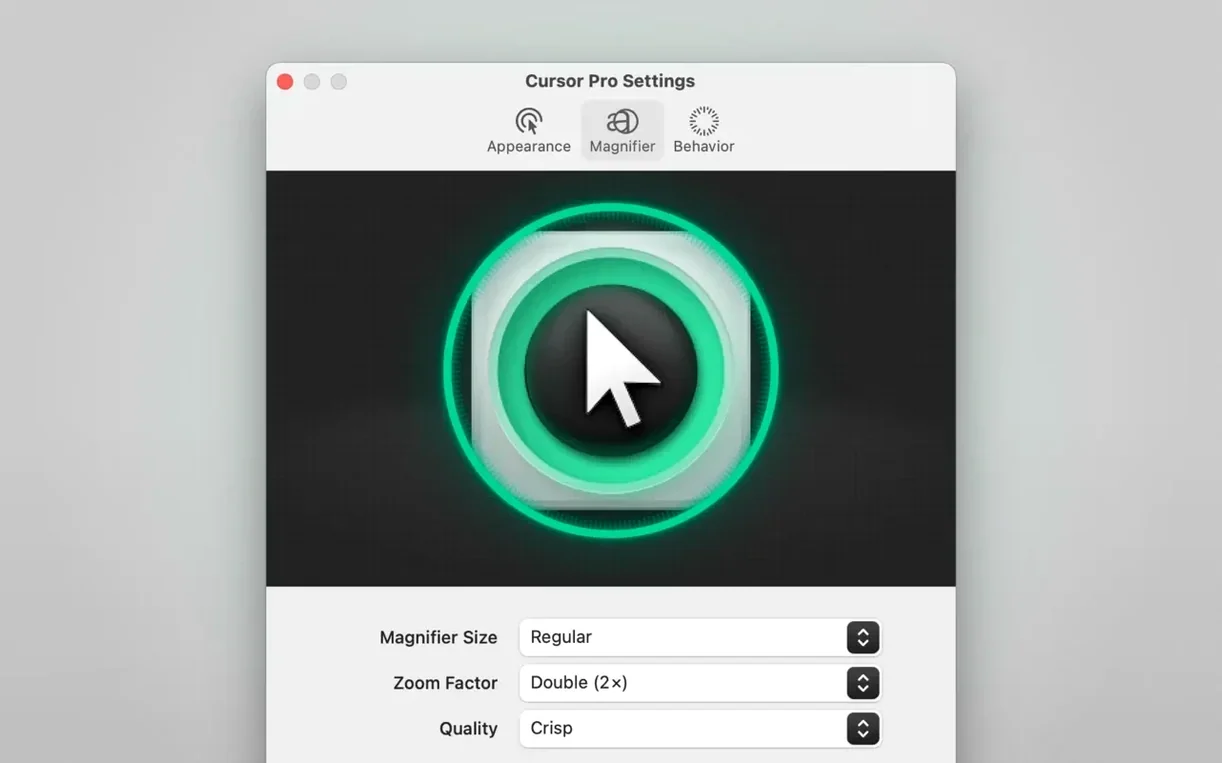
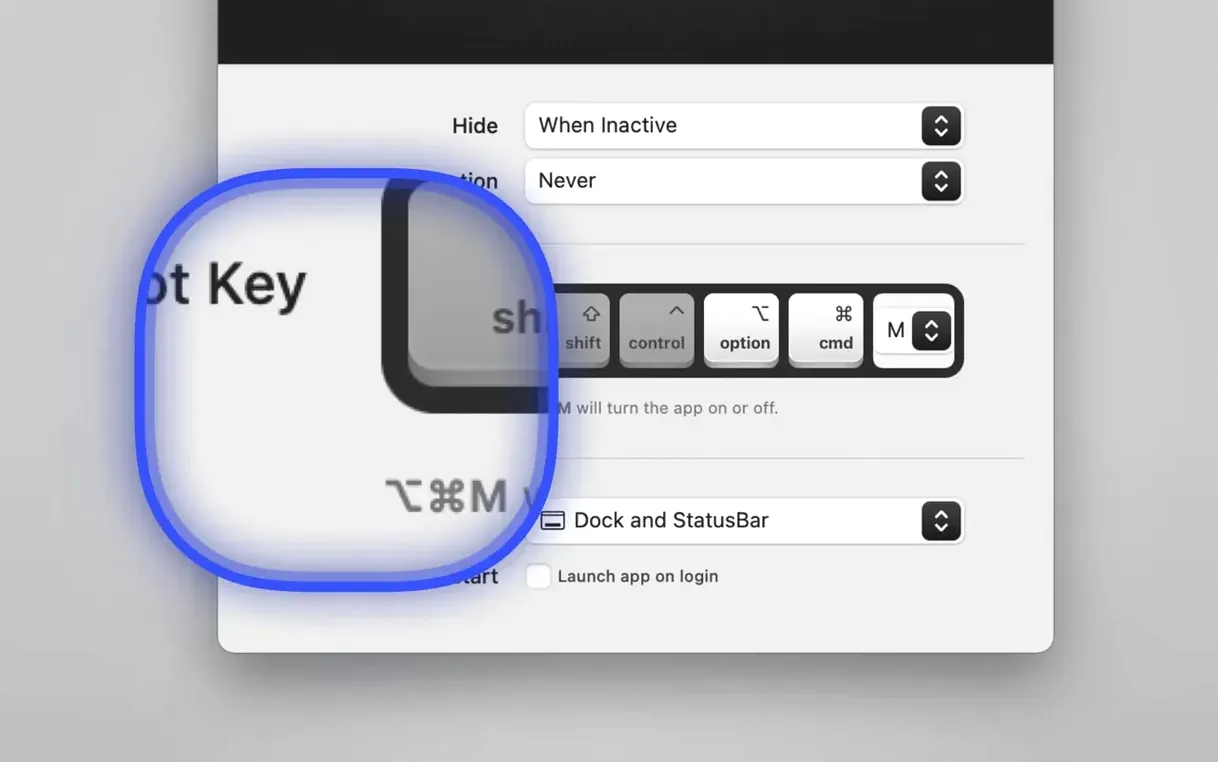
The magnifier zooms in on whatever is directly under your pointer. You configure the zoom factor to show just enough detail, which is perfect for demonstrating small interface elements or reading fine print during a share.
Where does the app live while I work?
It sits quietly in the macOS menu bar. You can also set it to appear in the Dock, or both, and have it launch automatically when you log in—so it’s always ready before a call starts.
Menu bar launch and screen-share flow
Here’s how a morning remote training session flows once everything is installed and configured.
- I log into my Mac, and Cursor Pro starts quietly in the menu bar because I’ve set it to launch at login.
- Before the call, I click the menu bar icon and check my saved combo: a bright teal diamond highlight with a soft glow, plus the magnifier set to 2.5× zoom.
- I join the video call and share my full screen — the app works because it draws on the display output itself, not inside a single window.
- As I walk through a settings panel, the teal diamond pulses gently around my pointer, so attendees track it even on small laptop screens.
- When I need to read out a tiny error message, I move my cursor over it. The magnifier pops up instantly and enlarges the text so everyone can see what I’m reacting to.
- After the session, I toggle the highlight off with a global hotkey and the magnifier auto-hides — no floating overlays cluttering my desktop while I catch up on email.
Works with full-screen sharing, not single windows
Does it work with Zoom, Teams, or Meet? Yes, as long as you share your entire screen rather than a single app window. The highlight and magnifier are drawn at the display level, so any screen-sharing tool that captures the full desktop will include them.
Will the magnifier slow down my older Mac? It’s surprisingly light. I’ve used it on an Intel MacBook Air from 2018 without stuttering, and the Apple Silicon version runs even smoother. The zoom rendering is optimized — you’re not recording the screen, just enlarging a small area on the fly.
Can I quickly hide everything when I don’t need it? Auto-hide is the setting that saves me the most time. The highlight and magnifier fade out a few seconds after I stop moving the mouse, and they reappear the moment I nudge it again. There’s also a global hotkey for toggling the whole effect on and off in one keystroke.
Is it always visible in my recordings? Yes, because it renders on the screen itself. If you’re making a tutorial video with a screen recorder that grabs the full display, the highlight and magnifier will be baked right into the footage — no post-production overlays needed.
What if I don’t want the menu bar icon? You can choose to show the app only in the Dock, only in the menu bar, or both. I keep it in the menu bar for quick access without taking up Dock space, but the choice is yours.
Stops you from saying ‘look where I’m clicking’
Presenters and trainers were the first group I thought of, and they’re still the core audience. If you’re on calls explaining software, walking through design mockups, or teaching a class remotely, a cursor highlighter stops you from repeating “look where my mouse is” every two minutes. The diamond shape in a punchy color works especially well on busy screens because it doesn’t blend into rectangular UI elements the way a circle sometimes does.
Screen-recording creators are a close second. Anyone making how-to videos for YouTube, internal documentation, or client deliverables will appreciate that the magnifier captures fine details without requiring a separate zoom effect in editing. The highlight also gives viewers a visual anchor on the cursor, which matters when they’re watching on a tablet or phone where the pointer would otherwise disappear.
People working on large or high-resolution displays should consider it too. On a 27-inch or ultrawide monitor, a default macOS cursor is easy to lose. A glowing highlight and the occasional pulse effect help your own eyes land on the pointer faster — even when you’re not sharing the screen with anyone.
If you’ve ever squinted at a colleague’s streamed desktop, typed “where is your cursor?” in a chat, or spent ten minutes adding callout arrows to a screen recording, the use case pretty much writes itself.
- macOS 11 or newer
- Works on Apple Silicon and Intel 64-bit Macs
Questions from the stall
Can I use it for live presentations and screen sharing?
Absolutely. It’s built specifically for professional screen presentations and works naturally with macOS screen sharing, so your audience tracks every move.
Does it run on Apple Silicon Macs?
Yes. Cursor Pro supports both ARM-based Macs and 64-bit Intel machines running macOS 11 or later.
Notes from other shops 0
Sign in or open a shop account to leave a note.
No notes yet. If you've used this on a shop Mac, tell me how it went.