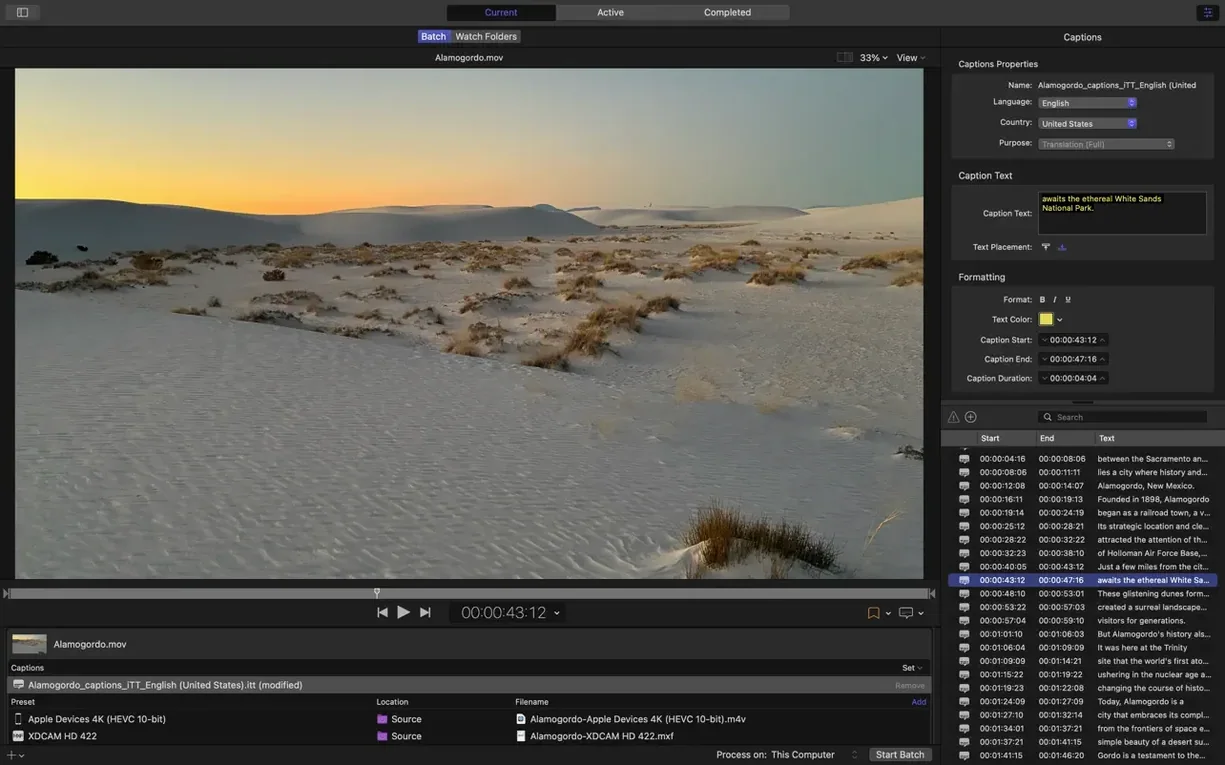
The 5.3 update to Apple's video transcoding app landed with a clear focus on immersive and stereoscopic video work. You get a new metadata viewer that lets you inspect spatial attributes before encoding, plus support for 180° Apple Projected Media Profile output. There’s also a handy anaglyph preview option for checking stereoscopic material without extra hardware. On Apple silicon, HEVC data rate limits now work properly, and you can transcode immersive sources without separate WAV files into Apple Immersive outputs. The Apple Device export settings picked up a 5.1 AAC audio option, too.
A typical Compressor workflow
- Bring your source files into the batch window — ProRes masters, MXF, 360° video, anything the app reads.
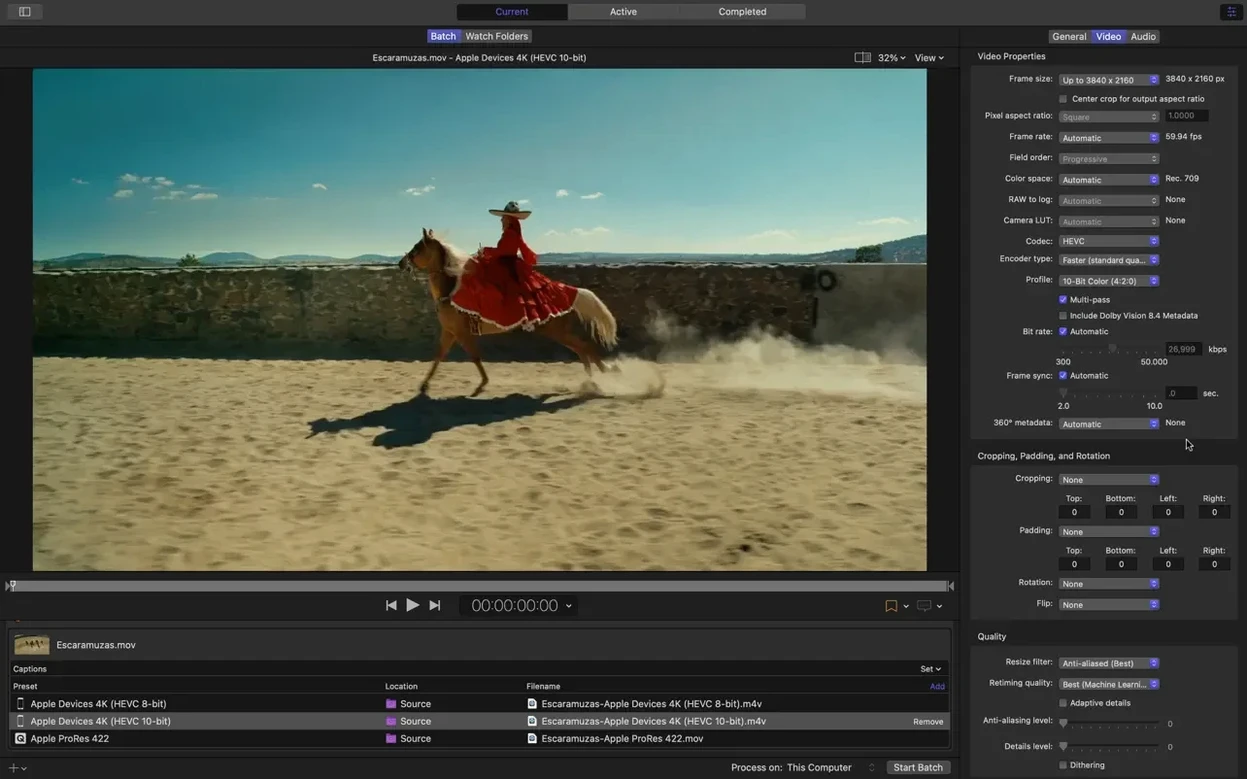
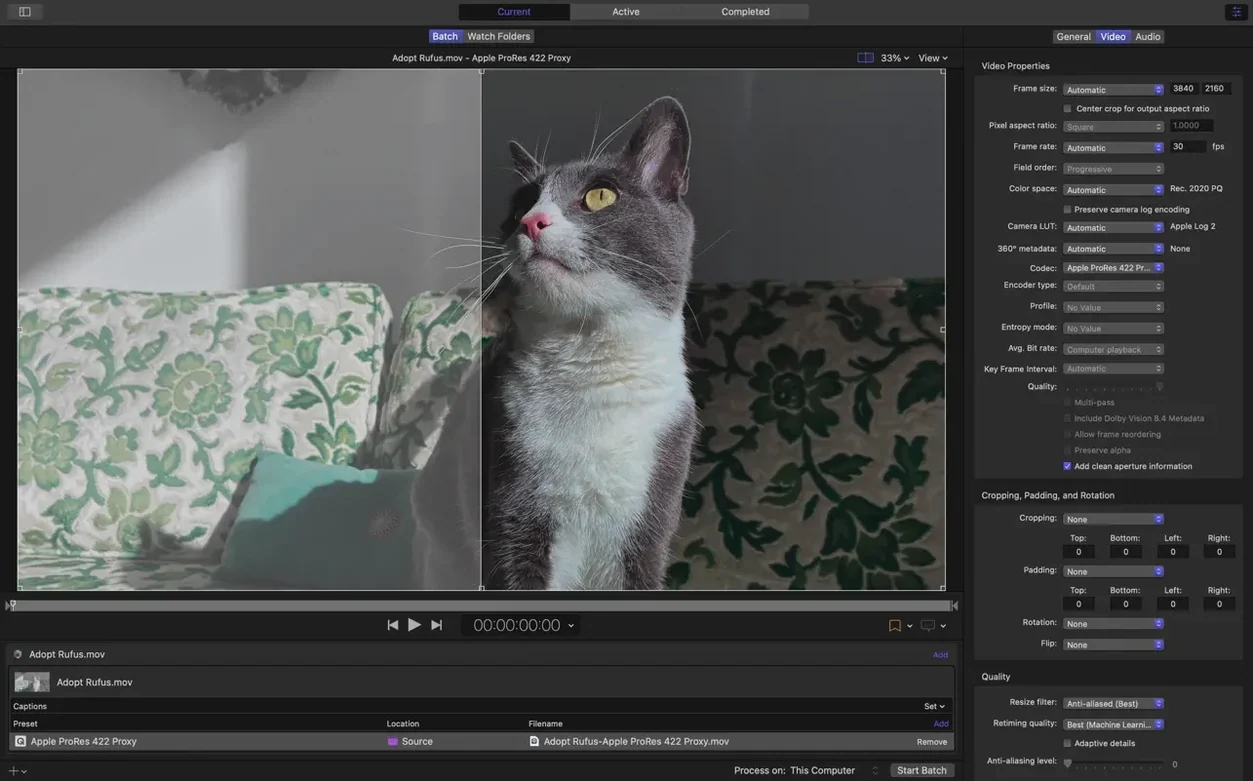
- Pick a setting from the side panel or build your own. The inspector lets you tweak video properties, audio channels, and frame sizing without guesswork.
- Add a destination, then submit the batch. Compressor leans on hardware encoders for H.264 and HEVC, so encoding moves fast on modern Macs.
- If you share a network with other Macs, distributed encoding splits the batch across them. It’s a real time-saver for long projects.
- When Final Cut Pro is in your toolset, you can send a project straight to Compressor with your chosen export settings intact.
What didn’t change is the straightforward batch-to-output rhythm that small video shops rely on. The interface still shows you only what you need, the format support stays broad, and the connection to Final Cut Pro keeps things tidy for editors who don’t want to leave their timeline just to get a file out the door.
Workflow hiccups that catch people off guard
Most problems I run into with Compressor aren't bugs — they're workflow hiccups that catch people off guard. Here are the ones I hear about most.
Distributed encoding won't connect
You set up shared computers, hit submit, and the other Macs just sit there. Nine times out of ten, both machines aren't signed into the same Apple ID under System Settings > General > Sharing. The Compressor preference pane needs that shared identity to hand off work, not just a local network connection. Also check that Allow distributed encoding on this Mac is ticked and the firewall isn't blocking the service. A quick restart of Compressor on both ends usually clears up stubborn discovery failures.
Output looks washed out after HDR transcode
If you're mastering in Rec. 2020 PQ and the result lands flat and gray, the color space conversion probably stripped the HDR metadata. Open the inspector on your chosen setting, head to the Video tab, and make sure Color Space isn't defaulting to Rec. 709. The automatic setting trips up when the source file doesn't flag its color profile clearly. Manually set it to match your master and the output lands clean.
360° video loses its spatial metadata
This one's easy to miss. Compressor reads spherical metadata from the source, but not all output formats carry it forward. Stick with MOV or MP4 containers that explicitly support 360° tagging. Under the Video inspector, the 360° Metadata section should show the projection type — if it says "None," click through and set it to match your source. The new immersive metadata viewer makes this easier to catch before encoding.
Batch gets stuck on a single file
A corrupt frame or a mismatch between source and output frame rates can stall the whole queue. Right-click the stuck file and choose Reveal in Finder to check if a partial output file is locked. Deleting the incomplete file and resubmitting just that clip often gets things moving again. If the problem repeats, try swapping the audio output from pass-through to re-encoded — I've seen weird audio track headers throw the entire batch off.
Tip: When something behaves unpredictably, the preview window is your friend. It uses the same rendering engine as Final Cut Pro, so what you see there is what you get in the output file.
How Compressor sits among similar Mac apps
Nobody shops for a transcoder in a vacuum. Here's how Compressor lines up against two other Mac tools I see in small studios and freelance setups.
Compressor vs. HandBrake
HandBrake covers the everyday conversion ground brilliantly, and you can't argue with open-source. But it doesn't integrate with Final Cut Pro, doesn't do distributed encoding, and won't touch MXF or 360° spatial metadata. If you're handing off ProRes masters to a colorist or generating broadcast-ready deliverables, Compressor's format depth matters. HandBrake is the tool I reach for when someone asks "can you make this video smaller." Compressor is what I use when the delivery spec says "MXF OP1a with eight channels of PCM audio." Different jobs entirely.
Compressor vs. Adobe Media Encoder
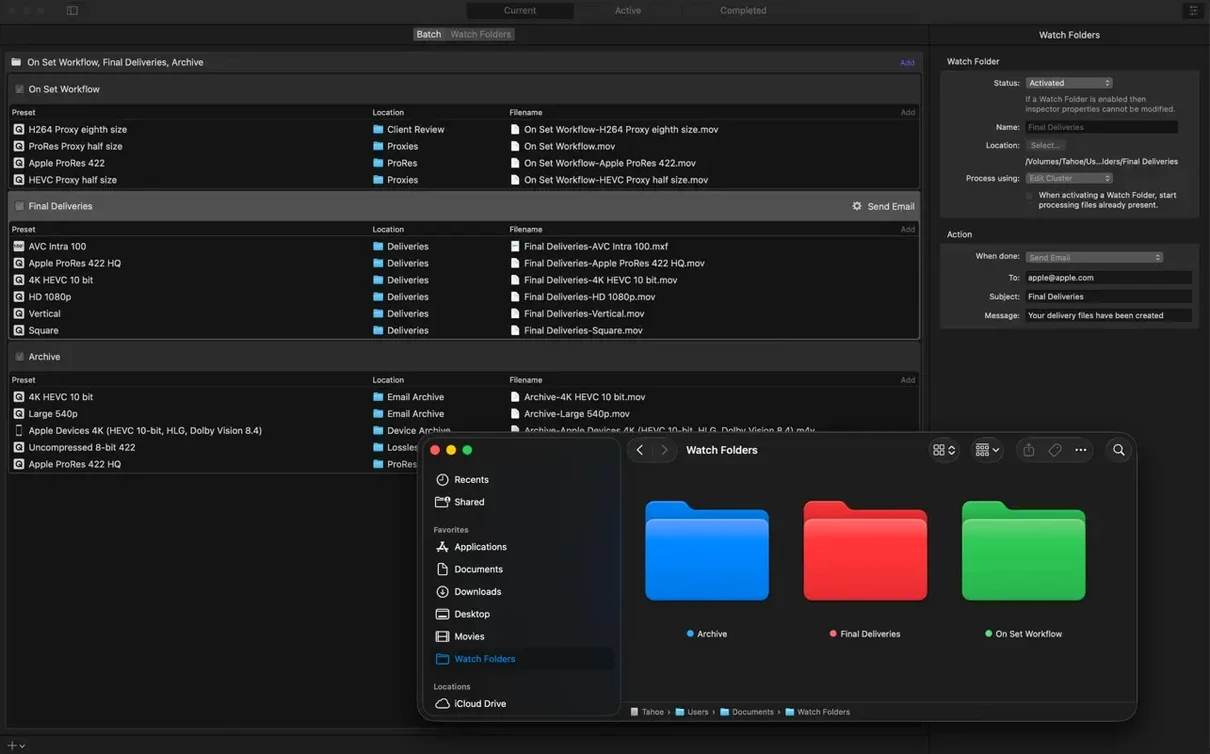
Media Encoder gets along with Premiere Pro and After Effects the way Compressor pairs with Final Cut Pro and Motion. Both handle watch folders, both manage queues sensibly. The split comes down to ecosystem: if you live in Apple's pro video world, Compressor is the path of least friction. Sending a Final Cut project directly, with roles intact and chapter markers preserved, saves more time than I expected before I tried it. Media Encoder covers a broader range of third-party format plugins, but Compressor leans harder on hardware acceleration for H.264 and HEVC — on Apple silicon, the speed difference is noticeable.
Compressor vs. ffmpeg
ffmpeg does everything Compressor does and then some, but it lives in the command line and expects you to speak its language. I know people who script complex transcoding pipelines with it and love the control. For batch work with a visual inspector, drag-and-drop queues, and the ability to email a finished file automatically, Compressor is the friendlier tool. I'd rather tweak a setting in the inspector than re-read an ffmpeg manual page for the third time that afternoon. The two aren't really competitors — they're different interfaces to similar math.
A default destination that won't clutter your source folder
Out of the box, Compressor works fine. A few quick adjustments make it work the way a busy shop needs.
Default destination: Open Compressor > Settings > General and set a default output location that isn't your source folder. I point mine to a dedicated "Encodes" directory on the project drive. It keeps outputs organized and prevents accidental overwrites when filenames match.
Post-encode actions: The ability to run a script or copy a file after encoding is one of those features that sounds minor until it saves you from late-night manual file transfers. Set up a "Copy to server" action once under Destinations, assign it to a location preset, and every batch that uses it lands on your NAS without extra steps.
Hardware encoding toggle: Compressor uses hardware encoders by default for H.264 and HEVC, which is usually what you want. But if you're chasing the smallest possible file at a given bitrate, switch the encoder type to "Software" in the video inspector. It takes longer, but the quality-per-bit is slightly better. I reserve this for final delivery files where every megabyte counts — not for dailies or review copies.
Timecode passthrough: Check the Timecode setting under the inspector's General tab before your first serious batch. The default behavior sometimes generates fresh timecode instead of passing through the source, and that's a headache when an editor downstream needs to reference back to camera originals. Set it to "Passthrough" unless you specifically need new timecode.
Version 5.3 focuses on immersive and stereoscopic production:
- Immersive metadata viewer lets you inspect spatial properties before encoding.
- 180° Apple Projected Media Profile output joins the format roster.
- Anaglyph preview option for stereoscopic video — no extra display gear needed.
- 5.1 AAC audio setting added to Apple Device export presets.
- HEVC data rate limits work on Apple silicon devices now.
- Immersive sources can be transcoded to Apple Immersive outputs without WAV files.
- macOS 15.6 or later
- 8 GB memory
- 1.2 GB available disk space
- Apple silicon and Intel Macs
Notes from other shops 0
Sign in or open a shop account to leave a note.
No notes yet. If you've used this on a shop Mac, tell me how it went.