Shop owners, designers, and anyone who keeps a Mac running all day tend to reach for Cocktail when the system feels sluggish or cluttered. If you're new to it, here's what to try first.
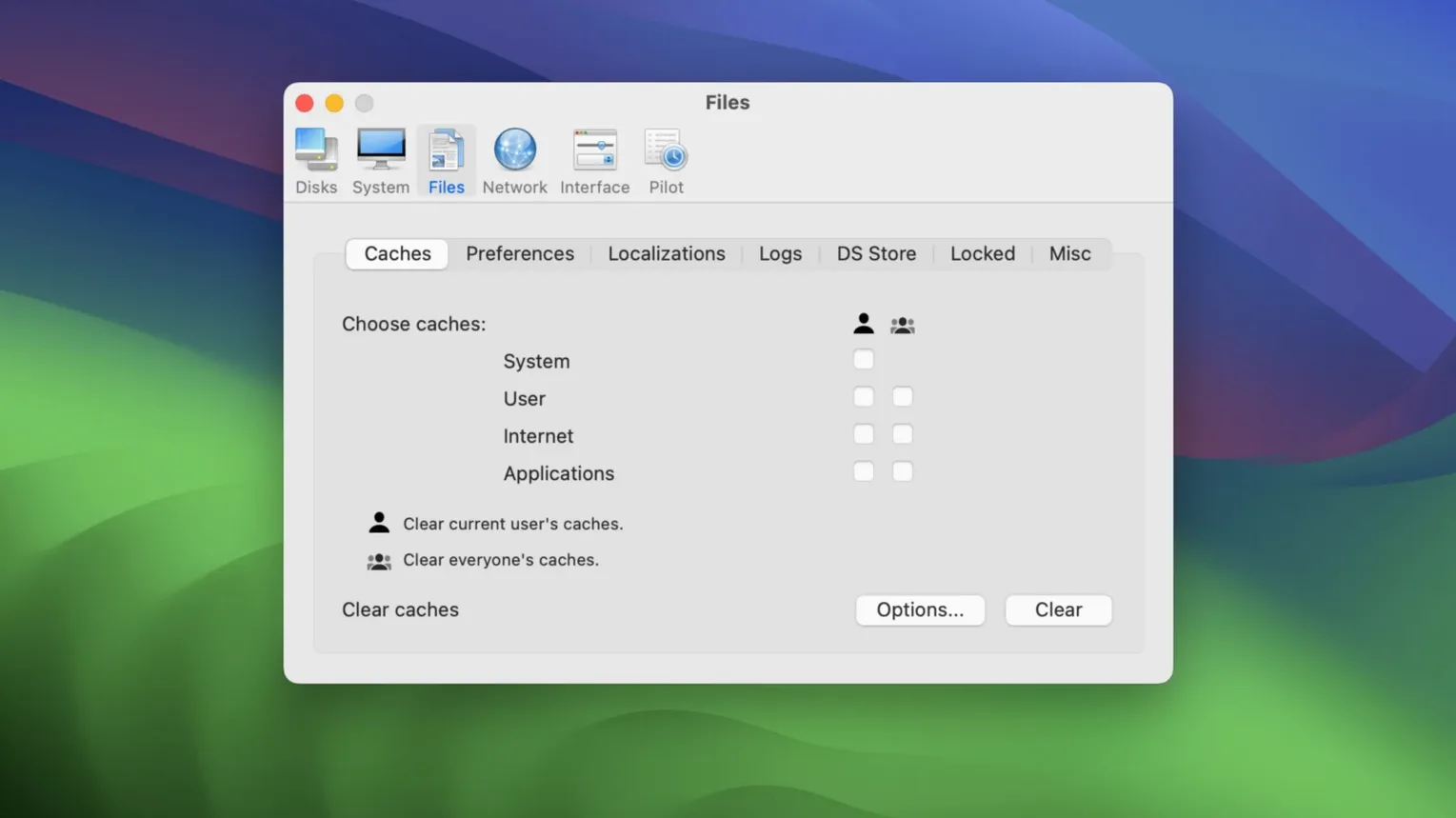
Clean — clears caches, logs, and temporary files that build up over weeks of work.
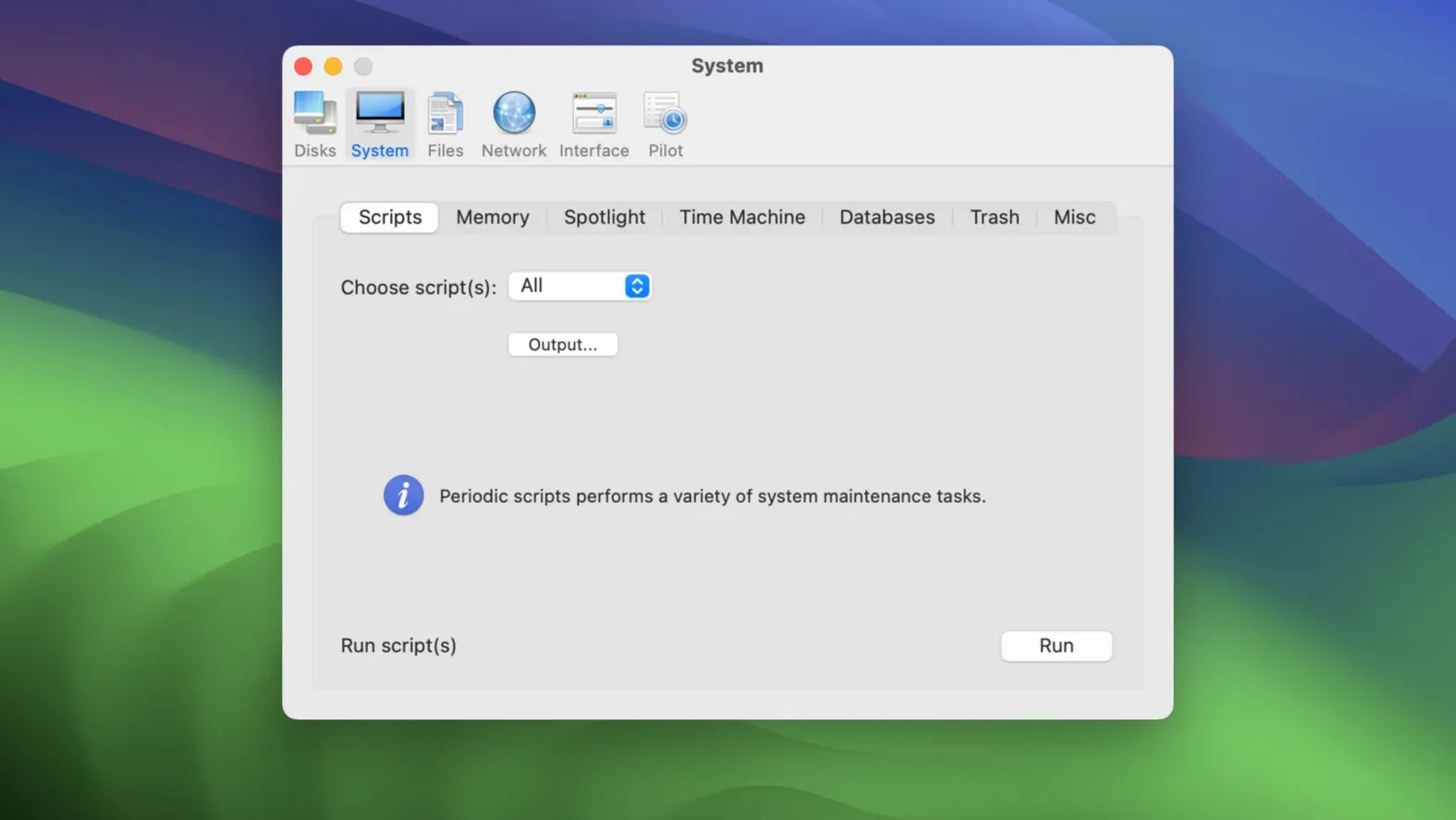
Repair — checks disk permissions and runs system maintenance scripts, useful after odd crashes.
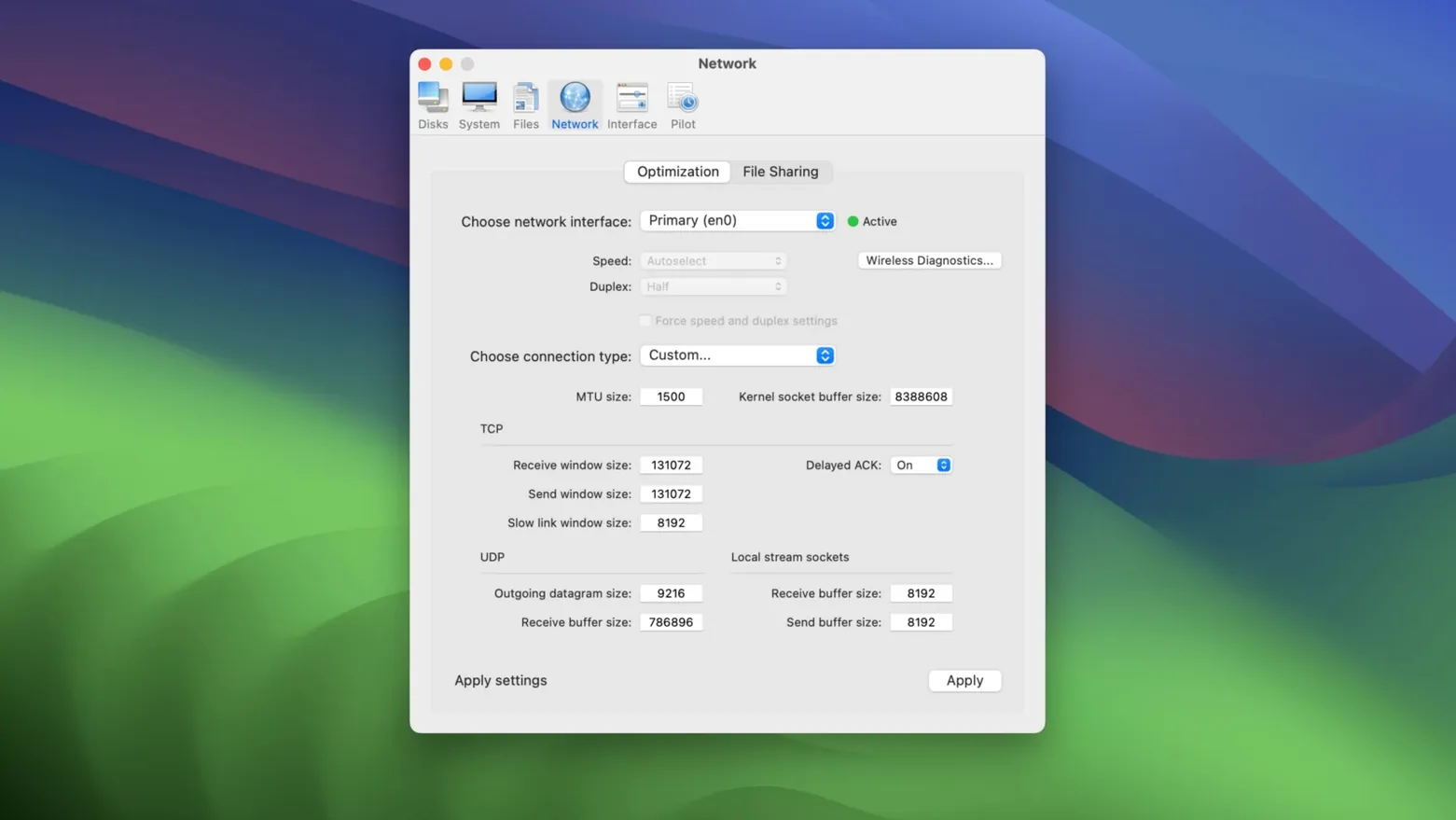
Optimize — adjusts network and system settings for snappier everyday use.
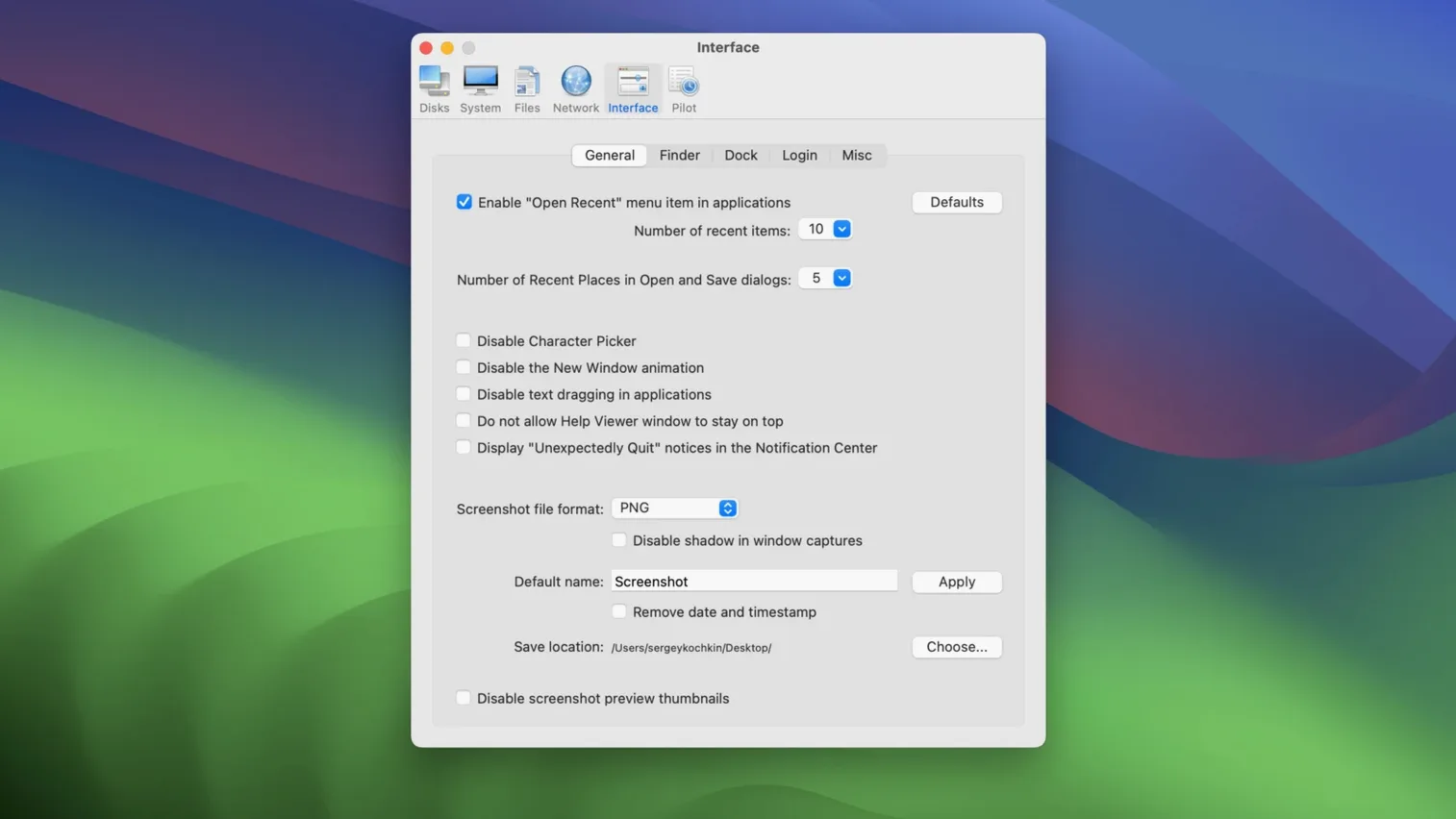
Interface — tweaks Finder, Dock, and other macOS appearance details to your liking.
Pilot — schedules all of the above to run automatically, so you don't have to remember.
Checking every Clean box on day one can delete things you meant to keep
New users often tick every checkbox in the Clean pane on day one and let it rip. That’s understandable — the interface makes it easy — but it’s also the fastest way to lose something you didn’t mean to delete. Browser cookies for sites you log into daily, saved window states for apps you keep arranged just so, and Spotlight indexes that take half an hour to rebuild all fall into the “cleared without thinking” bucket.
The smarter approach: uncheck anything you don’t recognize, run the clean, then check one or two more next time. You’ll learn what each option actually does without burning an afternoon on rebuilds.
Another common slip is treating Cocktail like it’s a substitute for Time Machine. It isn’t. A repair script won’t bring back a deleted file, and a permissions check won’t undo a botched manual edit in /Library. If you’re about to run something new and the Pilot pane hasn’t been configured yet, make a quick backup first. You probably won’t need it — but the one time you skip it is the one time you’ll wish you hadn’t.
The third mistake I hear about: running the full suite every single day. Cocktail is not a daily vitamin. Weekly or biweekly is plenty for most Macs. Daily runs of the repair scripts, in particular, put unnecessary wear on your drive and waste time on checks that haven’t had a chance to find anything new since yesterday.
Fix confused file associations by rebuilding Launch Services on demand
Some of Cocktail’s best touches sit quietly in corners of the interface where nobody clicks. A few worth knowing about:
- Rebuild Launch Services on demand. If an app’s file associations get confused — say, PNGs opening in some editor you installed once and forgot about — the Database pane in System has a one-click fix. It’s faster than hunting through Finder’s “Open With” menu for every file type.
- Clear the “Open With” duplicate entries. That same Database pane can scrub the list of apps that appears twice, three times, or points to versions you uninstalled years ago. Satisfying and genuinely useful.
- Schedule the Pilot to run overnight. The Pilot pane isn’t just an “everything now” button. You can set it for 3 a.m. on a Tuesday and wake up to a freshly maintained Mac. The schedule options are tucked under a disclosure triangle that’s easy to scan past.
- Export your settings. If you’ve spent time unchecking just the right things and tuning the Pilot schedule, save your configuration. The File menu lets you export a
.cocktailsettings file you can carry to another Mac or stash somewhere safe before a clean install of macOS.
Right-click to open when macOS quarantines the app after install
The “Cocktail won’t open” scare. After a fresh install, macOS sometimes quarantines the app because it wasn’t downloaded through the App Store. The fix is quick: right-click the app and choose Open, then confirm in the dialog. You only need to do it once.
Permissions repair takes forever. On a machine with a lot of small files — photo libraries, code repositories, years of accumulated design assets — the permissions pass can look stuck. It usually isn’t. Let it run; don’t force-quit. If it truly hangs (no disk activity light, no progress bar movement for ten minutes), a restart followed by running just the permissions check usually clears whatever latch the filesystem hit.
The network optimizer made things slower. The Optimize pane’s network tweaks adjust TCP settings and DNS timeouts. For most connections, they help. For some ISP configurations, they don’t. If web pages load slower after running the network optimization, open the pane and click the “Restore Defaults” button. No permanent damage done.
Search results feel incomplete after a clean. If you wiped the Spotlight index, the Mac needs time to rebuild it. That’s normal — leave the machine awake and plugged in for an hour or two and the index will catch up. You can check progress by opening Spotlight and typing something; if it says “Indexing…” in the results, just wait.
Read what’s checked by default before running anything
Day one: don’t run anything yet. Open each pane and read what’s checked by default. Cocktail’s presets are sensible, but “sensible” still means it’ll clear caches you might prefer to keep. Uncheck anything that gives you pause. Then save your tweaked configuration — you’ll thank yourself when you come back in two weeks and can’t remember what you changed.
Day two: run a pilot with a limited scope. Check only the Clean tab’s user caches and system logs, skip the repair scripts, skip the network optimization. Let that finish. Use the Mac normally for the rest of the day so you can feel what, if anything, changed. If all is well, add the repair scripts on day three.
Within the first week, set up a Pilot schedule that matches your work rhythm. My shop Mac gets a light clean every Sunday night and a full repair pass on the first of the month. That rhythm keeps things humming without me ever thinking about it. The scheduler lives in the Pilot pane — look for the clock icon next to “Run” and set it once.
If you picked up a cocktail torrent from a trusted source or grabbed the cocktail sequoia edition for a fresh macOS Sequoia install, the first-run behavior is identical. The app doesn’t phone home and doesn’t require an account; it just runs what you tell it to. That simplicity makes it easy to fit into whatever maintenance routine you already have — or to become the routine itself.
Tip: Start with a clean, then repair, then optimize. That order gives you the most noticeable change without touching anything risky.
- macOS 15 or later
- Intel 64-bit Mac
Questions from the stall
Does Cocktail run on Apple Silicon Macs?
This edition is built for Intel 64-bit Macs and requires macOS 15 or later. Earlier editions are available for older macOS releases.
Notes from other shops 0
Sign in or open a shop account to leave a note.
No notes yet. If you've used this on a shop Mac, tell me how it went.