CleanShot X is a Mac-native screen capture and recording app that sits somewhere between the default screenshot tool and a full image editor.
Quick captures without losing the thread
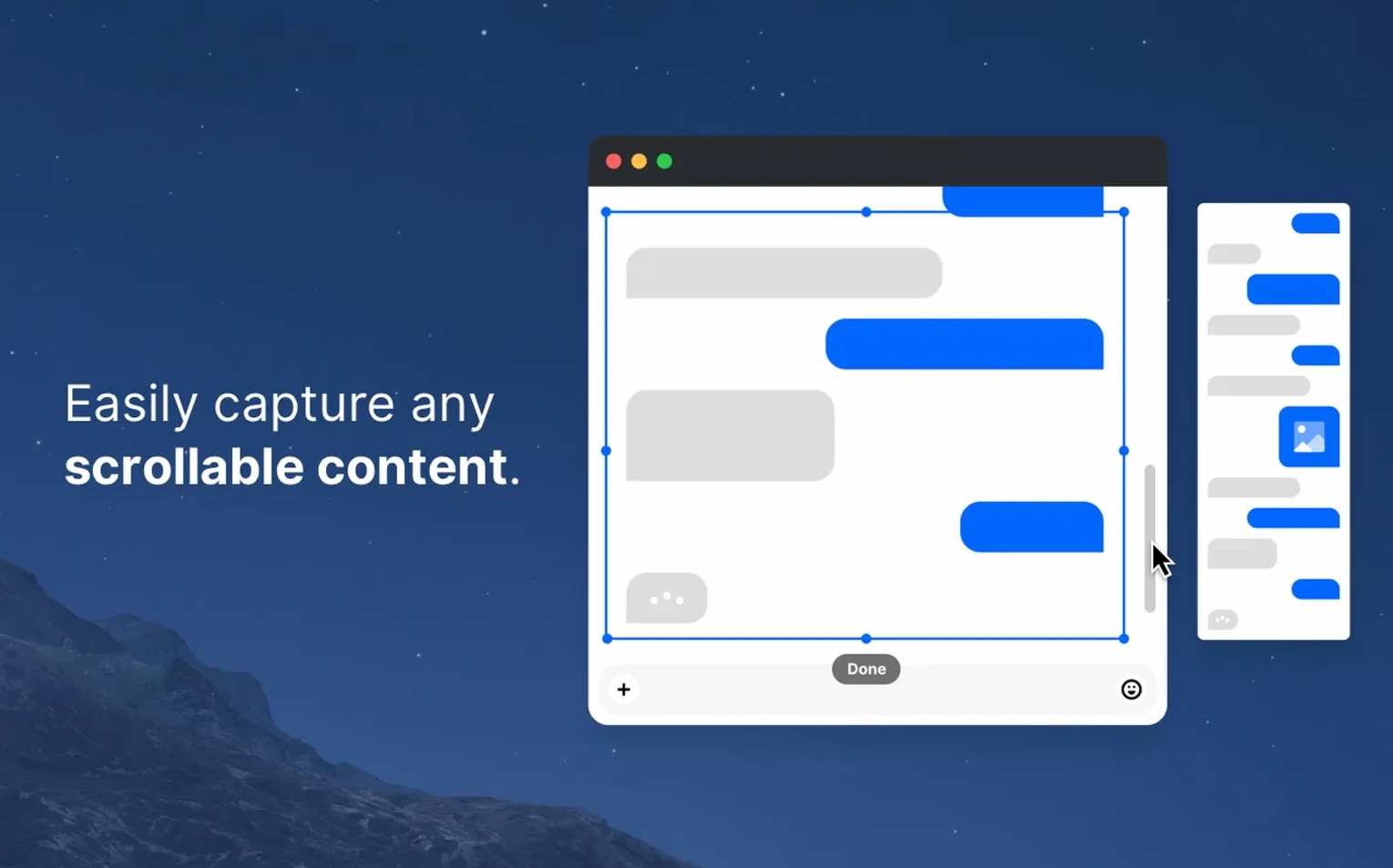
Grab an area, a window, or a full scrolling page with a timer if you need a moment to set things up. It switches between Retina and standard resolution on the fly, so you get crisp images when you need them and smaller files when you don't.
Annotating right after the shot
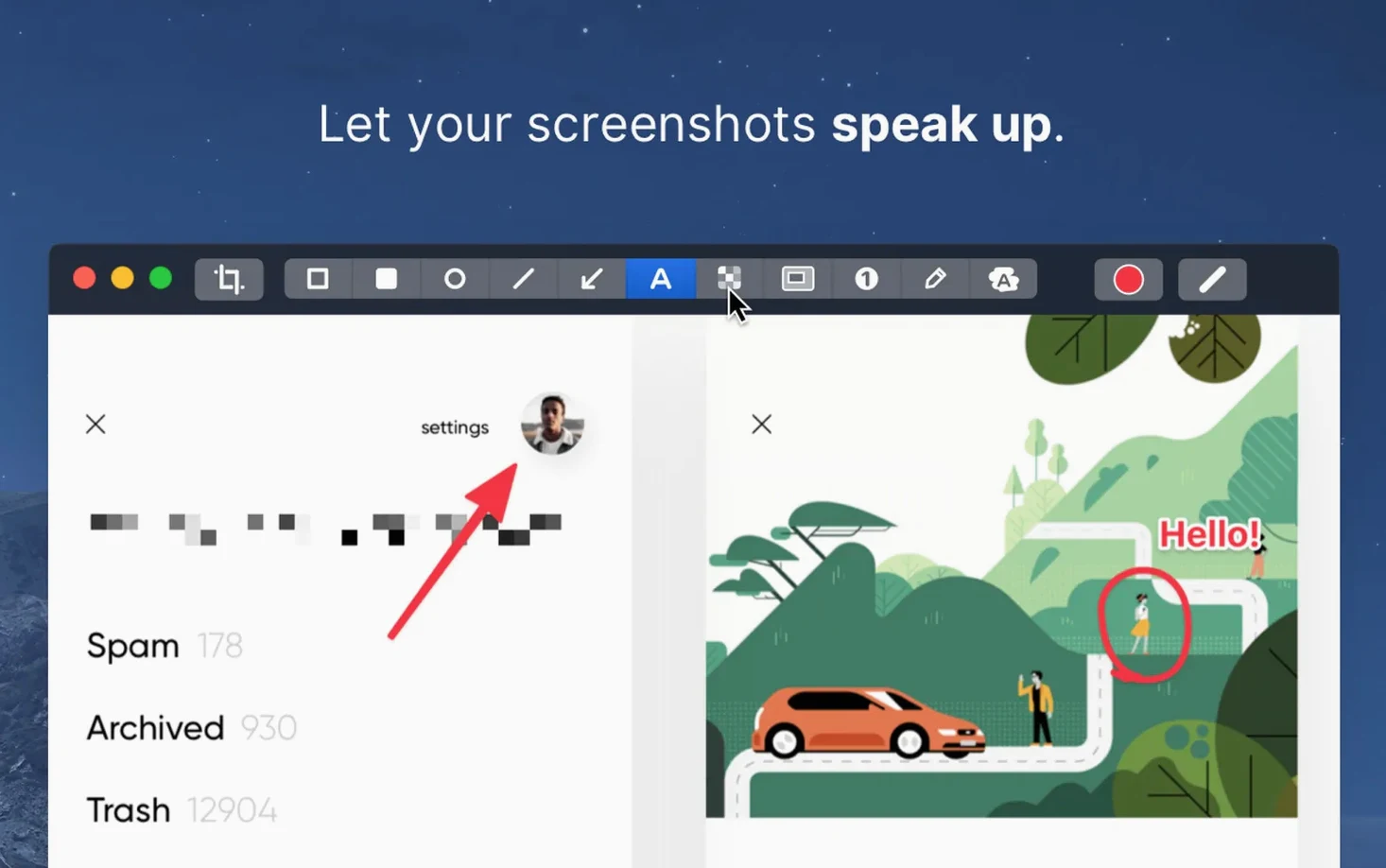
The built-in editor lets you highlight details, hide sensitive bits, and add short comments before you send anything off. It's handy when a screenshot needs a quick note, not a trip through a separate design tool.
When a still isn't enough
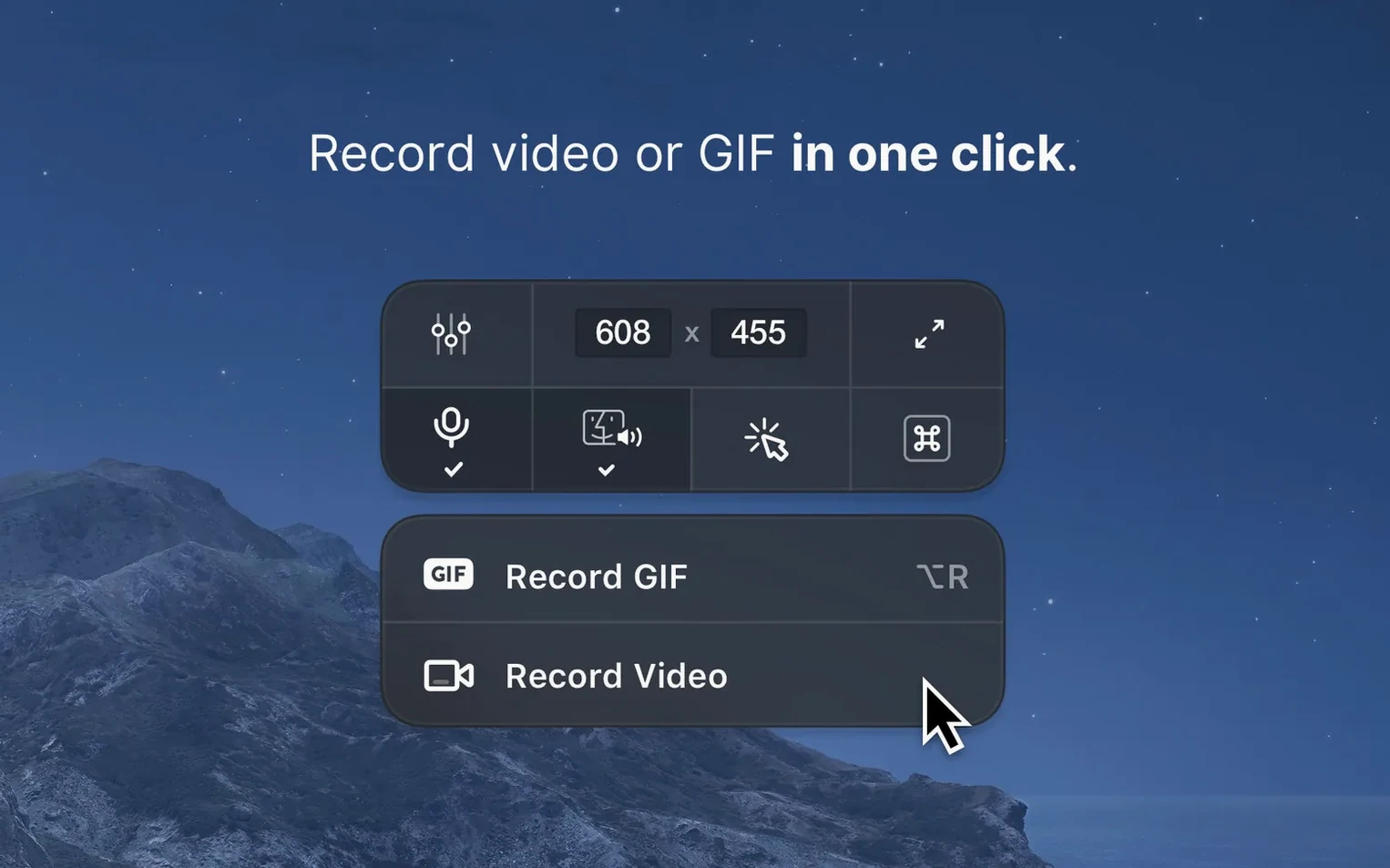
Record video or a GIF during capture for short walkthroughs and bug reports. The recording tools are light enough that you'll actually use them, which is what matters when you're already juggling three other apps.
Make it launch at login and pick your save spot
The defaults are sensible, but a few tweaks make CleanShot X feel more like yours. Open preferences and head straight to the General tab first.
- Start at login. Toggle it on. If you grab screenshots daily, waiting for the app to launch gets old fast.
- Hide desktop icons during capture. A small checkbox that saves you from dragging receipts and random files out of the frame every time you shoot the wallpaper or a clean desktop layout.
- Disable notifications while recording. Under the Recording tab, this one's easy to miss. Turn it on before you record a client walkthrough and discover a Slack preview banner floating over your menu bar in the final video.
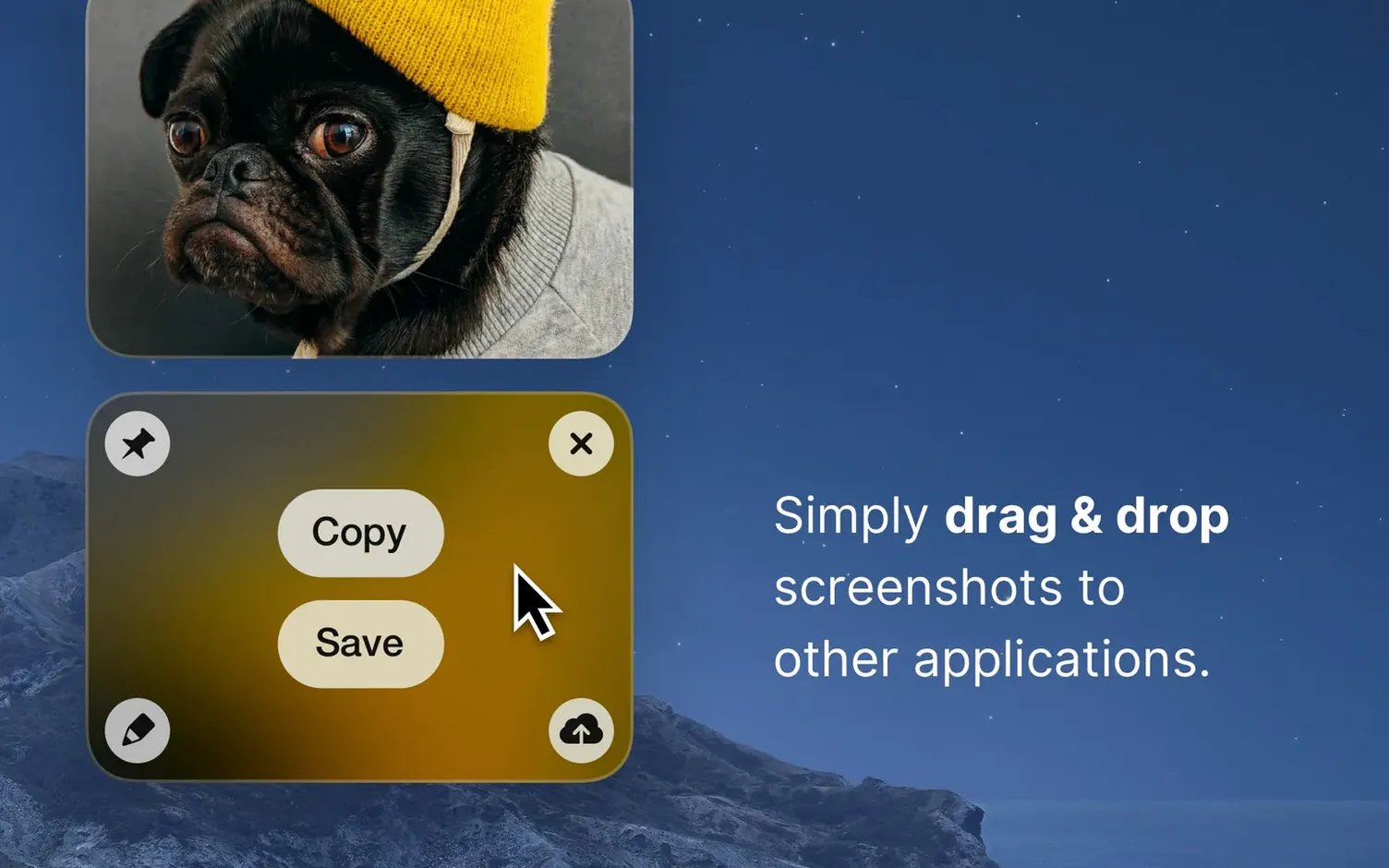
- Default save location. The overlay menu after capture is quick, but if you always want files in a specific project folder, set it once here instead of navigating there after every shot.
One more worth your time: under Overlay, set the quick-action buttons you actually use. The default row includes everything, but trimming it to three or four actions cuts down on decision time when you're capturing in quick succession.
When scrolling captures or annotations misbehave
No app escapes its friction points. These are the ones that come up most often.
Scrolling capture stops halfway
Some apps don't play nicely with the scrolling capture feature — especially Electron-based tools, browsers with heavy custom scroll implementations, or anything that draws its own scrollbar. The fix is usually straightforward: switch to a native app view if one exists (like Safari instead of a wrapped web view), or fall back to capturing the visible area and stitching manually if the content is short.
Recording has no audio
CleanShot X doesn't record system audio by default and doesn't capture microphone input unless you explicitly pick it. Before hitting record, check the audio source in the recording overlay. If you need internal sound, you'll need a third-party audio routing utility — that's a macOS limitation, not a CleanShot one.
Pinned screenshot won't unpin
Right-click the floating image and choose Close from the context menu. If the menu doesn't appear, the screenshot might have slipped behind another full-screen window. Cmd-Tab back to your desktop and try again.
Annotated exports look blurry
Check your resolution setting before capture. If you shot at standard resolution and then enlarged the export, the annotations stay sharp but the base image doesn't. For anything destined for a high-DPI display or print, capture at Retina resolution from the start. The toggle lives in the overlay menu right after you select an area.
A workflow for documenting a bug report
This is a task where CleanShot X replaces three or four separate steps in other tools. Here's how it goes from start to finish when you spot something broken in a web app.
- Set up the screen so the bug is visible and any customer data is off to the side or minimised.
- Press the Capture Area shortcut and drag across the problematic UI. Include enough context that a developer can see which page you're on.
- When the overlay appears, click Annotate. The editor opens immediately.
- Use the arrow tool to point at the broken element. Add a text box next to it with a short note like "dropdown closes on second click."
- Hit the blur tool and swipe over any client name or email address still visible in the screenshot.
- Click Copy in the editor toolbar — this puts the annotated image on your clipboard.
- Paste it straight into your task tracker or email. No file to save, no Finder window to open.
If a still image isn't enough, swap step 2 for Record Video instead of Capture Area. Walk through the bug slowly, then trim the start and end of the clip in the recording preview before copying or saving. The whole thing takes under a minute once you've done it twice.
Recording a quick tutorial without opening another app
It's Tuesday morning and you're putting together a quick tutorial for a colleague who keeps asking how to export a report from your invoicing app. You open the invoicing tool, arrange the window neatly, and press the Record Video shortcut.
Before the recording starts, you tap the timer option and set it to three seconds — enough to close the preferences panel and get your cursor in position. The countdown appears in the center of the screen, then disappears. You walk through the export steps slowly, moving the cursor deliberately and narrating under your breath even though there's no audio track, just to keep your pace even.
You stop the recording with the menu bar icon and the preview pops up. It plays back immediately. The first two seconds are just you moving a window out of the way, so you drag the trim handles to cut them. You toggle the format to GIF — the tutorial is short enough that a looping animation works better than a video file — and hit Save.
The file lands in your default folder. You grab it, drop it into the team chat, and type "Here's the export flow" above it. Total time from idea to sent message: maybe ninety seconds. You close the preview, the recording tool disappears, and you're back in the invoicing app with no leftover windows cluttering the screen.
Version 5.0.1 is a tidy-up release with a handful of minor bug fixes and improvements.
- macOS 11 or later
- Intel and Apple Silicon Macs
Questions from the stall
Can CleanShot X capture a whole webpage that scrolls off-screen?
Yes, it includes a scrolling window capture mode that grabs content beyond the visible area.
Does the built-in editor let me blur private information?
Yes, the editor has tools for hiding and highlighting parts of a screenshot before you share it.
Can I record a short GIF instead of a full video?
Absolutely. CleanShot X can record both video and GIF during capture, which is great for quick demos.
Notes from other shops 0
Sign in or open a shop account to leave a note.
No notes yet. If you've used this on a shop Mac, tell me how it went.