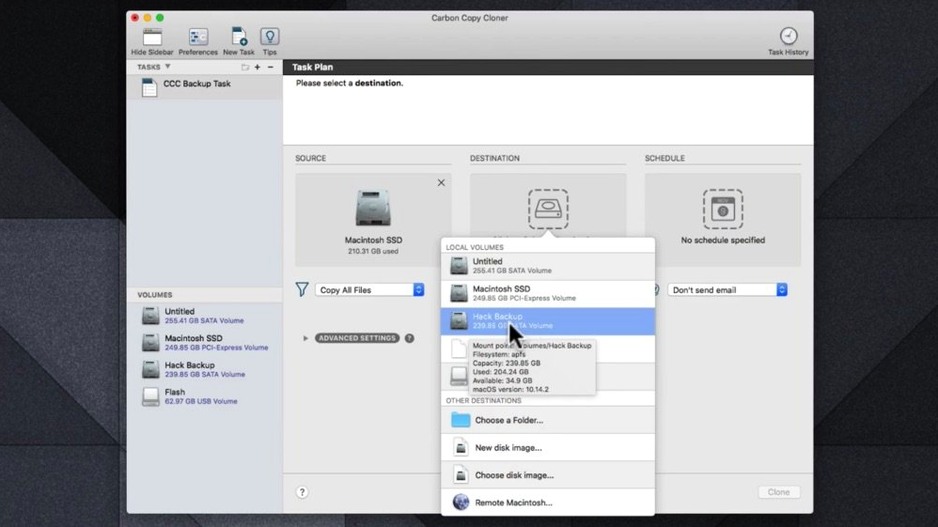
You just bought a new external drive, plugged it in, and realized you haven't backed up your Mac in six months. The photos, the shop inventory spreadsheets, the custom font collection — all sitting there with no safety net. That's the moment to open CCC and get a full clone running.
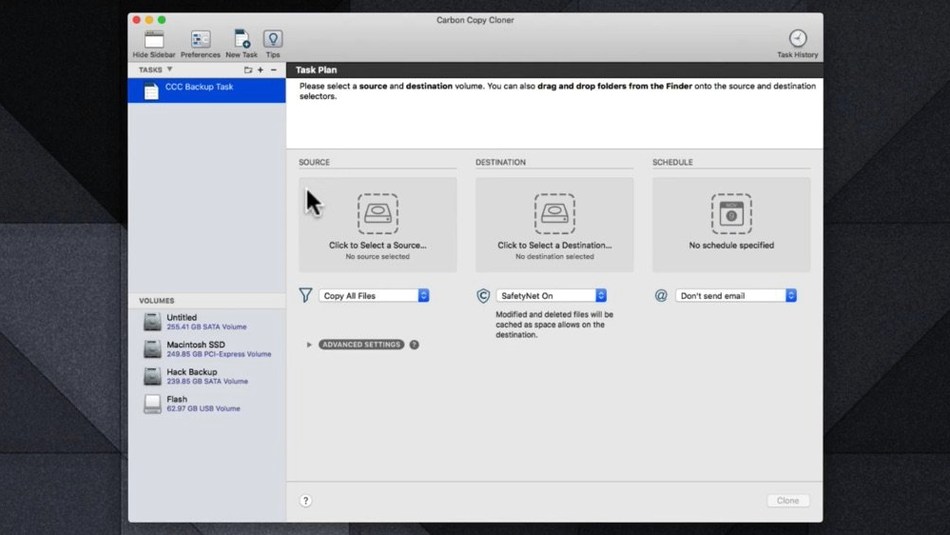
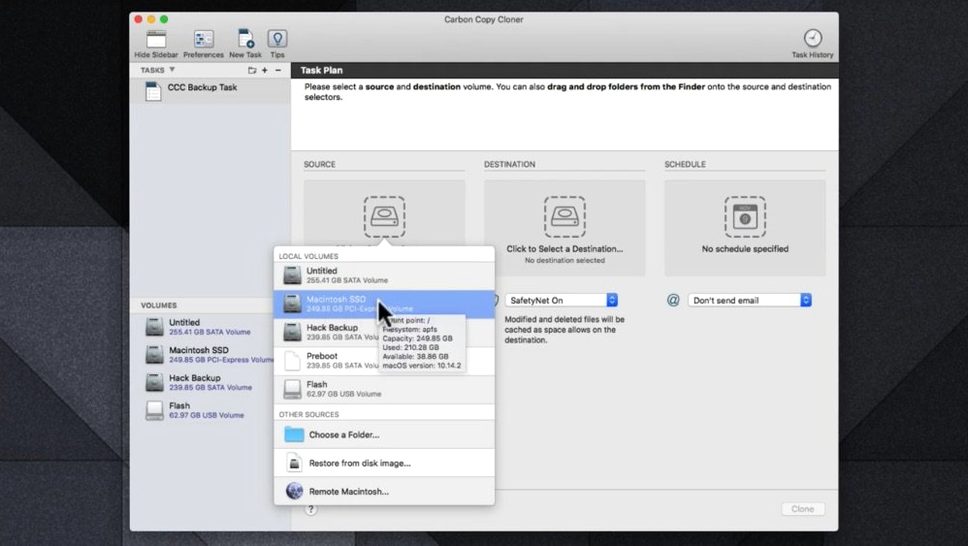
Your first move should be a complete disk clone. Pick your internal drive as the source, point it at that new external, and let it make a bootable copy. It's the fastest way to a safety net that can get you back to work in minutes if your main drive fails — no reinstalling apps, no hunting for license keys.
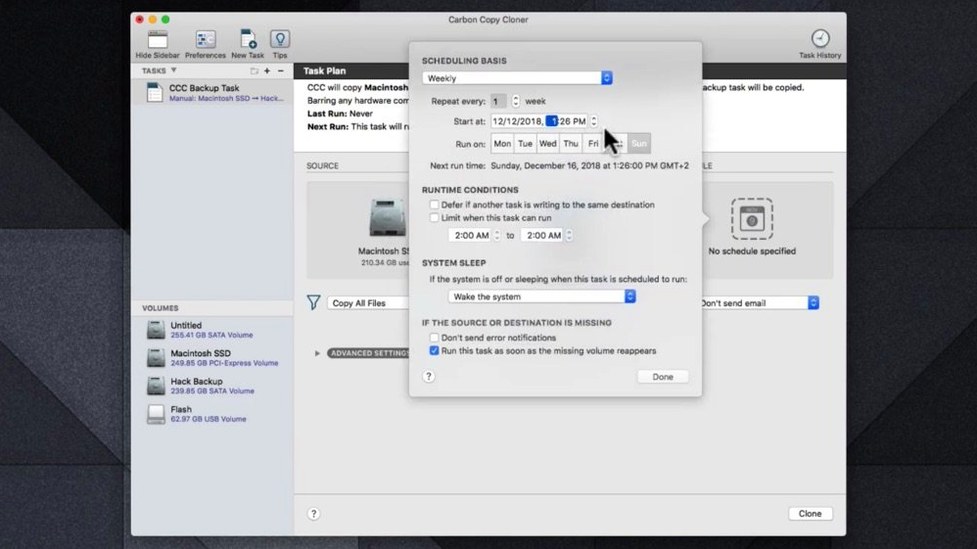
Next, set up a scheduled task for the folders that change daily. Pick your Documents, your design project folders, your email archives. Tell CCC to run that task every evening at 6pm, or whatever quiet hour fits your shop routine. The interface won't nag you — it just does its thing in the background while you close up for the day.
Once your schedule is set, open CCC's Task History once a week. It'll show you exactly what got copied and whether anything failed. That's the habit that turns a backup setup from "set and forget" into something you can actually trust when you need it.
Hold Option to unlock hidden actions
CCC's main window is straightforward — source on the left, destination on the right, big Clone button at the bottom. But a few tucked-away touches save real time once you know they're there.
Hold the Option key while clicking the Clone button and it turns into a one-shot "clone and quit" command. Useful for end-of-day runs where you want the Mac to shut everything down once the backup finishes. I use that one constantly.
The menubar icon is another quiet helper. Right-click it and you can start or stop any task without pulling up the main window. If you've got three or four scheduled tasks, you can kick off an extra manual backup of just your project folder without interrupting the others. The icon also shows a tiny progress ring during active copies, so a glance tells you whether CCC is busy.
In the task list, you can drag tasks into a custom order, and CCC respects that order when running multiple tasks back to back. That matters if you clone a full disk first and then want a folder-level task to run right after — no scripting needed.
Tip: Double-click any task in the sidebar to jump straight to its settings. It's faster than selecting and clicking through the toolbar, and it works even while a backup is running.
Before you download, a few honest answers
Does CCC 7 still make bootable clones on Apple Silicon?
Yes, but with the same caveats Apple now imposes on everyone. CCC can create a bootable copy of your system on an external drive, and an Apple Silicon Mac can start up from it. However, Apple's security policies mean the external system might need a brief trip through Startup Security Utility if you've never booted from external media before. The clone itself is complete — the extra step is Apple's, not CCC's. On Intel Macs, the process remains as straightforward as ever.
You'll barely notice it running
CCC uses Apple's own file-copying engine under the hood, so it's working at the filesystem level rather than reading every byte through a user-space filter. On any Mac from the last several years, you'll barely notice it running. You can also throttle the task priority in the advanced settings if you're doing something latency-sensitive, like recording audio. In practice, the scheduled evening backups most people set up finish while you're making tea.
What happens if the destination drive runs out of space?
CCC warns you before a task starts, not after it fails halfway through. The SafetyNet feature — on by default for scheduled tasks — keeps older versions of changed and deleted files until the destination runs low, then trims the oldest snapshots first. You can turn that off if you prefer a strict mirror, or set a size limit so it never fills the whole drive. The snapshot navigator in the destination view lets you browse those older file versions when you need them.
Does it handle network drives and NAS boxes?
CCC backs up to network volumes mounted over SMB or AFP just fine, though bootable clones require directly attached storage. For a shop setup where your design files live on a Mac but you want an off-site copy on a NAS in the stockroom, schedule a folder-level task pointing at the network share. CCC will wake the network drive if needed and mount it automatically before the task fires.
A cleaner task list on Ventura and newer
CCC 7 dropped support for macOS Catalina, Big Sur, and Monterey — if you're still on one of those, you'll stay on CCC 6. For everyone on Ventura or newer, version 7 brought a cleaner task list, faster snapshot handling, and full qualification on Apple's latest releases, including the Golden Gate build.
Version 7.1.6 refined the Quick Update feature, which now skips the full disk scan when the source and destination haven't changed much — it checks filesystem metadata instead of walking every folder tree. The difference on a large disk is noticeable: what used to take several minutes of scanning now finishes in seconds.
Task grouping also got quieter improvements. You can now pause a group mid-run and resume it later, which helps when you're working off a laptop and need to unplug from the backup drive without losing your place. Earlier versions would cancel the group; now it simply waits.
The menubar app gained per-task progress bars, so you're not squinting at a single indeterminate spinner when multiple backups overlap. Small thing, but it removes the guesswork about which task is hogging the external drive.
A real-world workflow: migrating to a bigger internal drive
Say your MacBook's internal SSD is getting tight — you've upgraded to a larger capacity drive and you want to move everything across without reinstalling a single app. Here's the path from start to finish.
First, connect the new drive in an external enclosure. Open CCC and create a new task with your current internal drive as source and the new external SSD as destination. Before clicking Clone, open the task's advanced settings and make sure "Preserve attributes" and "Copy all files" are selected — those are defaults, but it pays to check.
Run the clone. Depending on drive size and connection speed, this takes anywhere from twenty minutes to a couple of hours. Go pack orders or update your inventory spreadsheet while it works.
Once the clone finishes, shut down the Mac. If you're on an Apple Silicon machine, hold the power button to enter startup options and select the external drive. Boot from it and check that everything works: open your shop's bookkeeping app, verify your font manager sees all your typefaces, make sure your email accounts load. This is the sanity check before committing.
When you're satisfied, shut down, swap the new drive into the Mac physically, and start up. Your old drive stays intact as a backup — keep it in the enclosure and stash it somewhere safe. The whole process avoids migration assistants, re-authentication loops, and the slow drip of re-downloading plugins one by one.
How CCC fits with other apps and macOS
CCC plays well with the Mac's own Time Machine, and the two serve different purposes. Time Machine gives you hourly incremental snapshots and a graceful interface for retrieving last week's version of a file. CCC gives you a bootable clone and granular control over what copies when. Running both is common — let Time Machine handle the continuous version history, and let CCC handle the nightly full-system safety net.
For shop owners who use cloud sync tools alongside local backups, the order of operations matters. If you run a CCC task that backs up your Documents folder while a sync app is mid-upload, you might capture a half-synced file. The cleanest approach is to schedule CCC tasks for a time when sync apps are idle — right after your work hours, for instance — or point CCC at the local folder that the sync app watches, knowing the cloud copy will catch up on its own schedule.
CCC also integrates with macOS's notification system, so backup completion or failure alerts arrive in Notification Center. If you use Focus modes during design work, CCC's notifications respect those settings — they won't break your concentration unless a task actually fails.
For automation-minded users, CCC tasks can trigger shell scripts or launch other apps before and after a backup runs. A simple post-clone script can eject the destination drive, or fire off a quick rsync of your photo library to a secondary archive. The hooks are there if you want them, and invisible if you don't. For most people, the built-in scheduling is enough, but it's nice knowing the escape hatch exists for carbon copy cloner mac download setups that need to chain multiple tools together.
- macOS 10.15 Catalina or newer
- Runs natively on Intel and Apple Silicon Macs
- English interface
Notes from other shops 0
Sign in or open a shop account to leave a note.
No notes yet. If you've used this on a shop Mac, tell me how it went.