
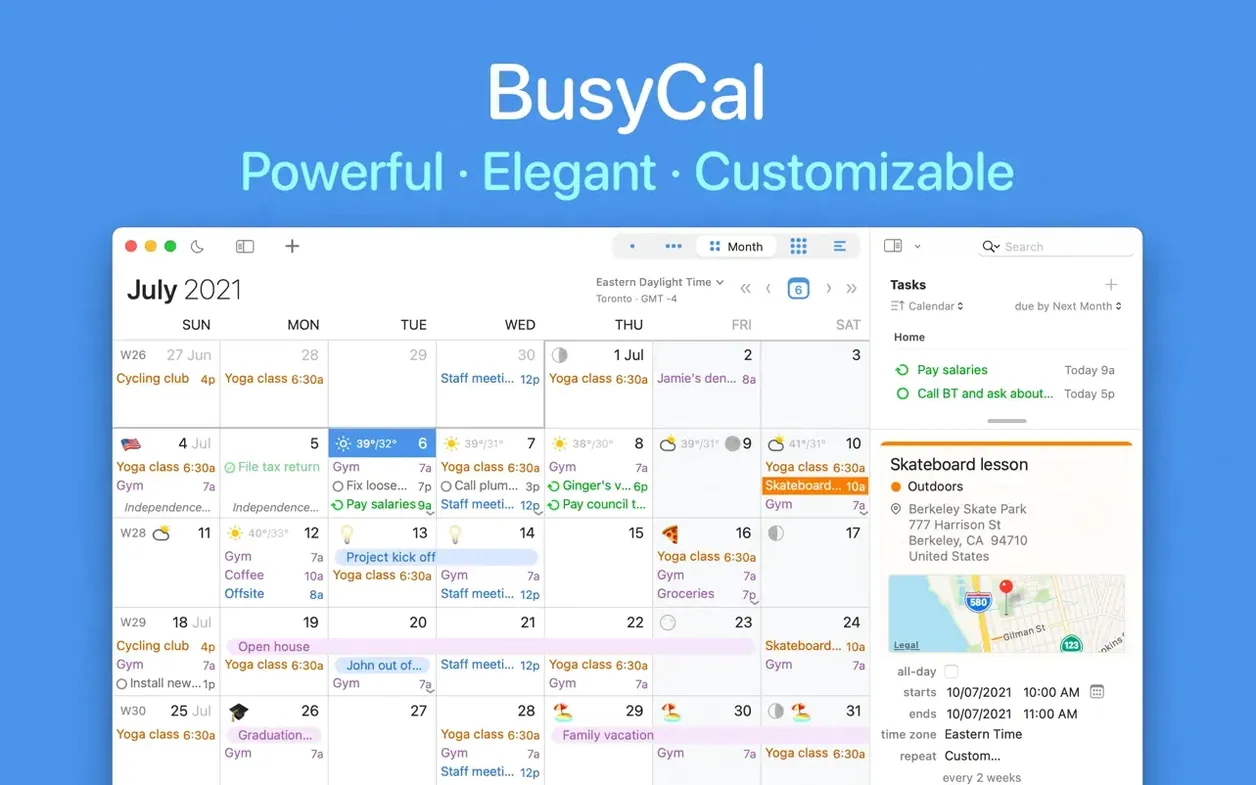

BusyCal for Mac tends to attract two kinds of people: those who have outgrown the built-in Calendar app, and those who want tasks and events living in one place without a separate window. Here is a workflow that shows where the extra power goes.
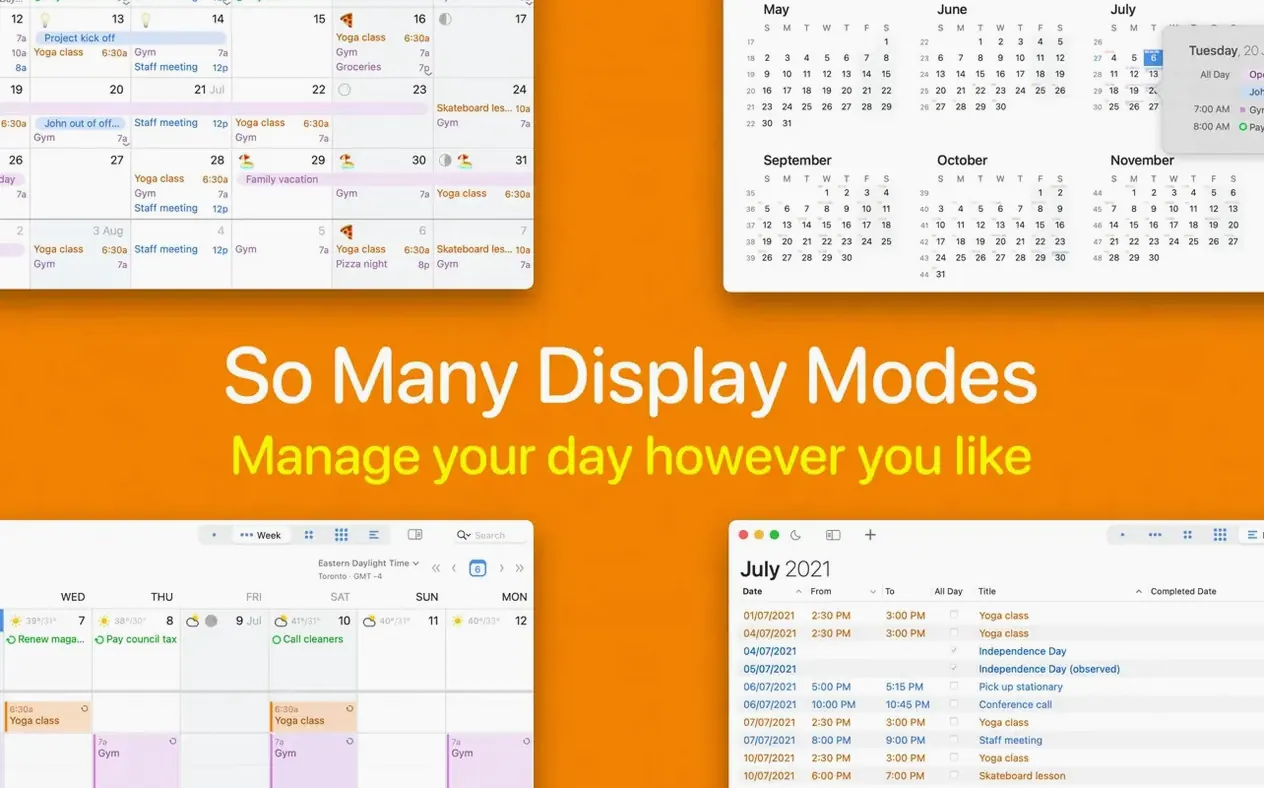
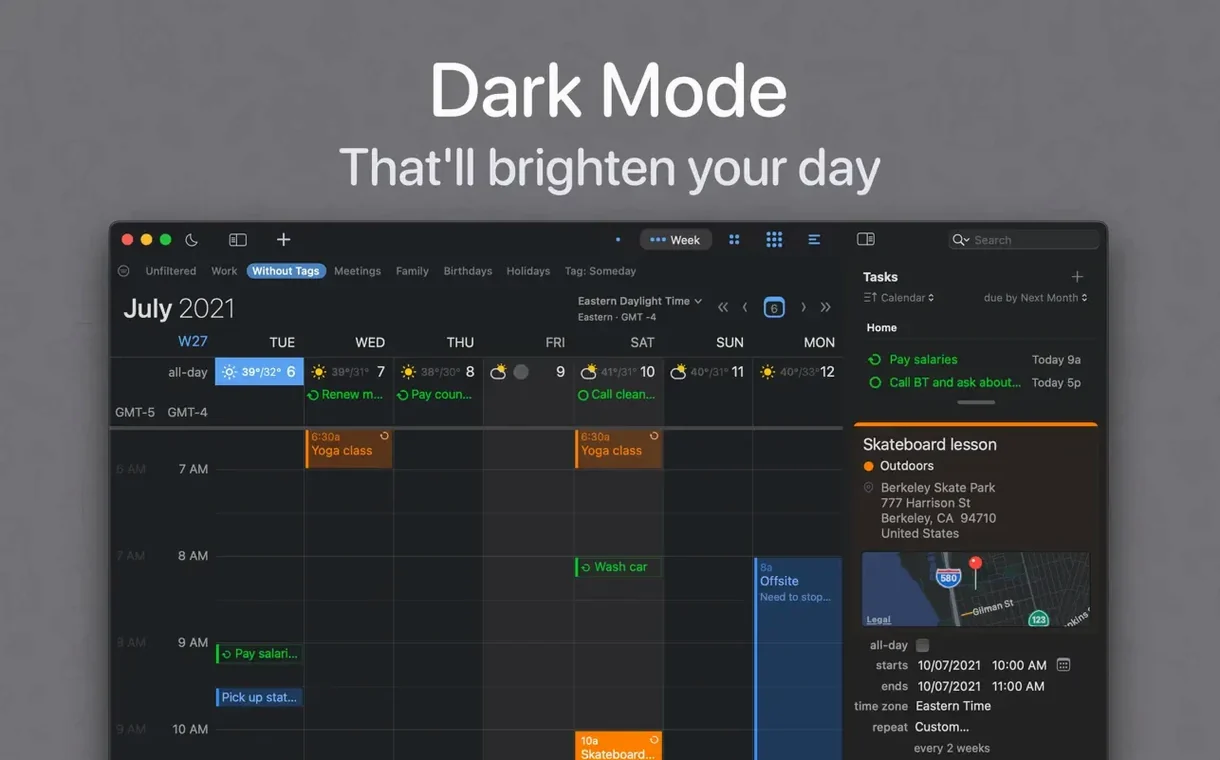
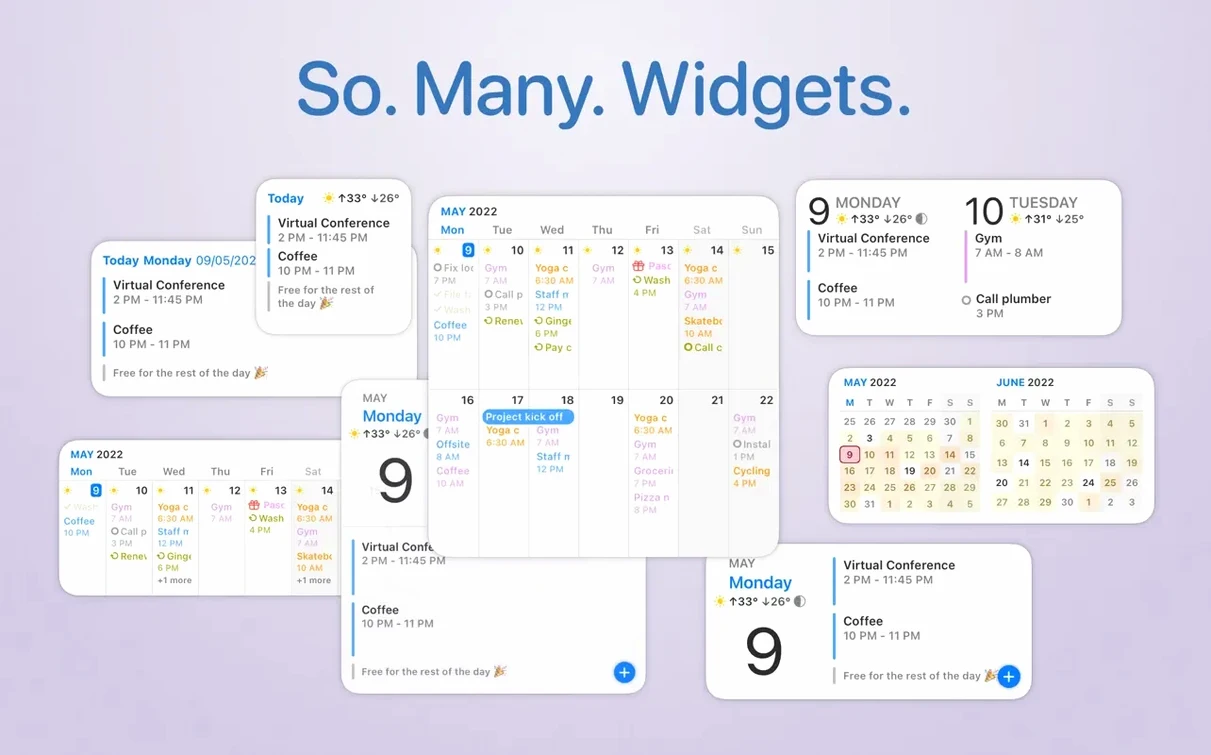
- Set up your views. Pick the day, week, month, or list layout that matches how you actually plan. BusyCal gives you more control over what appears on screen than the default macOS calendar.
- Color your calendar by project. The expanded Google Calendar palette and custom event colors mean you can assign a color to a client, a class, or a household project — not just to a whole calendar.
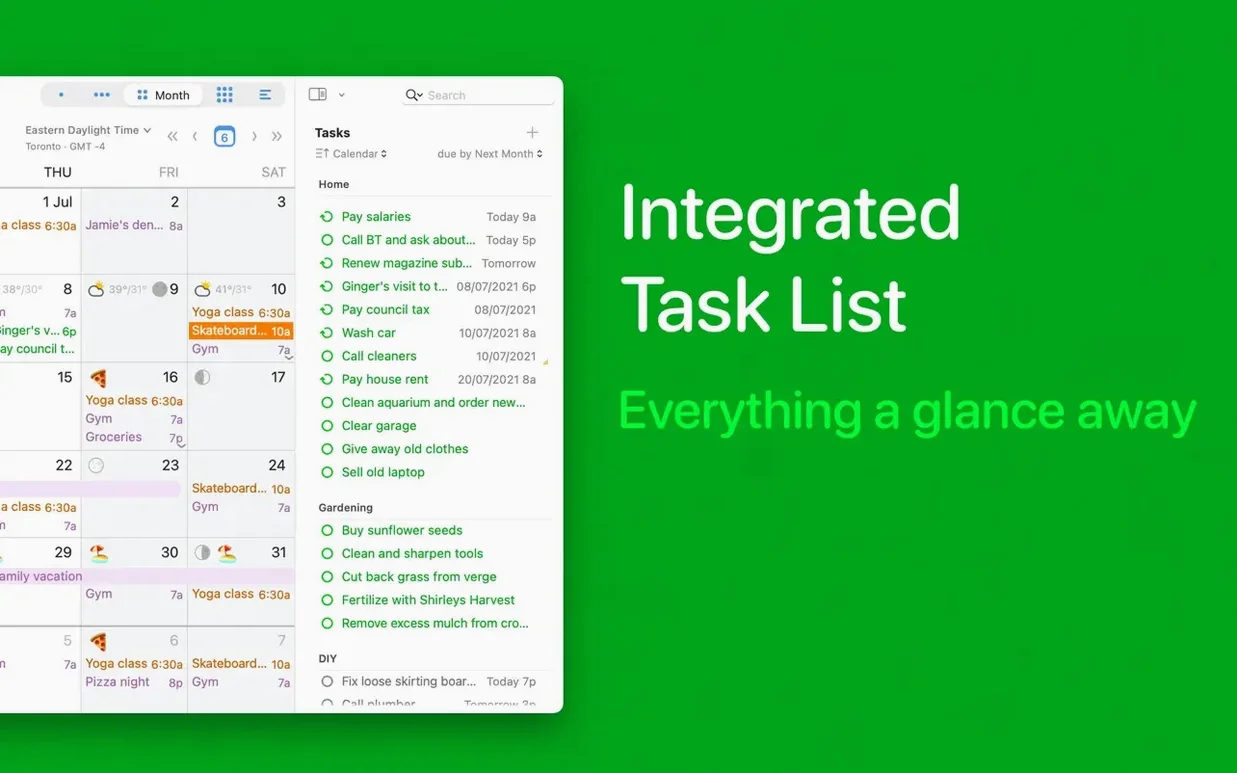
- Add tasks alongside events. Keep reminders and appointments in the same timeline. The new Task list font setting in Appearance > Fonts lets you make that list easier to scan.
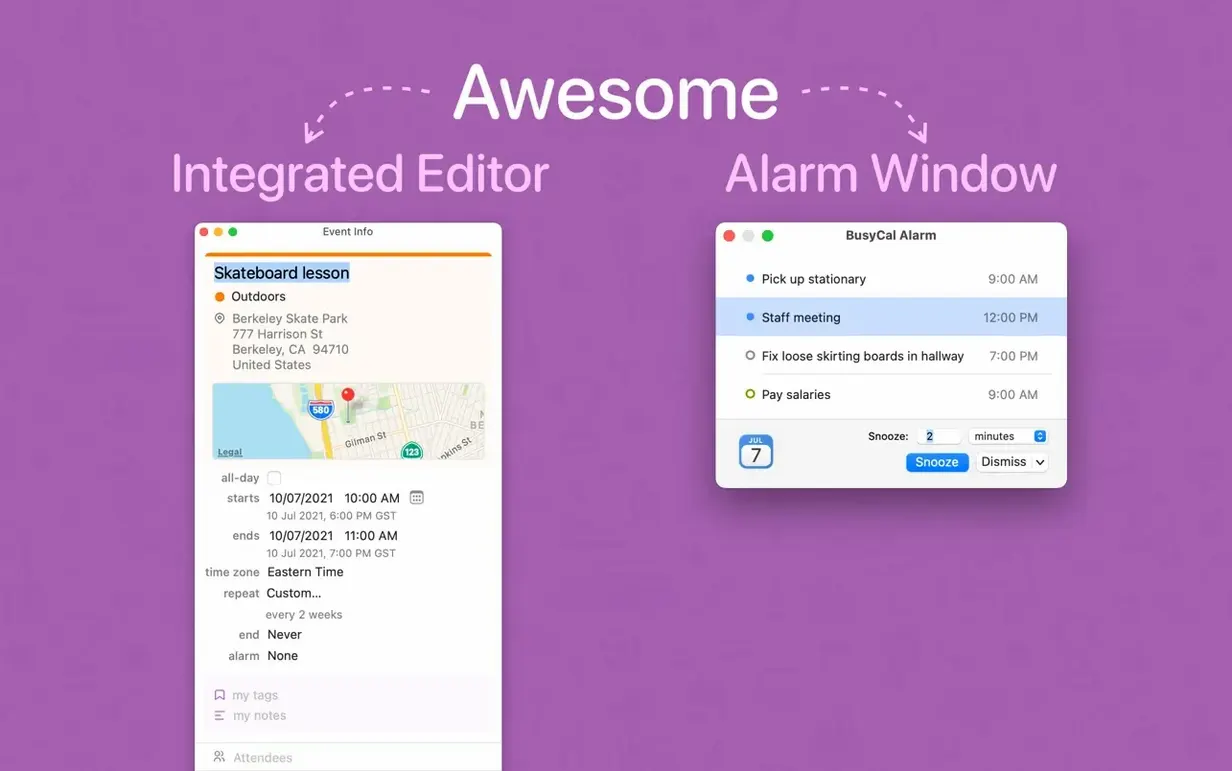
- Clean up your workspace. Hide the Info Panel when nothing is selected so the window feels less cluttered while you are just checking the day.
- Search smarter. Find and Replace now supports regular expressions with capture groups and backreferences, which helps when you rename recurring events in bulk.
What I'd use it for: running a small shop schedule where orders, markets, and supply runs all share one calendar — and where colors do some of the organizing for me.
Treating it like Apple Calendar with a fresh coat of paint
Most people coming from Apple Calendar treat BusyCal like a prettier version of the same tool and miss half of what makes it useful. Here are the missteps I see most often.
- Ignoring the Info Panel toggle. New users leave the panel open all the time, then complain the window feels cramped. The new option to auto-hide it when nothing is selected is one of those small settings that changes how the whole app feels day to day.
- Using only one view. Sticking to month view because that is what you know means you never see tasks lined up against time blocks. Switching between day and week views based on what you are planning — not out of habit — makes a real difference.
- Forgetting the task list font setting. The default font size works, but if you manage a long task list, bumping it up or choosing something cleaner in Appearance > Fonts turns a dense wall of text into something you actually want to scan.
- Skipping regular expressions in search. Find and Replace with regex is genuinely powerful, but beginners treat it like a plain text search. Learning even one pattern — say, swapping date formats across dozens of events — saves real minutes.
- Coloring events individually instead of by meaning. New users pick colors at random per event. A better approach: decide that one color always means a deadline, another means a meeting, and stick with it. The expanded palette and custom color support make that system easier to build.
Tip: Spend ten minutes setting up a color system and hiding the Info Panel before you fill your first week. It pays off fast.
When your calendar becomes your week’s command center
BusyCal makes the most sense when your calendar stops being a simple date tracker and starts being the place where you organize your week. A few types of users pull ahead of the pack with busycal for mac.
- Freelancers and small shop owners. When you are scheduling client work, invoicing reminders, and personal appointments all in one place, having tasks and events on the same timeline removes the mental split between "things to do" and "places to be." The color system alone handles the sorting that would otherwise need tags or separate calendars.
- People juggling multiple Google accounts. The expanded Google Calendar palette support means you are not stuck with the limited color set of a standard web calendar. If you manage calendars for a household, a side project, and a day job under different accounts, busycal macos keeps them visually distinct without extra effort.
- Anyone who batch-edits events regularly. If you ever need to rename a dozen recurring appointments or shift a category of events to a new project, the regex-powered Find and Replace is the kind of feature that turns a tedious chore into a thirty-second job. Regular users of Apple Calendar simply do not have this option.
- Planners who care about how the window feels. It sounds minor, but hiding the Info Panel when nothing is selected makes the app feel quieter. If you keep your calendar open on a second display all day, that small reduction in visual noise adds up over a work week.
In short, BusyCal rewards the kind of person who wants a calendar that works like a planning surface rather than a digital day planner. You get back what you put into setting it up.
BusyCal 2026.3.3 brings a few quality-of-life changes worth knowing about:
- Russian localization added, joining the English interface.
- Expanded Google Calendar palette and custom event colors.
- New Task list font setting under Appearance > Fonts.
- Option to hide the Info Panel when nothing is selected.
- Find and Replace now supports regular expressions with capture groups and backreferences.
- macOS 13 or later
- Apple Silicon or Intel Mac
- Interface languages: English, Russian
Questions from the stall
What macOS version does BusyCal require?
BusyCal requires macOS 13 or later, and version 2026.3.3 specifically needs macOS 13.5 or newer.
Does BusyCal work on Apple Silicon Macs?
Yes, BusyCal supports both ARM and x86 64-bit architectures, so it runs on Apple Silicon and Intel Macs.
Notes from other shops 0
Sign in or open a shop account to leave a note.
No notes yet. If you've used this on a shop Mac, tell me how it went.