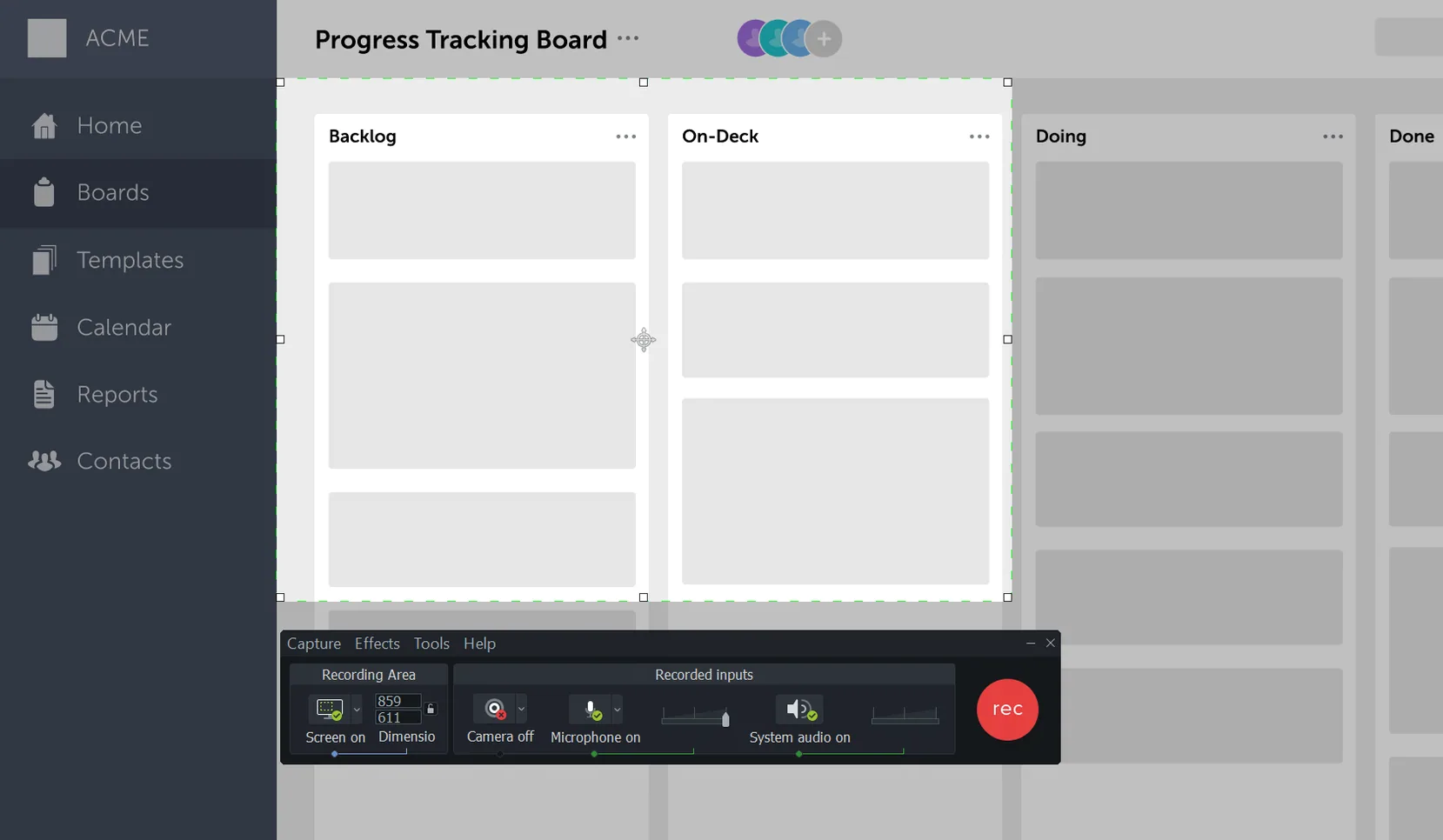
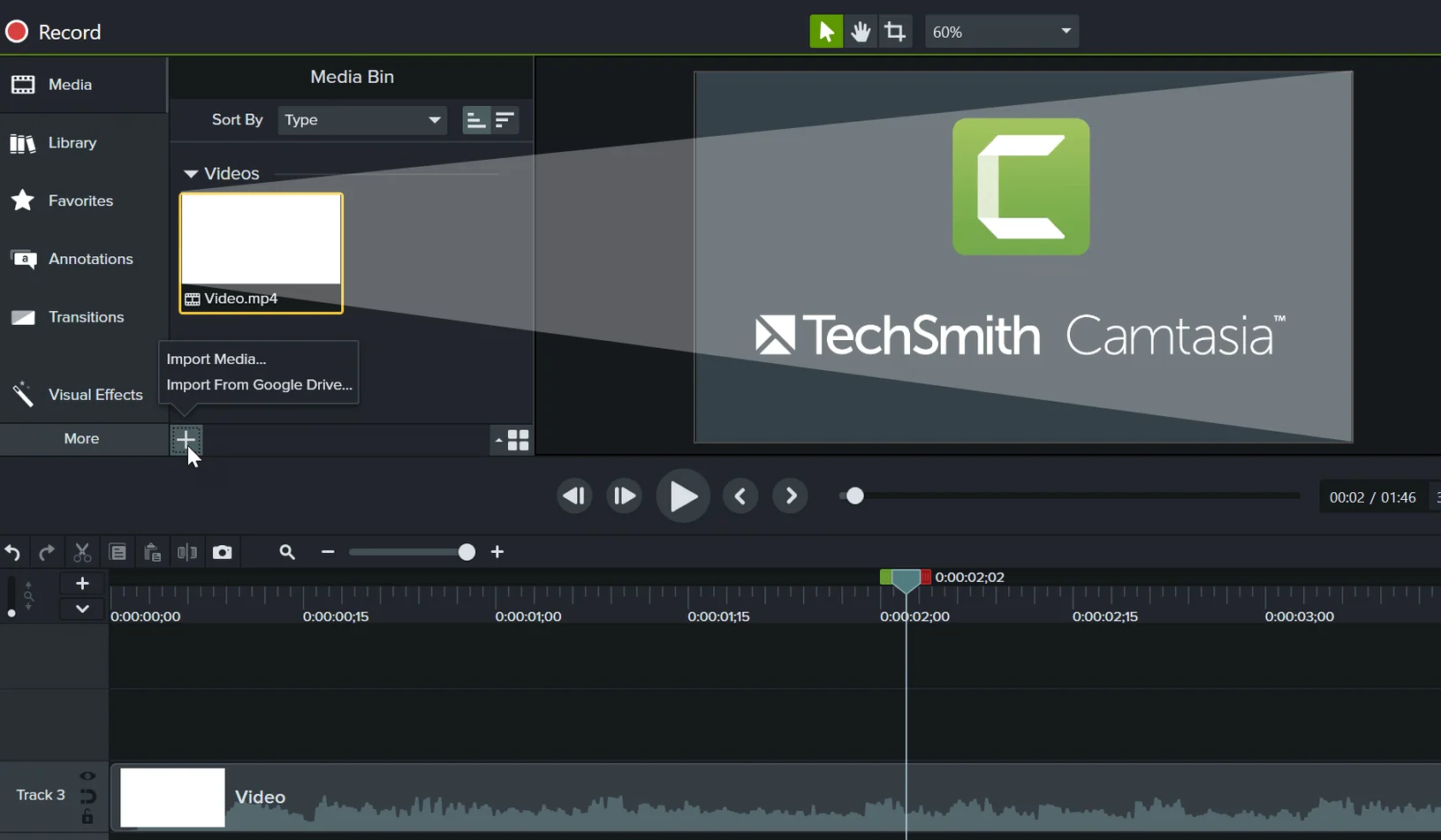
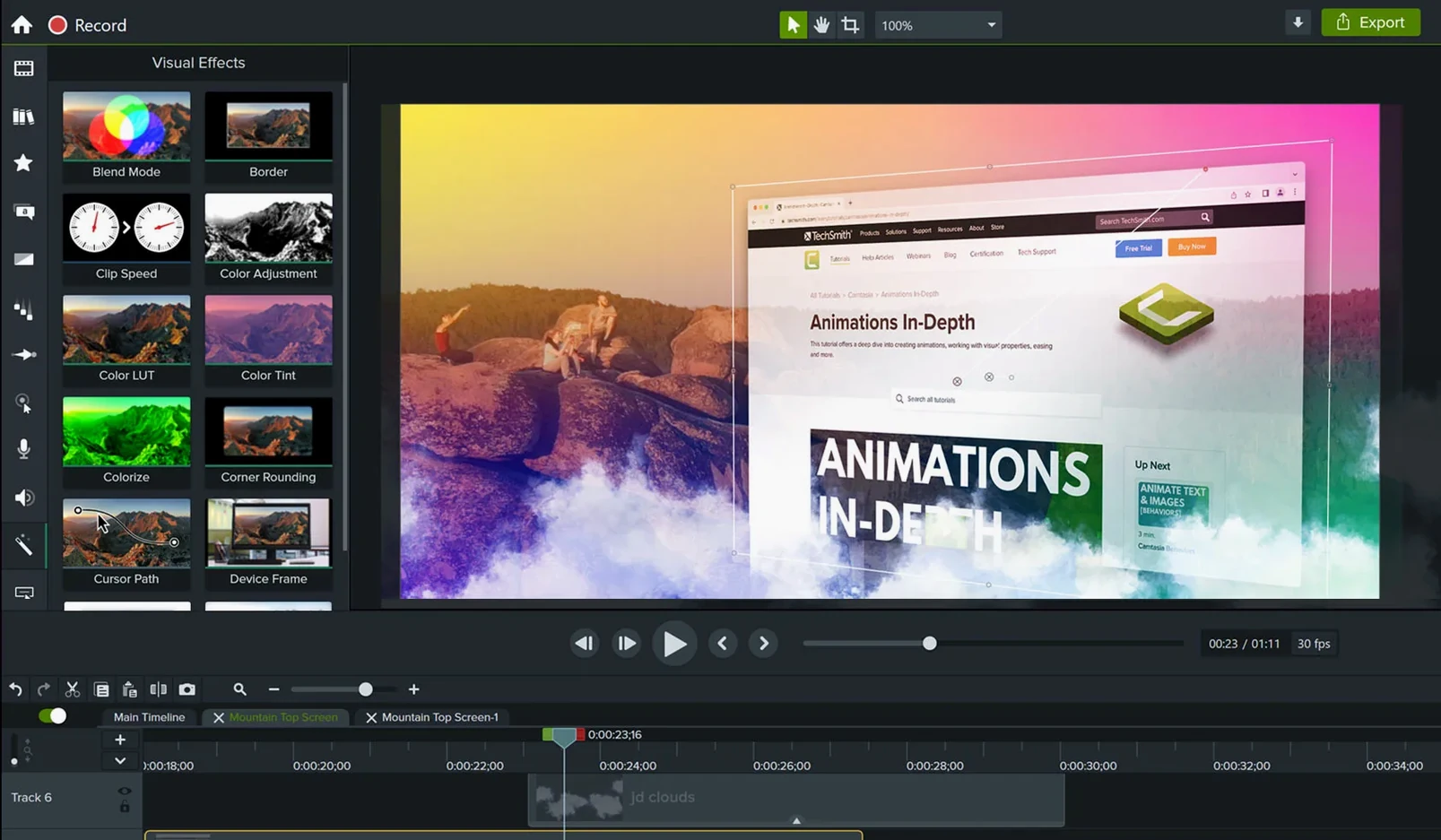
Camtasia is a screen recording and video editing app built for people who need to explain something clearly—whether that's a software walkthrough, an online lesson, or a product demo. You record your screen, bring in existing clips or PowerPoint slides, and shape everything into a polished video without leaving one app. Version 2026.2.3 is a maintenance release, so the focus is on smoothing out rough edges rather than adding flashy new tools.
- Patched a crash that could interrupt you on startup or during export—those moments when you'd rather not see the beachball.
- Miscellaneous bug fixes and small performance improvements throughout the editing timeline and recorder.
- Same broad file support: import your existing video recordings, photos, and audio, or pull in a PowerPoint deck to turn slides into video content.
- Ready-made video templates still help you start a project without staring at an empty timeline.
- Interface available in English, German, French, Japanese, Spanish, Simplified Chinese, and Portuguese—handy if you switch between languages.
- Runs natively on both Apple Silicon and Intel Macs, with macOS 13 as the minimum.
The recording engine and editing workflow that Camtasia users rely on haven't changed with this update. What you get is a more stable version of the same tool—fewer crashes, smoother exports, and the same straightforward path from raw recording to finished video.
Most people don’t need Camtasia. And that’s fine. But if you fall into one of a few specific groups, it tends to fit like a broken-in tool belt.
Five versions of the same app, one recorder
Software trainers and onboarding leads get the most mileage. You’re recording the same app five different ways for five different audiences—new hires, power users, a client who needs the short version. Camtasia’s recorder captures the screen, your voice, and webcam feed in one pass, and the timeline doesn’t fight you when you trim out the ums later. The built-in cursor effects (highlight, magnify, click rings) save the kind of tedious keyframing that eats an afternoon in a general-purpose editor.
Course creators and online instructors are a close second. You’re not making a feature film; you’re making week three of a marketing module. Templates give you consistent intro and outro cards, callout shapes keep your arrows looking the same across lessons, and the quizzing feature—though basic—lets you drop a checkpoint question right into the video timeline. No separate quiz tool required.
Internal communicators at medium-sized companies. The person who records the quarterly update, walks through the new expense-report process, or explains why the printer setup changed again. You need something faster than a professional NLE and more controllable than a quick screen grab. Camtasia sits in that middle ground and doesn’t punish you for not being a video editor.
Who doesn’t gel with it? People chasing advanced color grading, multi-cam shoots with more than two angles, or complex motion graphics. That’s what dedicated tools are for. Camtasia’s strength is getting an explanation out of your head and onto a screen in a reasonable afternoon.
Pause between sections instead of editing out dead air
New users often treat the timeline like a linear script and record everything in one take. Then they spend an hour cutting out dead air. A better habit: pause the recording between sections. Camtasia picks up where you left off, and you’ve already split your footage into rough chapters before you even open the editor.
Another common one: skipping the audio normalization step. You record your voice, then drop in a system alert sound or a music sting, and suddenly the volume jumps scare your viewer. Select all your audio clips, right-click, and apply Normalize before you do anything else. It’s one click and it prevents the most common complaint about amateur training videos.
Beginners also tend to overuse the annotation tools. Every click gets a highlight, every menu gets a zoom, and by the two-minute mark the viewer feels like they’re inside a pinball machine. Pick one way to draw attention—I usually stick with Cursor Highlight plus an occasional Zoom-n-Pan on dense interface areas—and use it consistently. Less really is more when someone’s trying to learn a new piece of software.
Finally, ignoring the canvas dimensions. If you recorded at 2560×1440 but export at 1080p, small interface text might become unreadable. Check your project settings before you start editing, not after. A quick test export of the first thirty seconds saves a lot of rework.
A short walk with a course creator
Imagine a user-experience instructor named Carmen. She’s building a lesson on prototyping in Figma. She opens Camtasia, records her screen as she walks through auto-layout constraints, and speaks directly into her USB mic. The recording captures her browser, Figma’s interface, and a small webcam bubble in the corner.
Back in the editor, she trims a long pause where she waited for a plugin to load. She drops in a lower-third title card from the library—her name and the lesson number—and pulls a short music clip onto a second audio track, ducking it under her voice with two clicks. The cursor-highlight effect automatically follows her mouse movements through the layers panel, so she doesn’t have to animate that by hand.
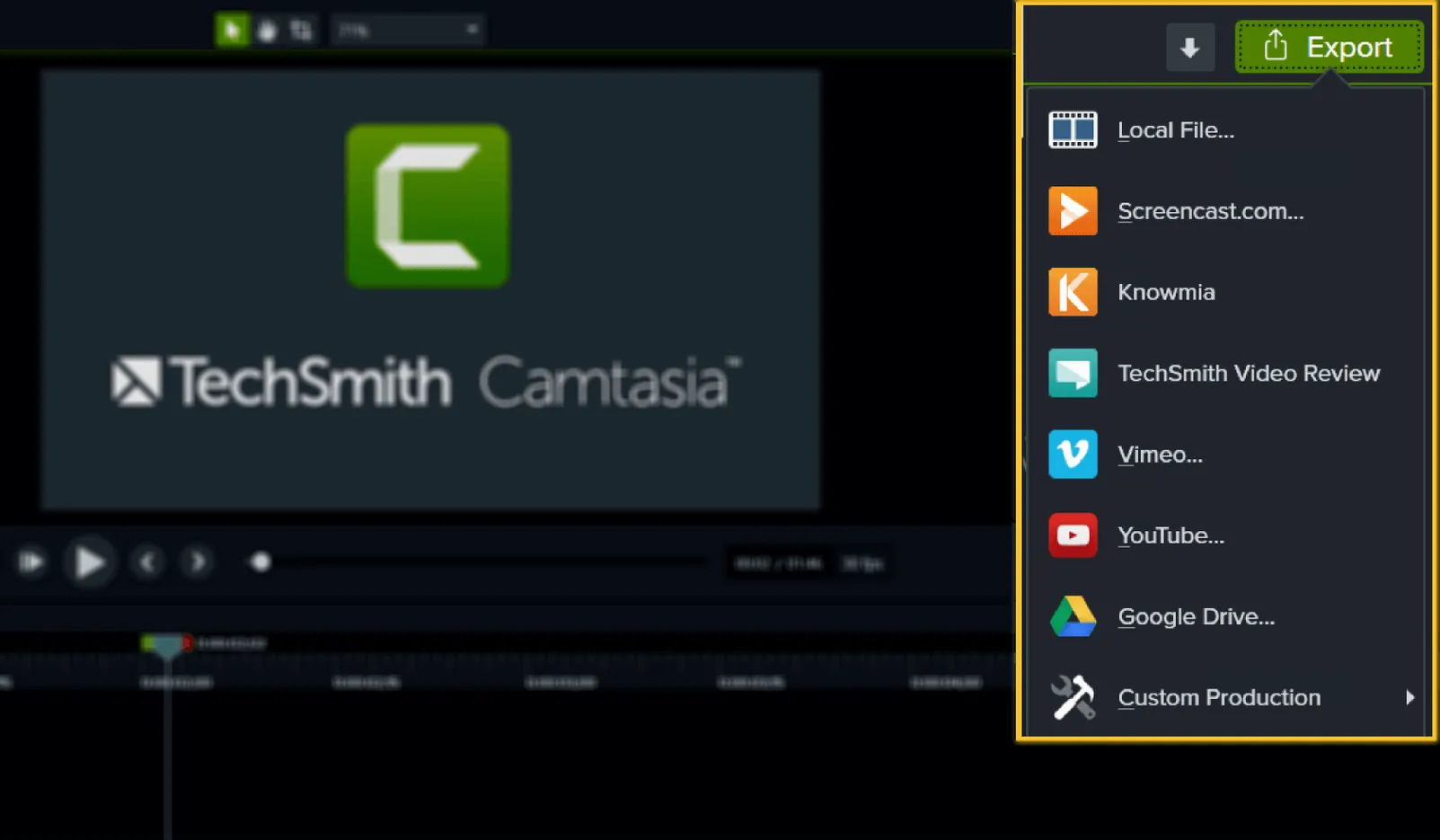
Before exporting, she adds a quiz question at the three-minute mark: “Which auto-layout direction did I just select?” She sets the correct answer, types a short explanation for wrong responses, and moves on. The whole edit takes about twenty minutes. She exports to a local MP4, uploads it to her course platform, and the quiz responses feed back into her student dashboard.
That’s the loop Camtasia is built for: record something real, clean it up, add a little structure, and ship it. Carmen isn’t editing video for the sake of editing video. She’s teaching, and the tool stays out of the way enough that she can do exactly that.
Tip: If you’re working with Figma, Sketch, or any design tool with a dark interface, bump up the cursor size in Camtasia’s recording preferences before you start. The default cursor can disappear against dark panels in the final video.
Camtasia 2026.2.4 arrives with the developer’s latest fixes and a gentle round of performance polishing throughout the editor.
- macOS 13 or later
- Apple Silicon or Intel 64-bit Mac
Notes from other shops 0
Sign in or open a shop account to leave a note.
No notes yet. If you've used this on a shop Mac, tell me how it went.