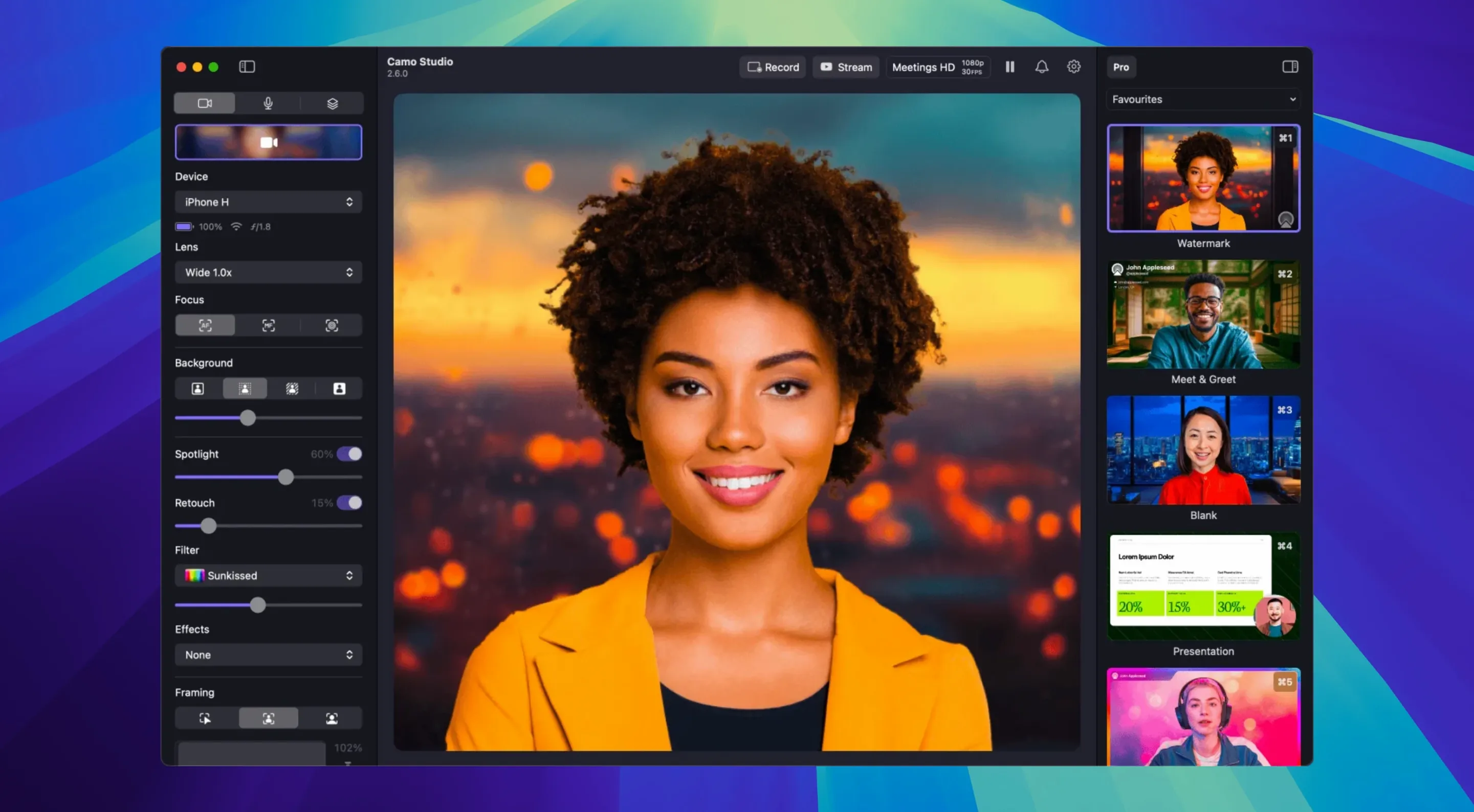
It runs on any Mac that can handle macOS 12.3 or newer, with native support for both Apple Silicon and Intel processors. That means even older machines get smooth performance when a recent phone is doing the heavy lifting. The whole point is pairing a phone you already own with your Mac and getting far better video than a built-in laptop camera can manage.
Picture controls you’ll actually use
Digital image stabilization tidies up hand movement without a gimbal. Portrait mode adds a natural bokeh blur behind you, and AI face retouching softens the kind of tired-morning look that rings and lighting alone can’t fix. For framing, the automatic subject tracking keeps you centered when you lean in or shift around — handy during a demo where you’re pointing at something off-camera. Color work is straightforward too: load your own LUT files or pick from 18 built-in filters to match a brand look without leaving the app.
Scenes and overlays for a polished stream
The layers system puts text, logos, and web-based graphics right on top of your video feed. You build scenes once and switch between them live — a clean speaker view, a side-by-side with a chat window, a full-screen logo bumper. Version 2.9.0 added dual-format streaming and recording on macOS, so you can save a high-quality master while sending a compressed stream, plus isolated audio recording and basic noise reduction for voices. If you teach, stream, or present from a desk, it turns a phone-and-laptop combo into a compact production setup.
Treating it like a basic webcam instead of a video mixer
The first few minutes with Camo Studio are straightforward, but a handful of habits trip people up long after they think they've figured it out. Most of them come from treating the app like a basic webcam utility rather than a camera control panel.
Overlooking the phone-side processing. All the heavy video work happens on the phone, not the Mac. A common mistake is plugging a phone into an old, underpowered USB port or a slow hub and then blaming the app for stuttering. Connecting directly to a Mac's own port — especially on the back of a desktop — often clears that up instantly. Same goes for using a battery-drained phone while expecting 4K 60 FPS. Charge it first.
Leaving auto-everything on. The automatic exposure and white balance are competent, but they hunt when lighting changes. Someone walks past a window, the whole frame shifts. Beginners leave all the sliders on auto and wonder why their video feels inconsistent. Locking white balance and exposure manually once the shot looks right — two small locks in the sidebar — gives a steady look that doesn't wander mid-sentence.
Forgetting that Portrait mode and stabilization eat light. Turn on bokeh and digital stabilization together in a dim room, and the image can get soft or noisy. Portrait mode crops in slightly, stabilization crops further. Either add light or pick one effect at a time until the phone sensor can keep up.
Ignoring the virtual green screen lighting. The background replacement works without a green screen, but beginners often leave the subject too close to a wall or sit in uneven light. Pulling a few feet away from the backdrop and putting a small lamp behind, aimed at the wall, gives the keyer a much cleaner edge. The difference between a rough cutout and a clean one is usually just lamp placement.
Installing the app and skipping the companion. Camo Studio on the Mac needs the free Camo app on the phone. Forgetting that step — or installing it but never granting camera permission — is the number one "why isn't it showing up" moment. A quick check in the phone's settings solves it.
Double-click a scene to jump straight into it
Once the basics are solid, a handful of tucked-away touches make a session smoother. Most aren't advertised loudly, but they save clicks and keep you from fumbling during a live call.
- Double-click a scene to jump to it instantly. In the scenes panel, a double-click switches the active scene without touching the dropdown. Faster than hunting through menus when you're live and need the logo bumper right now.
- Right-click the preview for a snapshot. A quick right-click on the video preview grabs a still frame. Useful for checking composition without leaving the app or opening another tool.
- Keyboard shortcuts for focus and zoom. The arrow keys nudge digital focus and exposure areas, and holding
Optionwhile dragging the zoom slider gives finer increments. Not labeled anywhere obvious, but the precision helps when setting up a tight product shot. - Overlay opacity on the fly. Each text or image layer has an opacity slider that works during a live call. You can fade a logo in slowly while speaking, then drop it back — no scene switch needed.
- AI face retouching has a strength dial. It isn't just on or off. The slider lets you dial back the smoothing so skin still looks like skin, just less tired. The default strength is a little heavy for some lighting; pulling it to about 40% often looks more natural.
- Noise reduction works per source. The audio noise reduction added in 2.9.0 isn't a global toggle. You apply it to the phone's mic or an external mic independently. If you're using a decent USB mic, you might only turn it on for the phone as a backup channel.
Plug in the phone and launch without hunting for settings
Here's how a morning stream or recording session might run once everything is set up — the rhythm rather than the setup.
I plug the phone into the Mac's rear USB-C port and open Camo Studio. The phone wakes and shows a confirmation that it's connected; I tap "Allow" and set it on a small tripod angled slightly down toward the desk. The preview window pops up on the Mac, and I see the default scene appear — just my face, no overlays yet.
First step is locking the look. I turn off auto white balance, set it to match the daylight lamp off to the left, and lock exposure with the subject about one stop above middle. Portrait mode goes on at 50% strength — enough separation from the bookshelf behind me without the cutout looking artificial. I nudge the zoom to crop a little tighter, then check that automatic framing is on so small movements don't pull me out of the shot.
Next, scenes. I've got three saved from earlier sessions. One is a clean speaker view. Another layers a semi-transparent logo in the top-right corner and a small chat window at the bottom. The third is just the logo full-frame for breaks. I double-click the clean speaker view — that's where we start.
Before going live, I test the audio. The phone's mic has noise reduction turned on from the audio panel. My USB mic, plugged directly into the Mac, is set as the main input and doesn't need it. Both channels are isolated for recording, which means later I can mix them separately if one picked up keyboard noise.
During the stream, I switch to the second scene when I'm reading viewer questions — the chat overlay appears, and I can respond without tabbing away. The transition is instant. Halfway through, I remember I wanted a warmer color tone, so I load a LUT I'd saved from a previous project. It applies live, and the stream doesn't flicker or drop frames.
When the session wraps, I stop recording. Camo Studio has saved two files: the high-quality master in ProRes and the compressed H.264 stream version, both with isolated audio tracks. I close the app, unplug the phone, and the files are ready to edit.
Version 2.9.0 brings several macOS additions for people who record and stream regularly:
- Dual-format streaming and recording — save a high-quality file while sending a lighter stream.
- Isolated recordings for cleaner audio separation.
- Audio noise reduction to clean up room tone and background hum.
- Control from AI agents for automated workflows.
- macOS 12.3 or later
- Runs on Apple Silicon and Intel Macs
- A compatible iPhone or Android phone for the camera feed
Questions from the stall
Does Camo Studio work with Android phones?
Yes, it works with iPhone and Android devices, so you aren’t locked into one phone brand for your camera feed.
What video quality can I get through Camo Studio?
It supports up to 4K UHD resolution, depending on the phone you connect and the app you’re sending video to.
Notes from other shops 0
Sign in or open a shop account to leave a note.
No notes yet. If you've used this on a shop Mac, tell me how it went.