You've just downloaded a DRM-free novel and want to settle in for a long reading session without fighting a cluttered interface. BookReader gets out of the way and lets the text do the work. Here are the features I'd lean on most:
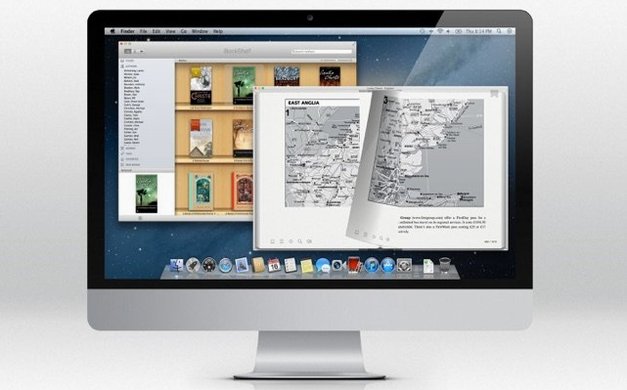
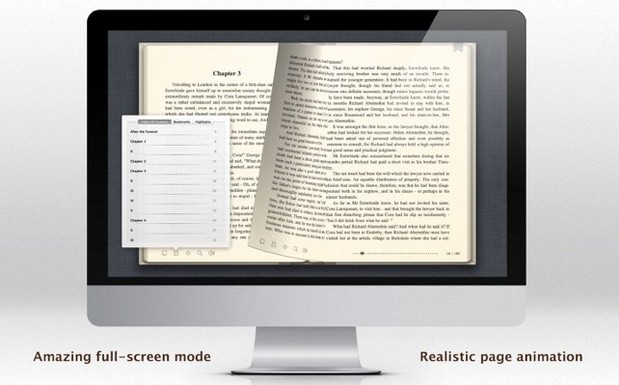
- Realistic page turning. The page-flip animation feels physical, not like a slide transition. It helps me stay oriented in longer books, especially when I jump back to check a detail.
- Text to Speech. Perfect for giving your eyes a rest. I'd queue up a chapter while packing orders — the built-in voice reads clearly and keeps my place.
- Hypertext support. Footnotes and cross-references actually work. If a cookbook links from an ingredient to its prep method, one click takes you there and back.
- Full Russian localization. Every menu and label switches cleanly. If Russian is your first language, the app doesn't feel translated — it feels native.
- Apple Silicon and Intel support. Runs smoothly on M-series Macs and older Intel machines, all from the same build.
BookReader won't open DRM-locked store books, but for everything else — public domain classics, technical docs, your own writing — it's a focused, capable reader that respects your attention.
A reading session, step by step
Here's how a typical evening looks when I open BookReader at the shop after closing.
- Find the book. I keep a folder of DRM-free titles in my Documents. I drag an EPUB I downloaded from a small press onto the BookReader icon. The app opens straight to the book — no library import wizard, no "add to collection" prompt.
- Set the reading mood. I switch the background to a warm parchment tone and bump the text size up two notches. The page-turn animation is on by default, and I leave it that way — it gives a small, satisfying cue that I've moved forward.
- Read, annotate mentally. I read for about forty minutes. When I hit a footnote marker, I click it. The view slides to the note, and a "back" button returns me exactly where I was. No losing my spot.
- Switch to listening. My eyes get tired, so I turn on Text to Speech. I set the speaking rate a little slower than default and let the chapter play while I tidy the worktable. The voice keeps going even if BookReader isn't the frontmost window.
- Close and resume later. I close the app. Tomorrow, I double-click the same file — BookReader remembers my page, my color settings, and the font size. No bookmarks to manage.
Where public domain fans find their sweet spot
This isn't an everything-reader, and that's its strength. The people who click with it tend to fall into a few clear groups:
- Public domain enthusiasts. If you load up on classics from Standard Ebooks or Project Gutenberg, BookReader handles the EPUB and MOBI files without fuss. No account, no cloud sync — just local files that open fast.
- Technical readers with DRM-free documentation. PDF manuals, TXT release notes, RTF specs — BookReader opens them all. The hypertext support makes linked tables of contents actually useful, which a lot of lightweight readers stumble on.
- Russian-speaking Mac users. The localization is thorough. Menus, dialogs, and even the bookshelf labels read naturally. If you switch between Russian and English regularly, the app follows your system language without extra steps.
- Writers reviewing their own drafts. Export a manuscript as RTF or TXT, open it in BookReader, and the page-turn view gives you a fresh perspective — like seeing your words in print for the first time.
Small snags and easy fixes
BookReader is straightforward, but a few things trip people up. Here's what I'd check first.
"This EPUB won't open." Nearly always a DRM issue. If you bought the book from Apple Books, Amazon, or Kobo, it's likely wrapped in encryption BookReader can't touch. The fix: stick to DRM-free sources or strip DRM from books you own (tools exist, but that's outside the app's scope).
Text to Speech sounds robotic. The default macOS voice can be flat. Open System Settings, go to Accessibility > Spoken Content, and download a higher-quality voice like "Samantha" or "Alex." BookReader picks up the system voice automatically — no in-app setting to hunt for.
Russian text renders as gibberish in old TXT files. Some plain-text files lack encoding headers. If you see mojibake, open the file in TextEdit first, re-save it as UTF-8, and reload in BookReader. The app assumes UTF-8 for TXT, and older KOI8-R or Windows-1251 encodings confuse it.
The page-turn animation stutters. Rare, but I've seen it on Intel Macs with integrated graphics when a PDF has huge embedded images. Switch to scroll mode (View menu, uncheck "Page Turning") and the navigation smooths out instantly. You lose the animation, but the reading stays comfortable.
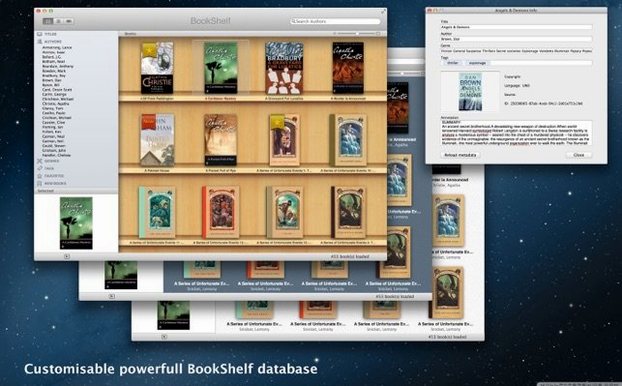
Bookshelf view won't show a book. BookReader's shelf only recognizes files you've opened at least once. If you dragged a folder of EPUBs into the app expecting them to appear, they won't. Open each file individually first — after that, it appears on the shelf for future sessions.
Updated for smoother compatibility with newer macOS versions.
- macOS 11.5 or later
- Apple Silicon or Intel 64-bit Mac
Questions from the stall
Can BookReader open Kindle or Apple Books purchases?
No. BookReader does not support encrypted DRM ePub books, so store purchases with copy protection won't open here.
Does it work on older Macs?
Yes. It requires macOS 11.5 or later and runs natively on both Intel 64-bit and Apple Silicon Macs.
What languages is the interface available in?
The app is fully localized into Russian, English, and Italian.
Notes from other shops 0
Sign in or open a shop account to leave a note.
No notes yet. If you've used this on a shop Mac, tell me how it went.