You've just pulled a disk image of a new file manager and you're staring at a generic app icon, wondering if it's worth the drag to Applications. It's a fair question. A Finder replacement needs to earn its place in the Dock before you let it anywhere near your working folders.
Does it actually fit into a macOS workflow?
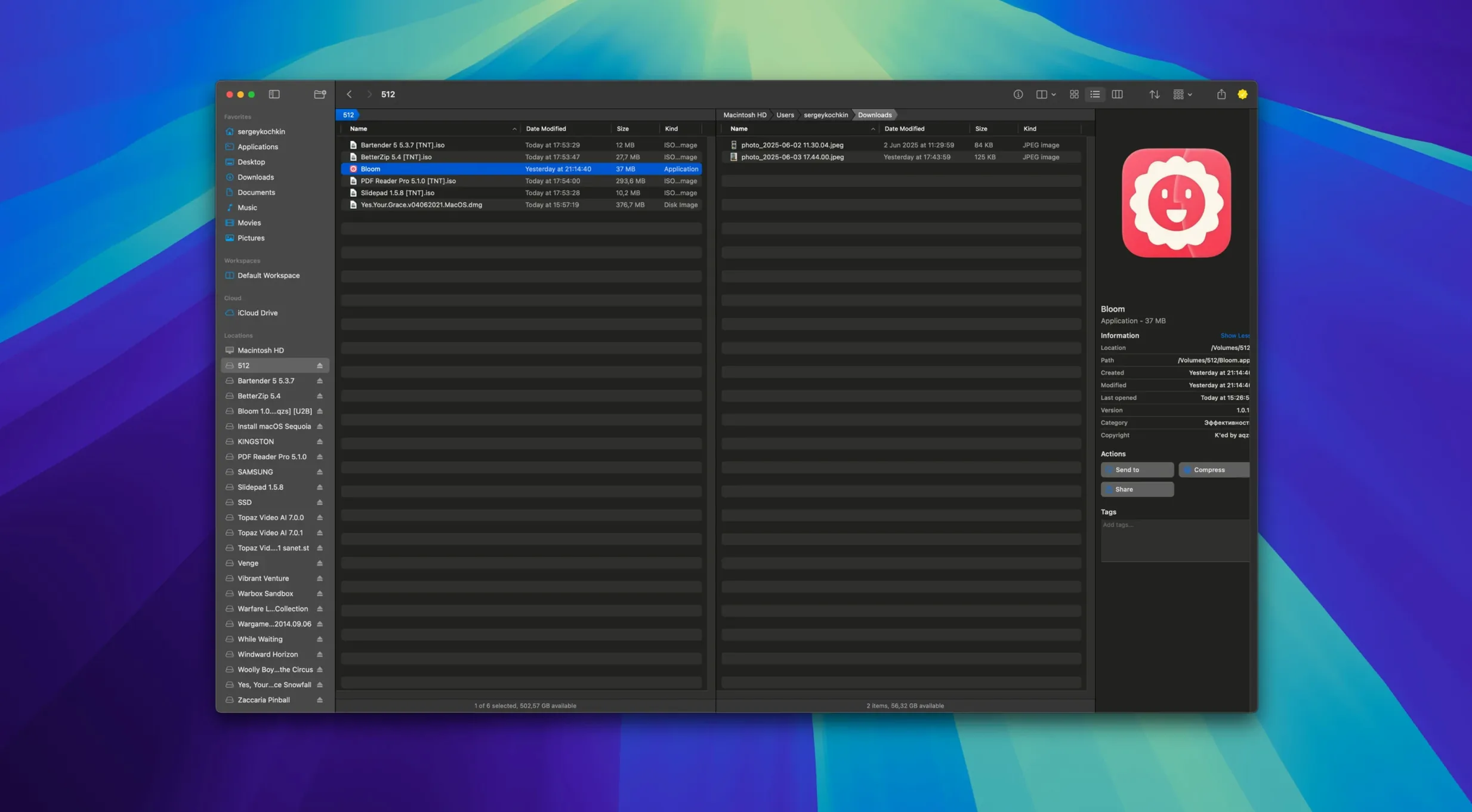
Bloom doesn't try to look like a port from another operating system. It presents itself as a native window with columns, a sidebar, and a familiar browsing rhythm, then quietly adds tools underneath. You can launch a Terminal session pointed at the current folder, refresh search results with ⌘R, or jump straight to a system location with ⌘⇧⏎. Those small things add up when you're moving fast between projects.
Batch rename with regex and schedule file ops for later
A few operations stand out. The batch renamer supports regular expressions, which is genuinely useful if you work with exported assets or timestamped filenames. There's a task scheduler so you can set file operations to run later. You can preview the contents of an archive without extracting it, and every action is undoable — the app records each operation. Search works on a per-folder basis, with keyword filtering across predefined locations, and column widths resize themselves automatically instead of leaving you squinting at truncated names.
How it feels after a few days of real use
Speed is the first thing I notice with apps like this, and Bloom stays snappy even with large folders full of media. Launching it feels instant on Apple Silicon, and on an older Intel Mac it's still quicker to open than waiting for a sluggish Finder window to populate. Memory use hovers around what you'd expect from a well-built utility — light enough that leaving it running in the background doesn't push your Mac into swap territory.
Stability has been solid. I haven't seen a crash during batch renames, folder scans, or while flipping between the main window and the compact Portal mode. The undo queue hasn't lost a step either, which matters when you're renaming forty screenshots and realize you missed a pattern. File operations you schedule don't silently fail overnight; the task scheduler logs what happened, so you're not left guessing.
Pin a minimal file window above other apps with Portal mode
Portal mode deserves a closer look. It strips away the sidebar and preview pane, leaving a tight window that you can pin above other apps or dock to the screen edge. If you spend half your day dragging files between folders, having a floating file browser that doesn't keep stealing focus is a quiet productivity boost.
A few other shortcuts hide in plain sight: ⌘F searches inside the current folder rather than launching a system-wide Spotlight hunt, and ⌘R refreshes those results without needing to retype your query. The treemap view for disk usage scanning is tucked away but invaluable when you're trying to figure out what's eating your SSD space. And the image tools — converting, optimizing, grabbing from a URL — live right in the context where you'd use them, not buried in a separate menu.
Start by making Bloom the home base for one project folder
Give yourself a morning to let Bloom replace Finder for a handful of specific tasks rather than switching everything at once. Pick one project folder and use Bloom as its home base. Set up a workspace with the columns and sidebar layout that makes sense for that folder's structure — the customization sticks, so you're not rebuilding it every session.
Try the batch renamer on a set of files you don't mind experimenting with. Paste in a simple regex pattern and watch the preview update before you commit. That preview pane is your safety net; use it. Enable the Portal window for your Downloads folder and pin it to the side of the screen for a day. You'll know by lunch whether that floating access fits your rhythm or not.
If you're searching for an oeksound bloom free download or stumbled across a bloom torrent while hunting for something else entirely, this Bloom is a different creature — a file manager, not a plug-in. The same goes for bloom kshmr mac torrent searches; wrong tree, but you've landed on a useful tool for wrangling the files those searches might turn up. An oeksound bloom mac torrent query won't lead here either, but once you've got Bloom handling your folders, organizing whatever you download gets a lot less messy.
Bloom 1.5.46 has landed. Just a quiet maintenance update — no new toys to report, but it keeps things running smoothly on the latest macOS.
- macOS 14 or later
- Apple Silicon or Intel 64-bit
Questions from the stall
Does Bloom work on the latest macOS?
Yes, Bloom requires macOS 14 or later and runs natively on both Intel and Apple Silicon Macs.
Can I schedule file operations?
It includes a task scheduler, so you can set up moves or copies to run at a specific time instead of doing them right away.
Is renaming limited to simple find-and-replace?
No, the advanced renaming tool supports regular expressions, which handles pattern-based bulk renaming.
Notes from other shops 0
Sign in or open a shop account to leave a note.
No notes yet. If you've used this on a shop Mac, tell me how it went.