BetterZip is an archive manager that lets you peek inside, edit, and create compressed files without unpacking everything first. Think of it as a Finder for archives.
Archive — a container like ZIP, RAR, or 7z that holds compressed files.
Direct editing — adding or removing files inside an archive without a full re-extraction.
AES-256 — the encryption BetterZip uses to password-protect archives.
Quick Look — previewing a file inside an archive just by tapping the spacebar.
Here’s a task I run into often. A client sends a large project archive with a mix of final assets and early drafts I shouldn’t keep. Instead of unpacking the whole thing, I open the archive right in BetterZip, select the outdated folders, and hit delete. The archive shrinks on the spot and I’m left with only what I need.
When it’s time to send work back, I bundle the clean files into a new 7z archive with AES-256 encryption. BetterZip can generate a strong password for me — one less thing to think about. The Finder extension means I can do all of this from a right-click, which fits neatly into my existing workflow.
It handles things most built-in tools won’t touch, like extracting ISO disk images or adding archive comments to ZIP and RAR files. For anyone who regularly trades project files, that direct editing alone pays for itself in time saved.
A real-world workflow: cleaning up a client delivery
Here’s a task that lands in my inbox at least twice a week. A supplier sends over a ZIP packed with product photos, old mockups, and a few random screenshots from their desktop. I need the final images — nothing else — and I need them renamed sensibly before they hit my shop’s asset folders.
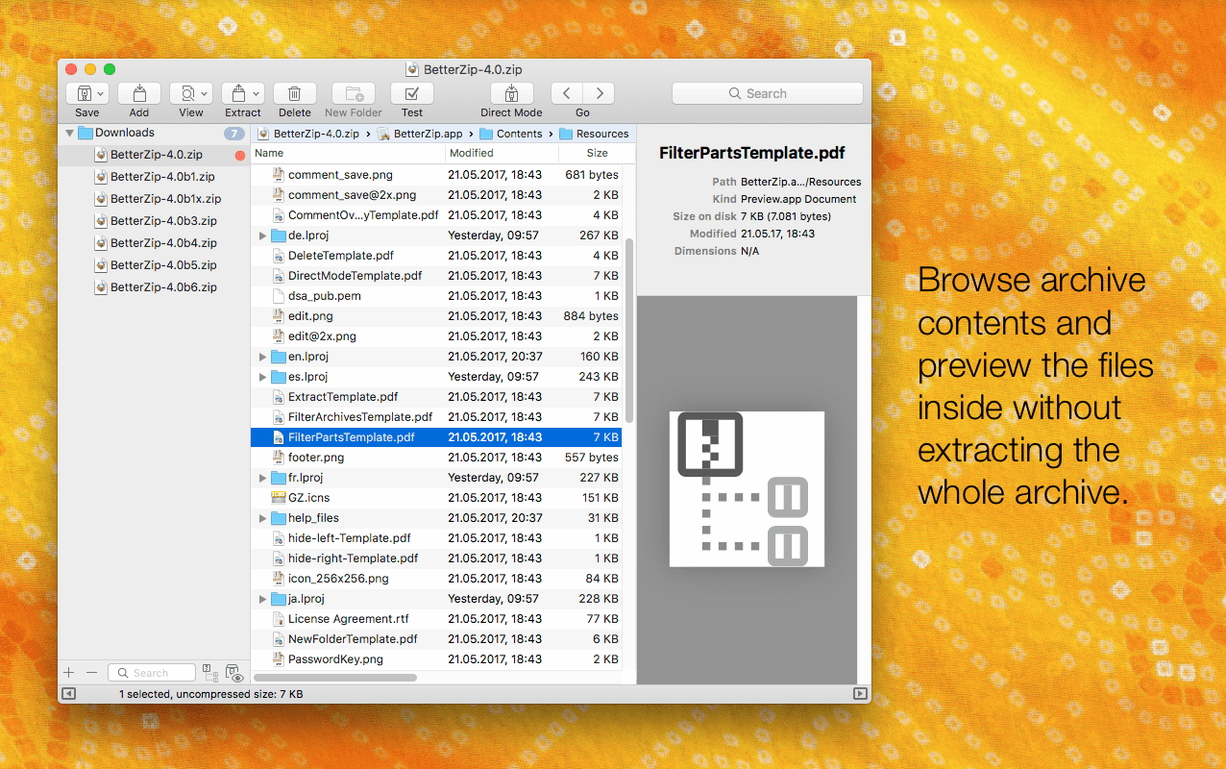
I right-click the ZIP in Finder and pick Open with BetterZip. The archive opens as a window showing every file inside, no extraction required. First thing I do: tap the spacebar on a few images. Quick Look pops up instantly, so I can see which ones are the finals. I select the junk — last week’s drafts, the accidental screenshot of their email — and press Delete. BetterZip removes them from the archive on the spot. No unpacking, no repacking.
Next, the filenames. They’re things like IMG_4287_final_v2.jpg. Inside BetterZip I click each name twice and rename them directly: candle-lavender-01.jpg, candle-lavender-02.jpg. This would normally mean extracting everything, renaming in Finder, then re-zipping. Here it’s about thirty seconds of work.
Before I send the cleaned archive to my product photographer for reference, I add a quick ZIP comment — just a note about which batch this belongs to — and set an AES-256 password. BetterZip’s password generator gives me something solid, and I copy it to my password manager. Then I close the window. Done. The archive stays intact, just leaner and better organized.
Tweak your default extraction folder
Out of the box BetterZip works fine, but a few tweaks make it feel more like your own tool. Here’s what I’d adjust on day one.
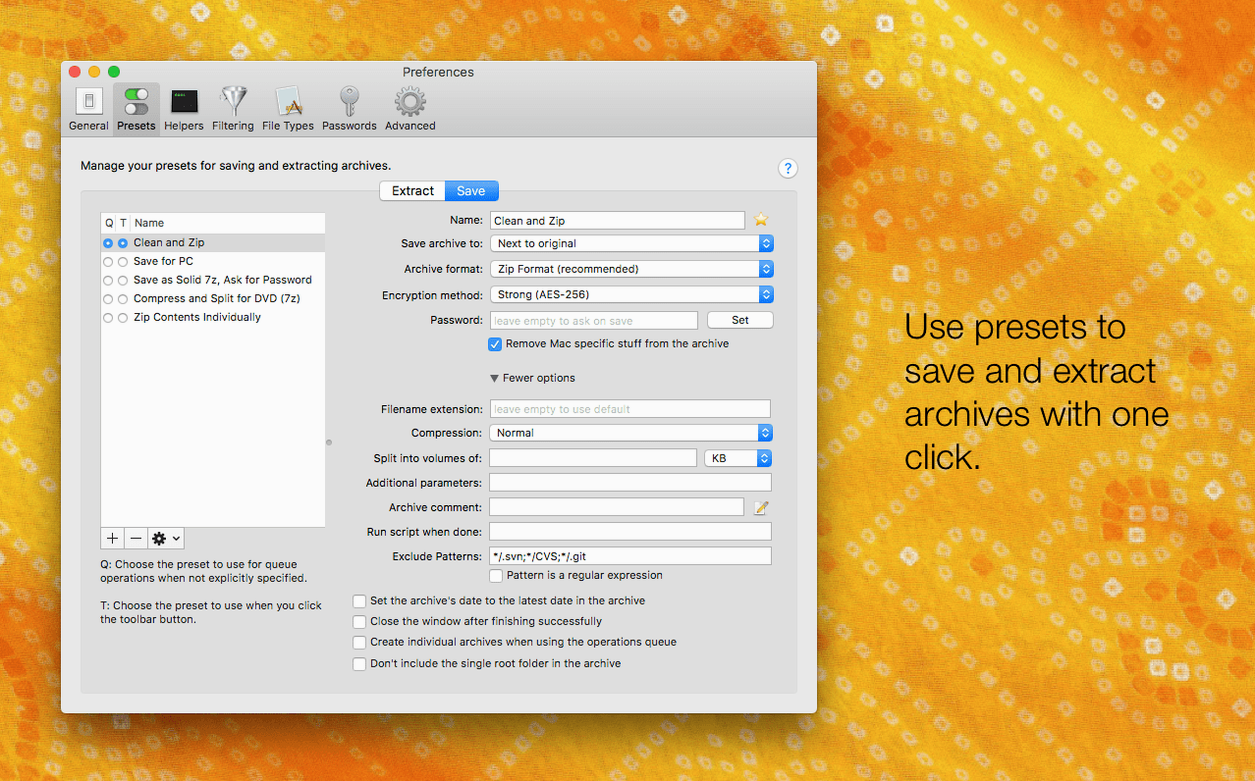
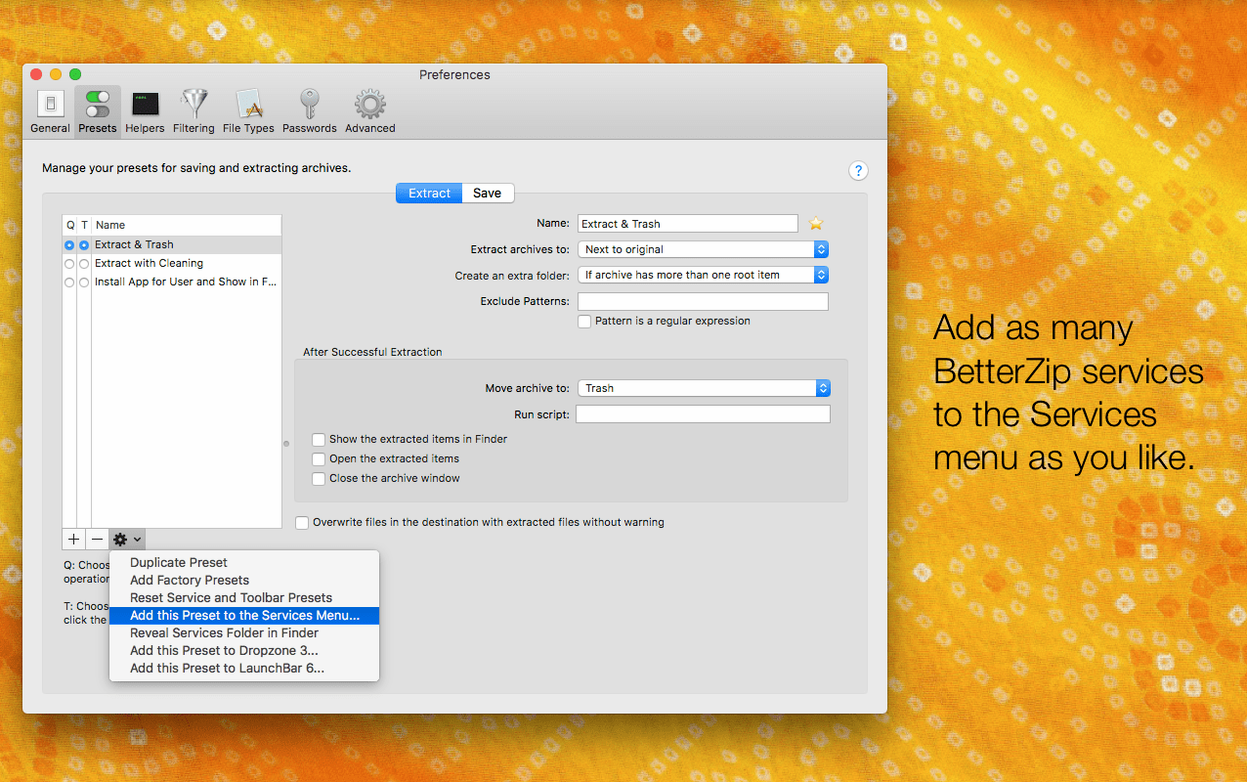
Set your default extraction folder. In Preferences, under the Extraction tab, pick a folder that makes sense for how you work. I use a _Unpacked folder on my desktop so nothing gets lost. Without this, BetterZip asks every time — fine at first, annoying by week two.
Turn off macOS metadata restoration if you share files with Windows users. The 6.0.6 update added a checkbox for this. Mac metadata creates those invisible ._ files that clutter up archives for anyone not on a Mac. I leave this off unless I’m sending something exclusively to another Mac user.
Change the language independently of macOS. Also new in 6.0.6: you can set BetterZip to use a different language than your system. Helpful if your Mac runs in English but you prefer reading menus in Spanish or German. Find it in Preferences under General.
Enable the operations queue. This one’s subtle but powerful. When it’s on, compression and extraction tasks stack up in a queue instead of each one grabbing focus. I can drag a dozen archives for extraction and let BetterZip chew through them while I keep working.
Right-click archiving lives in the Finder context menu
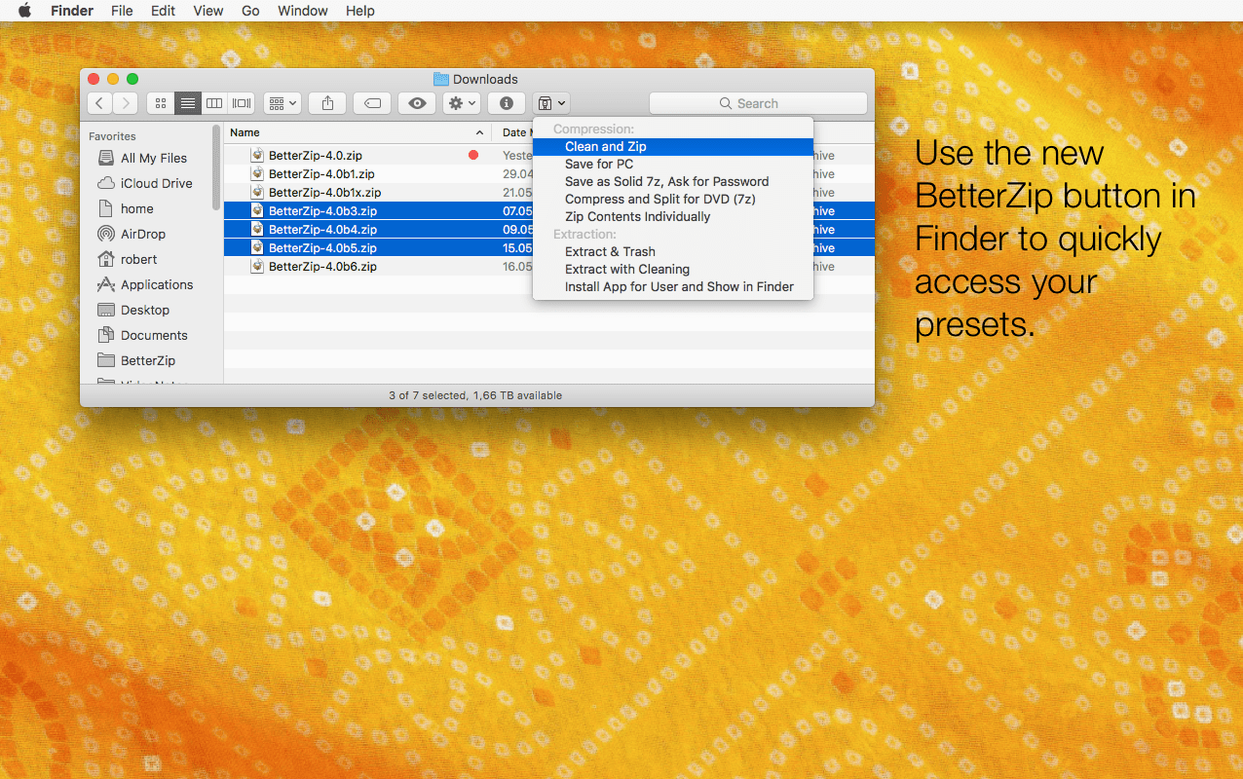
BetterZip doesn’t try to replace Finder — it slots in alongside it. The Finder extension puts archive actions right in the context menu, so you can compress or extract without switching apps. That’s where I live most of the time.
Quick Look integration is the quiet star here. While browsing an archive, pressing the spacebar previews files exactly like Finder does. This works for images, PDFs, text files, even some video formats. It means you rarely need to extract anything just to check what’s inside. For a shop owner who handles a lot of visual assets, that’s a genuine time-saver.
AppleScript support opens the door to automation. I have a short script that watches a folder on my NAS. When a new archive lands there, BetterZip extracts it silently into a dated subfolder and moves the original to an archive log. Setup took ten minutes; it’s been running untouched for months. If you’re already using Hazel or Keyboard Maestro, you can wire BetterZip into those workflows too — any tool that can trigger AppleScript can hand off to BetterZip.
For command-line fans, BetterZip plays nicely with the bundled betterzip CLI tool. I don’t use it daily, but it’s there for scripting situations where a GUI would get in the way. You can extract, compress, and test archives straight from Terminal. Searching for betterzip mac will often turn up forum threads where people share their CLI setups — worth a look if automation is your thing.
Open part one first when RARs won't budge
“BetterZip won’t open a RAR file.” This almost always means the archive is split across multiple parts (like .part1.rar, .part2.rar). Open the first part — BetterZip handles the rest automatically. If you try to open part three first, it’ll complain. Just go back to part one.
“Extracting is weirdly slow on my Apple Silicon Mac.” The 6.0.6 update bumped the 7z helper to version 26.03 with Apple Silicon assembler optimizations, so make sure you’re running the current build. If you’re still on an older version, you’re missing those speed improvements. Some users exploring a BetterZip Mac crack can check their build number to confirm they have the latest helper tools for full performance.
“I deleted a file from an archive but it didn’t shrink.” BetterZip edits archives directly, but some formats (especially solid 7z archives) can’t reclaim space immediately without a full rebuild. If the size bothers you, use File > Save As to create a fresh, compact copy. For ZIP archives, the space usually frees up right away.
“Quick Look shows nothing for a file I know should preview.” Quick Look inside BetterZip relies on the same plugins macOS uses, so if Finder can’t preview a file type, BetterZip won’t magically fix that. Installing a third-party Quick Look plugin for that format usually solves it for both apps at once.
“My password-protected ZIP won’t open on a Windows machine.” Check your encryption method. BetterZip uses AES-256, which is strong but not always understood by older Windows tools. Most modern archivers handle it fine, but if your recipient is using something ancient, re-save the archive with ZipCrypto instead — BetterZip offers both.
Version 6.0.6 is a maintenance release with a couple of handy additions:
- You can now set BetterZip to use a different language than your system default.
- A new option prevents macOS metadata from being restored during extraction.
- The 7z helper was updated to v26.03 with Apple Silicon assembler optimizations.
- A rare crash when communicating with external helper tools has been fixed.
- macOS 13.5 or newer
- Works on both Intel and Apple Silicon Macs
Notes from other shops 0
Sign in or open a shop account to leave a note.
No notes yet. If you've used this on a shop Mac, tell me how it went.