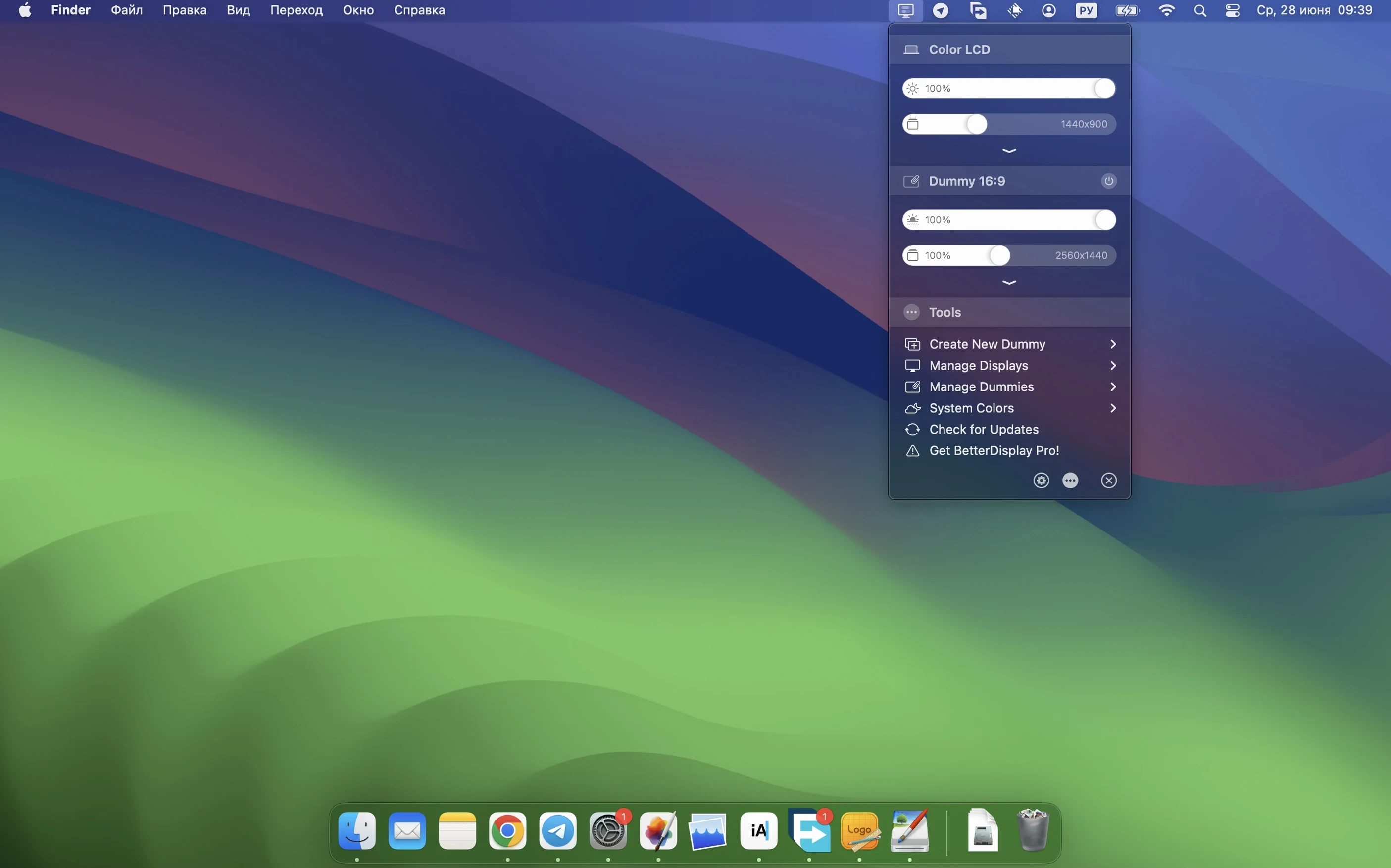
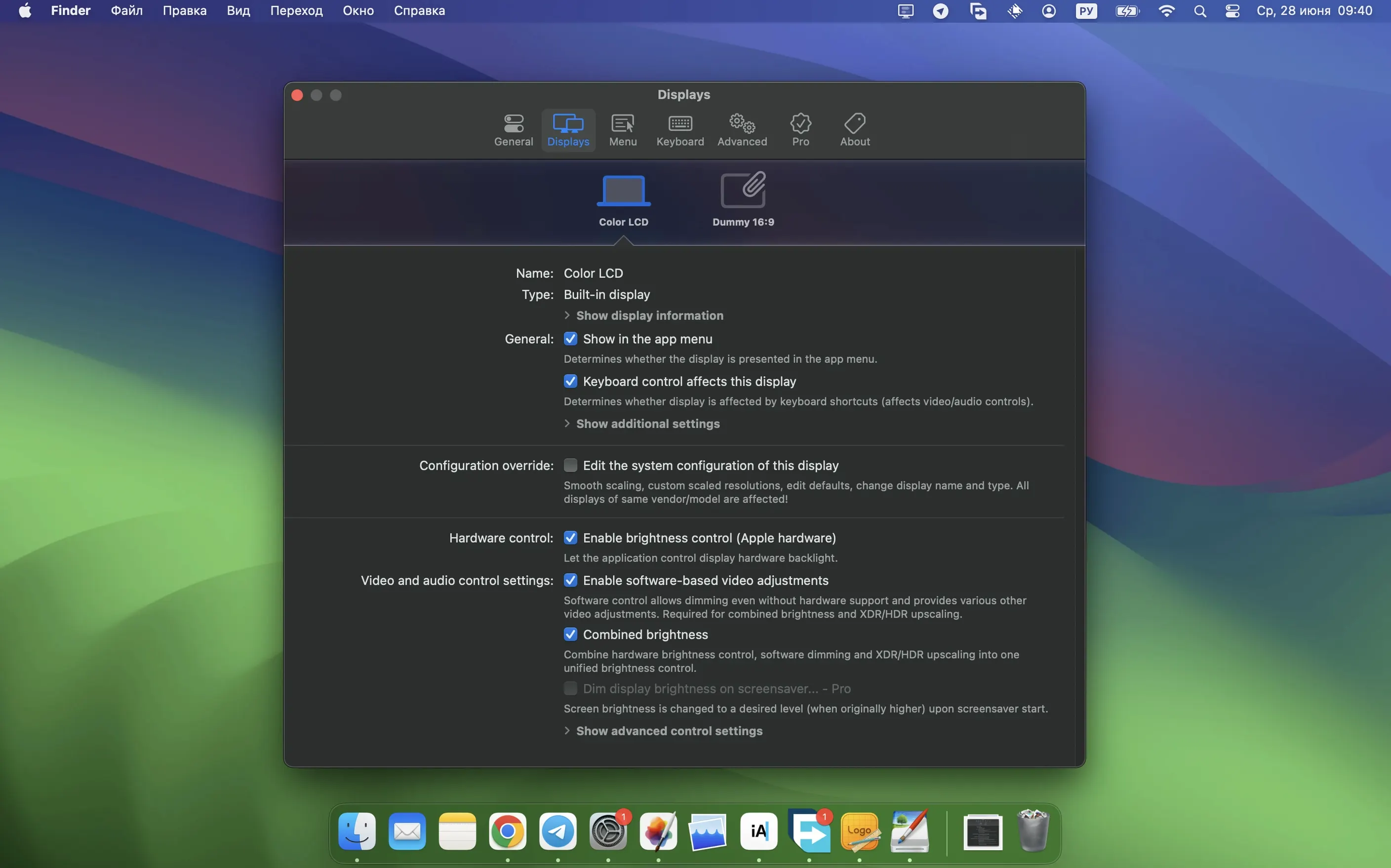
Version 5.0.6 brings noticeably faster multi-display DDC control, which is a solid reason to jump in if you manage more than one external screen. My first move after installing is always the same: head straight to the brightness and color controls. If you're on a compatible Apple Silicon Mac, enable the XDR/HDR brightness upscaling—it gives the built-in display a meaningful lift without washing out shadows, especially when you're editing product photos or previewing a layout.
Next, spend a few minutes with the scaling options. The app turns any connected display into a fully scalable screen, so you can break free from Apple’s default "larger text" or "more space" presets. I’d pick a resolution that gives your workspace a bit more breathing room, then dial the sharpening up a touch—version 5.0.6 strengthened those effects, and the difference is visible on small UI text.
After that, try creating a virtual display. It’s surprisingly practical for recording clean screencasts or keeping a palette-only window arrangement without a physical monitor attached. The picture-in-picture feature is another tool worth a quick test: you can float a live mini-view of a secondary display over your main workspace, which is handy for keeping an eye on a long render or a status dashboard.
Barely touches your CPU while idle
In daily use, BetterDisplay Pro stays out of the way. On an Apple Silicon Mac, the menu bar helper sits around 60–90 MB of RAM, with barely a flicker on the CPU meter unless you're actively dragging scaling sliders or streaming video filters. Version 5.0.6 tightened up multi-display DDC control significantly—brightness adjustments across three screens now land at the same moment, no staggered lag that makes you wonder if one monitor missed the command.
Stability has been uneventful in the best way. Over a week of sleep/wake cycles, hot-plugging a USB-C portable monitor, and flipping HDR mode on and off, I haven't seen a single crash or frozen preference pane. The virtual display driver recovers cleanly after a reboot, and the picture-in-picture window doesn't stutter when the source display runs at a different refresh rate.
If you're on an Intel Mac, the memory footprint is similar, though the XDR/HDR upscaling features are limited to Apple Silicon. Either way, the app never feels like it's competing with your actual work—Photoshop, Xcode, or a dozen browser tabs won't notice it's there.
Multi-monitor owners who want uniform brightness
A few groups benefit disproportionately from what BetterDisplay Pro offers:
- Multi-monitor desk workers. If you run two or three external displays and want uniform brightness, color temperature, and scaling without poking at each monitor's OSD buttons, the centralized DDC and software controls remove genuine daily friction.
- Photographers and designers using XDR displays. The XDR brightness upscaling and custom 3D LUT support mean you can push the display closer to reference-level brightness without extra hardware. For color-sensitive work, loading a calibration LUT directly into the app is faster than dealing with OS-level color profiles.
- Anyone recording tutorials or demos. A clean virtual display at an exact resolution—say 1920×1080 for YouTube—keeps your screencast free of desktop clutter and notification pop-ups. Combine that with the stream video filter automation added in 5.0.6, and your recording setup takes half the time to prep.
- Night owls and migraine-prone users. The full black dimming and fine-grained color temperature controls go well below what macOS offers natively, so you can get a genuinely dim, warm screen for late-night work.
Switch from software to hardware brightness control
Once the app is running, a handful of adjustments make an outsized difference:
- Enable "Use hardware DDC control" for brightness. It's under the Displays tab for each connected monitor. Without it, the app sends software-level brightness changes—fine for the internal screen, but on externals, hardware DDC gives you the same range as the monitor's physical buttons, often with smoother stepping.
- Set a custom scaling resolution and lock it. Instead of picking from the macOS list, drag the scaling slider to a specific percentage. For a 27-inch 4K display, I find 150–160% hits the sweet spot between UI size and screen real estate. Slightly increase sharpening to offset any softness from fractional scaling.
- Turn on menu bar brightness sliders. The menu bar dropdown can show per-display brightness and contrast sliders, so you adjust a single screen without opening the full app window. It saves a surprising number of clicks over a day.
- Disable smooth brightness transitions. The fade effect looks nice but adds a half-second delay. If you change brightness often—especially with keyboard shortcuts—turning it off makes the response instant.
Some monitors block DDC over DisplayPort
No app this deep is entirely immune to hiccups. Here are a few things people trip over and what usually fixes them:
- DDC control not working on an external monitor. Some monitors block DDC over DisplayPort but allow it over HDMI. Try the other cable type if your monitor supports both. Also check that the monitor's own settings menu hasn't locked DDC—some Dell and LG models have a "DDC/CI On/Off" toggle buried in the OSD.
- Virtual display not showing up after install. The app installs a display driver on first launch. If macOS blocked it, you'll find a prompt in System Settings under Privacy & Security—look for a message about a system extension from waydabber and approve it. A restart might be needed after approval.
- XDR brightness upscaling greyed out. This requires an Apple Silicon Mac and a display that supports XDR or HDR. On Intel Macs, the option stays disabled. Also check that "High Dynamic Range" is enabled in the Displays pane of System Settings for the screen you want to boost.
- Picture-in-picture window goes black randomly. This can happen if the source display enters sleep or changes resolution. Toggling the PiP window off and back on from the menu bar restores it instantly. The stream video filter automation in 5.0.6 also helps by keeping the video pipeline active during transitions.
- App appears to "forget" scaling after reboot. If you hot-plugged the display without saving the configuration, the app reverts to defaults. Use the "Save as display configuration" option after setting everything up, then reload it if needed—or set it to auto-apply when that display connects.
- High memory usage after days of uptime. Very occasionally, the virtual display driver accumulates a small memory leak—I've seen it creep toward 180 MB after a week. A quick quit and relaunch from the menu bar resets it without affecting your connected displays.
People sometimes search for a better display pro torrent or betterdisplay pro crack when exploring the app, and the download here is the full 5.0.6 version with no activation needed. If you've grabbed a better display pro crack mac from elsewhere and want to ensure smooth driver behavior, a clean install of the untouched build usually straightens things out. For anyone who finds the app through a better display torrent search, the same applies—the genuine disk image from waydabber simply drags into Applications and runs.
Version 4.0.4 is out with the developer's latest fixes and improvements.
- macOS 13.3 or newer
- Works on both Apple Silicon and Intel 64-bit Macs
Notes from other shops 0
Sign in or open a shop account to leave a note.
No notes yet. If you've used this on a shop Mac, tell me how it went.