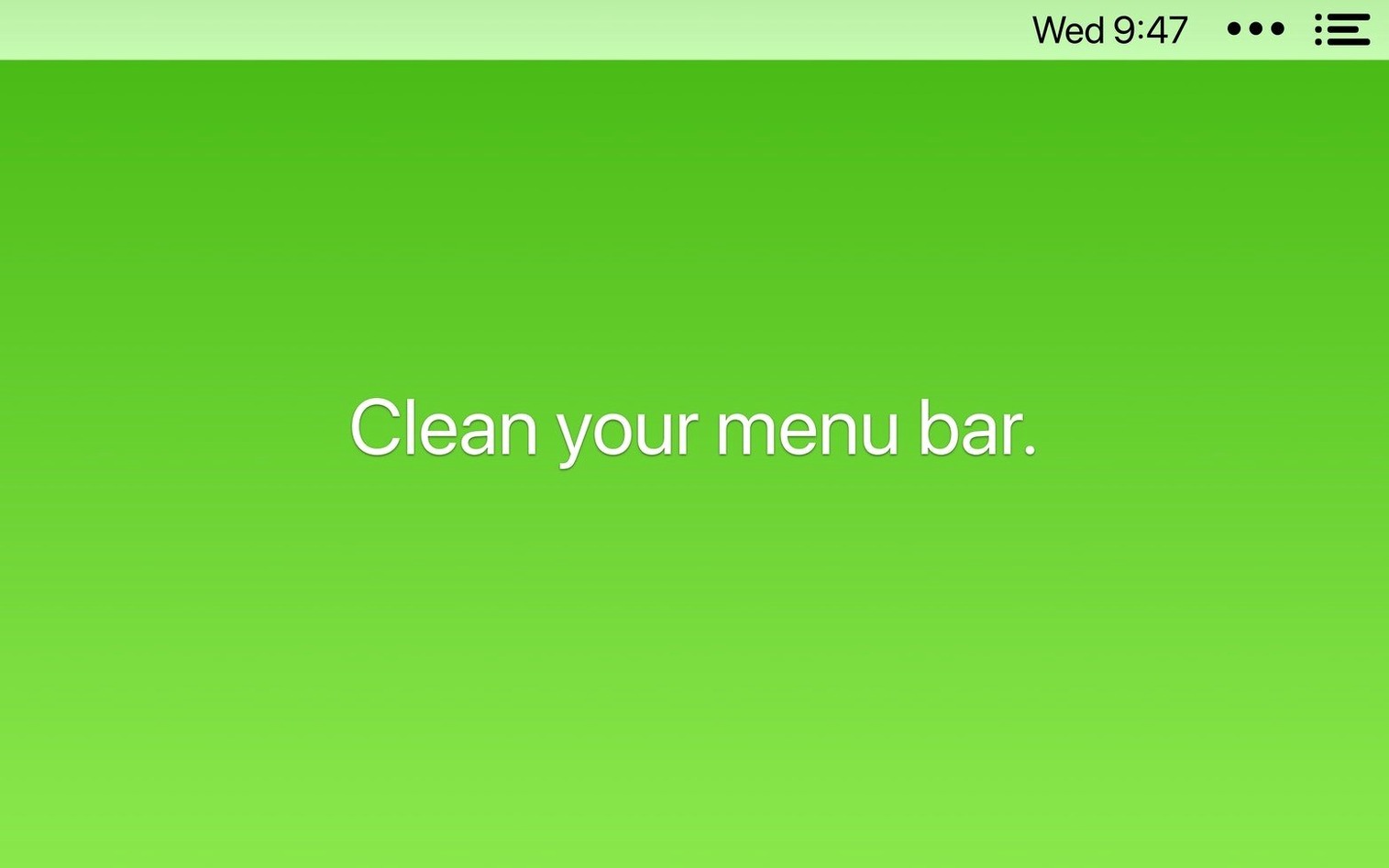
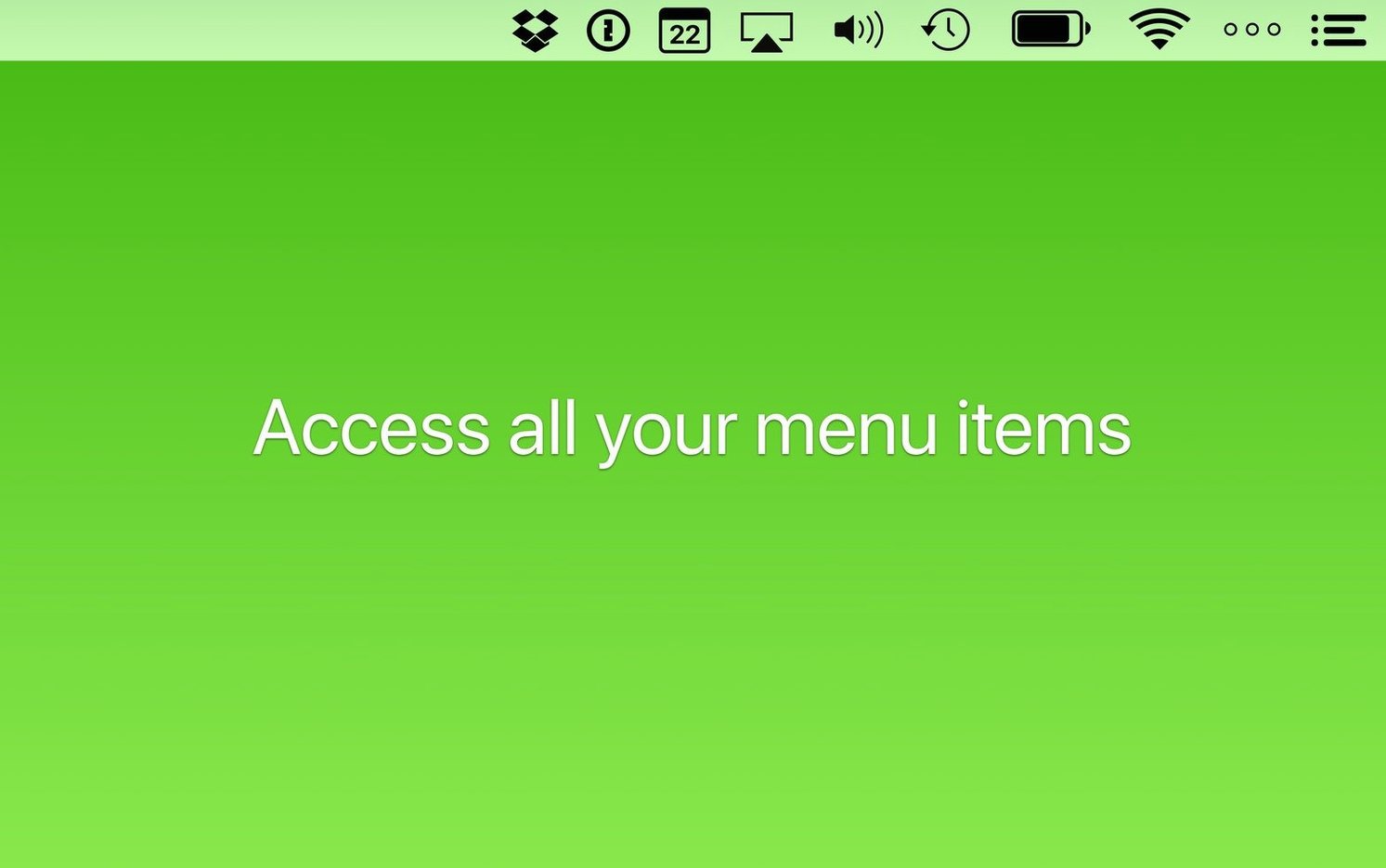
The Bartender Bar is still the core of it—a secondary row that holds the apps you don't need to see constantly. What's changed under the hood in version 7 is how it sees your menu bar. It now works without the system-level screen recording permission that earlier versions required, which kept some people on older builds for privacy reasons. The rest of the interaction model is familiar: you set conditions for when an item shows or hides, and the app handles the shuffling.
Triggers and keyboard control
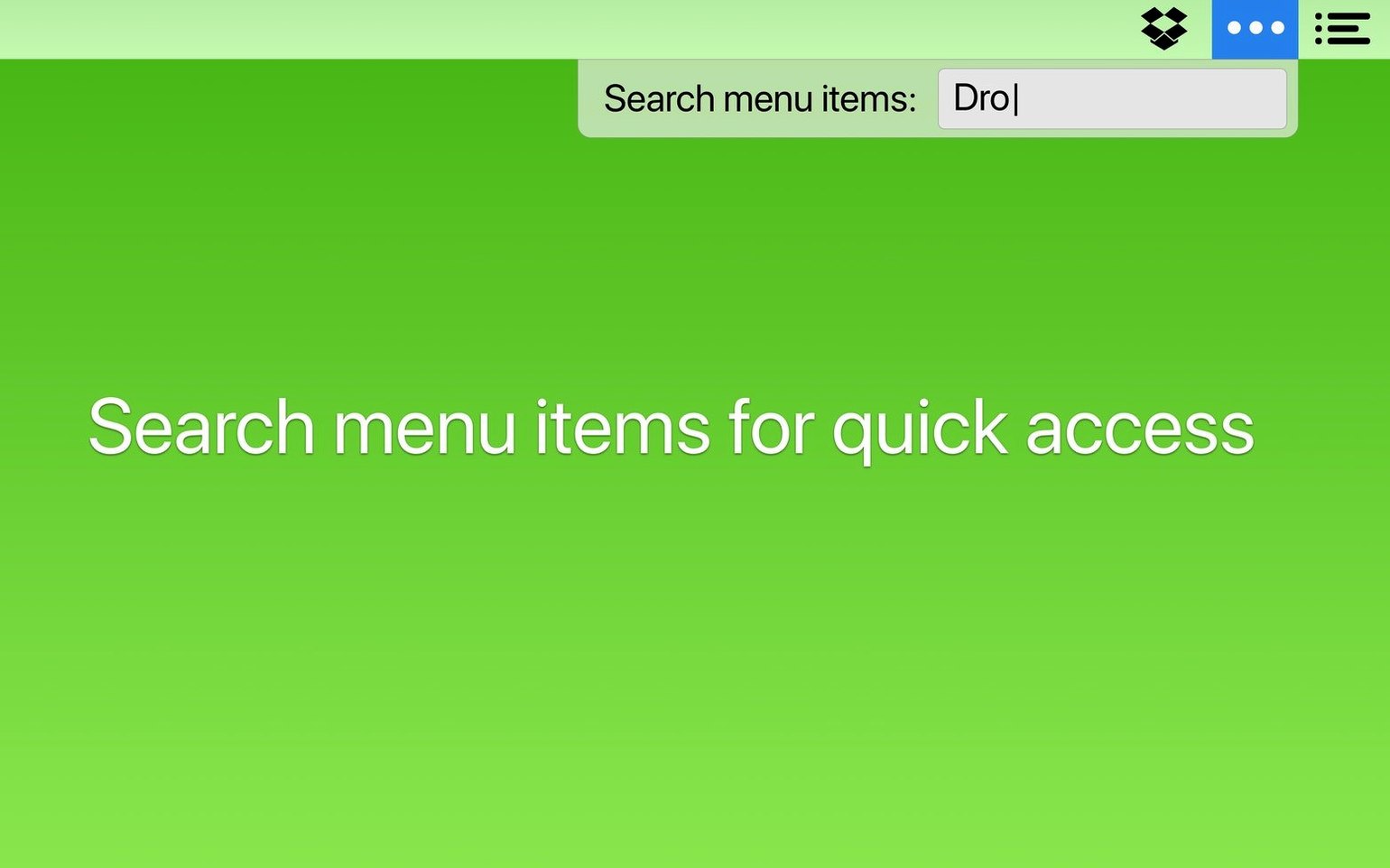
You're not limited to clicking the Bartender icon to reveal hidden items. Keyboard shortcuts can open the main bar or the Bartender Bar directly, and once it's open, arrow keys and Enter navigate everything. That's paired with a search field that finds any menu bar item by name—useful when you've tucked away two dozen utilities and need one right now. Shortcuts app intents are also built in, so you can fold Bartender actions into larger Mac automations without touching AppleScript. The triggers themselves range from a simple hotkey to time-based rules, battery state, or a Wi-Fi change, giving you a clean bar when you're focused and a fuller one when you're not.
Order and organization, unchanged
Dragging items to reorder them directly in the menu bar has been part of the app for years, and that hasn't gone anywhere. You decide what stays visible and what moves to the secondary bar, then arrange both groups in whatever sequence makes sense for your workflow. The app remains a single-purpose organizer, built for macOS 27, and the current version is 7.0.4. The install is a standard drag into Applications, then a launch from Launchpad.
How Bartender fits with the rest of your Mac
Bartender isn't a standalone island—it slots into your existing macOS habits and plays nicely with the tools you already rely on. The Shortcuts integration is the obvious bridge. You can tie menu bar visibility to Focus modes, location triggers, or custom automations you've built in the Shortcuts app. When your Work focus kicks in, a shortcut can collapse everything except the clock, your task manager, and your VPN indicator. When you switch it off, your full set of monitoring tools and social apps slides back into view.
The Command Bar works like a lightweight Spotlight for your menu bar items. Hit the shortcut, type a few letters, and the app you need is highlighted and ready to open. This matters more than it sounds when you're deep in flow and don't want to scan a row of tiny icons to find the one that controls your audio routing or clipboard history. It also means you can keep more items hidden without losing the ability to reach them in under a second.
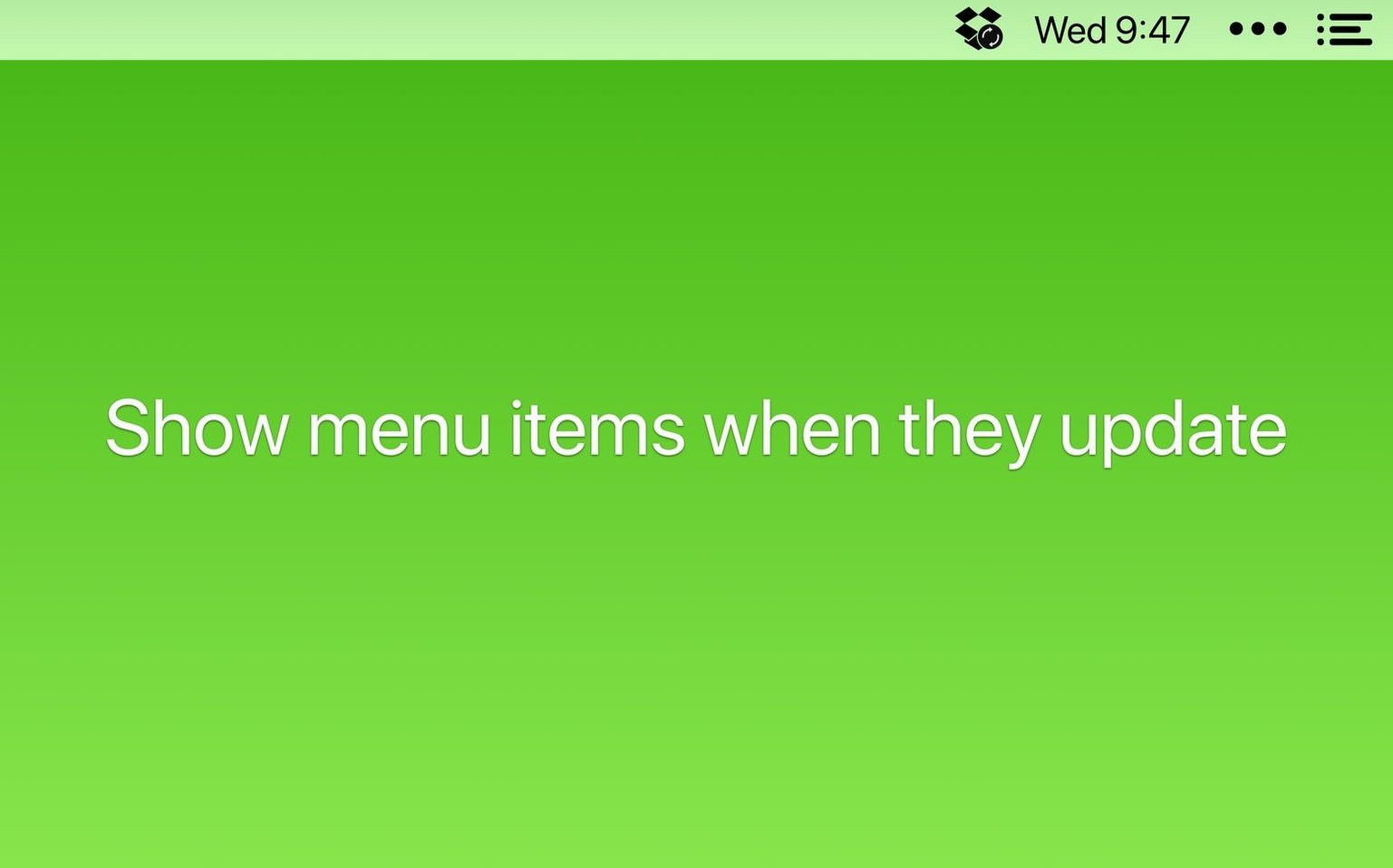
If you use clipboard managers, snippet tools, or menu-bar-based launchers that blink or change icons during updates, Bartender's trigger system can surface them only when they're active. An icon for a syncing service can stay hidden until it actually shows a sync-in-progress indicator, then return to the Bartender Bar once it's done. That's the kind of quiet integration that makes a menu bar feel intentional rather than cluttered.
Lightweight free apps versus a full menu bar organizer
Two alternatives come up regularly: Hidden Bar and Vanilla. Both tackle the same basic problem—too many menu bar icons—but they approach it with different ambitions.
Hidden Bar is the lightweight free option. It gives you a collapsible section of the menu bar, separated by a vertical divider. You drag icons to one side or the other, and a small arrow toggles the hidden section. That's it. No keyboard navigation, no search, no triggers tied to app behavior or system state. It works for people who want a simple two-zone split and don't mind manually dragging icons when priorities change. What you give up is the ability to set conditional rules, reorder icons precisely, or access anything without reaching for the mouse.
Vanilla sits somewhere in between. It hides icons behind a click on a small dot or arrow, and the Pro version adds the ability to auto-hide after a few seconds, remove the Vanilla icon itself, and launch at login. The interface is minimal to the point of being nearly invisible. The trade-off is that Vanilla doesn't offer triggers based on battery, Wi-Fi, or time, and there's no search or keyboard-driven navigation. If your needs are straightforward—hide five or six items and forget about them—Vanilla does that elegantly. If you need the bar to adapt to different work contexts throughout the day, Bartender is the only one of the three that makes that possible.
Designers and developers running lots of small utilities
The people who stick with Bartender long-term tend to fall into a few clear groups.
Designers and developers who run a lot of small utilities—color pickers, screen rulers, Git status indicators, local servers, clipboard managers—need the menu bar to carry real information without becoming visual noise. They're the ones most likely to set up per-app triggers or tie the Command Bar into a keyboard-first workflow where the mouse is the last resort.
Anyone working on a laptop screen feels the space constraint more acutely. A 13- or 14-inch display means every icon that sits in the menu bar pushes closer to the notch or the app menu text. Bartender's ability to collapse everything into a secondary bar gives you back that breathing room. Combine it with macOS's built-in menu bar spacing settings and you can keep the essentials visible without sacrificing half the bar to icons you use twice a week.
People who manage multiple work contexts—freelancers juggling client projects, students switching between research and writing, anyone who moves from deep work to communication mode and back—get the most from the trigger system. A menu bar that reconfigures itself based on time of day or the Wi-Fi network you're on means fewer manual adjustments and less cognitive overhead.
Permission hiccups and icons that refuse to show after an update
Most issues that come up with Bartender are either permission-related or tied to specific app behavior. Here are the ones that surface most often.
An icon refuses to show after an update. Some apps rebuild their menu bar item when they update, and Bartender occasionally loses track of the new version. The fix is usually simple: open Bartender's settings, find the missing item in the list, and toggle its visibility rule off and back on. If that doesn't do it, restarting the problem app usually re-registers its menu bar presence.
Spacers shift around after a restart. Version 7.0.4 specifically addressed this, but if you're seeing spacers or groups move out of position, check that you're on the latest build. Custom spacer arrangements sometimes need a re-save after major macOS point updates, especially if Apple changes anything in the menu bar rendering layer.
Keyboard shortcut conflicts. The Command Bar shortcut can clash with other apps that use the same key combination. If it stops responding, try a less common modifier combo—Control-Option-Space is rarely claimed, and Bartender lets you set nearly any chord you like. The same goes for the show/hide shortcut for the Bartender Bar itself.
Icons get stuck while dragging. If an icon freezes mid-drag during reordering, the app's internal layout state can get confused. A quick restart of Bartender clears it. On the rare occasion that doesn't work, toggling the affected item's visibility in the preferences forces a layout recalculation without losing your arrangement.
- macOS 27 or later
- Works on both Intel and Apple Silicon Macs
Questions from the stall
Does Bartender still need screen recording permissions?
No. Bartender 7 was rebuilt to work without requiring the screen recording permission that previous versions asked for.
Can I control Bartender with just the keyboard?
Yes. You can open the menu bars with a keyboard shortcut, then navigate all items using the arrow keys and press Enter to select one.
Notes from other shops 0
Sign in or open a shop account to leave a note.
No notes yet. If you've used this on a shop Mac, tell me how it went.