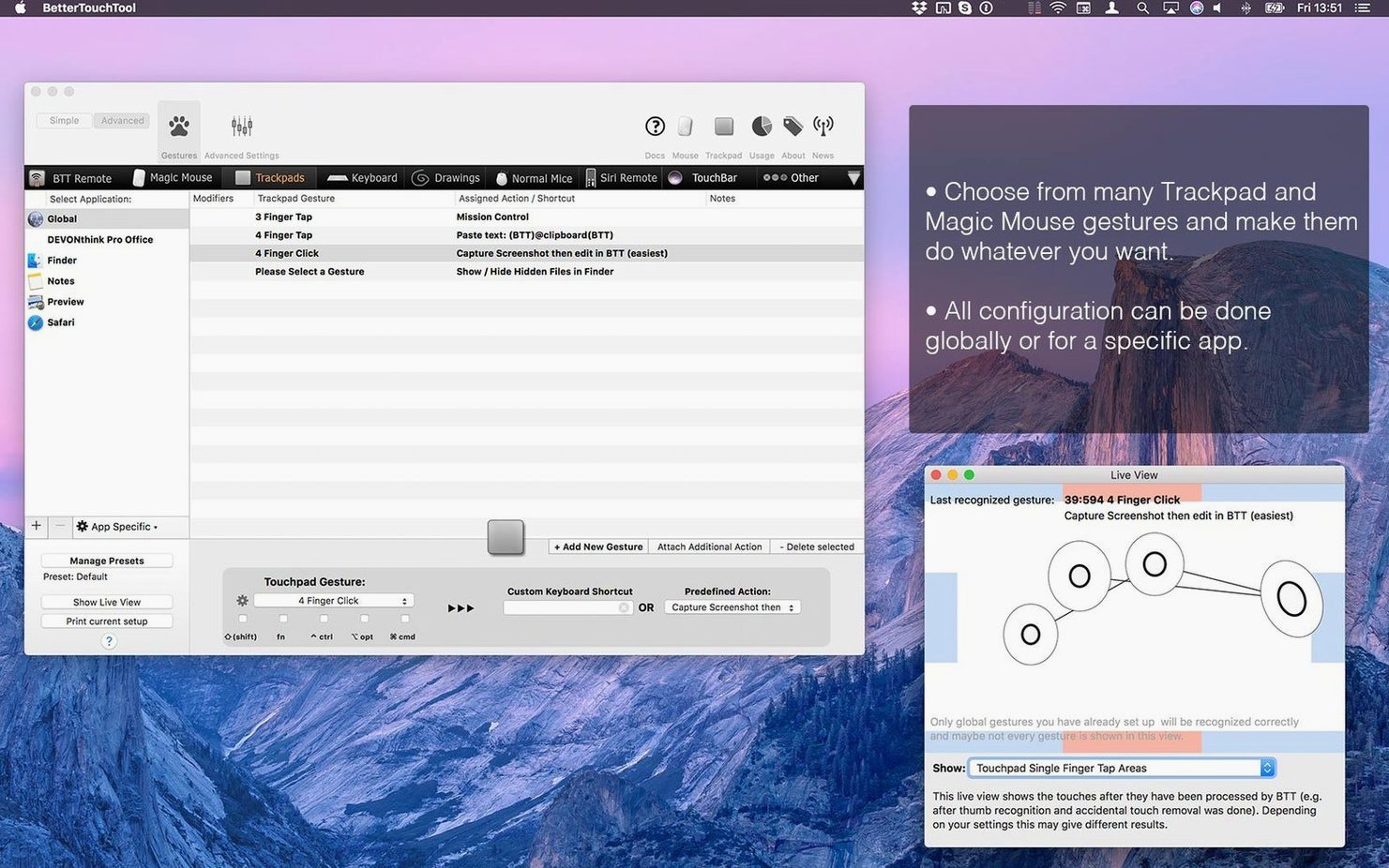
If you rely on the built-in Keyboard Shortcuts or Trackpad panes in System Settings, you already know the limits Apple sets. BetterTouchTool tears down those walls. Before you start customizing every swipe and click, let’s make sure it runs on your machine.
- Check your macOS version. The app needs macOS 10.15 Catalina or newer. It runs natively on both Apple Silicon and Intel 64-bit Macs, so you are covered whether you work on an M-series laptop or an older Intel iMac.
- Open the package. Install and activation instructions are included inside. Follow them, drop the app into your Applications folder, and launch it.
- Grant accessibility permissions. The first launch will guide you to System Settings > Privacy & Security > Accessibility. Toggle BetterTouchTool on so it can watch for your keystrokes and gestures.
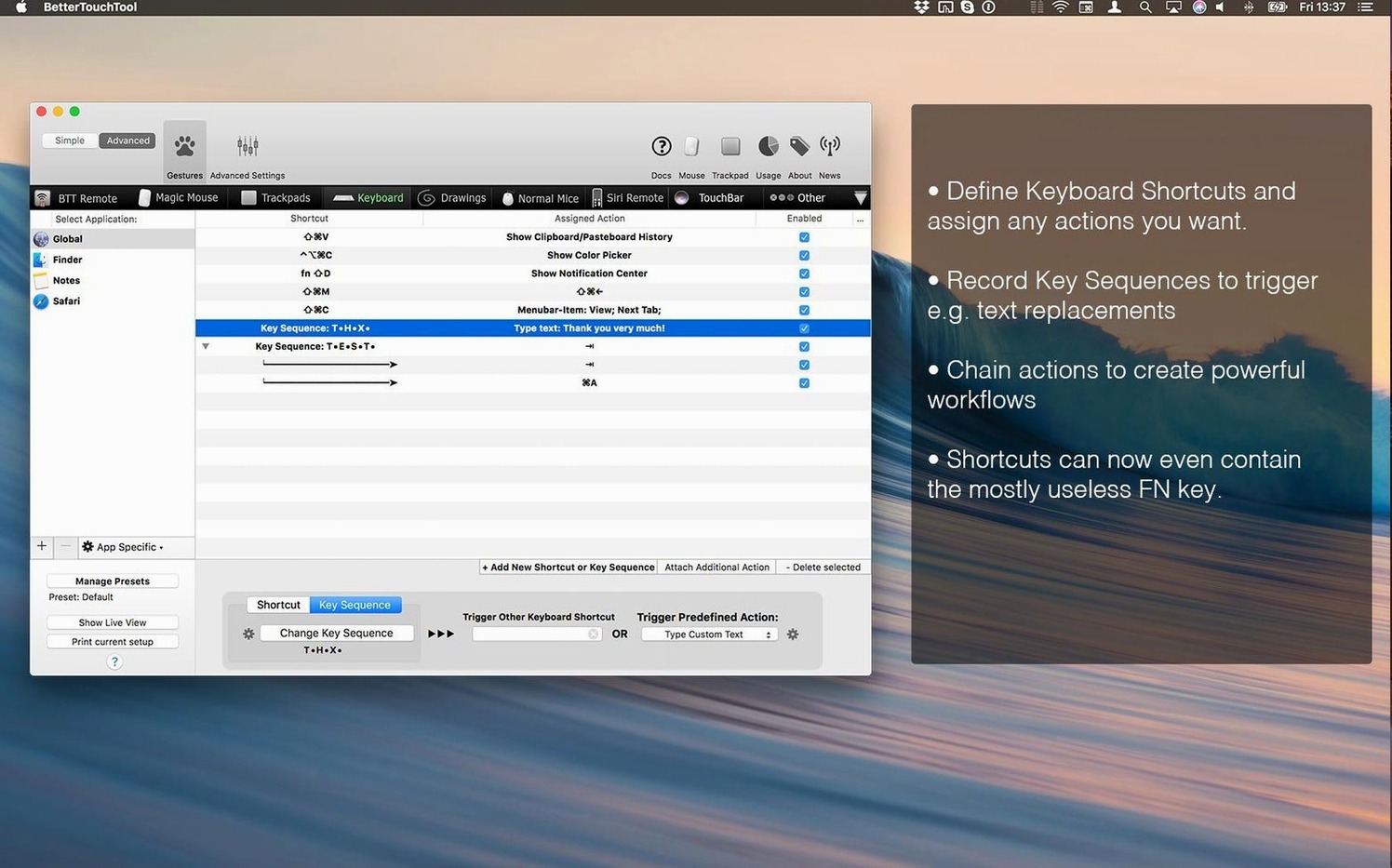
- Set your first trigger. Pick an input — a trackpad gesture, a keyboard shortcut, or a Touch Bar tap — and assign an action. Start small: maybe a three-finger swipe to snap a window to one side.
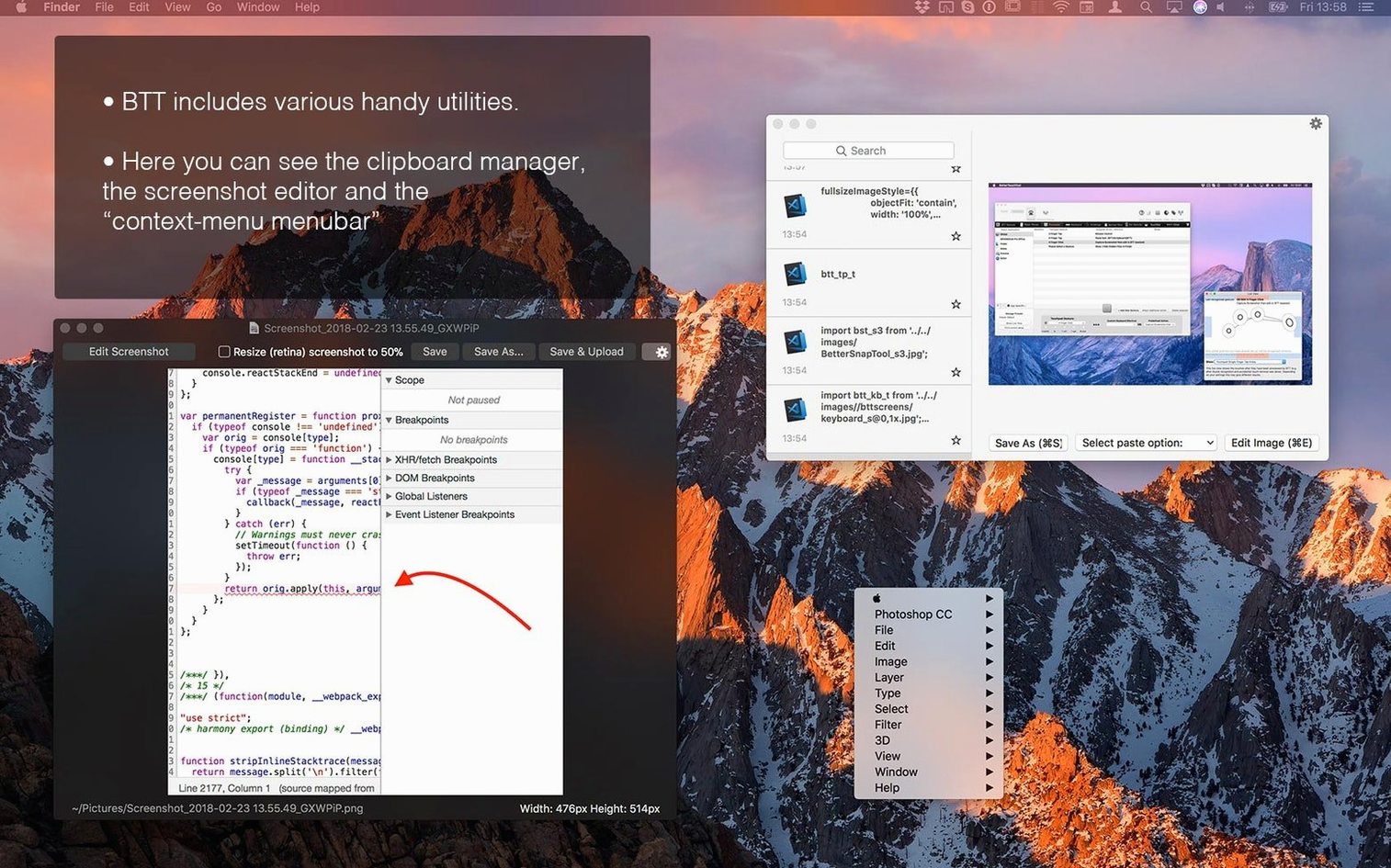
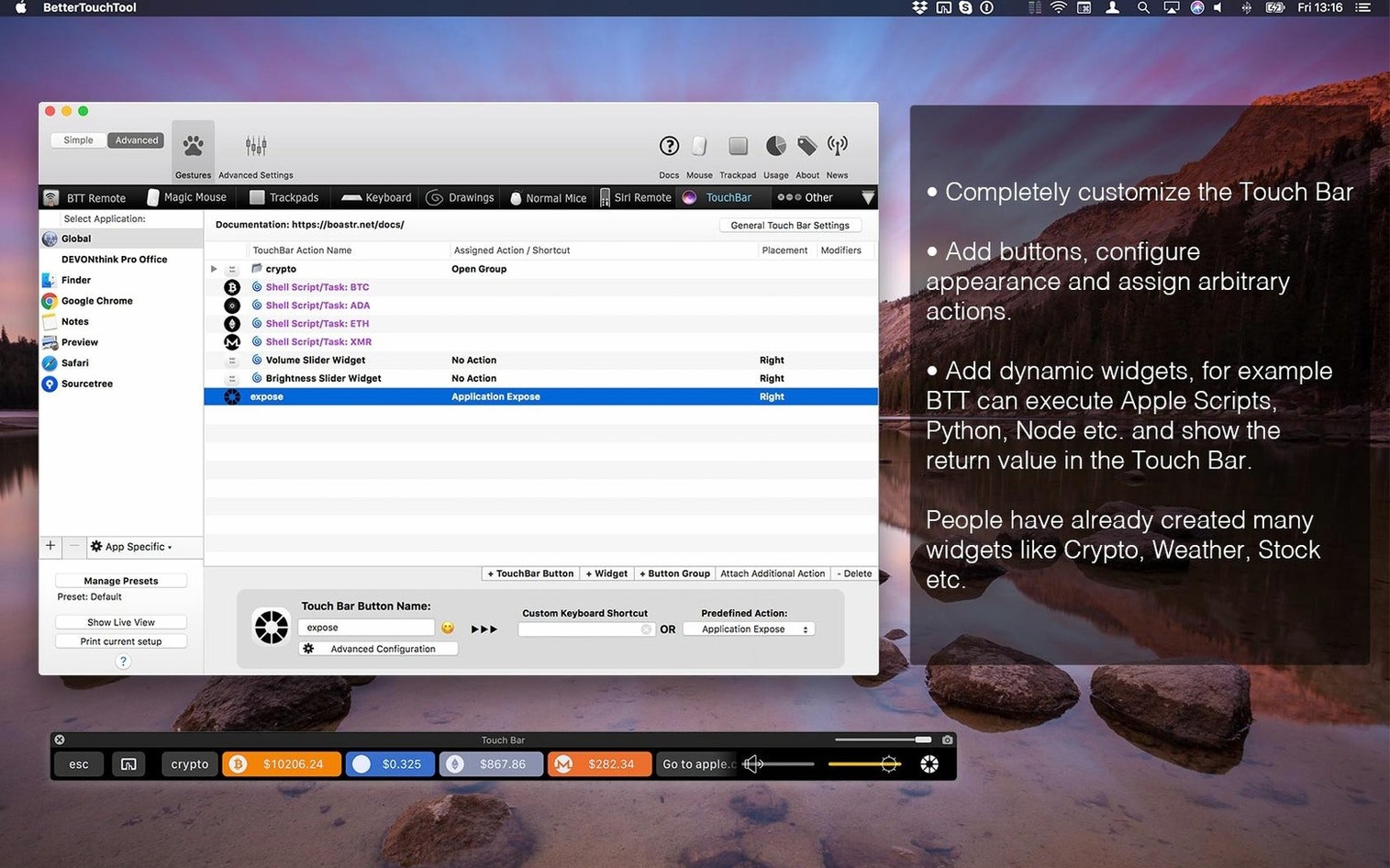
Once it is running, you get far more than shortcut remapping. A clipboard manager keeps multiple copied items within reach, and if your Mac has a Touch Bar, you can build custom widgets that actually earn their screen space.
Let’s step into the shoes of a freelance illustrator who works on a MacBook Pro. They spend most of the day in Procreate, Photoshop, and sometimes Blender for quick 3D mockups. The stock trackpad gestures work fine for casual browsing, but the moment they hop between a Wacom tablet and the built-in trackpad, the friction starts. Pinch-to-zoom behaves one way on the tablet, another on the trackpad. Switching tools means hunting through menus or memorizing arcane key combos that clash across apps.
With BetterTouchTool, this artist sets up app-specific gesture groups. In Photoshop, a four-finger click toggles the Brush tool, and a five-finger swipe down commits a layer merge — actions that normally need chorded keyboard shortcuts they can never remember at speed. The same gestures in Blender orbit the viewport or switch to Edit Mode. Because the rules are tied to the active application, there is no conflict; the trackpad simply adapts to whatever is in front of them.
Threads through system settings without overriding defaults
BetterTouchTool does not replace System Settings — it threads through them. All the default macOS trackpad and keyboard behaviors stay intact until you override a specific gesture or shortcut. That means you can leave two-finger scroll and tap-to-click exactly as they are, while still carving out custom zones for app-specific triggers.
It also plays nicely with other utilities people tend to gather around this one. If you use window managers like Rectangle or Magnet, BTT can trigger those layouts via gestures instead of keyboard shortcuts. For Alfred or Raycast users, a trackpad drawing can launch a workflow or a custom URL scheme. The clipboard manager inside BTT sits quietly alongside the system clipboard; you can call up a floating history panel with a gesture and paste the third-to-last item without touching the keyboard. And because it supports AppleScript and HTTP requests, it can prod Shortcuts automations or zap a webhook when you swipe a specific way — no scripting prowess required, just a willingness to wire things together once.
A morning newsletter layout, from start to finish
Imagine a small-business owner putting together a weekly email newsletter in Canva and Mailchimp. They use a Magic Mouse and a compact keyboard without a numeric pad. The goal: speed up repetitive layout tasks without adding a stream deck or external macro pad.
- Set the context. They open BetterTouchTool and create a “Newsletter Work” preset that activates only when Canva or Mailchimp is in the foreground. The preset stays out of the way during the rest of the day.
- Assign mouse gestures. A two-finger swipe left on the Magic Mouse triggers
Cmd + Zfor undo. A two-finger swipe right hitsCmd + Shift + Zfor redo. A three-finger tap aligns the selected element to the center. All three gestures are things you can do without looking at a toolbar. - Add a Touch Bar widget. Their MacBook Pro’s Touch Bar now shows a custom row: “Grab Color,” “Add Text Box,” and “Export Selection.” Each button sends a menu-click chain via BTT’s simulated clicks and keyboard input, cutting a four-step process into one tap.
- Clipboard for brand assets. During the layout, they copy hex codes, a logo, and a snippet of legal text. The built-in clipboard manager keeps all of them in a scrollable list. A corner-click gesture on the trackpad brings it up, and they paste whichever item they need without breaking flow.
- Wrap up and switch off. Once the newsletter is queued, they quit the “Newsletter Work” preset with a menu-bar toggle. The Magic Mouse returns to its everyday gestures, and the Touch Bar goes back to the standard macOS strip.
The whole setup took about twenty minutes to configure, and the owner now shaves roughly ten minutes off each weekly layout. Over a year, that is a comfortable chunk of time reclaimed.
Sips 90–180 MB of RAM on an M1 Air
BetterTouchTool runs as a lightweight background agent. On an M1 MacBook Air with 8 GB of RAM, it typically sits between 90 and 180 MB of memory, depending on how many floating menus and clipboard items you have active. CPU use is near zero when idle; it spikes momentarily when you trigger a complex action that chains multiple simulated keystrokes, but the spike is so brief you will rarely catch it in Activity Monitor.
Stability has been a strong point across the 6.x releases. Crashes are uncommon, and when one does occur — usually after a macOS point update — the app relaunches and restores your last configuration automatically. Gesture recognition feels immediate. There is no perceptible lag between a three-finger swipe and the resulting action, which matters deeply when you are using it as a replacement for keyboard shortcuts in fast-paced design or writing work.
One practical tip: if you run a lot of per-app presets with complex conditional triggers, you may notice a slight delay in app switching — maybe a quarter-second pause before the new preset loads. Keeping the number of active rules modest per preset keeps transitions smooth. For most setups, though, it is the kind of tool you install and forget about until you realize you have not opened System Settings in weeks.
Version 6.726 is available.
- The latest maintenance update from the developer, keeping the customization engine running smoothly on current macOS releases.
- macOS 10.15 Catalina or later
- Apple Silicon or Intel 64-bit processor
Notes from other shops 0
Sign in or open a shop account to leave a note.
No notes yet. If you've used this on a shop Mac, tell me how it went.