
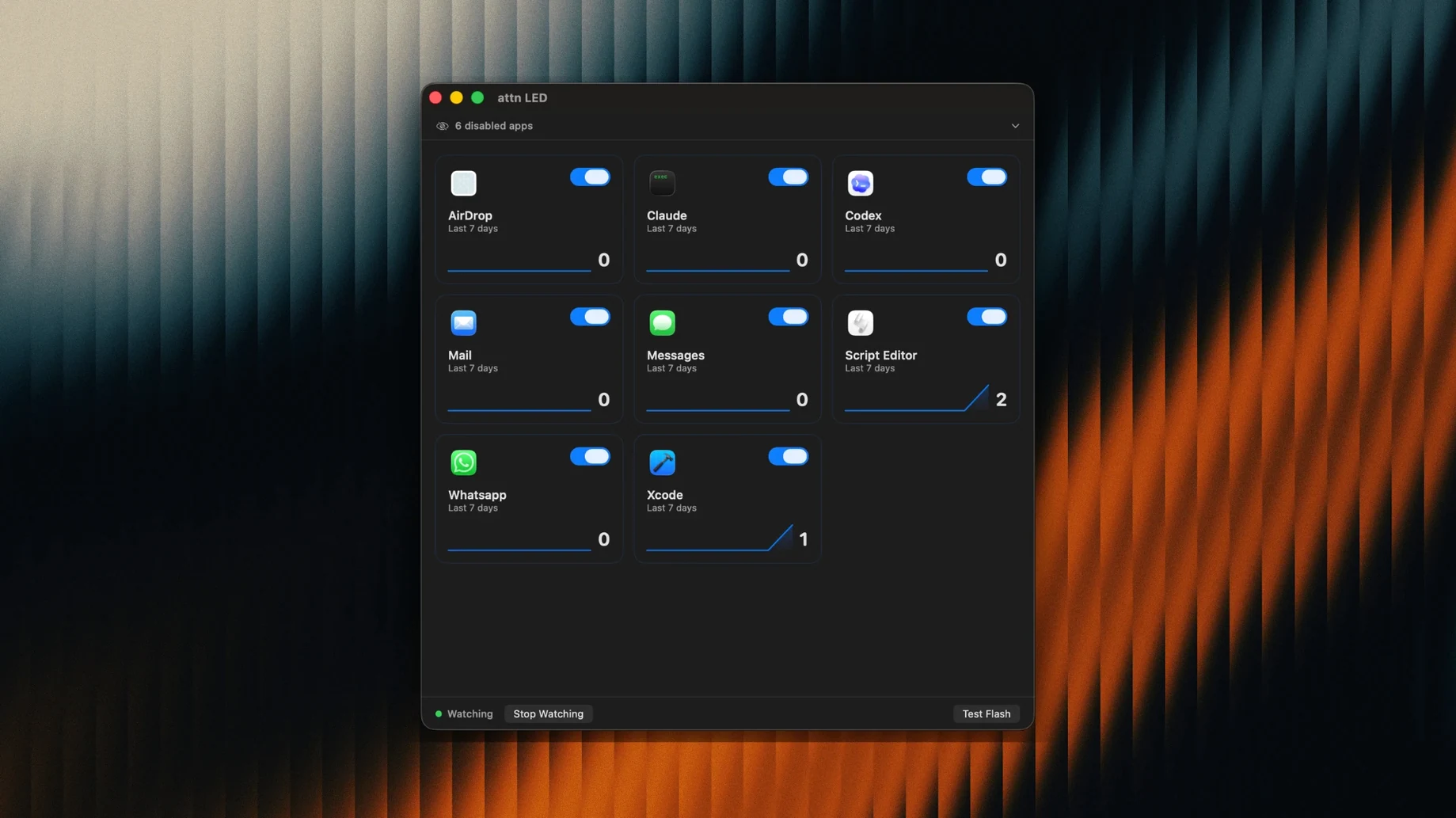
If you keep your Mac on Do Not Disturb or a Focus mode most of the day, you probably miss a few notifications that actually matter. attn LED is built for exactly that situation — it borrows the MacBook camera indicator light and turns it into a gentle, persistent blink you'll notice without a sound or a banner.
Catch silent alerts with a physical blink
- People who work in Focus or Do Not Disturb modes and still need to catch messages from specific apps
- Anyone who finds on-screen alerts distracting but wants a physical cue that something needs attention
- MacBook owners who prefer a quiet desk setup — no dings, just a small green blink
macOS 12+ and a camera LED are the only hardware you need
- Requires macOS 12 or later, and a MacBook with a built-in camera LED
- You pick which apps trigger the LED — it won't blink for everything unless you want it to
- The light keeps blinking until you open the related app, so it's persistent but not nagging
- Blinking pauses automatically during FaceTime and other video calls
Bridges Focus modes and the notifications you actually want
attn LED doesn't try to replace anything — it sits alongside the notification system you already use and adds a missing layer. If you work with Focus modes enabled all day, the app bridges the gap between silent notifications and actually knowing when something needs your attention.
Here's how it plays with the tools you probably already have running:
- Focus and Do Not Disturb — These suppress banners and sounds, which is exactly when the LED becomes useful. attn LED reads the macOS notifications database directly through FSEvents, so it sees what arrives even when Focus mode hides it from your screen.
- FaceTime, Zoom, and other video apps — The app detects active camera use and pauses blinking automatically. You won't get a distracting green flash during a client call or a team standup.
- Notification Center — Notifications still collect there as usual. The LED just gives you a reason to check it sooner rather than later.
- Slack, Mail, Messages, Discord, Teams, Telegram — You pick which apps earn the LED. Everything else stays quiet, exactly as you set it in System Preferences.
It's a small addition to a workflow rather than a whole new system. Think of it as the one physical signal in an otherwise completely silent notification setup.
A Final Cut Pro editor catching producer messages by sight
Imagine someone cutting a project in Final Cut Pro, AirPods in, Focus mode on, timeline filling the screen. They've told attn LED to watch Messages and Slack — the two places a producer might reach them with a change request. Email and everything else can wait.
Mid-morning, the green LED near the top of the screen starts blinking. No sound, no banner sliding across the edit. They glance up, see the pulse, and finish the current cut before switching to Messages. It's a note about a revised deadline — nothing urgent, but good to know before lunch. Without the LED, they wouldn't have seen it until they surfaced hours later.
That's the kind of user attn LED fits best: someone deep in a tool, physically at the desk but mentally somewhere else, who just needs a low-friction way to know that one of their chosen apps has something new.
Pick your trigger apps in the first ten minutes
After you install attn LED 1.0 and launch it from Launchpad, spend ten minutes getting the behavior right. The defaults are sensible, but a little tuning makes it feel like it was built for your desk.
- Pick your apps carefully. Start with just one or two — Messages and your work chat, maybe. If the LED blinks too often, you'll stop looking at it. Add more only if you find yourself missing things.
- Test it with a video call. Open FaceTime or your usual conference app and send yourself a test message from another device. Watch for the LED to stay dark during the call and resume blinking afterward. This confirms the auto-pause is working.
- Position matters. The camera LED is visible from across a room, but your screen angle affects whether you catch it in your peripheral vision. Tilt the display slightly if you tend to look down at notes or a second monitor.
- Let it teach you a habit. The blinking stops when you open the app that caused it. In the first days, notice how long the blink runs before you act — it's a quick gauge of whether your app list is too broad or just right.
Tip: If you share a workspace, let the people around you know what the blinking means. Otherwise someone will eventually point at your MacBook and ask if the camera is on.
Writing Focus mode with a coffee and a blinking safety net
You sit down with coffee, set your Mac to a writing Focus mode, and open the document you need to finish by noon. Notifications are suppressed except for calls from a short list of people — but you've told attn LED to watch Mail and Slack.
Twenty minutes in, the green light starts a slow, steady blink. You're mid-paragraph, so you don't switch apps. The blink stays in your peripheral vision, a quiet nudge rather than an interruption. When you reach a stopping point, you glance at the LED, still pulsing, and remember: Slack. You open it — the blink stops instantly — and find a question from a collaborator that needs a one-sentence reply. You type it, close Slack, and return to writing.
An hour later, the LED stays dark even though you can see unread counts piling up in apps you didn't whitelist. That's the point. Those can wait until you leave Focus mode. The only thing that blinked was the one app you decided was worth breaking flow for.
When a scheduled FaceTime call begins, attn LED pauses its monitoring. A test notification from a friend during the call would normally trigger a blink, but the app sees the camera in use and stays quiet. After the call ends, the LED resumes watching — no toggling, no remembering to re-enable anything.
- macOS 12 or later
- Apple Silicon or Intel MacBook with a built-in camera LED
- Interface language: English
Questions from the stall
Does attn LED blink during FaceTime calls?
No. attn LED automatically pauses the blinking whenever you're in a FaceTime call or another video conference.
Which apps can trigger the camera LED?
You can limit LED notifications to specific apps you choose — Slack, Mail, Messages, Discord, Teams, and Telegram are all supported.
Does attn LED work on desktop Macs without a built-in camera?
Attn LED is designed for MacBook models that have a built-in camera LED. Desktop Macs without that hardware won't support the feature.
Notes from other shops 0
Sign in or open a shop account to leave a note.
No notes yet. If you've used this on a shop Mac, tell me how it went.