If you've ever used Low Power Mode on an iPhone, you already understand the idea behind BatFi. Where Low Power Mode reduces background activity, BatFi steps in on macOS to control the physical charge level — letting you keep your MacBook plugged in without holding the battery at 100% all the time.
| Key detail | What to know |
|---|---|
| Current version | 3.0.5 |
| Runs on | macOS 13 (Apple Silicon & Intel) |
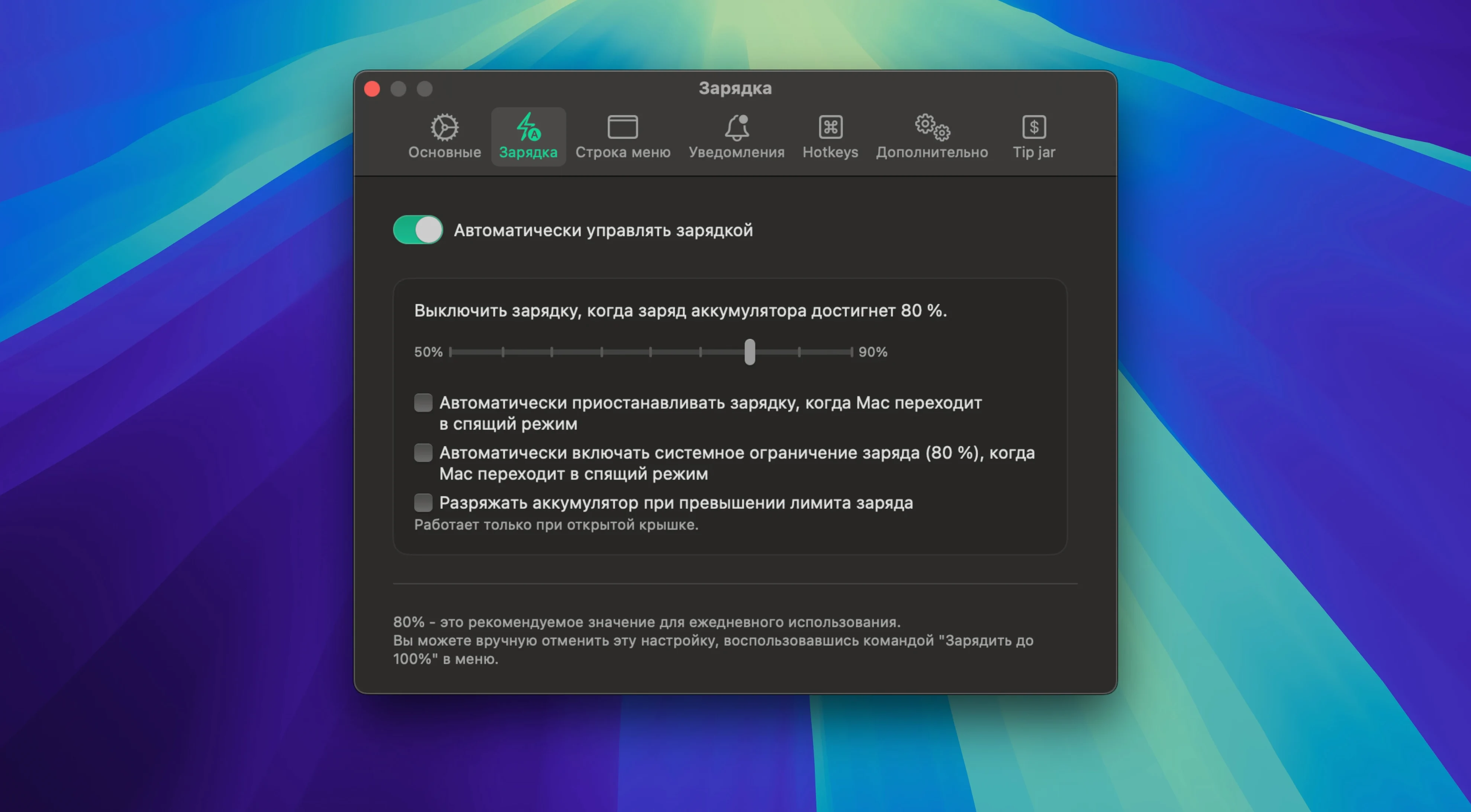
Here's a realistic routine: I'd set a charge limit in the morning — say 80% — and let BatFi hold it there while I work at my desk. The menu bar icon shows the percentage, remaining time, and battery temperature at a glance. When I know I'll be away from power later, I use the menu command to charge to 100% before I pack up. The app lives quietly in the background, starts with the system, and sends a notification when charging stops or starts. It's a small tool that fits a specific, practical need without overcomplicating things.
Pick a charge limit and live with it for a week
After dragging BatFi into Applications and launching it, take a minute to dial in the one setting that matters most: your charge limit. I'd start at 75% or 80% and live with it for a week. That gives you a feel for how often you actually need a full charge versus how often you're near an outlet.
A couple of things worth doing early:
- Check the status icon style. BatFi lets you customize what shows in the menu bar — percentage only, a simple battery glyph, or both. Pick the one that gives you the info you want without adding visual noise.
- Grant launch-at-login permission. The app asks to start with the system. Saying yes means you don't have to remember to open it every morning, and the charge limit kicks in from the moment you plug in.
- Glance at battery health. The menu dropdown shows your current maximum capacity. It's a useful baseline to note now, so you can check back in a few months and see how the lower charge ceiling is treating your battery.
Battery estimates that follow your current workload
BatFi doesn't bury features in preference windows, but a few niceties hide in plain sight inside that menu bar dropdown. The estimated remaining time updates based on your current workload, not some generic rating — handy when you're deciding whether to top up before a meeting. Battery temperature sits right below it, and if you've ever felt your MacBook get warm on a charger, you'll appreciate knowing when it's running hot.
A shortcut worth remembering: the "Charge to 100%" command is just a click away in the menu, no need to open the main window or change your permanent limit. That's the move when you're about to head out and want a full tank without reconfiguring anything. Once you unplug later, BatFi reverts to your set limit next time you connect to power.
Also, the notification behavior is understated but useful. A quick banner tells you when charging has been blocked at your threshold. It's the kind of thing you stop noticing after a while — until the day you wonder why your Mac isn't charging and remember, right, BatFi's doing its job.
Plug in and find your battery still at 78%
Imagine it's a Tuesday. You sit down at your desk with coffee, plug in your MacBook, and BatFi picks up right where it left off — holding the battery at 78%, just below your 80% limit. The menu bar icon sits quietly, showing a steady percentage.
BatFi notices the power connection and checks the charge level. Since you're already near the limit, it blocks further charging immediately. No beeps, no pop-ups — just a small notification that fades after a few seconds. You spend the morning answering emails, tweaking some layouts, and the battery stays right where you left it.
Around 2 p.m., you remember you're working from a café later. You click the menu bar icon, hit Charge to 100%, and BatFi opens the gates. The icon switches to show charging progress, and you watch it climb while you wrap up a few things. By the time you're grabbing your bag, the battery is full and the notification confirms it. You unplug, head out, and BatFi waits — ready to enforce the 80% limit again when you're back on AC power tomorrow.
- macOS 13 or later
- Apple Silicon or Intel Mac
Questions from the stall
Which languages does BatFi support?
The interface is available in Russian, English, German, Simplified Chinese, Korean, Dutch, Polish, Portuguese, Turkish, French, and Japanese.
Notes from other shops 0
Sign in or open a shop account to leave a note.
No notes yet. If you've used this on a shop Mac, tell me how it went.