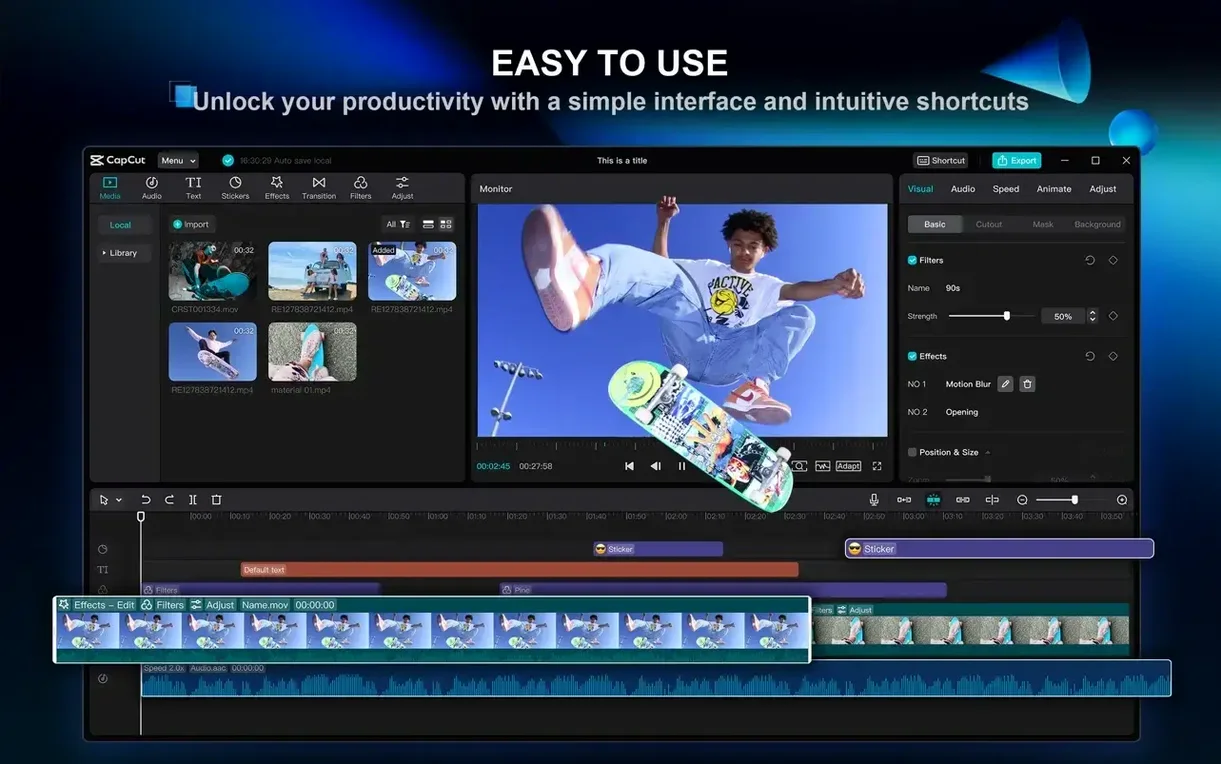
CapCut is a free desktop video editor from ByteDance that packs a surprising number of AI-assisted tools into a straightforward workspace. It is built for creators who need polished results without spending hours on manual fixes—think podcasters cleaning up dialogue, small teams cranking out social clips, or anyone who'd rather let the software handle repetitive editing tasks.
- One-click podcast cleanup. The silence-removal tool strips out filler words and awkward pauses in a single pass. Handy when you have a 40-minute recording and no time to scrub through waveforms.
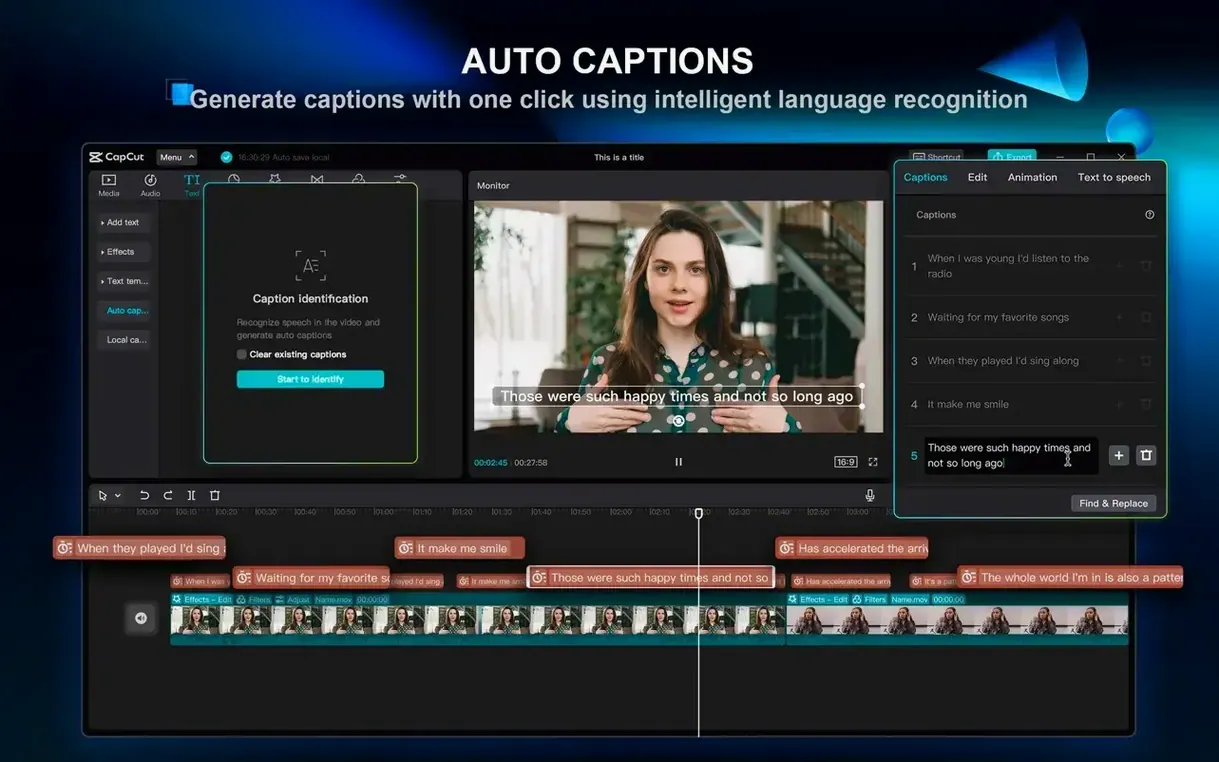
- Auto-generated subtitles. Speech-to-text kicks out captions automatically. You can tweak the timing and styling afterwards, but the first draft arrives fast.
- Background removal. Pull a person off a messy background without green-screen setup. Works best on talking-head shots.
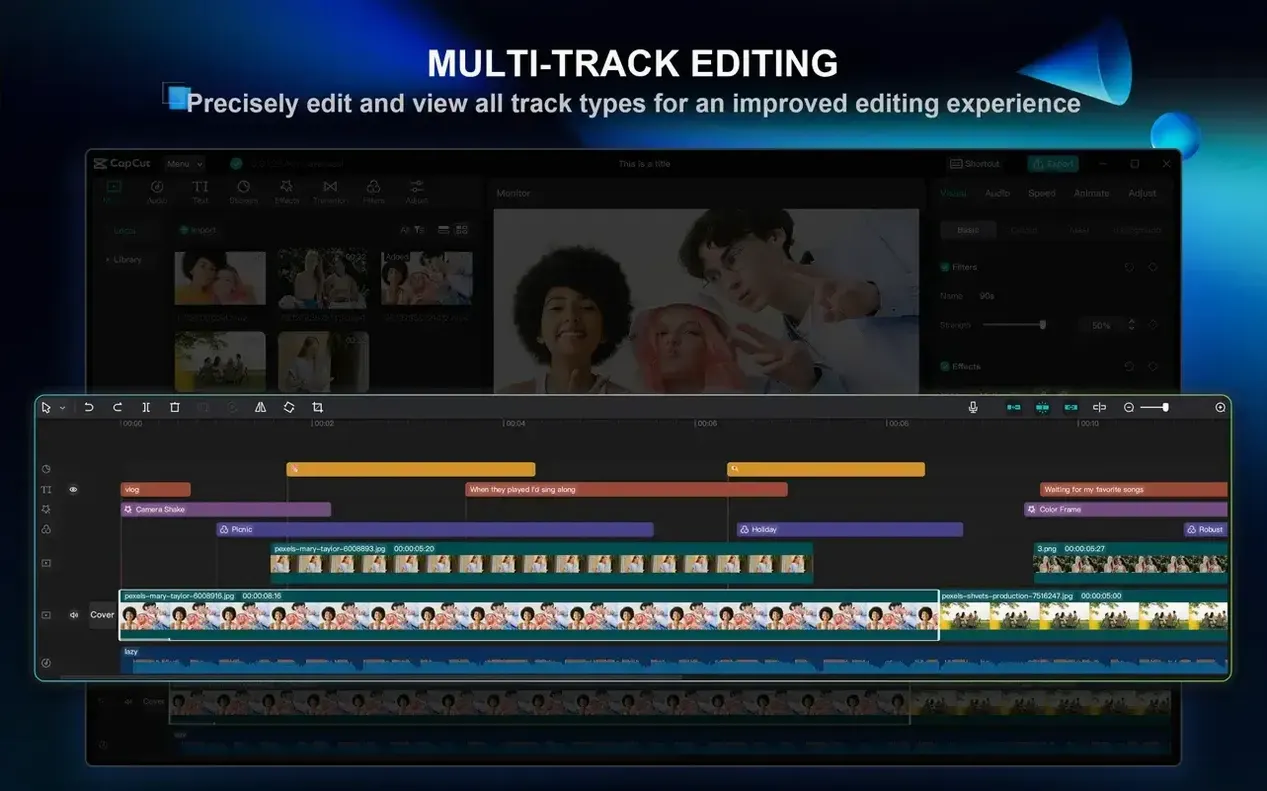
- Multi-track editing. Stack video, audio, text and overlay tracks the way you would in a conventional timeline editor—nothing locked down or simplified to the point of frustration.
- Text-to-speech. Generate voiceovers from typed scripts using a range of built-in voices. Useful for scratch tracks or quick narration when you cannot record live audio.
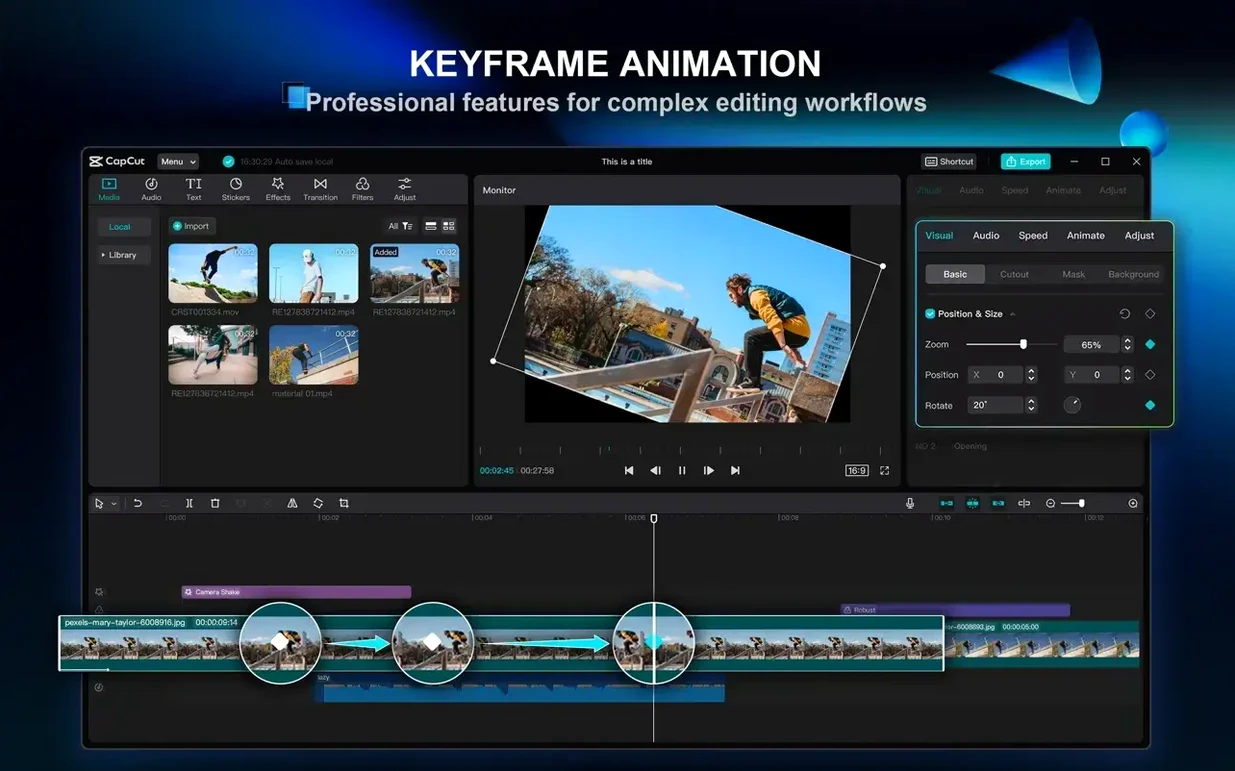
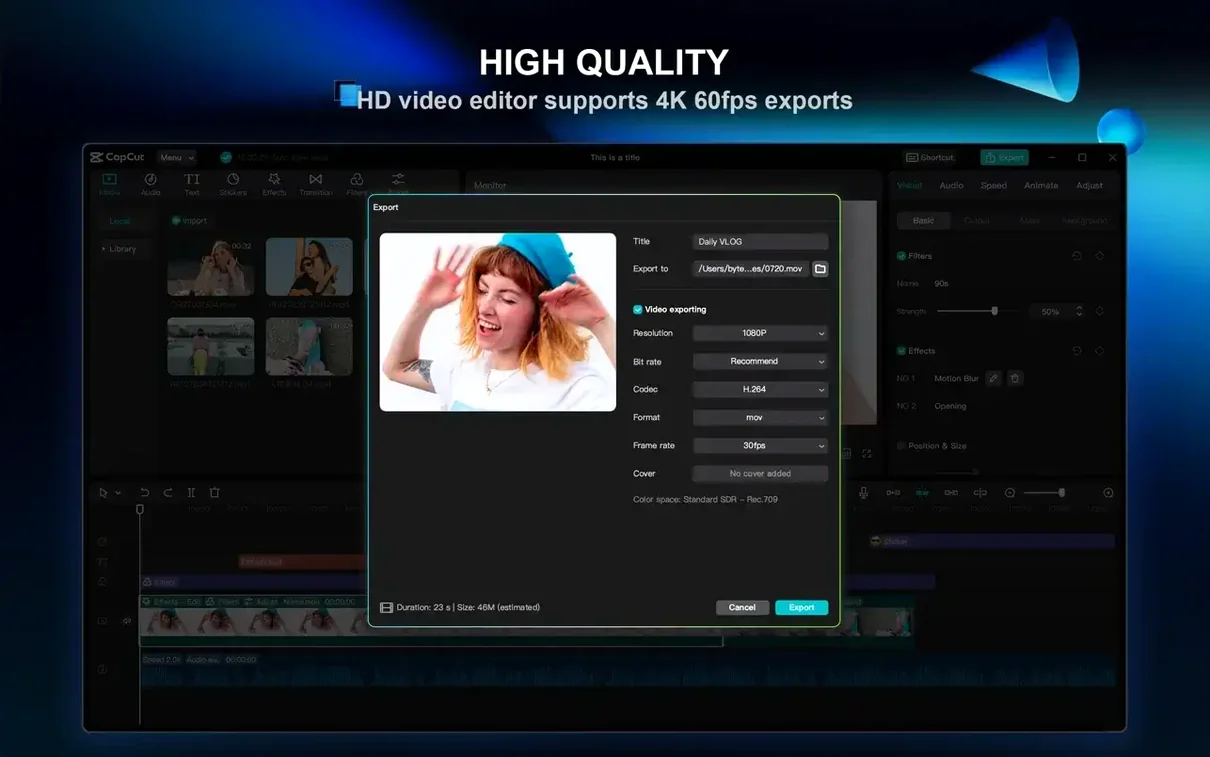
Keyframe animation is there when you need motion control, and exports go up to 4K at 60 frames per second. The interface handles dozens of languages, and the hardware requirements stay modest—4 GB of RAM gets you editing, though 8 GB or more keeps things smooth on longer timelines.
Building a three-minute product video from scratch
Let me walk you through what a real edit looks like—say, a three-minute product video with voiceover, B-roll and captions. I open CapCut and start a new project. The media bin sits on the left; I drag in a handful of clips shot on my phone and a separate audio file recorded in a quiet room. No conversion step needed, which saves a minute before anything creative even happens.
I lay the voiceover onto the first audio track, then scrub through to find the rough sections I know need cutting. Instead of hunting for every um and long pause by hand, I select the clip and click Remove silences and fillers. CapCut scans the waveform, marks the dead air and the verbal filler, and trims them out in maybe ten seconds. I spot-check a few edits—they are clean, but I nudge one cut point by a few frames where a breath sounded clipped.
Next I stack B-roll on the video track above, slicing and dragging clips to match the narration beats. The magnetic timeline does not fight me; I can drop a clip into a gap and the neighboring clips shift without unlinking audio I already placed. Once the cut flows, I add auto-captions. The speech-to-text engine processes the voiceover track and populates a dedicated subtitle lane. Accuracy is solid—I fix two misinterpreted product names out of maybe 120 words and adjust the default font to match my brand colors.
I want a slow push-in on the opening shot, so I add two keyframes to the clip: start at 100% scale, end at 108%. I ease the curve slightly in the animation panel. It is a small move, but it gives the opener a little weight. For the closing shot I pull a talking-head clip onto a plain wall background, then apply one-click background removal. CapCut masks the person reasonably well around the shoulders; a stray edge near the elbow cleans up with a quick mask brush pass.
Before exporting I preview at full resolution. Playback skips once on a 4K clip with a color LUT applied, but proxies are not something I have to manage manually—the app handles playback resolution drops on its own. I select 4K, 30fps, H.264, and the file renders in just under twice real time on my machine. For a social cut I would export at 1080p and it would be faster still.
Switch proxy to 540p for smoother 4K editing
Out of the box CapCut works, but a few preferences make the daily experience feel more like your own.
- Proxy resolution. Under Settings > Performance, switch proxy quality to 540p or 720p if you work with 4K footage on an older Mac. The timeline stays responsive without you thinking about it.
- Default caption style. Set your preferred font, size, and background box in Captions > Default style before you generate. Changing it later means reapplying across the whole track.
- Export presets. If you regularly deliver for Instagram, TikTok and YouTube, save three custom presets instead of re-entering resolution and bitrate each time. The preset manager remembers frame rate, codec and file destination.
- Timeline zoom behavior. In Editing preferences, set the scroll wheel to zoom the timeline rather than scroll vertically—much faster for fine trimming once you build the muscle memory.
- Audio ducking threshold. The default ducking setting is a bit aggressive for voiceover work. I pull it back to around -12 dB and lengthen the fade time slightly so music dips sound more natural.
Launching a dozen-clip project in under four seconds
On an Apple Silicon Mac with 8 GB of RAM, CapCut 9.3.0 launches in under four seconds and loads an existing project with a dozen clips in about the same. I have pushed timelines past 20 minutes with mixed 4K and 1080p sources, multiple LUTs, and three audio tracks, and the app held steady—no beachballing during scrubbing, no mysterious crashes when applying effects. Fans stay quiet on M-series chips unless you batch-export or render a long timeline to cache.
Memory usage sits around 1.2 GB at idle with a small project open, climbing to roughly 3 GB during intensive playback of a layered timeline. That leaves breathing room on 8 GB machines, though I would close other heavy apps before rendering. Disk cache can grow to several gigabytes over a long session; a quick cleanup under Settings > Cache reclaims the space.
Stability has been reliable in daily work. I have had the audio waveform display fail to redraw once after waking the Mac from sleep—saving, closing and reopening the project fixed it in seconds. The auto-save feature has saved me from my own forgetfulness more than once; recovery files appear reliably after a force quit.
On Intel Macs the experience is still smooth for 1080p work, though 4K scrubbing benefits from proxy mode enabled by default. The 2-core minimum holds true for simple cuts, but a quad-core i5 or better keeps timeline operations fluid. For anyone searching around for a CapCut Mac torrent or a CapCut Pro for Mac torrent to try the full feature set, the performance ceiling on modest hardware remains one of the app's stronger points—it does not demand a maxed-out machine to feel quick.
- macOS 10.14 or later
- Intel 64-bit or Apple Silicon Mac
- 4 GB RAM minimum (8 GB recommended)
Questions from the stall
What Mac does CapCut need?
It runs on macOS 10.14 and later, supporting both Intel 64-bit and Apple Silicon Macs.
Notes from other shops 0
Sign in or open a shop account to leave a note.
No notes yet. If you've used this on a shop Mac, tell me how it went.