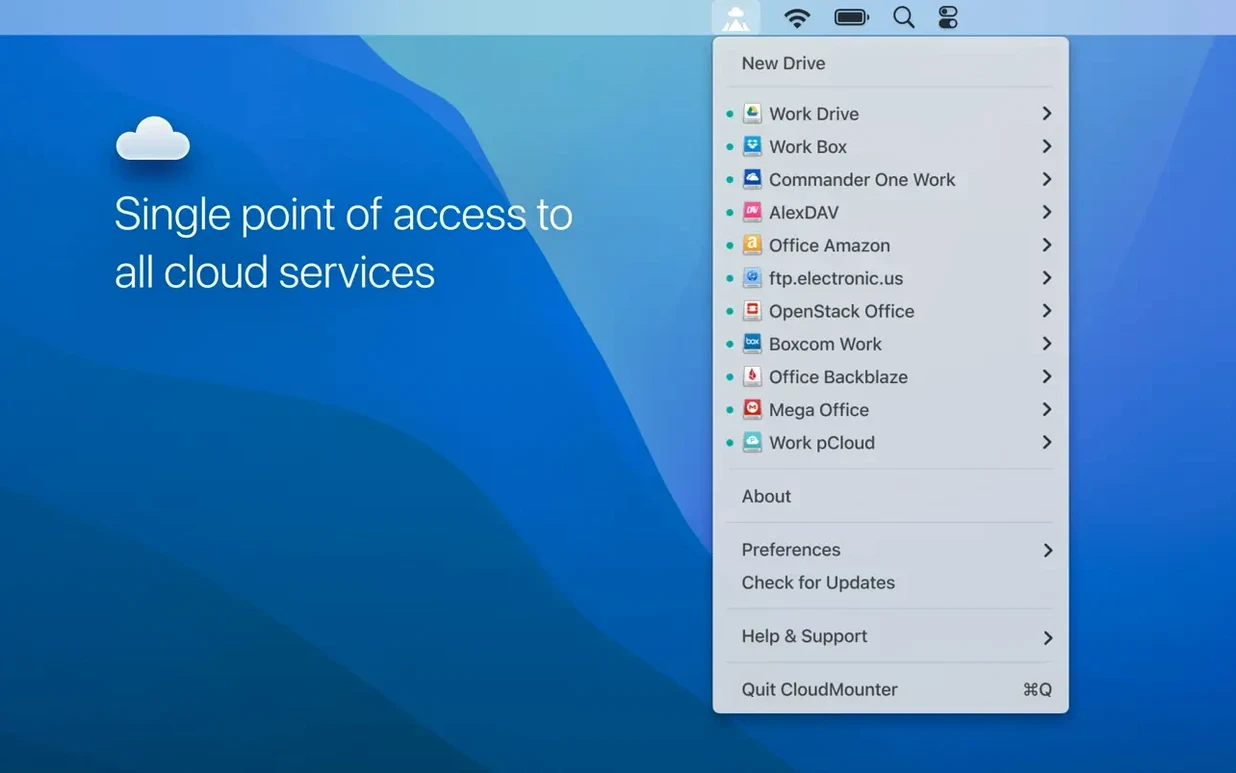
Shop owners, freelancers, and anyone juggling work across several cloud accounts know the drill: a Finder window for local files, a browser tab for Google Drive, another for Dropbox, and maybe a separate FTP client for the web server. CloudMounter is built for people who'd rather skip the tab-hopping and treat remote storage like an external hard drive plugged right into the Mac.
Your cloud accounts live right inside Finder
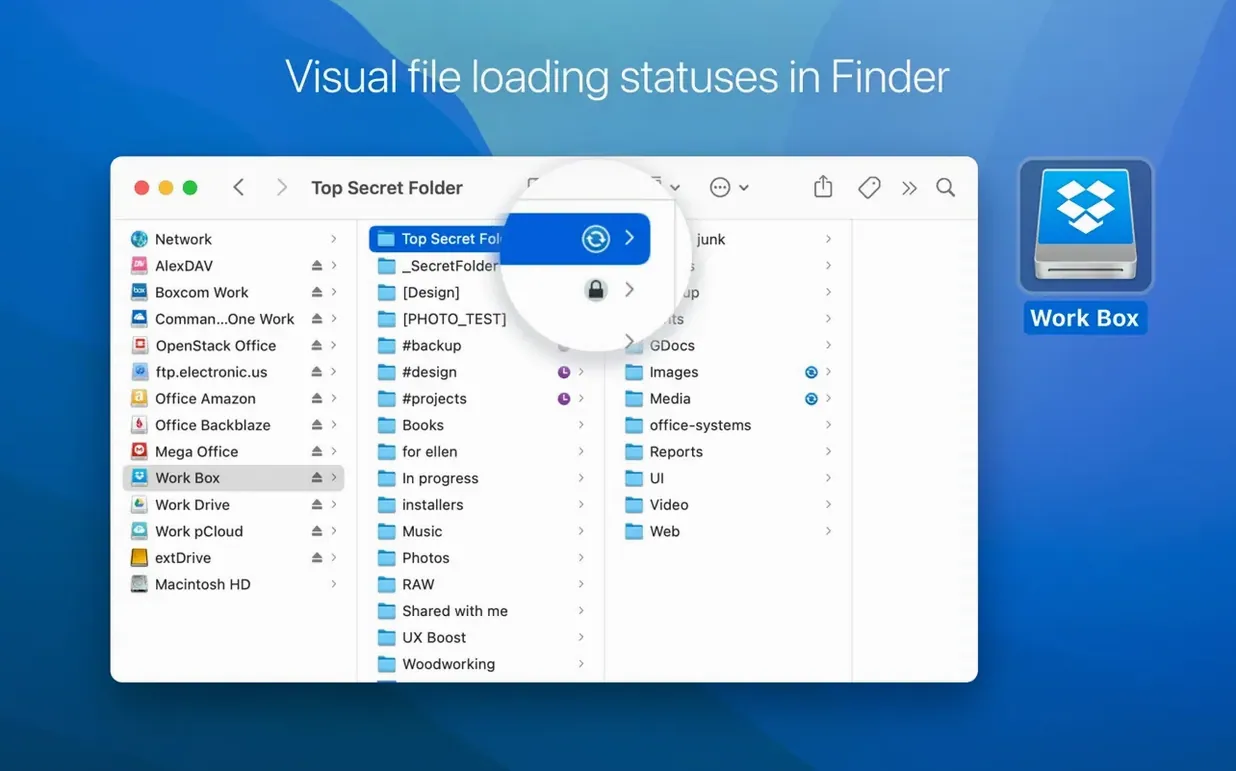
- Mount as a local drive. CloudMounter adds each cloud account or server connection as a regular drive in Finder. You browse, open, and save files without downloading a sync folder first. It's the feature that makes the app feel like a natural extension of macOS rather than a separate file manager.
- No forced syncing. The app does not automatically sync files to your local disk. That means you keep your Mac's storage free for the work that needs to live locally, while everything else stays on the cloud until you need it.
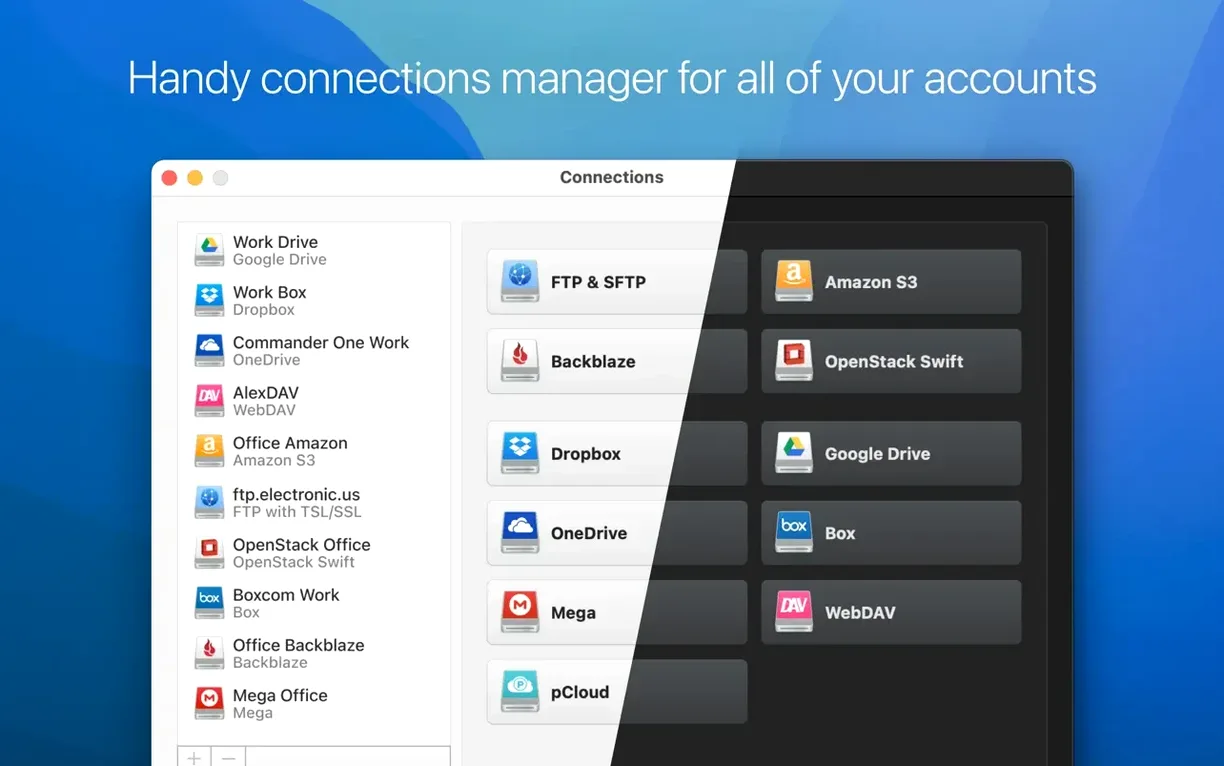
- All accounts in one place. You can connect multiple cloud services and servers inside a single application. A photographer might mount a client's Dropbox, the studio's Google Drive, and an SFTP server all at once, each showing up as its own drive with no extra windows to manage.
Pull product photos straight from Google Drive into a layout
For a handmade-goods business, product photos, supplier spreadsheets, and shipping labels often scatter across different platforms. Mounting them all in Finder means pulling a product shot from Google Drive straight into a design layout without downloading, dragging, and re-uploading. It's a quiet time-saver that adds up over a busy week.
Fix a drive that won’t mount after a macOS update
Most hiccups with CloudMounter come down to permissions or connection settings, not the app itself. Here are the ones I see mentioned most often and what actually fixes them.
- Drive doesn't mount after a macOS update. System updates sometimes reset the kernel extension permissions CloudMounter needs. Go to System Settings > Privacy & Security, scroll to the bottom, and you'll usually see a blocked extension waiting for approval. Allow it, restart the app, and the drives come back.
- Files show as zero bytes or refuse to open. This usually means the cache location is full or on a volume with weird permissions. Open CloudMounter's preferences, switch the cache folder to a folder directly inside your home directory, and restart the connection. The app needs write access to that folder, nothing fancy.
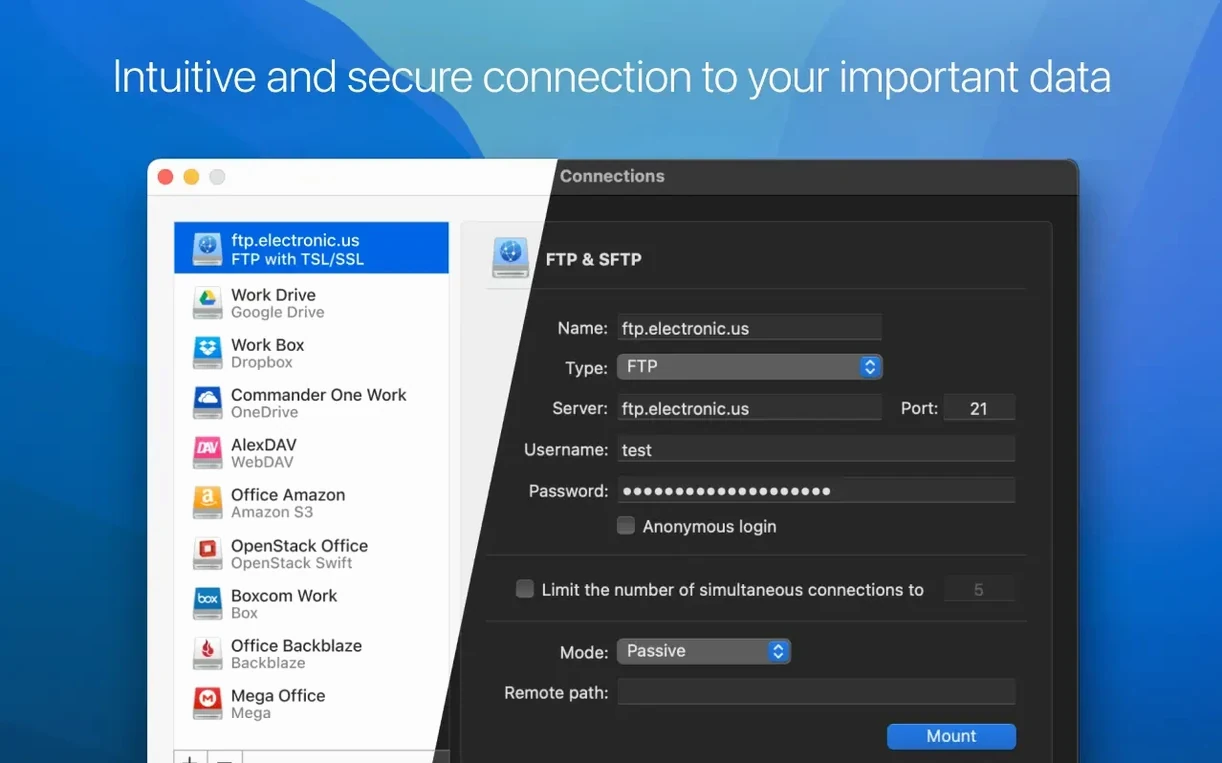
- SFTP connection drops on large transfers. Version 4.18 fixed download cancellation for SFTP connections, but if you're still seeing timeouts, check the keep-alive setting in the connection properties. A 30-second interval works for most shared hosting setups.
- Google Drive asks for re-authentication too often. Remove the connection entirely, then add it fresh rather than re-entering credentials on the old one. Token expiry sometimes gums up reused connections.
Pick a permanent cache folder before you mount anything important
A few minutes of setup right after install saves head-scratching later. These are the things I'd do before mounting anything important.
- Pick a permanent cache folder. The default cache location works, but I like putting it somewhere obvious, like
~/Documents/CloudMounterCache. If you ever need to clear it manually or check what's taking space, you'll know exactly where to look. - Label your drives in Finder. Mount a connection, then right-click its desktop icon, choose a color tag, and rename it to something short and practical — "Client Dropbox" or "Shop Server" rather than the default account email. When you have four drives mounted, the tags help your eye jump to the right one.
- Set bandwidth limits if you're on a busy network. In the app preferences, cap upload and download speeds to something reasonable for your connection. It keeps CloudMounter polite to other apps that need bandwidth during the workday.
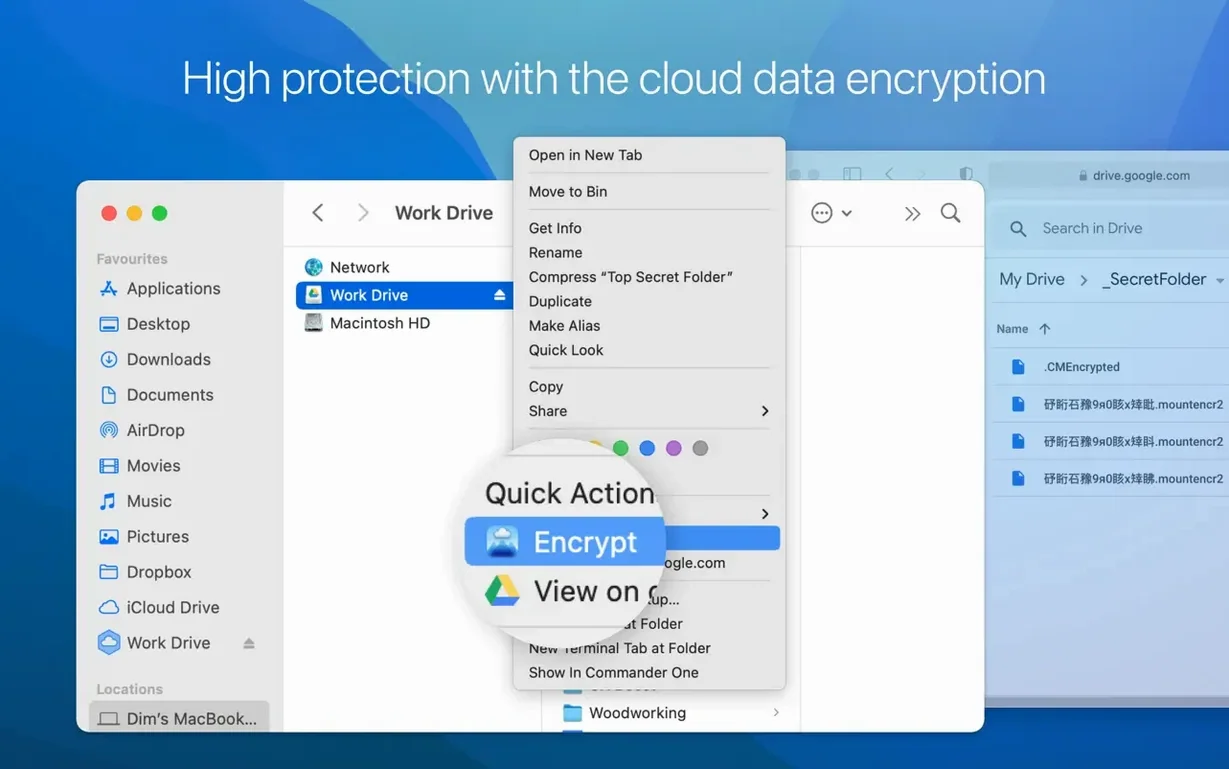
- Test encryption on a dummy folder first. The AES-256 encryption is per-connection, and you set it when you add a new drive. Create a small test file, encrypt it, unmount and remount the connection, then check it opens cleanly before you commit actual work to it.
Mount the shop’s Google Drive and skip the download-reupload dance
This is a task I do often for the shop, and CloudMounter shaves off the back-and-forth of downloading and re-uploading. Here's how it flows.
First, I mount the shop's Google Drive — it shows up on the desktop like any external drive. Inside, I navigate to the folder where product photos live, usually sorted by item name. I open the shot I want directly into Preview or Pixelmator Pro straight from the mounted drive; the file opens as if it were local, no import step.
I crop and tweak, then save. Because the drive is mounted, saving writes straight back to Google Drive. The status icon in the CloudMounter menu bar flickers for a moment during the upload, then settles. Next, I hop over to Etsy's listing page in a browser, click the upload button, and navigate to the same mounted drive in the file picker. Finder treats it as a standard location, so the photo uploads directly from Google Drive to Etsy without ever touching my desktop or local storage.
The whole chain — open from cloud, edit, save back to cloud, upload to a platform — happens inside regular Finder actions. No syncing, no duplicates to clean up later, just the file moving where it needs to go. It's the kind of workflow that feels unremarkable after a week, but going back to downloading and re-uploading feels slow by comparison.
Version 4.18 brings a handful of quality-of-life fixes:
- Improved uploading of large files.
- Improved work with MEGA connections.
- Fixed download cancellation for files on SFTP connections.
- Fixed file downloading issues when cache volume is changed.
- Fixed displaying of storage usage information for online connections.
- macOS 10.14 or later
- 64-bit Intel processor
Questions from the stall
Does CloudMounter sync files to my Mac?
No. CloudMounter does not automatically sync files to your local disk. It mounts cloud storage as a network drive, so files stay online until you open them.
Which cloud services can I connect?
The app supports multiple cloud accounts in one place, including popular services like Google Drive and Dropbox, plus remote servers via SFTP and other protocols.
Is CloudMounter compatible with Intel Macs?
Yes. CloudMounter runs on 64-bit Intel Macs with macOS 10.14 or later.
Notes from other shops 0
Sign in or open a shop account to leave a note.
No notes yet. If you've used this on a shop Mac, tell me how it went.