Curtain Mode is the feature that sold me on the idea of remote administration years ago. Instead of a user watching their cursor dart around while you work, the screen goes blank except for a lock icon and a message. It turns a potentially unsettling support session into something that feels professional and intentional.
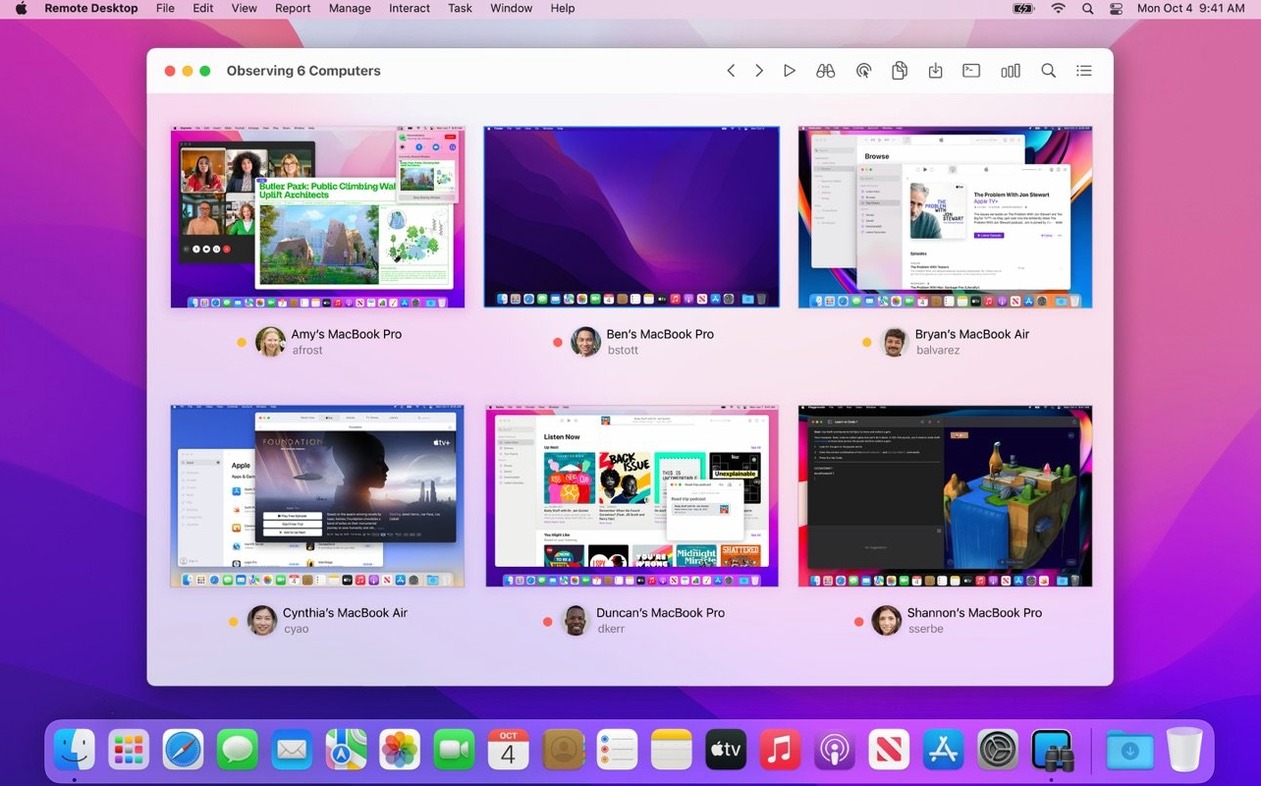
Imagine you need to push out a new point-of-sale update to three iMacs at the other end of your shop. You open Apple Remote Desktop, select the computers from your list, and use the Copy Items task. The encrypted package lands silently in the Applications folder on each Mac while you watch the progress bar from your desk. A quick system report afterward confirms the new version is installed everywhere, down to the build number.
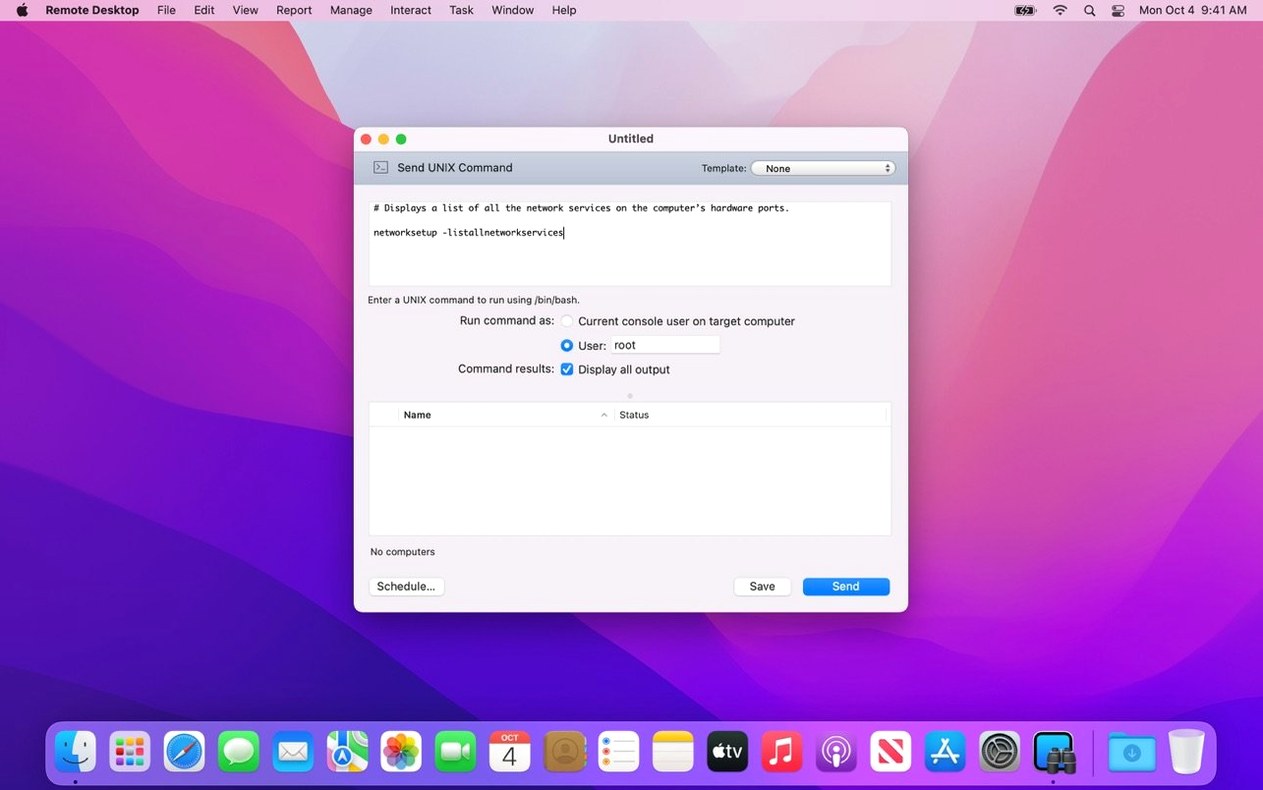
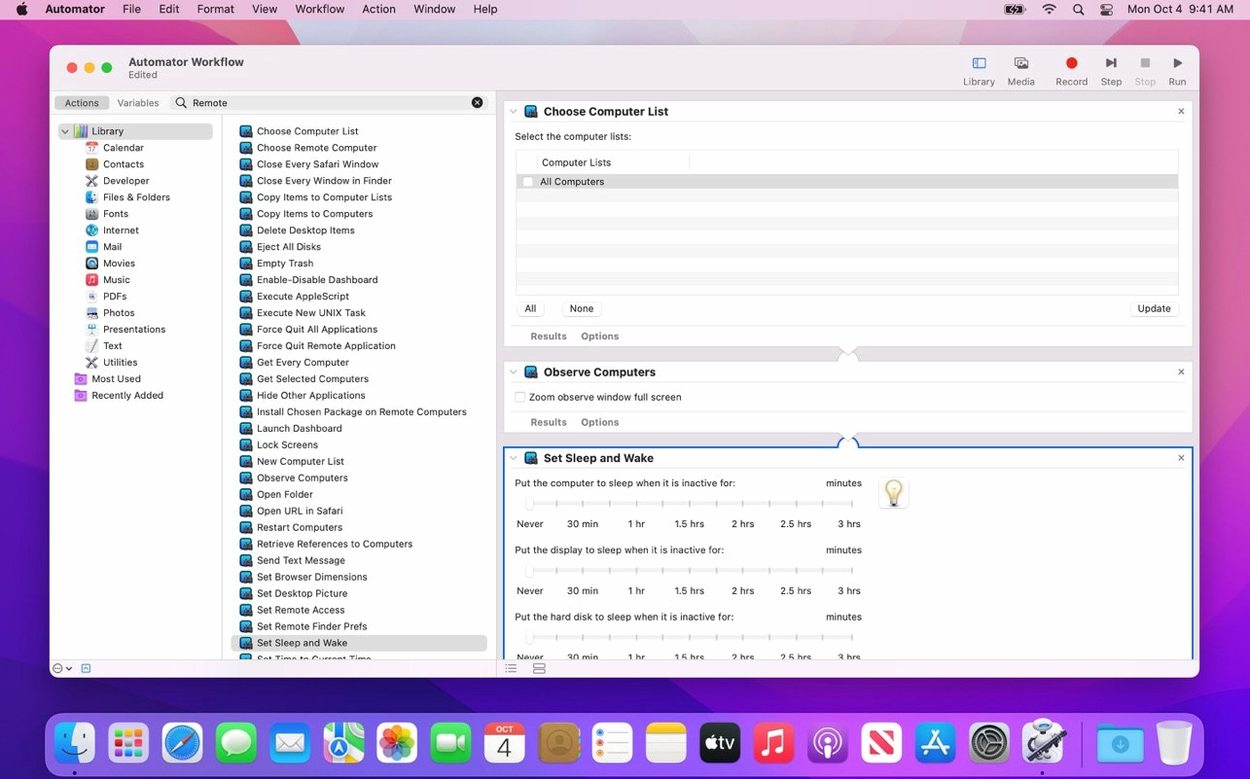
That’s the rhythm of this tool. It’s built for a fleet of Macs, but it scales down to a handful just as well. You can drag and drop files, copy and paste text between computers, or generate reports on more than 200 hardware details without walking over to the machine. If you manage a mixed network, VNC support lets you view Windows and Linux screens too, though full control really shines between Macs running the Remote Desktop Client.
One workstation, many Macs: software installs and silent reports
- Installing software on multiple Macs from one workstation
- Running hardware and software reports without interrupting the user
- Private remote sessions via Curtain Mode
- Drag-and-drop file transfers between computers on the network
- Scheduled automation of routine maintenance tasks
Full features stay locked to the Mac client
- Full management features require the Remote Desktop Client on target Macs
- Version 3.10 needs macOS 15.5 or later
- VNC connections to non-Mac systems offer viewing and basic control, not the full Mac-to-Mac feature set
Staying ready for macOS Tahoe 26 after the upgrade
Most updates that land in a point release feel abstract until you bump into them during a workday. The 3.10 update centers on macOS Tahoe 26 readiness, and that matters the moment you upgrade a managed Mac and still expect the screen-sharing session to connect without a hitch. Apple added explicit compatibility so the admin console and the client stay in sync after the OS jump.
Two additions stand out for anyone who relies on accessibility tools or remote keyboard shortcuts. A new Accessibility and Remote Keyboard menu joins the toolbar on macOS Tahoe 26 or later, which means you can trigger VoiceOver on a remote Mac from your own keyboard. If you support a team member who uses VoiceOver, you no longer need to talk them through enabling it locally before you take over — you turn it on from your end once the session is live. The remote keyboard item also gives quicker access to modifier-key combinations that sometimes get swallowed by the local system.
The rest of the update is the kind of quiet housekeeping that shows up as fewer dropped connections and snappier report generation. Bug fixes and performance improvements don't make the feature list flashier, but they're the reason a scheduled software push to twelve Macs finishes without one machine stalling at 87 percent.
Under 150 MB of RAM during an active screen-sharing session
Apple Remote Desktop has always been a lean citizen on the admin Mac. On an Apple Silicon machine, the console sips resources — Activity Monitor typically shows it using under 150 MB of RAM during an active screen-sharing session, with CPU bumps that correspond to screen updates rather than constant background churn. Intel Macs run it comfortably too, though the fan might spin up briefly when you pull a full hardware report across thirty machines at once.
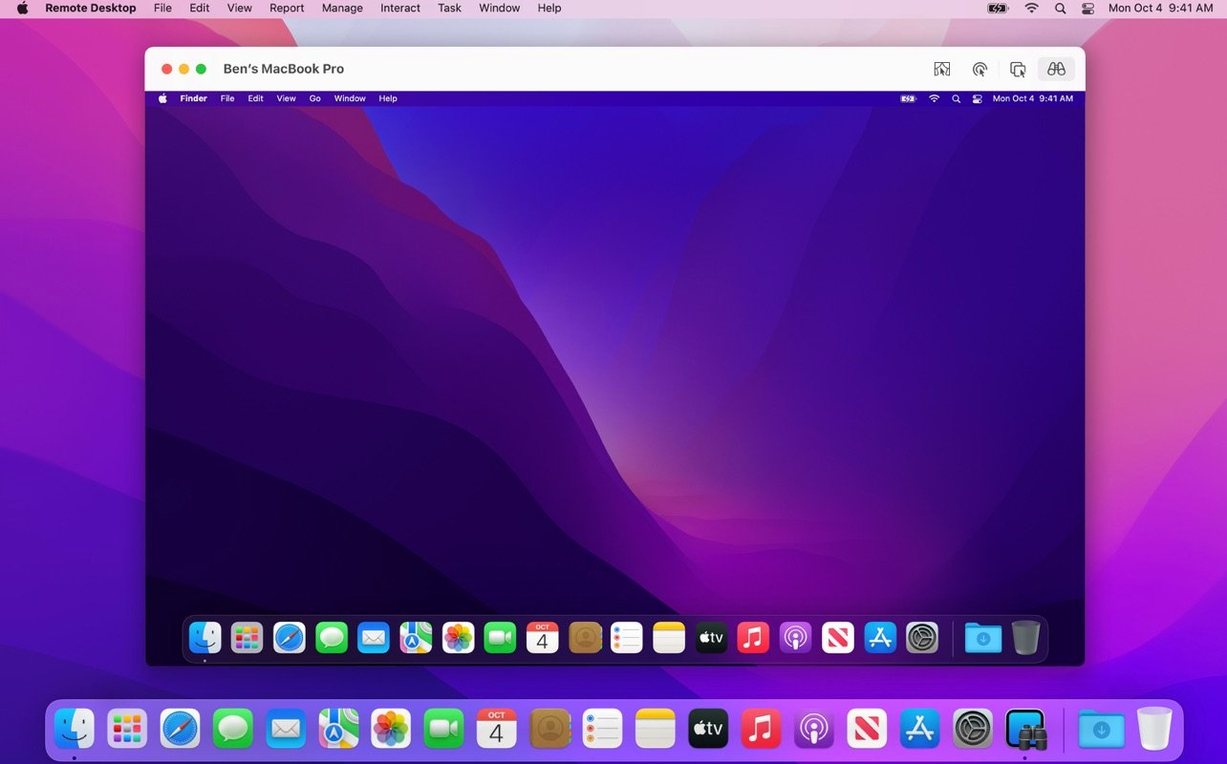
Screen sharing over a wired LAN feels nearly local. The default adaptive quality keeps the remote desktop responsive even when you're scrolling through a Finder window full of thumbnails. Over Wi-Fi, the experience depends more on your access points than on the app itself; a congested 2.4 GHz channel introduces the lag you'd expect, while a clean 5 GHz or 6 GHz network stays smooth enough for drag-and-drop file transfers without second-guessing your aim.
The encrypted copy task is where stability really matters. If a target Mac goes to sleep mid-transfer, the task queue pauses gracefully rather than erroring out. You can schedule installations for offline computers, and they'll catch up the next time they wake on the network. I've left a package queued over a weekend and come in Monday morning to find all three shop iMacs updated and reporting identical build numbers.
One thing to keep an eye on: the Remote Desktop Client on managed Macs needs to stay at a version that matches the admin console. When Tahoe 26 shipped, a mismatch caused brief authentication hiccups for some setups. Keeping both sides on the 3.10 track clears that up.
A single-machine companion versus a multi-Mac fleet tool
Apple Remote Desktop vs. Screens. Screens is a polished remote-access app aimed at individuals who want to reach their own Mac from an iPad or another Mac. It's great for a single-machine connection with a clean touch-friendly interface, but it doesn't do mass software deployment, scheduled tasks, or hardware reporting across a fleet. Apple Remote Desktop is the multi-tool for administration; Screens is a comfortable remote control for one computer at a time.
Apple Remote Desktop vs. TeamViewer. TeamViewer works across platforms and handles firewall traversal without much configuration, which is handy for helping a distant relative on a Windows laptop. For Mac-to-Mac management on a local network, though, ARD runs circles around it in speed and integration. Curtain Mode, Spotlight search on remote Macs, and Automator actions are Mac-native features TeamViewer can't match. TeamViewer also routes traffic through external servers by default; ARD keeps everything on your LAN unless you set up a VPN tunnel deliberately.
Apple Remote Desktop vs. Jamf Now. Jamf Now is a cloud-based MDM that handles device enrollment, configuration profiles, and app distribution without needing the Macs on the same network. That's a different philosophy. ARD shines for hands-on tasks — watching a screen, dragging a file, running a terminal command interactively — that MDM can't do in real time. Plenty of small shops run both: Jamf for policy and inventory, ARD for the moment-to-moment support work.
Version 3.10 brings the app up to speed with the latest Mac operating systems and adds a few quality-of-life improvements for accessibility.
- Ready for macOS Tahoe 26
- New Accessibility and Remote Keyboard items in the menu bar and toolbar on Tahoe 26 or later
- VoiceOver support now works for the remote Mac on Tahoe 26 or later
- The usual round of bug fixes and performance tweaks
- macOS 15.5 or later
- Apple Silicon or Intel 64-bit Mac
Questions from the stall
Can I manage Windows computers with Apple Remote Desktop?
Yes, you can connect to Windows, Linux, and UNIX systems using VNC, though the experience is limited compared to managing a Mac with the Remote Desktop Client installed.
What is Curtain Mode?
Curtain Mode hides the screen of the Mac you're managing, showing a lock icon instead, so the person at that computer can't see what you're doing during a remote session.
Does version 3.10 work with older versions of macOS?
No, Apple Remote Desktop 3.10 requires macOS 15.5 or later and adds specific support for macOS Tahoe 26.
Notes from other shops 0
Sign in or open a shop account to leave a note.
No notes yet. If you've used this on a shop Mac, tell me how it went.