
You plug in your MacBook at your desk around nine in the morning and leave it there until six. Without some help, that battery sits fully charged all day, running warmer than it needs to and aging a little faster than it should. AlDente steps in at exactly the percentage you set and stops the charge.
How does the charge limiter actually help?
Lithium-ion batteries wear faster when held at 100% for long stretches, especially while warm. AlDente lets you pick a lower ceiling—say 70 or 80 percent—so your MacBook runs directly off the power adapter once that level is reached, keeping the battery in a gentler range during desk-bound workdays.
What does Calibration Mode do?
Apple’s battery percentage readings can drift over time if a full cycle rarely happens. Calibration Mode temporarily lets the battery discharge completely and then charges it all the way back to 100%, giving the system’s gauge a proper reset for more accurate remaining-time estimates.
Can I still get a quick full charge when I need it?
Yes. The menu bar controls include a one-click “Top Up” that overrides the limit and charges to 100% just this once. It’s the right tool for the morning you remember you’ll be away from an outlet all afternoon.
A calibration workflow from start to finish
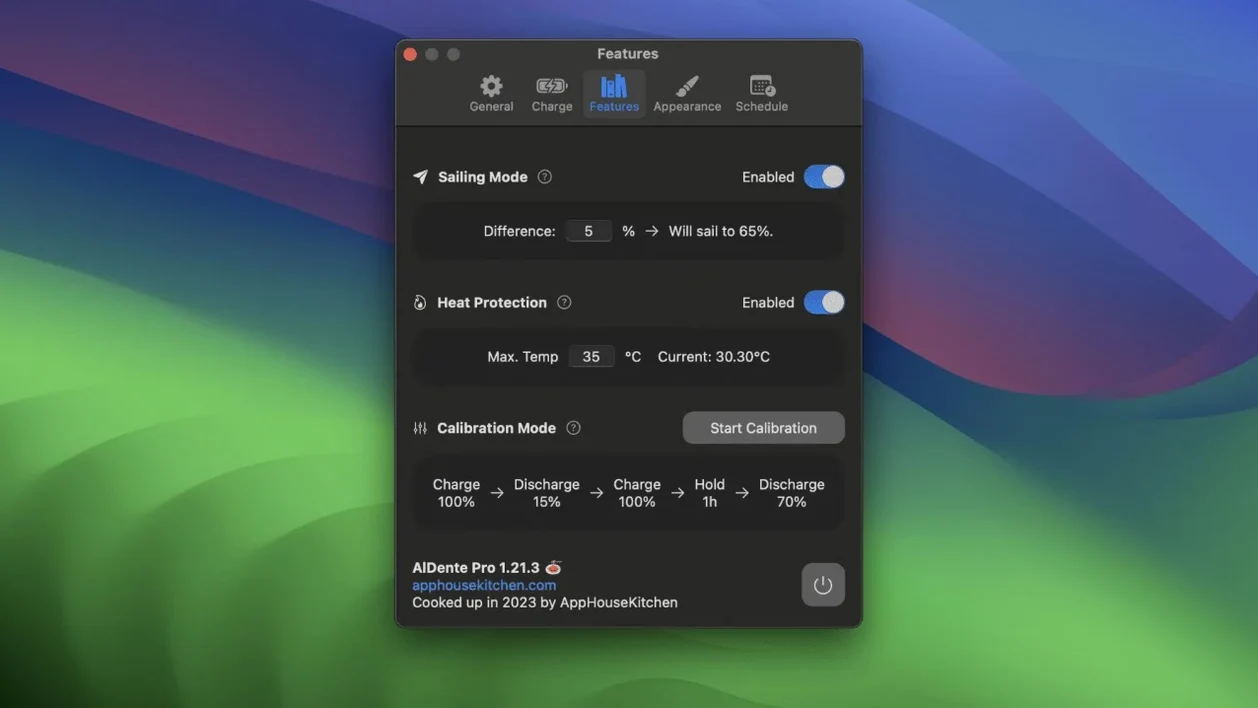
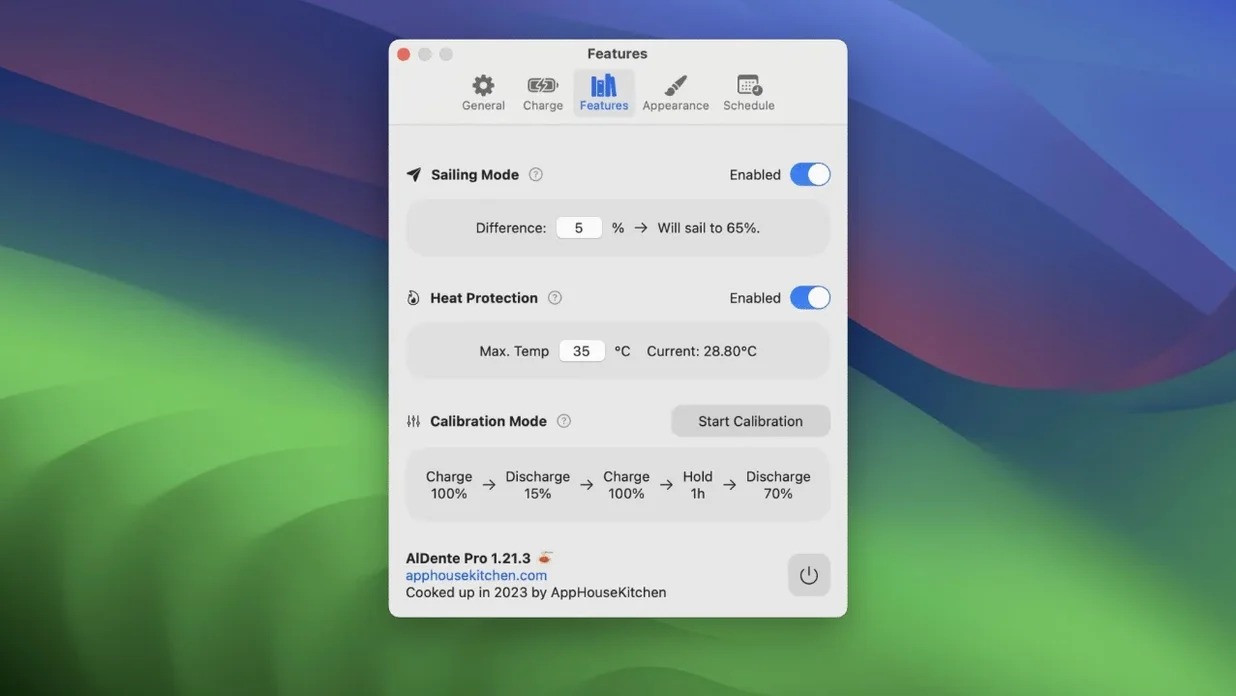
If you mostly work plugged in, your battery gauge can lose accuracy over a few months. AlDente’s Calibration Mode walks the battery through a full discharge and recharge so macOS gets a clean reading again — something I’d run roughly every four to six weeks.
Here’s the sequence I follow when I notice the percentage jumping oddly or the estimated time looking off:
- Start with the MacBook plugged in and the charge limit set to your usual ceiling, say 75%.
- Open the AlDente menu bar icon and click Calibration Mode. The app will explain it will discharge fully, then charge to 100% — this takes a few hours, so pick a day when you won’t need to unplug suddenly.
- AlDente disables the charge limit and lets the battery drain to around 0% while the laptop stays awake. Keep the lid open and disable automatic sleep in System Settings so it doesn’t nap mid-calibration.
- Once it hits empty, the MacBook will shut down. Plug it back in, power it on, and AlDente will charge it all the way to 100% without interruption.
- At 100%, calibration is complete. The charge limit snaps back to your previous setting and the battery gauge is now properly aligned with the actual cell voltage.
Tip: run a calibration on a quiet Sunday when you’re around the house. You don’t need to babysit it, but you do want the MacBook awake and the charger handy for the final step.
Set a charge limit that matches your daily pattern
A few small adjustments in the first couple of days make AlDente feel less like a utility you’re managing and more like something that just hums along.
- Set the charge limit to match your pattern. If you’re plugged in most of the day, 70–80% is the sweet spot. If you unplug every afternoon, 85% might make more sense. You can always Top Up quickly from the menu bar.
- Turn on Heat Protection. It’s in the preferences and pauses charging if the battery temperature climbs too high — a silent helper during summer afternoons or heavy compiles.
- Let Sailing Mode find its rhythm. This feature keeps the battery slightly cycling between, say, 73% and 77% instead of sitting dead still at your limit. It takes a day to observe your habits and settle in; don’t tweak it in the first hour.
- Check the menu bar display. You can show percentage, current mode, or nothing at all. I keep it minimal — just the battery icon with a small colored dot that tells me whether AlDente is holding the charge.
- Confirm automatic launch. In AlDente’s preferences, make sure “Launch at Login” is enabled so you never forget to start it after a reboot.
A common early surprise: your MacBook might show “Not Charging” in the menu bar while plugged in. That’s AlDente doing its job, not a bug. The power adapter is running the laptop directly and the battery is just coasting at your chosen ceiling.
Waking up to a MacBook held at 75% overnight
It’s 8:30 a.m. and I settle at my desk with a coffee. The MacBook has been plugged in overnight. AlDente kept the charge at 75% while I slept, the way I set it up months ago, and I haven’t thought about it since.
I glance at the menu bar — tiny green dot, battery at 75%, “Not Charging.” The laptop is cool and running off wall power. Around 10 a.m. I remember I have a client meeting across town at two. I click the AlDente icon, pick Top Up to 100%, and go back to my layout work. By 11:30 the battery is full, and the app automatically returns to the 75% limit after the override. I grab the MacBook and head out with a full charge and no fiddling.
At the coffee shop, the battery drains normally as I work. By 5 p.m. I’m back home and plug in. AlDente tops it up to 75% and holds there again. The whole day the app made exactly two decisions — one override in the morning, one return to the limit in the evening — and I never opened a preference panel.
That’s the rhythm you settle into: set a limit once, use Top Up when you need a full charge, and ignore everything else unless the temperature spikes or you’re overdue for a calibration.
Menu bar shortcuts and hidden extras to explore
Some of the best bits in AlDente are tucked into menus and shortcuts you might not click for weeks. Here are a few I’d point out to someone who just downloaded their aldente mac download and wants to get comfortable quickly.
- Right-click the menu bar icon for a compact status panel instead of clicking through to the full window. It shows current charge, temperature, and mode in one glance.
- Option-click the icon to toggle the charge limit on and off instantly — handy when you’re troubleshooting a power issue and want to rule AlDente out.
- Customize the status bar icon. In preferences you can switch between battery percentage, a minimal icon, or both. I run the icon plus percentage so I can see the limit status and the number at the same time without opening anything.
- Discharge mode. If you plan to store the MacBook for a few weeks, AlDente can drain the battery to around 50% — the ideal storage level — instead of leaving it full.
- Sailing Mode’s quiet intelligence. Once enabled, it doesn’t just cycle mindlessly. It observes how often you unplug and adjusts the sailing range so you’re never caught with a low battery when you need to leave the desk.
And if you grab an aldente pro cracked version floating around, it’s worth knowing that the official build includes regular fixes for macOS quirks — the 1.39.4 update, for example, patched visual glitches that appeared in early macOS 27.2 betas. To keep the menu bar clean and the readings accurate as Apple pushes system updates, just make sure SIP and battery health settings are configured the way the app expects.
What's new in version 1.39.4:
- Fixed visual glitches in the Popover that appeared in the early betas of macOS 27.2.
- macOS 12 Monterey or newer
- Works on Apple silicon and Intel MacBooks
Notes from other shops 0
Sign in or open a shop account to leave a note.
No notes yet. If you've used this on a shop Mac, tell me how it went.