You just unboxed a new iPhone and your old one is still full of photos, messages, and music from an Android you stopped using two years ago. Getting everything into one place shouldn't mean shuffling between three different apps and a cloud service you forgot the password to.
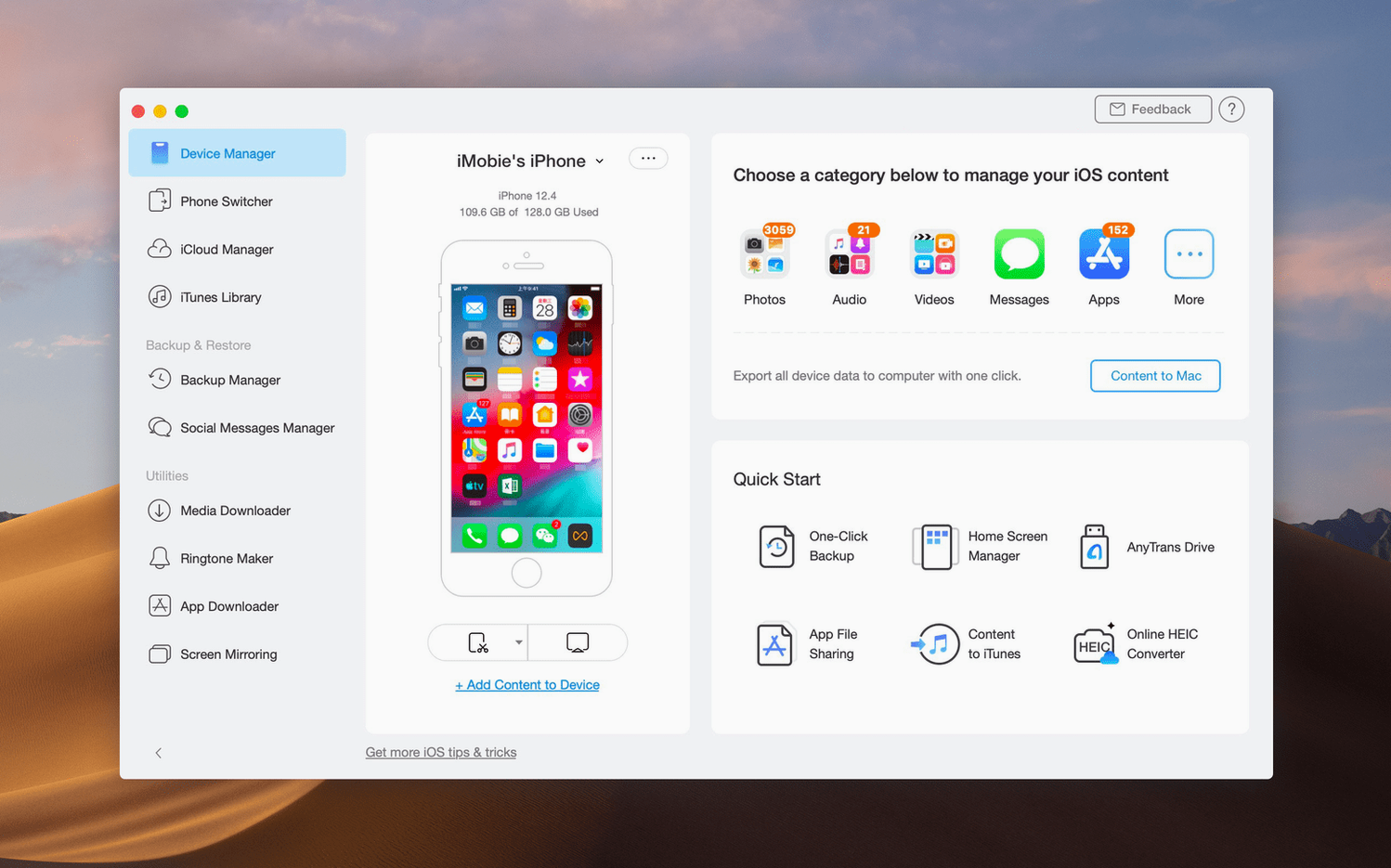
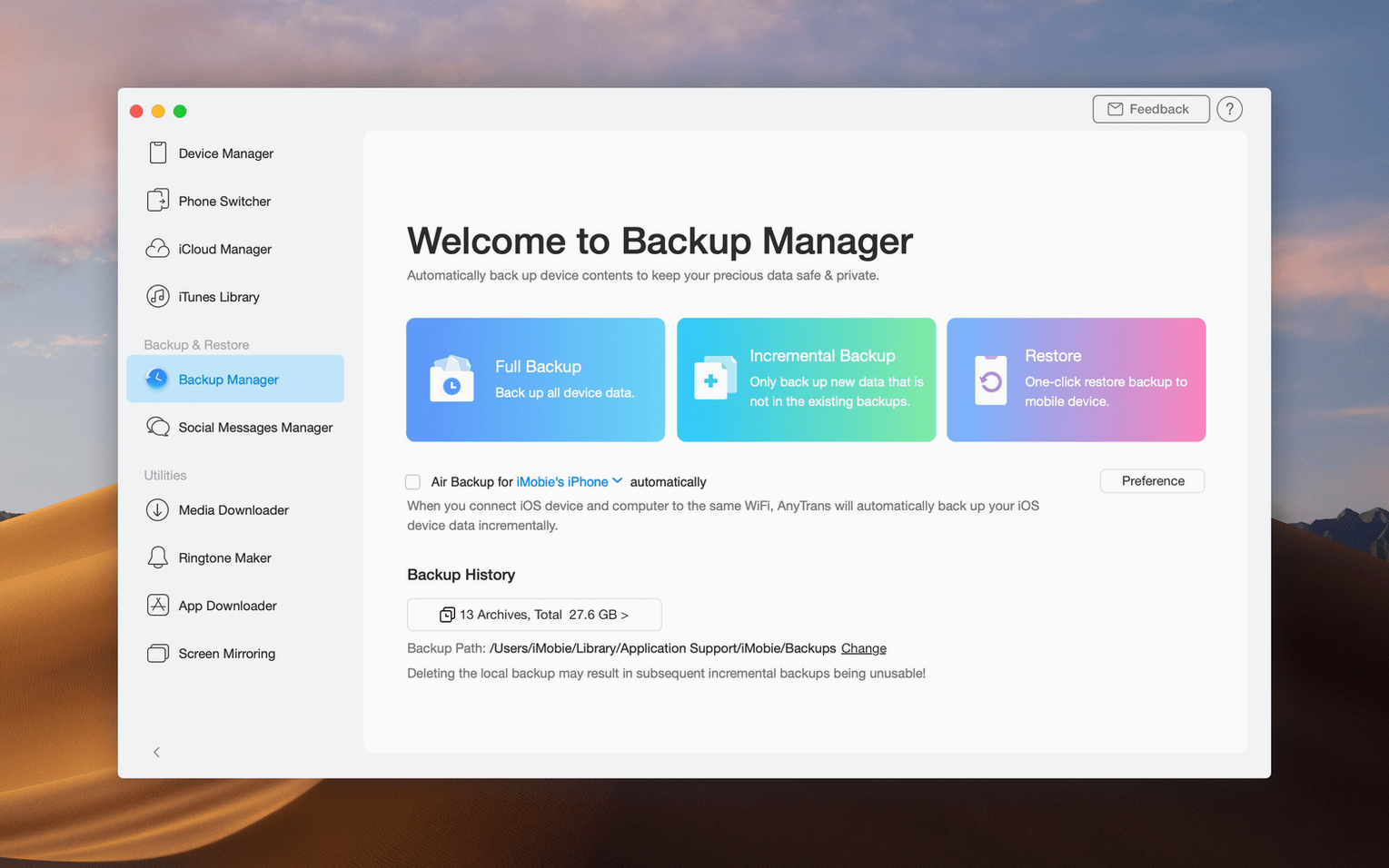
AnyTrans reads like a map of everything stored across your devices and accounts. Plug in an iPhone or iPad over USB and you can pull content to your Mac by category — just photos, just music, or a full copy in one click. It also digs into an iTunes library and lets you move songs or playlists to a Mac or back to a phone without syncing over the whole library.
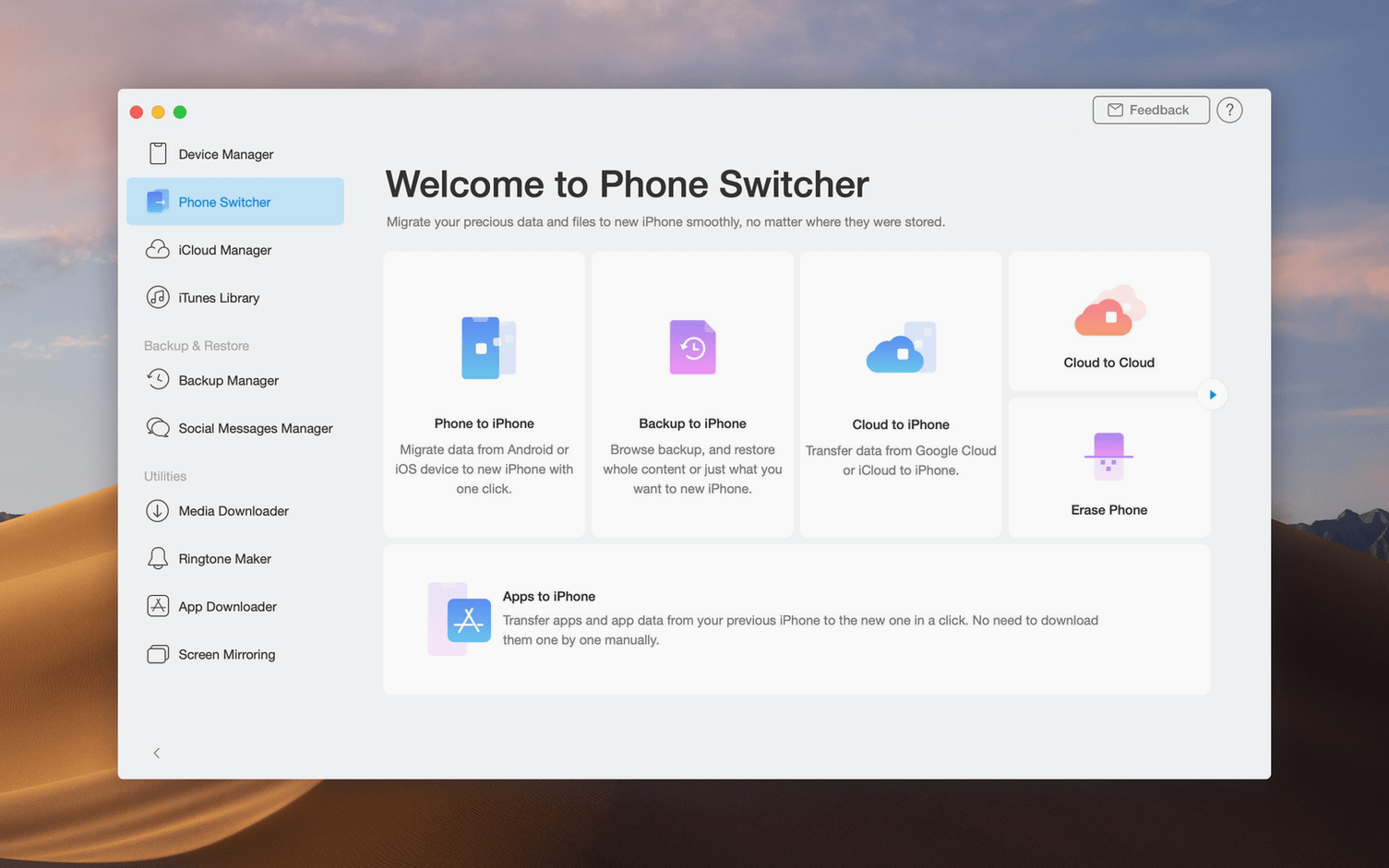
Switching platforms is treated as a single job. It can walk data from an Android phone or an older iOS device directly onto a new iPhone, so you're not air-dropping contacts one by one. Even iCloud gets more flexible: you can move content between two iCloud accounts, which helps if you've outgrown an old Apple ID but still need the files tied to it.
A morning for a photographer who doesn't want to be a file clerk
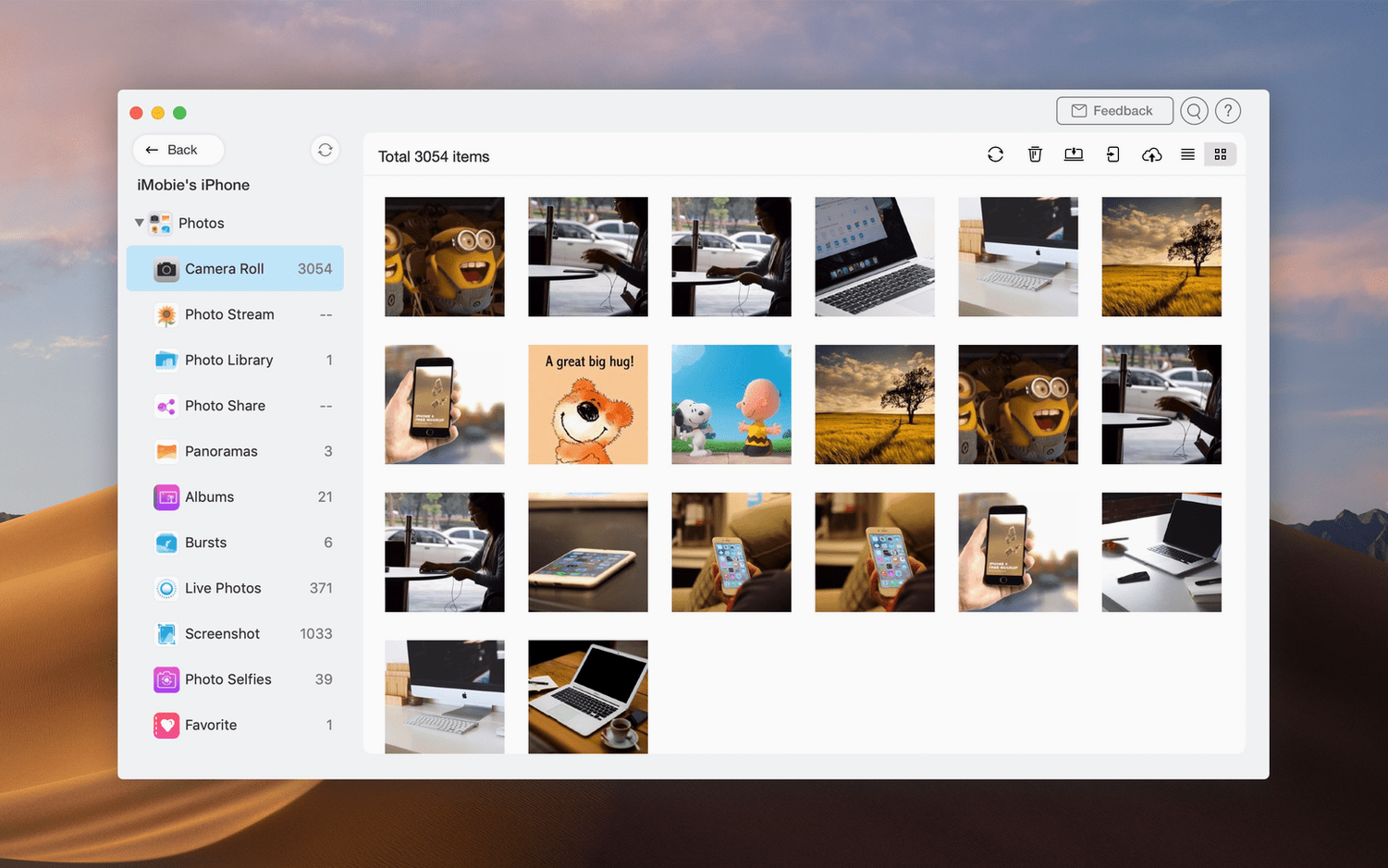
Imagine a wedding photographer back from a Saturday shoot with 900 raw photos sitting on an iPad Pro and a handful of short video clips she grabbed on her iPhone during cocktail hour. Monday morning she needs the stills on her Mac for Lightroom, the video clips dropped into a shared iCloud folder the couple can view, and the whole batch backed up before she wipes the cards. Without AnyTrans, that's three separate sync sessions and a fight with Finder's photo import that always hangs on the videos. With it, she plugs in the iPad, selects Photos and Videos in the category view, and pulls only the files from the weekend date range straight to a project folder on her desktop. Ten minutes later she connects the iPhone, grabs the short clips, and uses the iCloud manager to push a copy into a shared folder — without the originals leaving her local backup drive. The device manager shows exactly what's on each device before she moves anything, so she's not guessing about duplicates.
Your iOS content router, not another media player
AnyTrans isn't trying to replace your photo editor or your music player. It sits one layer lower, as a content router between iOS devices, your Mac, and cloud storage. That makes it a companion to apps you already use, not a rival.
A few ways it clicks into place with macOS and your existing tools:
- Finder and external drives. Transfer from an iPhone to a Mac by category, then drag the resulting folders straight into an external SSD for archiving. You set the destination in AnyTrans; Finder handles everything after the files land.
- Music and playlists. Pull tracks or playlists out of an iTunes library onto a Mac without launching Music.app. From there you can re-encode, trim in an audio editor, or drop them into a video project in iMovie.
- Photos and the built-in Photos app. Grab images from an iPad or iPhone, store them as plain files, then import into Photos manually if you want them in your system library — or skip Photos entirely and work straight out of a folder structure for Adobe Bridge or Capture One.
- iCloud and file sharing. Move content between iCloud accounts or save iCloud files locally. That's useful when you collaborate with a partner who uses a different Apple ID and you need to hand off a batch of reference images without emailing compressed attachments.
- Migration and setup. When you set up a new Mac, you can pull messages, contacts, and photos from an old iPhone over USB before you even sign into iCloud. That separates the data transfer from the sync puzzle that comes later.
It also respects how macOS handles external devices. Transfers happen over USB, so you're not dependent on Wi-Fi speed or iCloud's server-side throttling. For anyone who's watched a day's worth of 4K footage crawl through a wireless transfer, that alone keeps the morning on schedule.
iMazing, DearMob, and PhoneTrans side by side
There's a handful of Mac utilities that promise simpler iOS file management, but they don't all draw the same borders around the problem. Here's how AnyTrans sits next to three of them.
iMazing. iMazing shares a lot of feature territory: device-to-Mac transfers, backups, and music management. The difference is focus. iMazing leans heavily into backup and restore with granular snapshot browsing. AnyTrans puts more weight on cross-platform migration and cloud-to-local transfers. If your work involves moving data between Android and iPhone or juggling iCloud accounts, AnyTrans covers those paths more directly. For someone who just wants deep backup inspection, iMazing edges ahead.
DearMob iPhone Manager. DearMob emphasizes encryption and local security — it markets heavily on privacy-sensitive photo management. AnyTrans skips the encryption narrative and instead goes broad on transfer endpoints: iTunes library, iCloud, Android, and a media downloader. Someone reaching for anytrans for mac is often looking for that breadth rather than a locked-down vault. DearMob feels tighter for a single-iPhone household; AnyTrans makes more sense when you're moving content among several devices and platforms.
Syncios. Syncios is the closest in spirit — it also does Android-to-iOS migration, media downloading, and music transfer. In day-to-day use, AnyTrans handles iCloud-to-iCloud moves and direct iCloud saving with less friction. Syncios sometimes splits features into separate free and paid modules, which can make the workspace feel fragmented. AnyTrans bundles everything into one window, and the device manager gives you a destination-first workflow that Syncios doesn't replicate as cleanly.
None of them is a bad tool. The choice usually comes down to which set of connections matches your own mess of devices and accounts. If your data lives in at least three places — say, an Android tablet, an iPad, and two separate iCloud accounts — AnyTrans was built for exactly that shape.
A safe first move: push one photo to a device
When you install a tool that can touch every photo, contact, and song on your devices, it pays to ease in. These steps take a few minutes each and confirm things work before you attempt a full-device migration.
- Start with a single album export. Plug in your iPhone, open the Photos category, select one small album, and copy it to a folder on your desktop. Check that the files open correctly and the dates match. That one test run clears up permission prompts and Trust This Computer dialogs before you try a 40 GB transfer.
- Set a consistent destination folder. In the device manager, point all transfers to a dedicated folder under your user directory — something like
~/AnyTrans_Transfers/. Having one landing zone means you never hunt for a scattered batch of voice memos three days later. - Try a one-click iPad backup. Connect an iPad, hit the one-click copy to Mac, and let it run. Compare the folder against what you see on the iPad screen. The goal isn't to archive everything perfectly on day one; it's to see how the app names folders and structures the export so you can adjust your own sorting later.
- Move a single playlist, not the whole library. In the iTunes library view, pick one playlist and pull it to your Mac. Play a couple of tracks from Finder to make sure the files are complete. If you later decide to use anytrans mac crack searches for a different version, you'll at least know what a clean playlist transfer looks like.
- Save one iCloud file locally. Log into iCloud through the app, navigate to a folder you recognize, and download a single PDF or image. Open it. This confirms iCloud access works before you attempt an account-to-account move that could take hours.
- Resist the media downloader until week two. That feature is useful, but it's unrelated to device management. Getting your iPhone, iPad, and Mac talking to each other is enough for the first few days.
After three or four small transfers, you'll have a feel for the category view and the destination selector. That's the right moment to attempt the bigger jobs — a full Android migration or an iCloud account merge — because you'll already trust where the files land.
- Runs on macOS 10.13 High Sierra and later
- Works on Intel-based Macs
- Interface languages: English, German, Arabic, Spanish, Simplified Chinese, French, Japanese
Questions from the stall
Can AnyTrans move files between two iPhones directly?
Yes, it supports moving data between iOS devices, so you can transfer content from one iPhone or iPad straight to another.
Notes from other shops 0
Sign in or open a shop account to leave a note.
No notes yet. If you've used this on a shop Mac, tell me how it went.