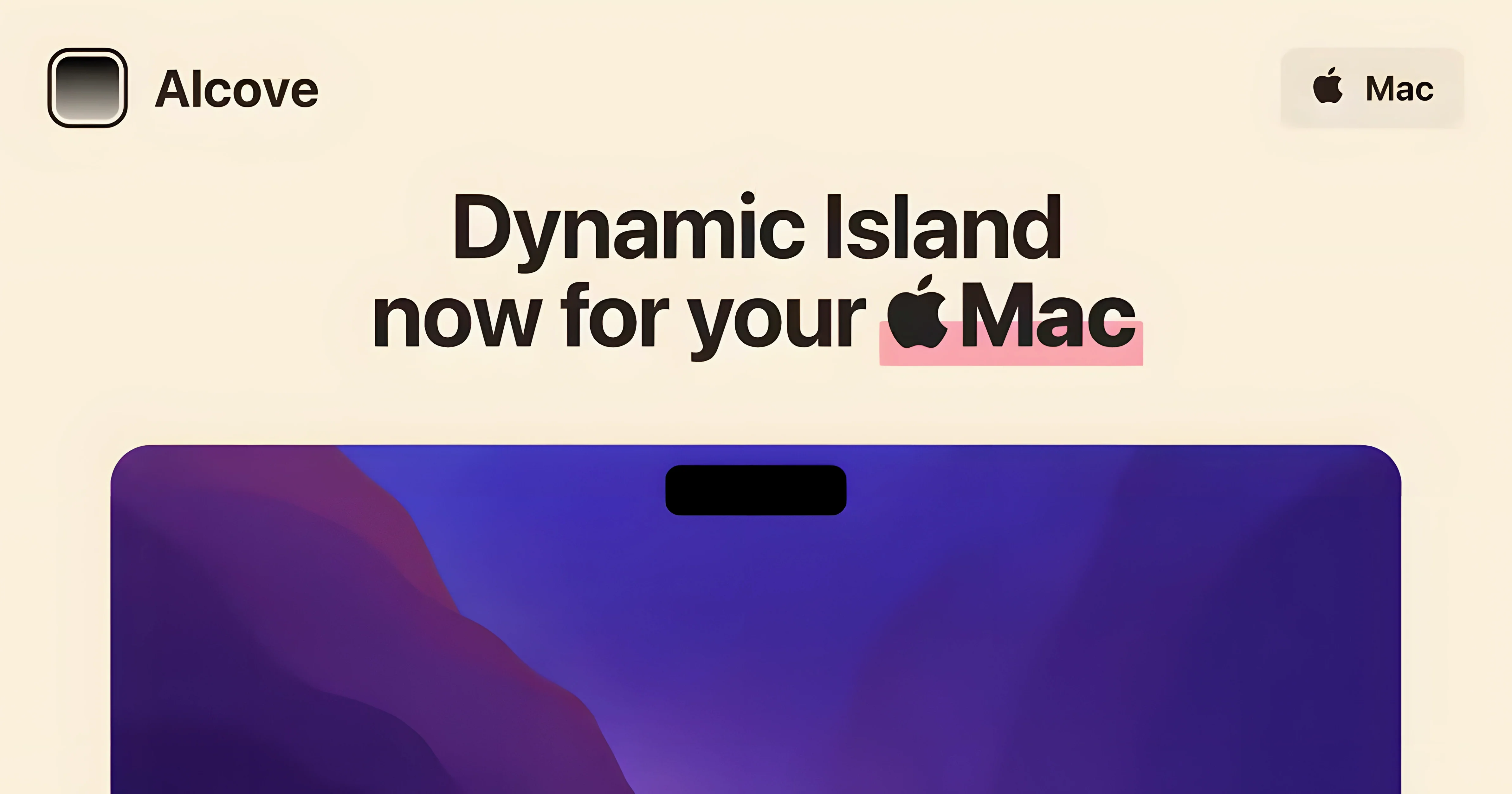
Alcove 1.7.9 is a Mac app that adds interactive, Dynamic Island-style actions to the notch area on your screen.
A small companion that lives in your notch
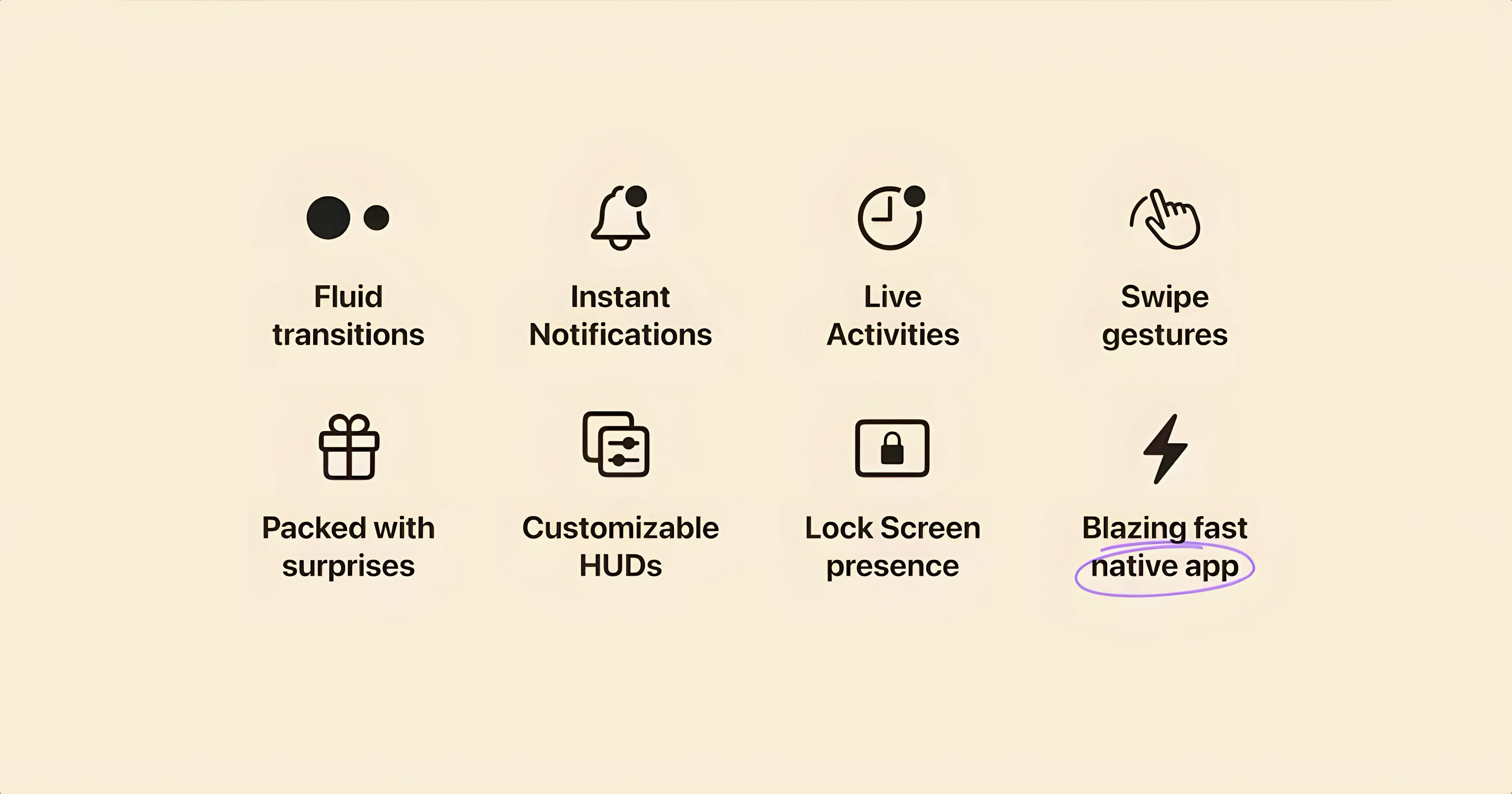
It fills a gap rather than replacing anything. You keep your launcher, window manager, and menu bar tools, and Alcove handles quick interactions from the notch — a small companion to the utilities you already reach for.
Replaces the stock volume and brightness HUDs
The stock system volume and brightness HUDs get replaced with custom ones, so the feedback you see when adjusting those settings feels more native to the notch.
Requires macOS 14 or later on Intel or Apple Silicon
You need macOS 14 or later, and it supports both Apple Silicon and Intel 64-bit Macs. The interface is in English.
How do I set it up?
Your menu bar apps stay completely untouched
Can I keep using my menu bar apps alongside it? Yes, Alcove doesn't touch your menu bar at all. It lives in the notch area and ignores whatever else you have running up there. Bartender, Hidden Bar, iStat Menus — they all carry on as before.
Does it mess with full-screen apps or games? The notch capsule slides aside when an app takes over the full screen, so you won't see it peek through during a movie or a game session. It steps back in once you return to the desktop or a windowed workspace.
What happens if my Mac doesn't have a notch? The capsule still appears at the top center of the screen. It floats in the same spot a notched Mac would place it, so you get the same interactions on a MacBook Pro with a notch, a Mac mini display, or an external monitor.
Is it heavy on resources? Henrik Ruscon built it to sip power, not gulp it. On an M-series machine it barely registers in Activity Monitor. On Intel Macs it runs light too, though you might notice a tiny blip during an animation-heavy moment like a playlist change.
Does it need accessibility permissions? It asks for the permissions it needs to show the custom volume and brightness HUDs, and nothing more. You can deny those and still use the media and notification capsules — you'll just keep the stock system overlays for sound and brightness.
A day with Alcove in a small studio
Imagine a one-person video editing setup. You're scrubbing through a timeline in DaVinci Resolve, and a client message lands in your notification capsule. A quick glance at the notch tells you it's about the deadline, not the render. You tap the capsule to peek at the message without leaving the timeline view.
Later, while rendering, you have a playlist running in the background. The track changes, and the album art slides into the capsule for a few seconds before tucking away. You tap it to skip ahead without hunting for the Music app window. A client calls via FaceTime, and the call duration and mute controls sit in the notch while you keep working — no floating window blocking your preview monitor.
When you adjust the volume because the render fan is spinning up, the custom HUD slides down from the notch instead of that big square overlay Apple uses. It's a small thing, but on a deadline, small things add up.
If things aren't quite right
The capsule isn't showing up at all. Open Alcove from Launchpad once — it needs that initial launch to register itself. If it's already running, check that you haven't accidentally quit it from the Dock. Alcove doesn't show a Dock icon by default, but you can bring it back from Launchpad if it closed.
Volume and brightness HUDs are still the old ones. Alcove asks for accessibility access the first time it tries to replace those overlays. Head to System Settings > Privacy & Security > Accessibility and toggle Alcove on. Restart the app and the custom HUDs should kick in.
Notifications aren't appearing in the capsule. Make sure Alcove has permission to see notifications in System Settings > Notifications. It doesn't read their content, but it needs the banner data to mirror them into the notch.
The capsule gets in the way of a menu bar icon. This can happen if you have a crowded menu bar. The capsule is centered, so it only overlaps if your icons stretch past the middle. Try trimming your menu bar apps or adjusting their order — Alcove itself doesn't have a position offset setting in this build.
Something feels laggy after an update. If you updated macOS and the animations stutter, try turning off automatic updates in the app's preferences and relaunching. A fresh launch after a system update often clears any caching hiccups. The alcove 1.7.9 build here is known to run smoothly on macOS 14 and up, so if you grabbed the alcove mac free package from this catalog, you're on the build that matches the developer's stable release cadence.
Open the disk image, drag the app to Applications, and launch it from Launchpad. Turn off automatic updates to keep this build in place.
- macOS 14 or later
- Apple Silicon or Intel 64-bit Mac
- Interface language: English
Questions from the stall
Who makes Alcove?
Henrik Ruscon is the developer. Alcove launched in November 2024.
What system version do I need?
Alcove requires macOS 14 or later, and it runs on both ARM and x86 64-bit Macs.
Should I leave automatic updates on?
No — the installation instructions say to turn automatic updates off for this version.
Notes from other shops 0
Sign in or open a shop account to leave a note.
No notes yet. If you've used this on a shop Mac, tell me how it went.