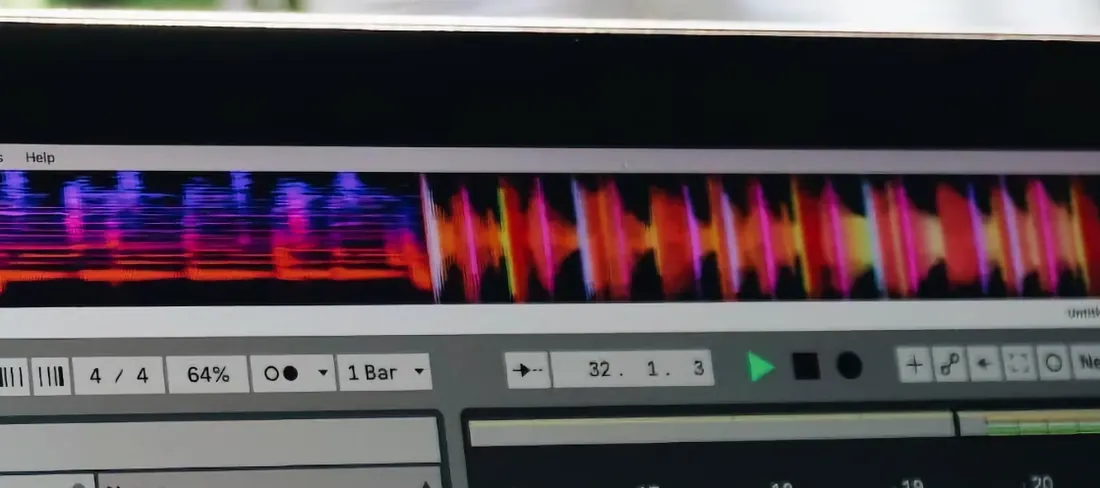
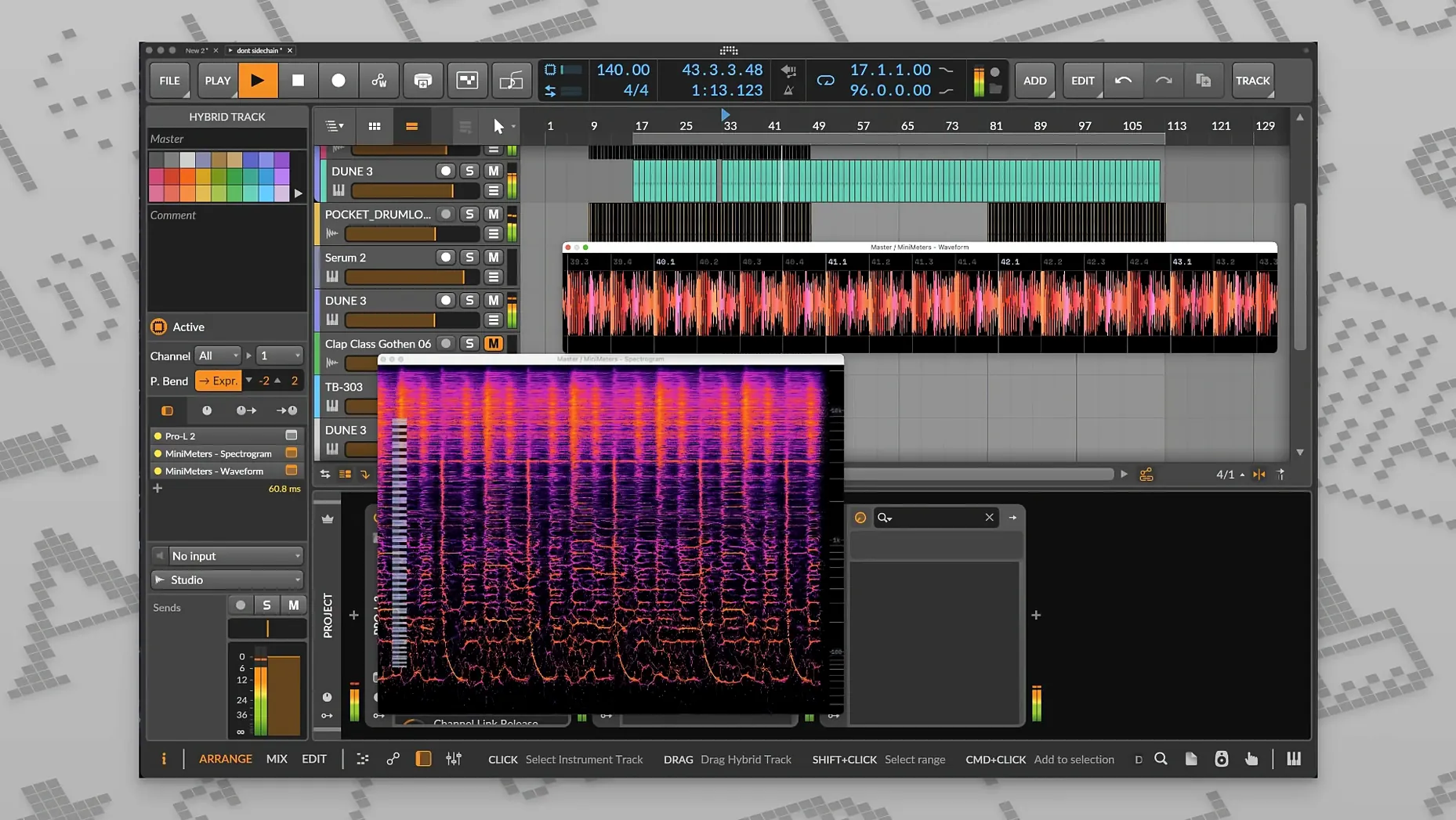
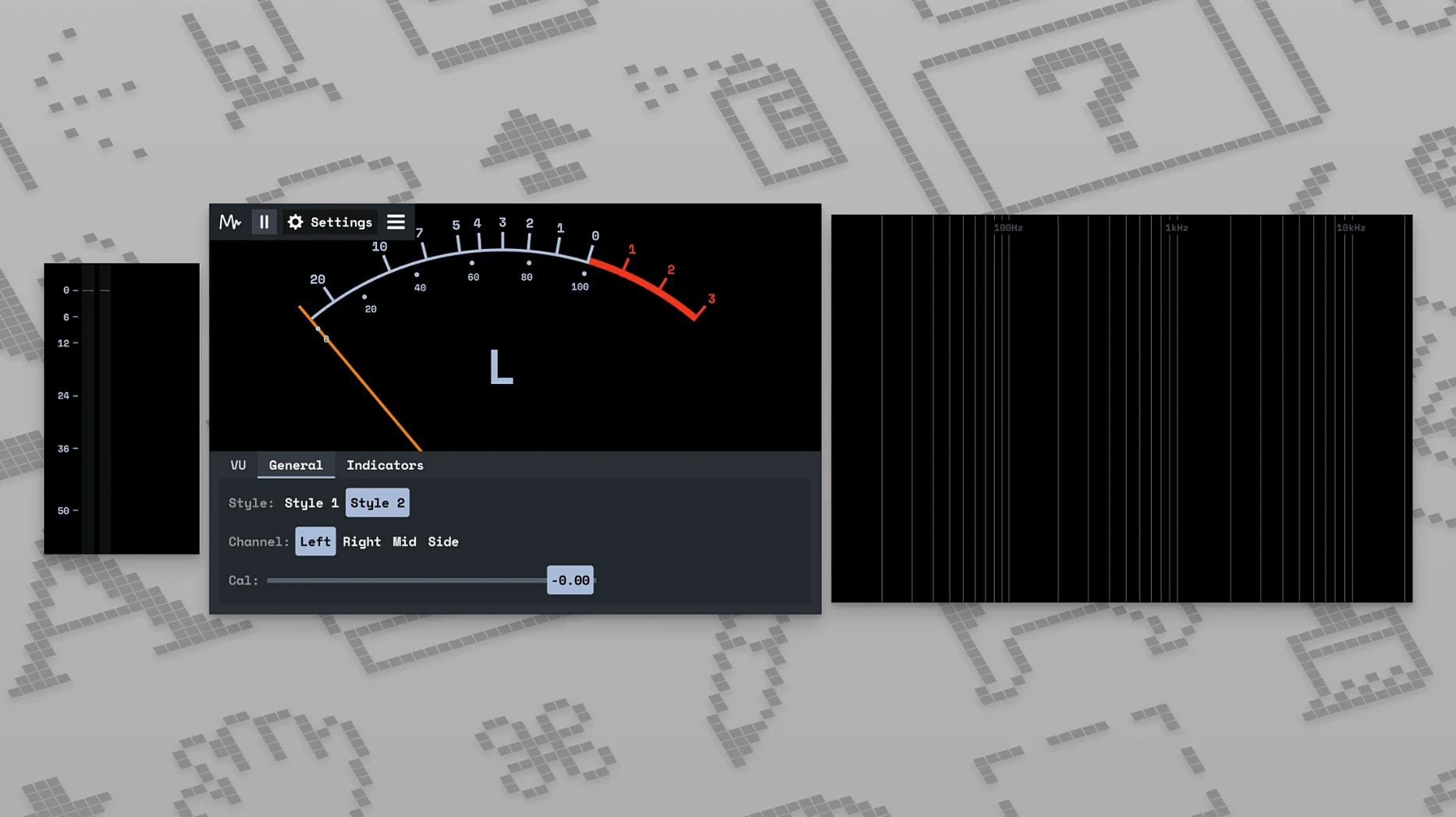
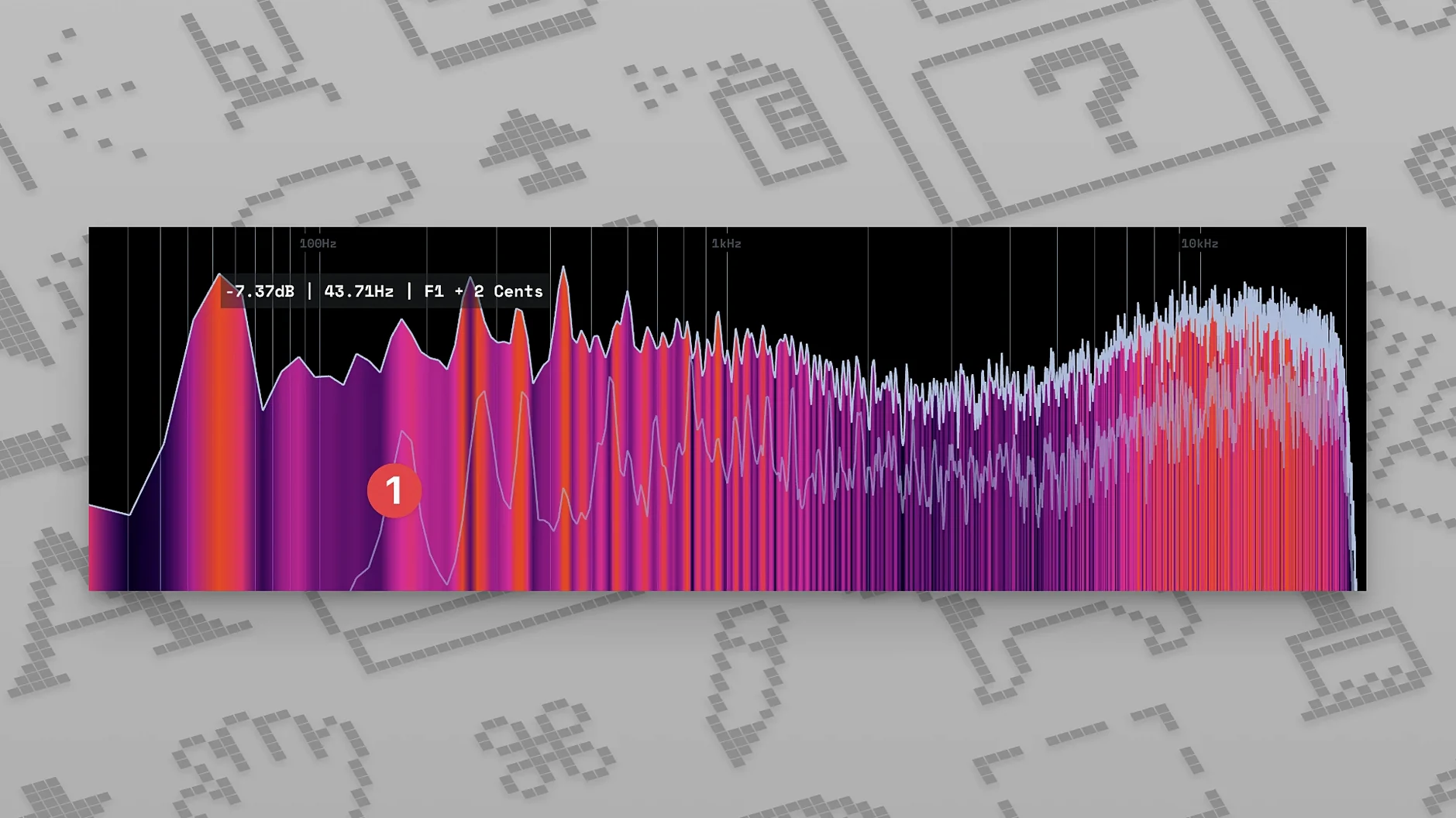
Its LUFS readout—both momentary and peak—is the first thing I'd dock next to my arrangement window. You can watch a real-time waveform and frequency spectrum without squinting at tiny stock analyzer panels. It's a straight signal-transfer setup that pipes audio from your music software into a resizable, customizable display, so the metering lives outside the DAW entirely. Pick your tools, pick your colors, arrange the layout how you like, and just get on with the mix.
Run metering on a separate screen
When your main display is stuffed with tracks and editors, MiniMeters sits cleanly on a second monitor or off to the side, giving your eyes a single dedicated dashboard for loudness, spectrum, and waveform.
Spot clipping with the waveform view
The waveform display refreshes fast enough to catch transient spikes that a slow-moving level meter might smooth over, which helps when you're gain-staging a dense session.
Check frequency buildup at a glance
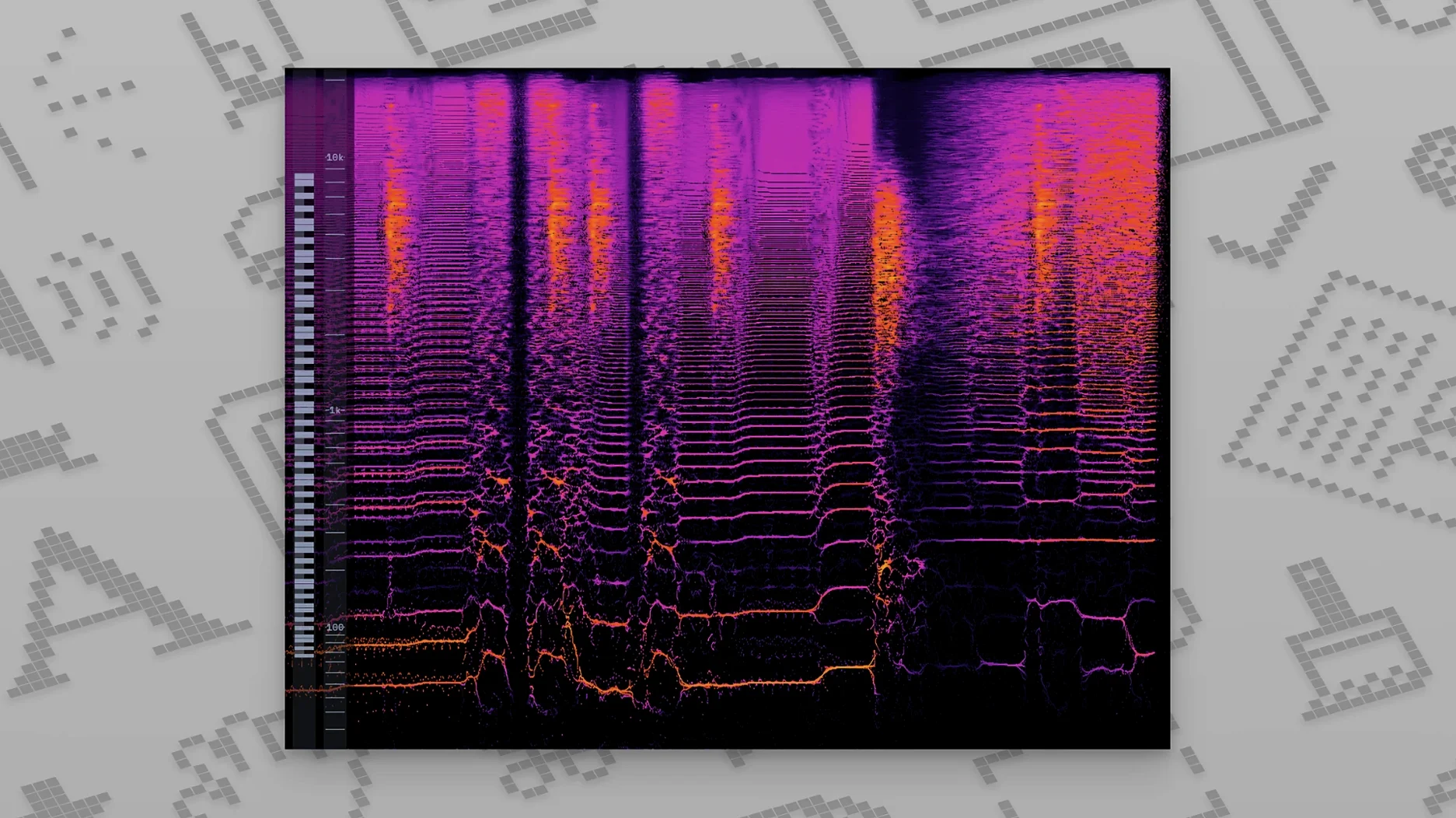
Pair the spectrum and the spectrogram to see where low-end mud or harsh highs are stacking up over time, without opening a separate analyzer plug-in on every bus.
How MiniMeters compares with a few other Mac metering tools
If you've been hunting for a minimeters free download mac, you've probably also run into names like Youlean Loudness Meter and TBProAudio dpMeter. All three sit in the same neighborhood—free or low-friction loudness monitoring—but they feel quite different once you start using them daily.
Youlean Loudness Meter is the one most people try first. It gives you a detailed LUFS readout, true-peak, dynamic range, and even a loudness graph over time. It lives inside your DAW as a regular plug-in, which is fine until you want to see it while tweaking a different plug-in window. MiniMeters solves that by running completely outside the host—it's a standalone app that pulls audio through MiniMetersServer, so it never fights for screen space with your EQ or compressor. Youlean's graph history is deeper, but MiniMeters gives you waveform and spectrogram views in the same compact panel, which Youlean doesn't.
TBProAudio dpMeter is another capable free option that nails EBU R128 loudness compliance. Its strength is the detailed numerical readout and the ability to log measurements. The trade-off is a utilitarian interface that can feel like reading a spreadsheet. MiniMeters takes the opposite approach—color-customizable, resizable, and arranged however you want across multiple tools. For quick visual checks during a mix, dpMeter asks your eyes to parse numbers; MiniMeters lets you glance at a shape and know.
The real differentiator is the system-audio monitoring. Youlean and dpMeter are plug-in-only affairs. MiniMeters can sit on your menu bar checking any audio playing on your Mac—reference tracks, streaming, video exports—without routing anything through a DAW session. That alone shifts it from a mixing utility to a general monitoring companion.
Why your meters stay frozen after install
A fresh install and a quick minimeters crack search later—which many use to check compatibility before buying—people often jump in and wonder why the meters aren't moving. The most common slip is forgetting that MiniMeters and MiniMetersServer are two separate pieces. The app displays the visuals; the server is what actually grabs the audio. If the server isn't running and pointed at your DAW or system output, you'll just stare at a blank, pretty dashboard.
Another early stumble: leaving the server set to the wrong audio device. On a Mac with an interface, aggregate device, and built-in speakers all showing up, it's easy to route audio from the wrong place. Check that the server is grabbing from the output you're actually listening through—otherwise the meters show silence while your ears hear music, and the confusion sets in fast.
Beginners also tend to treat the LUFS readout like a peak meter and start chasing numbers too early in a mix. The momentary LUFS value bounces around a lot when you're still balancing individual tracks. A better habit: get your static mix roughed in first, then bring up MiniMeters to check integrated loudness over a whole section. Use the peak meter and waveform for gain-staging early; save the loudness target for later.
Color customization trips people up too. The default palette is easy on the eyes, but a dark-on-dark theme with low contrast can hide the exact thing you need to see on a busy day. If you're squinting at the spectrum, bump up the trace brightness or switch to a higher-contrast background. Your eyes will thank you during long sessions.
The 1.0 milestone that made it a daily driver
Version 1.0 landed in August 2025, and it wasn't a quiet debut—it marked the point where the tool felt fully baked for daily work. Before that, the v0.8.0 spectrogram update gave users a way to track frequency content over time, turning what had been a static snapshot into something you could read like a scrolling map of your mix. That became the go-to view for catching intermittent resonances you'd otherwise miss.
The v0.7.0 spec-compliant LUFS meter was a quieter but meaningful shift. Earlier builds approximated loudness well enough for casual checks, but once the meter followed the actual EBU R128 specification, you could trust it for delivery-level decisions. If a client asks for -14 LUFS integrated, the number on screen now matches what a network QC tool would flag.
The current release, v1.0.30.358, focused on stability. The notes mention long-standing bugs and small UI issues finally getting addressed. In practice, that means fewer moments where the server connection drops mid-session, and fewer visual glitches when resizing the window across multiple displays. It's the kind of update that doesn't add a flashy feature but removes the small frictions that build up over a long mixing day.
How MiniMeters fits with other apps and macOS features
MiniMeters works best when you treat it as a system-level monitoring layer rather than just another plug-in. The standalone app sits in your menu bar, and MiniMetersServer runs quietly in the background, so you can route audio from anywhere—a DAW, a browser playing reference material, or the output of a video editor—without reconfiguring your session each time.
In a typical setup, I'd run Logic Pro or Ableton Live as the main workstation, send its stereo output through MiniMetersServer, and keep the MiniMeters window parked on a secondary display or floating above the mixer. Meanwhile, I could pull up a reference track in Apple Music or a browser tab, switch the server to capture system audio instead of the DAW, and compare frequency balance and loudness instantly. No export, no import, no re-routing inside the DAW itself.
The tool also plays nicely with macOS Spaces and Mission Control. You can assign MiniMeters to a specific desktop and swipe over to it for a full-screen metering view, then swipe back to your arrangement. Combine that with the Mac's built-in display scaling, and you can size the meters to be readable from across the room—helpful if you're checking levels while tracking in a different part of the studio.
For anyone who uses audio-routing utilities like BlackHole or Loopback, MiniMeters slots in naturally upstream of those. Route your system audio through BlackHole, point MiniMetersServer at that virtual device, and you'll see metering for everything that passes through—great for checking loudness on streaming sources or video calls before they hit your listeners.
Tip: If you've been searching for a minimeters torrent or a minimeters crack mac to test the waters, just make sure the server has permission to access your microphone in System Preferences—that's the step that trips most people up. The server-app split can feel unusual at first, but once you get the routing right, it becomes second nature—and it's the reason the meters can float free of any single audio application.
The latest update is a quiet but welcome housekeeping pass: v1.0.30 squashes a handful of old bugs and polishes some small UI rough edges that had been hanging around for a while.
- macOS 10.15 or newer
- Intel or Apple Silicon Mac
Questions from the stall
Does MiniMeters work on Apple Silicon Macs?
Yes, the developer states that both Intel and Apple Silicon Macs are supported, as long as you're running macOS 10.15 or newer.
How do I get audio from my DAW into MiniMeters?
It uses a dedicated signal-transfer server that routes audio from your music software into the MiniMeters display, keeping the metering separate from your DAW's interface.
Notes from other shops 0
Sign in or open a shop account to leave a note.
No notes yet. If you've used this on a shop Mac, tell me how it went.