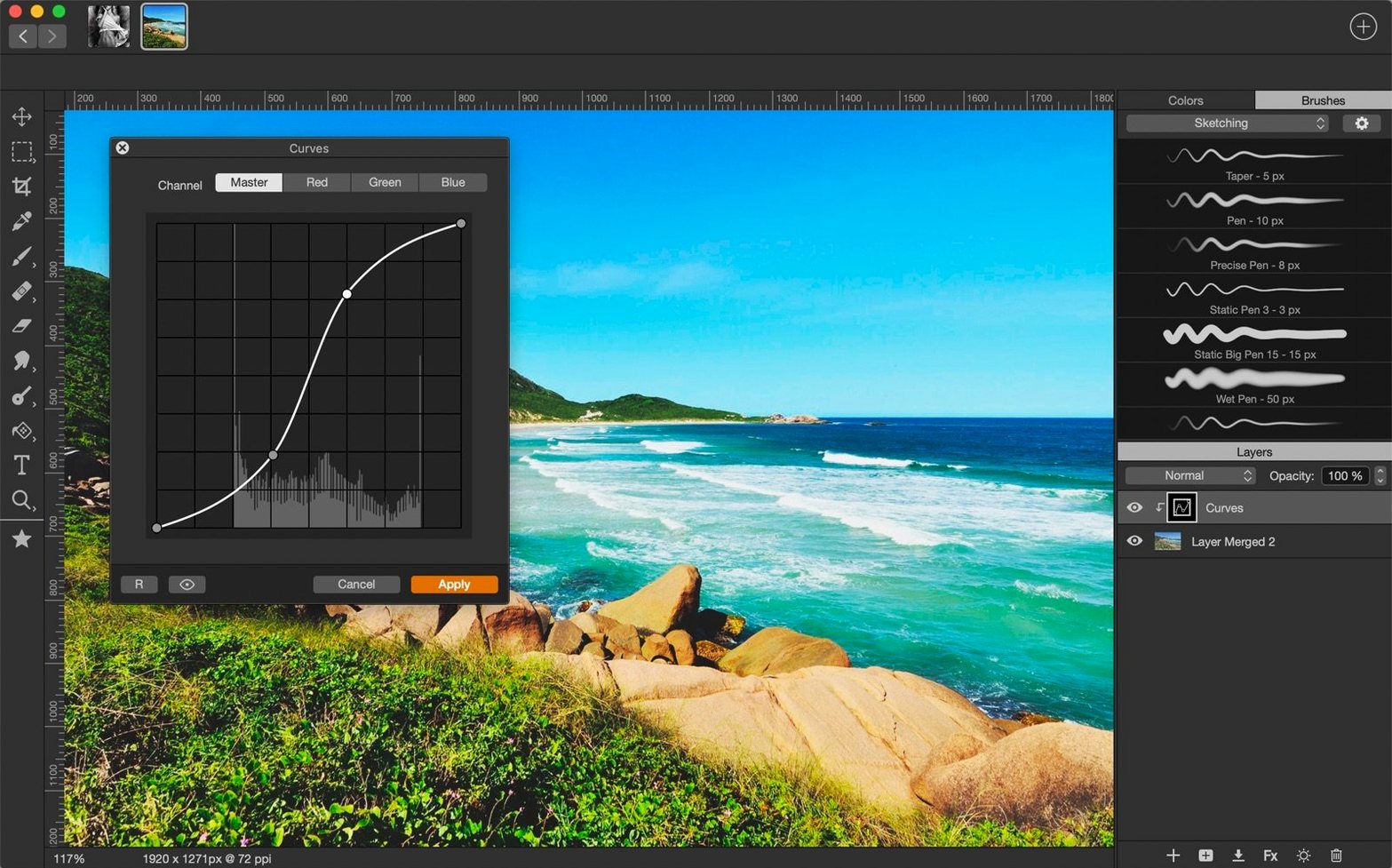
You've just opened a photo that needs a stray object removed, and you're also sketching out a t-shirt design on a fresh canvas. Artstudio Pro handles both jobs without switching toolsets. It's a painting and photo editing app from Lucky Clan, built as the successor to the original ArtStudio, and it runs on macOS and iOS with the same engine underneath.
| Key detail | What you get |
|---|---|
| Canvas size | Up to 256 Mpix |
| Layers | Unlimited, with grouping and 9 effects |
| File export | PNG, JPEG, PSD, TIFF |
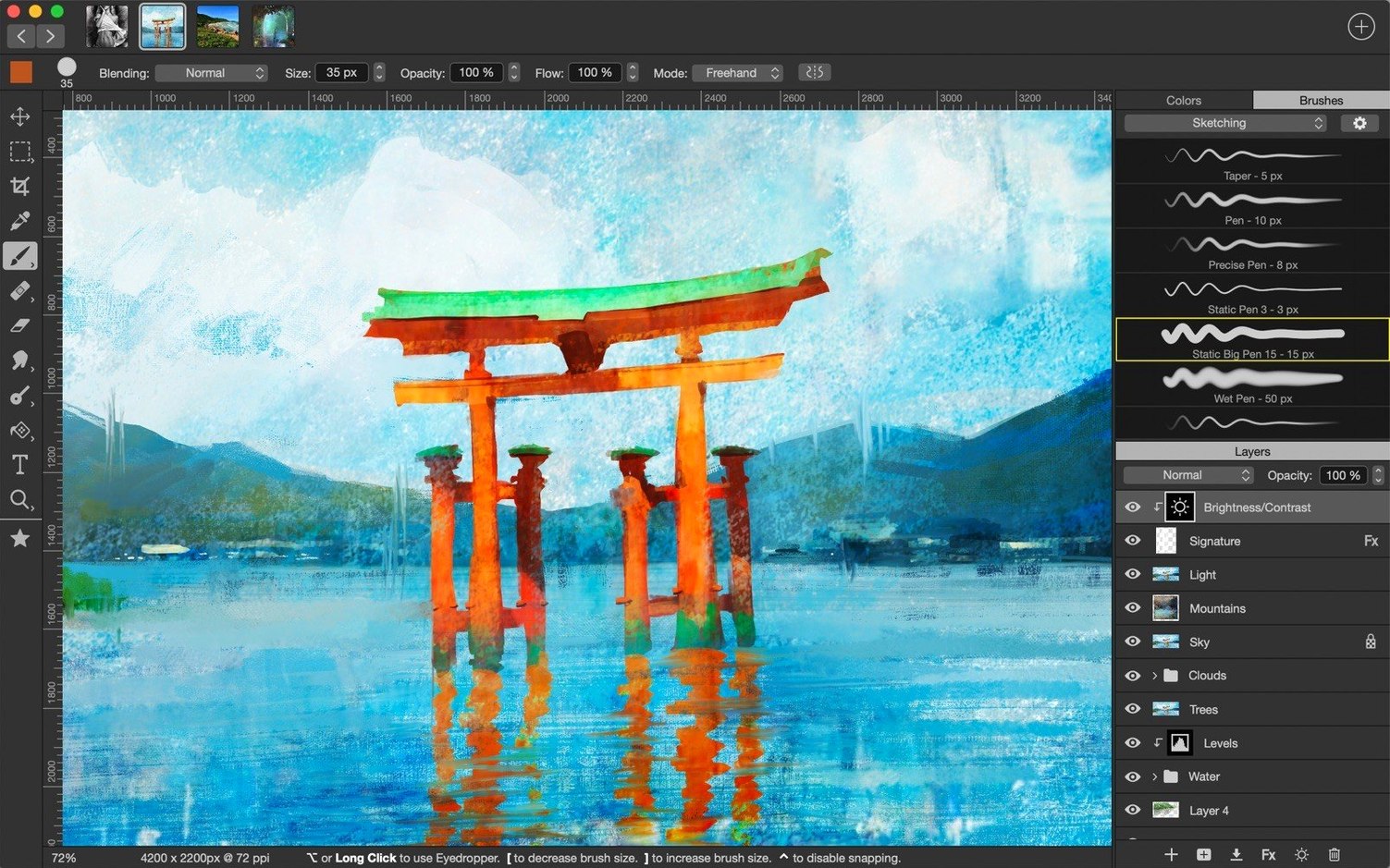
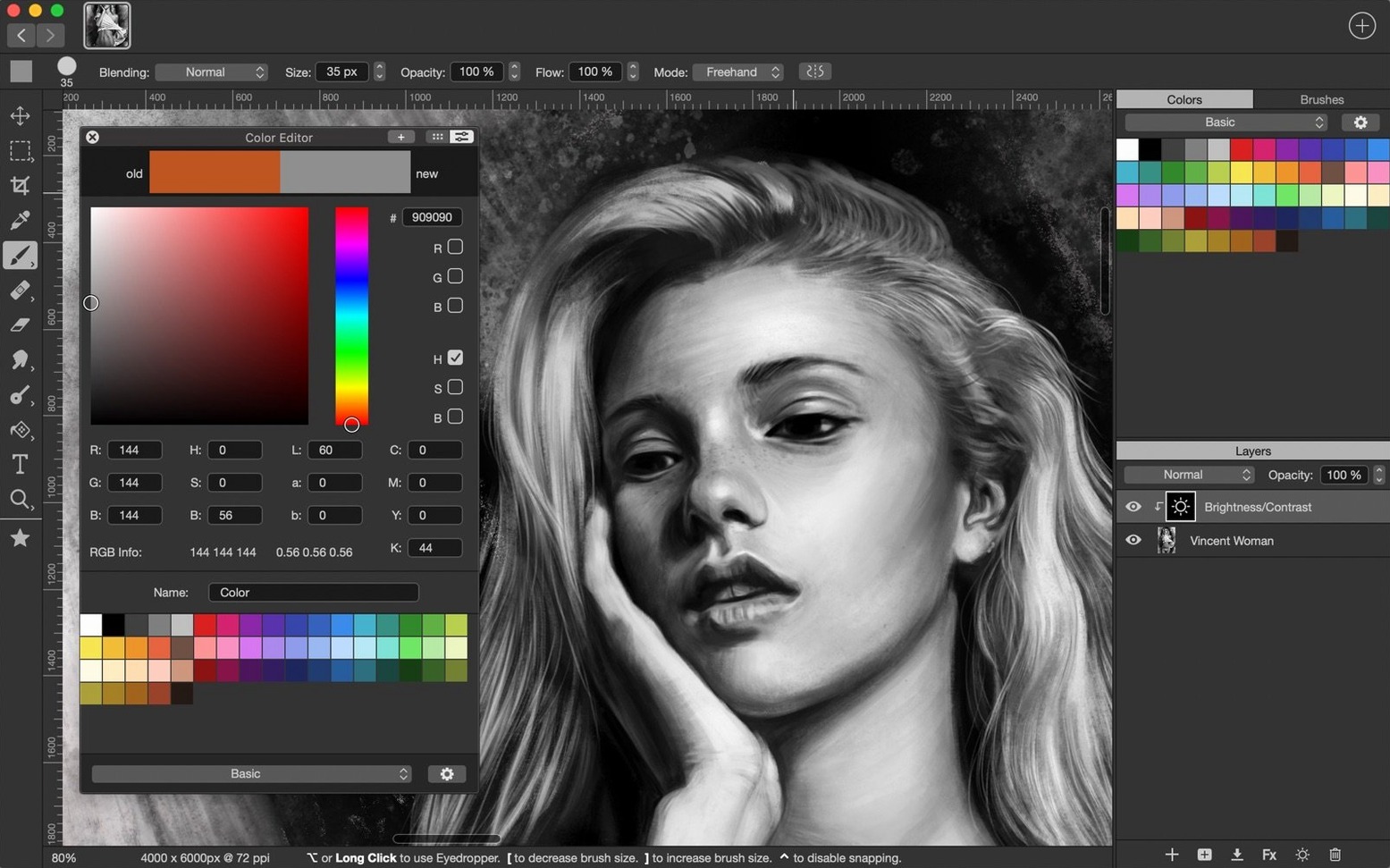
When you first open the app, head straight to the brush library and load a few free Artstudio Pro brushes you've collected. The engine reads texture and shape dynamics smoothly, so imported sets feel responsive right away. Next, create a text layer and drop in a TTF or OTF font you've downloaded—the type sits on its own layer and stays editable, which is useful for mockups. If you're cleaning up a photo, try the inpaint tool on a duplicate layer; it samples surrounding pixels to remove distractions without leaving smudges. For color work, import swatches in ASE or ACO format so your palette matches a client's brand. The canvas handles enormous dimensions, so don't be shy about setting up a 256 Mpix file for a large print piece. Group your layers early to keep the stack tidy as the project grows.
Roundtripping PSDs with layers, masks and blend modes intact
Drop a PSD from a client into Artstudio Pro and the layer structure arrives intact — groups, masks, blend modes and all. Edit it here, then export back to PSD when it's time to hand off to someone working in another app. The TIFF round-trip works the same way, which matters when you're sending files to a print shop that expects flattened or layered TIFFs.
iCloud keeps things moving between Mac and iPad without a manual export step. Start a sketch on your tablet while you're away from the desk, open it later on the Mac and all your layers are right where you left them. The app also plays nicely with the macOS color picker — if you've saved swatches system-wide, you can pull them into Artstudio Pro without re-importing. And when you're building brush collections, dropping ABR or TPL files into the brush library gives you access to an enormous range of free Artstudio Pro brushes shared by other artists.
Handy shortcuts and small touches
- Hold Shift while drawing to lock a straight line — useful for clean panel borders in a comic layout.
- Right-click a layer and pick Duplicate before experimenting with a new effect; the original stays untouched underneath.
- Adjustment layers sit non-destructively above your artwork. Double-click one anytime to tweak the settings without redoing anything else.
- The symmetric painting tool accepts a custom symmetry line you can rotate freely — great for mandala-style patterns or mirrored character designs.
- Screen recording is built in. Turn it on from the menu when you want to capture a time-lapse of a painting session, no extra software needed.
- Auto adjustments (there are four) give you a quick starting point for exposure and color balance. Tap one, then dial it back with the opacity slider if it's too heavy-handed.
Version 5.2.9 ships with minor bug fixes that keep the tools running reliably.
- macOS 11 (Big Sur) or newer
- Runs on both Apple Silicon and Intel Macs
Questions from the stall
What file formats can I export from Artstudio Pro?
You can export your work as PNG, JPEG, PSD, or TIFF files.
Notes from other shops 0
Sign in or open a shop account to leave a note.
No notes yet. If you've used this on a shop Mac, tell me how it went.