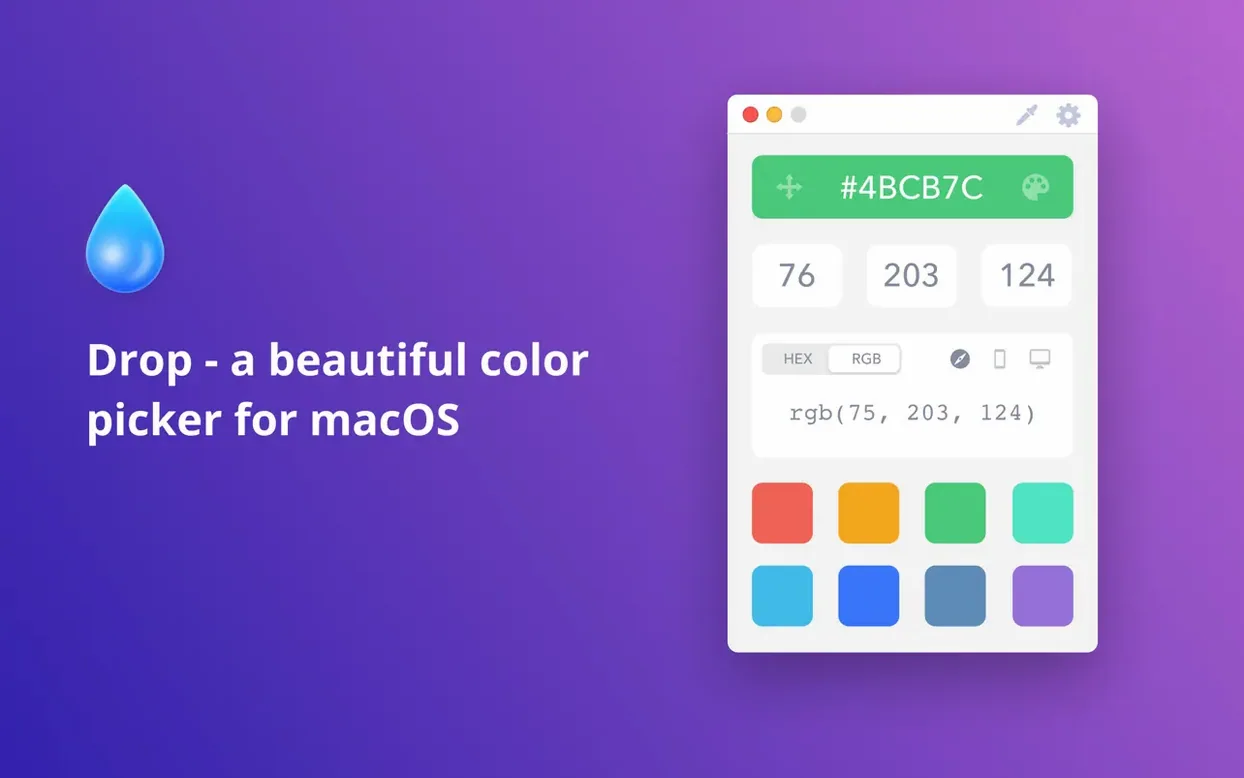
Drop - Color Picker 1.6.4 keeps things simple: pick a color on screen, copy it in the format you need. Whether you're matching a brand hue or grabbing a shade from a photo, the pixel-accurate zoom helps you land on the exact pixel. It supports both ARM and 64-bit Intel Macs, so it runs on recent and older machines alike.
What a newcomer should try first
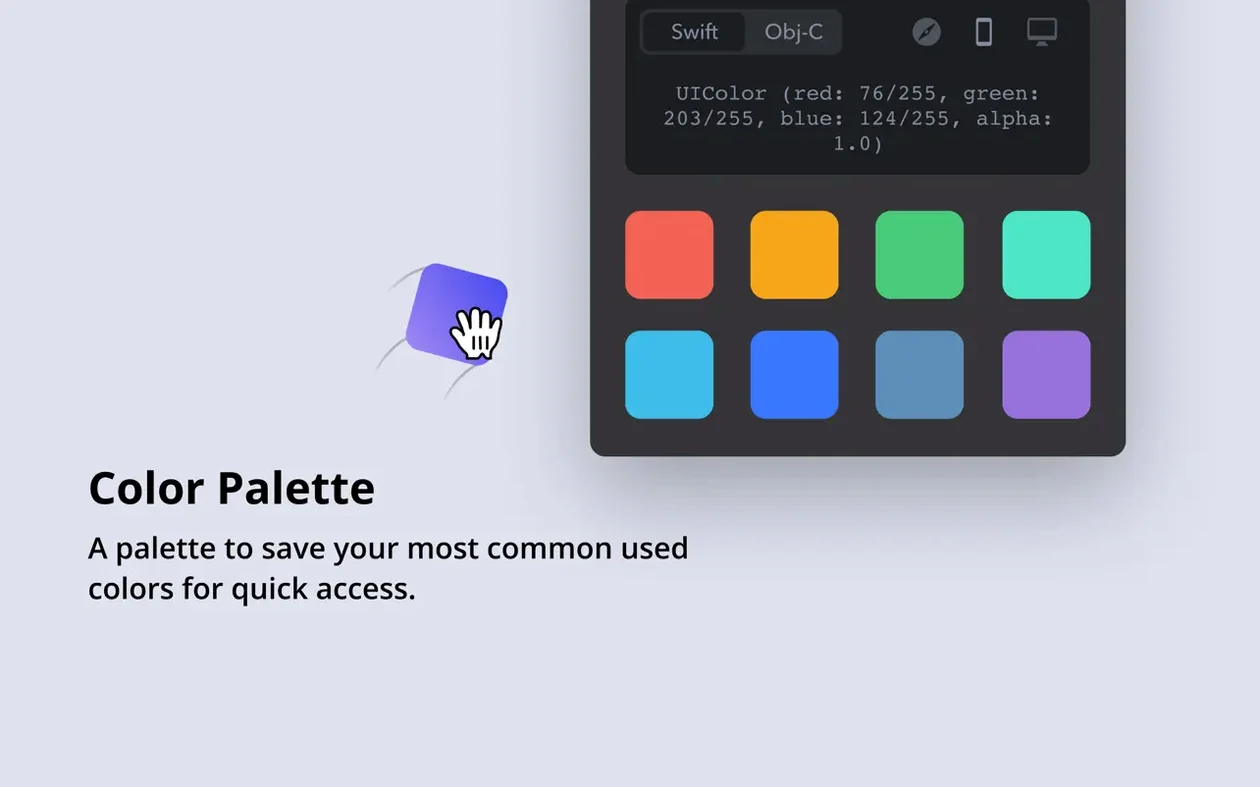
Open Drop and move your cursor over any color on screen. The magnified view appears automatically, letting you click the exact pixel you want. Once picked, the color is ready to copy in formats like RGB or even Objective-C UIColor. If you work with palettes, save picked colors as you go and build your own set — handy for keeping a project's colors consistent.
Two more things worth exploring
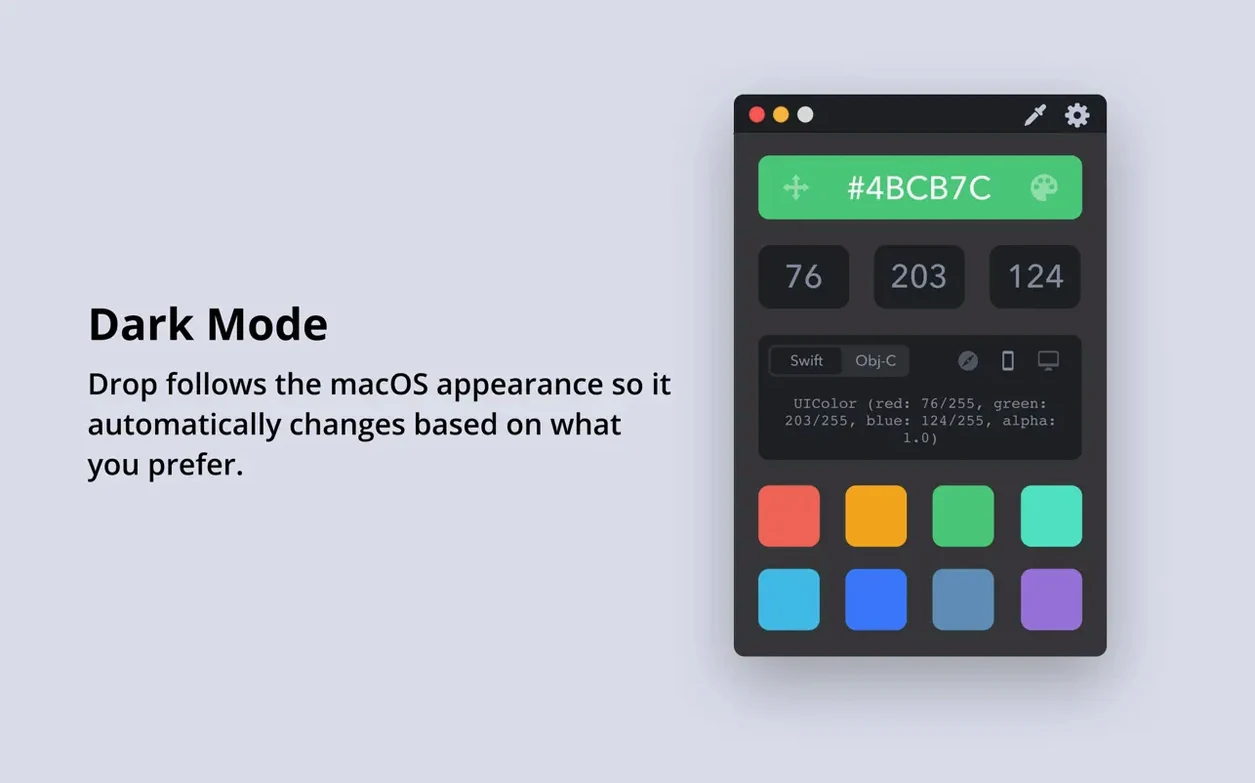
Drop can match the color profile of the app you're picking from, which matters when the same color looks different in a browser versus a design tool. And if you have a Mac with a Touch Bar, the color controls show up there, so you can adjust and copy without reaching for the mouse. Dark mode is supported too, which makes the app feel at home on a dark desktop.
Set HEX as default for CSS work
Out of the box, Drop works fine — but a few adjustments can make it your own. Head to the Preferences panel and check the Formats section. By default, Drop copies colors as HEX, but if you mostly write CSS or work in design apps that expect RGB values, switch the default there. You can pick multiple formats to show in the menu too, which saves clicking around when you need a quick copy.
The Zoom area setting is worth a look. Drop starts with a moderate zoom level, but if you're picking from tiny interface elements or detailed photos, turn the magnification up. The preview area gets larger too, so you can see exactly what you're clicking on. I keep mine at the highest setting — it helps when matching a specific pixel in a busy web layout.
One setting people miss is the "Auto-copy on click" toggle. Flip that on, and Drop copies the color format you've selected the moment you click. No extra keystrokes. It's a small thing, but it adds up fast when you're picking a dozen shades in a row.
Avoid these common first-time surprises
A few things catch newcomers off guard. Here's what I hear about most:
The color never matches what I see
If the picked color looks different from what's on screen, check the color profile setting. Drop can match the active profile of the app you're picking from, but it doesn't do that automatically. Open the app's menu and switch to the correct profile for your project. If you're matching a web color, sRGB is usually the right choice. For design files, match whatever profile the source app uses.
I can't see the magnified view
The zoom picker only shows up when Drop is active and your cursor is over a pixel area. If you've clicked away from the app, the zoom disappears. Click the Drop icon in the menu bar to bring it back. Also check that you haven't accidentally resized the preview window to nothing — drag the corner to expand it.
The palette I saved is gone
Palettes are stored per-project in Drop's library files. If you close the app without exporting your palette, it stays saved inside Drop — but it won't show up in other apps. To move colors elsewhere, copy them one at a time from your saved list. There's no bulk export, so plan ahead if you're building a big palette.
Drop won't start after installing
If the app doesn't launch, the most likely reason is macOS's security settings blocking it. You'll need to allow it through Gatekeeper — the install steps include a Terminal command to handle that. If you skipped that step, unmount the disk image and try again, following the instructions closely. Once it's running, it stays reliable.
How Drop compares with similar Mac color pickers
Drop isn't the only color picker on macOS, but it fills a specific spot. Here's how it stacks up against a couple of other options:
Drop vs. ColorPicker (the built-in macOS tool)
Apple's own ColorPicker comes free with the system, and it's fine for basic jobs. But it's limited — no zoom, no pixel-accurate picking, and no format options beyond HEX and RGB sliders. Drop gives you the magnified view, profile matching, and format output for code languages like Swift UIColor. If you're a developer or designer who copies colors often, the built-in tool feels slow by comparison.
Drop vs. Sip
Sip is another popular menu bar color picker. It offers a similar zoom picker and palette system, but its format list leans toward web and design use — HEX, RGB, HSL. Drop adds Objective-C and Swift NSColor formats, which makes it a better fit if you code for Apple's platforms. Sip's interface is busier, with more panels and options visible at once. Drop keeps things simpler, which I prefer when I'm in a hurry. Neither app is wrong; it's about whether you want extra controls or a cleaner view.
Works across all your monitors from day one
A few things come up often when someone's considering adding Drop to their tools. Here are the honest answers:
Will it work with my multi-monitor setup? Yes. You can pick colors from any display connected to your Mac — the zoom picker follows your cursor across screens without any special setup. I use it on a laptop plus an external monitor, and it behaves the same on both.
Does it work with dark mode? It does, and it looks good. The app switches to a dark interface automatically when your system uses dark mode. The menu bar icon and the picker window both adapt, so nothing feels out of place.
Can I pick colors from video or moving content? The zoom picker works on whatever's on screen, including video players and animations. But you'll need to pause the video or freeze the frame — Drop picks the pixel under your cursor at the moment you click, so a moving image means you might grab a slightly different shade than you intended.
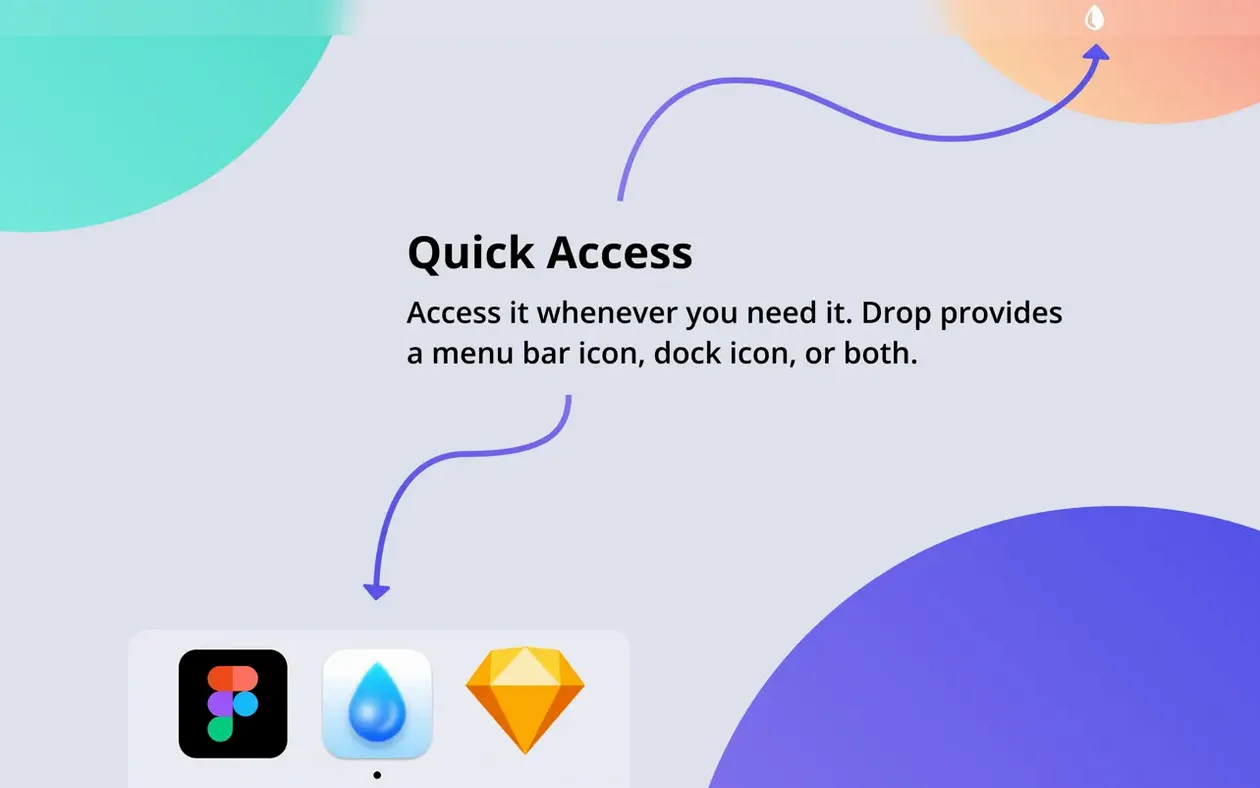
Is there a way to copy a color without opening the full app window? Yes. The menu bar icon shows your most recent pick and your saved colors. Click it, and you can copy from that list without launching the main picker. That's the fastest way to reuse a color you've already grabbed.
Do I need to install extra libraries or runtimes? No. Drop includes everything it needs in the app package itself. Drag it into your Applications folder, run the Gatekeeper step, and you're set. No Python scripts, no Homebrew packages, no command-line tools required.
- macOS 10.11 or later
- Apple Silicon or 64-bit Intel processor
- Interface: English
Questions from the stall
Can I copy colors as code?
Yes. Drop can copy colors as RGB values or as Objective-C UIColor, which is useful if you're writing code for an iOS or macOS app.
Does Drop support saving colors?
It does. You can save picked colors and build personal palettes to reuse later.
Does Drop work with the Touch Bar?
Yes. If your Mac has a Touch Bar, Drop's color controls appear there for quick adjustments.
Notes from other shops 0
Sign in or open a shop account to leave a note.
No notes yet. If you've used this on a shop Mac, tell me how it went.