
Shop owners, teachers, and anyone who needs to pitch an idea — that's who I see reaching for Keynote. It's Apple's slide deck builder, and it's surprisingly capable for a free tool.
Check your Mac first
Keynote 15.3.1 asks for macOS 15.6 or newer and runs fine on both Apple Silicon and Intel Macs. If you're on an older system, you'll need a previous version.
Make a deck that moves
You get cinematic transitions like Magic Move and fresh build animations — shift, radial wipe, character blur — that make slides feel polished without hours of fiddling.
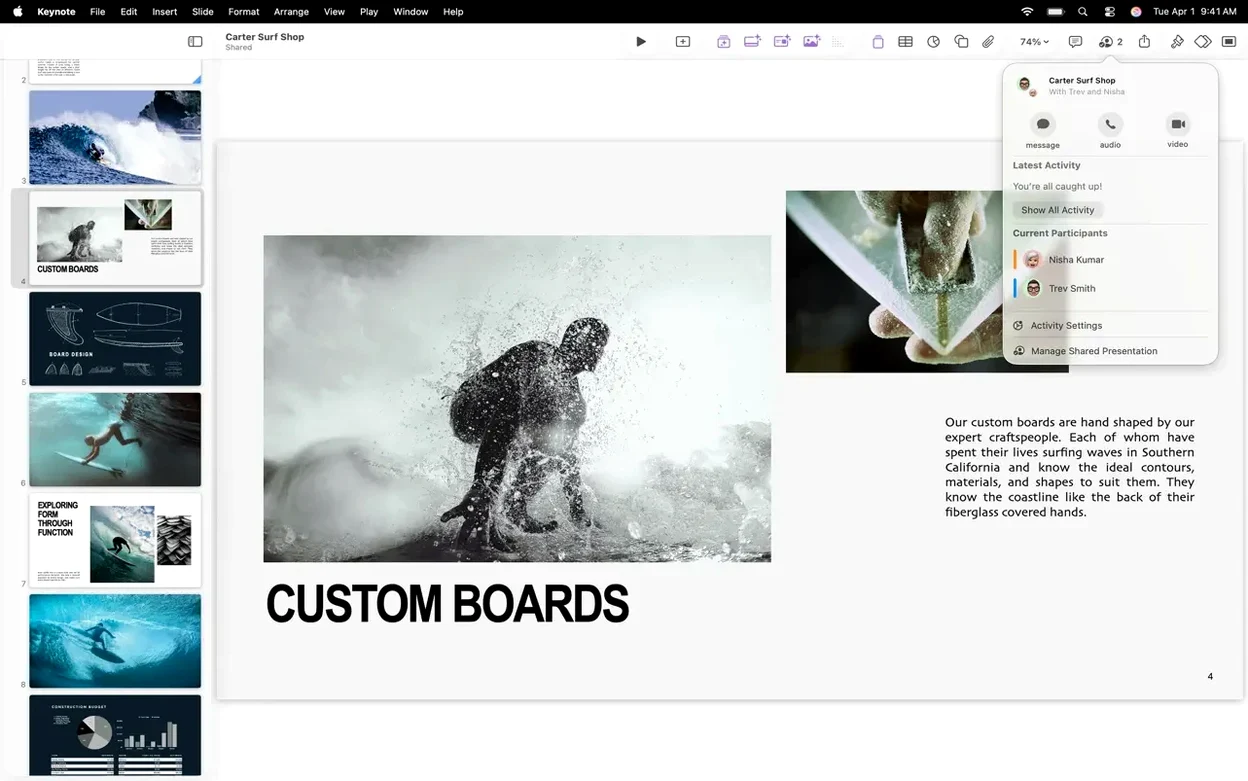
Share and present anywhere
Export to PowerPoint, PDF, or a movie file when a client needs a specific format. You can also publish via iCloud and hand off to an iPad to annotate with Apple Pencil during a talk.
Building a product showcase from a clean theme
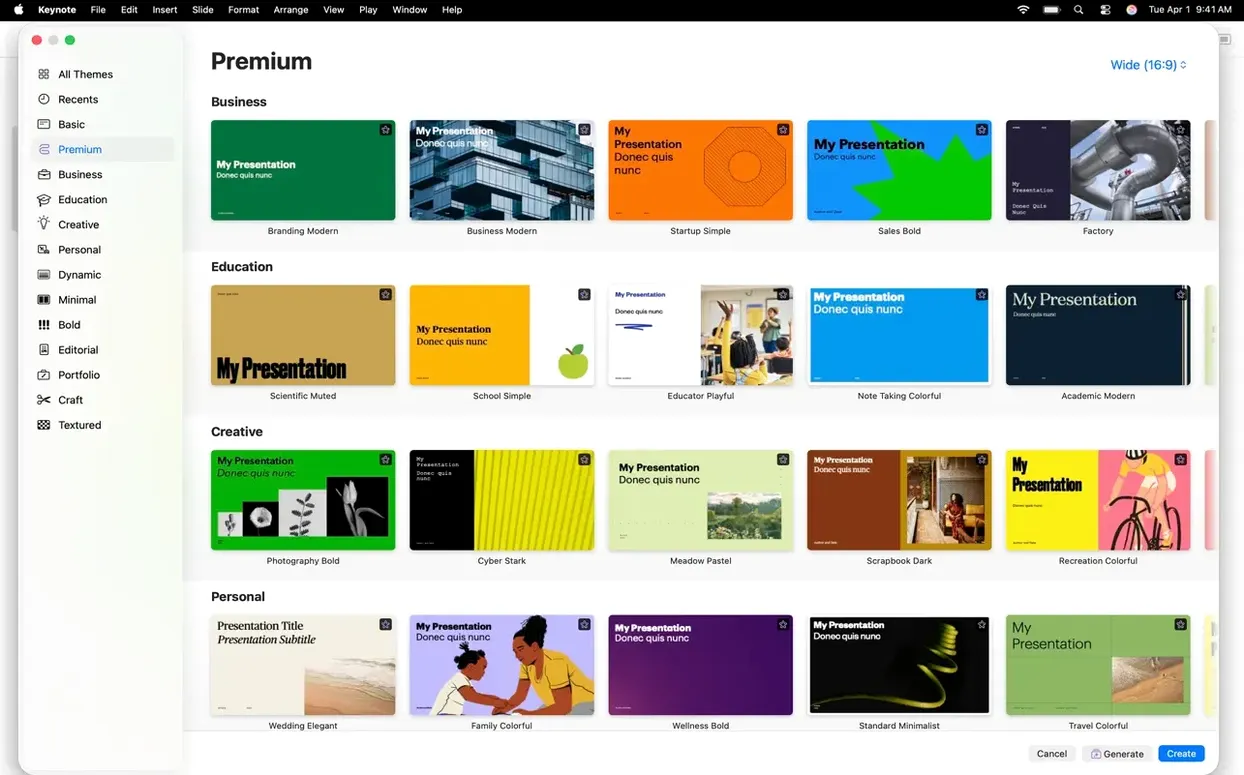
Let me walk you through a morning I'd spend building a product showcase. First, I launch the app and pick a theme with a clean, gallery-friendly layout — something that won't fight my product photos. I start with the title slide, drop in my shop name, and immediately switch to the light table view so I can see all the slides I'm about to build.
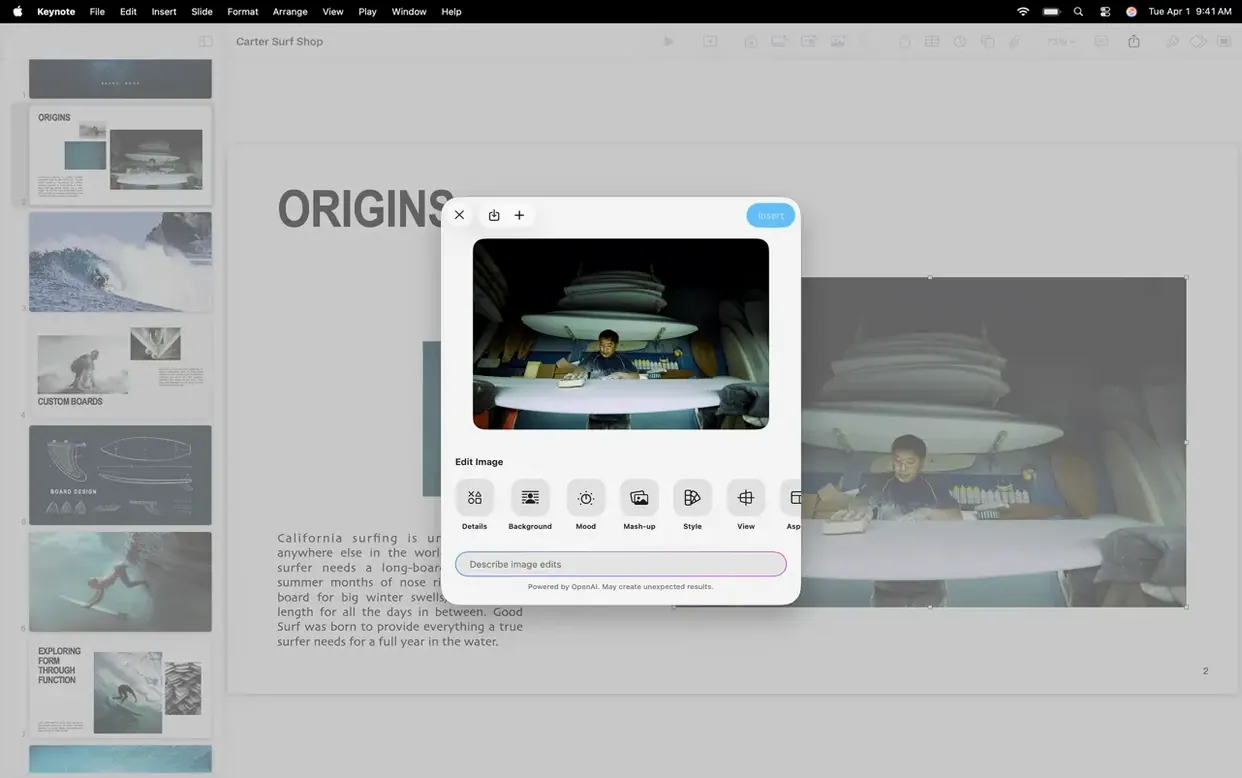
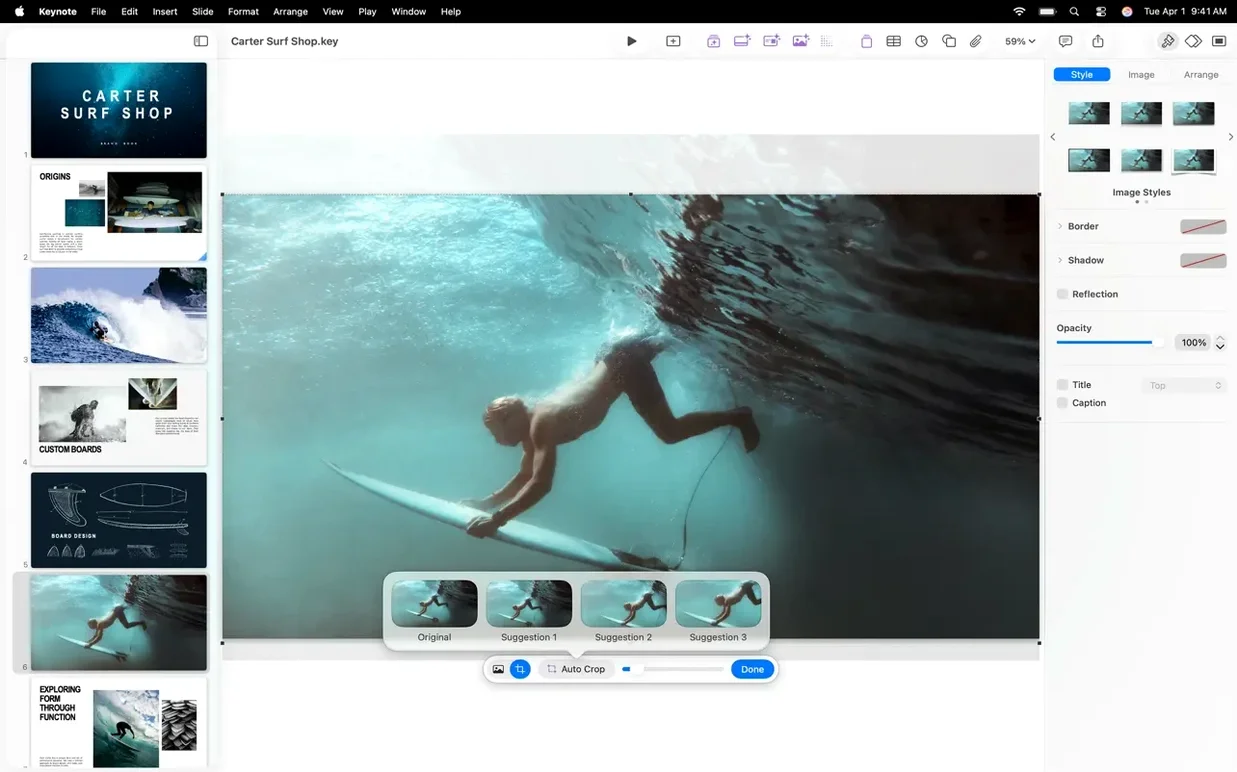
Slide two gets a photo. I drag a shot of a ceramic mug from the Finder straight onto a placeholder, but the background is distracting. A quick tap of Instant Alpha in the format panel, a drag across the busy area, and it's gone — the mug sits on a pure white slide. I repeat this for three more product slides, then add a text slide between each to break up the visuals. The whole thing takes maybe twelve minutes.
Now the fun part. I select the first product slide, open the Animate sidebar, and apply a Magic Move transition from it to the next. Keynote compares the positions of the images and text on both slides and figures out the in-between motion on its own. I preview it — the mug slides and scales smoothly into its new layout — and it genuinely looks like motion graphics work I didn't do.
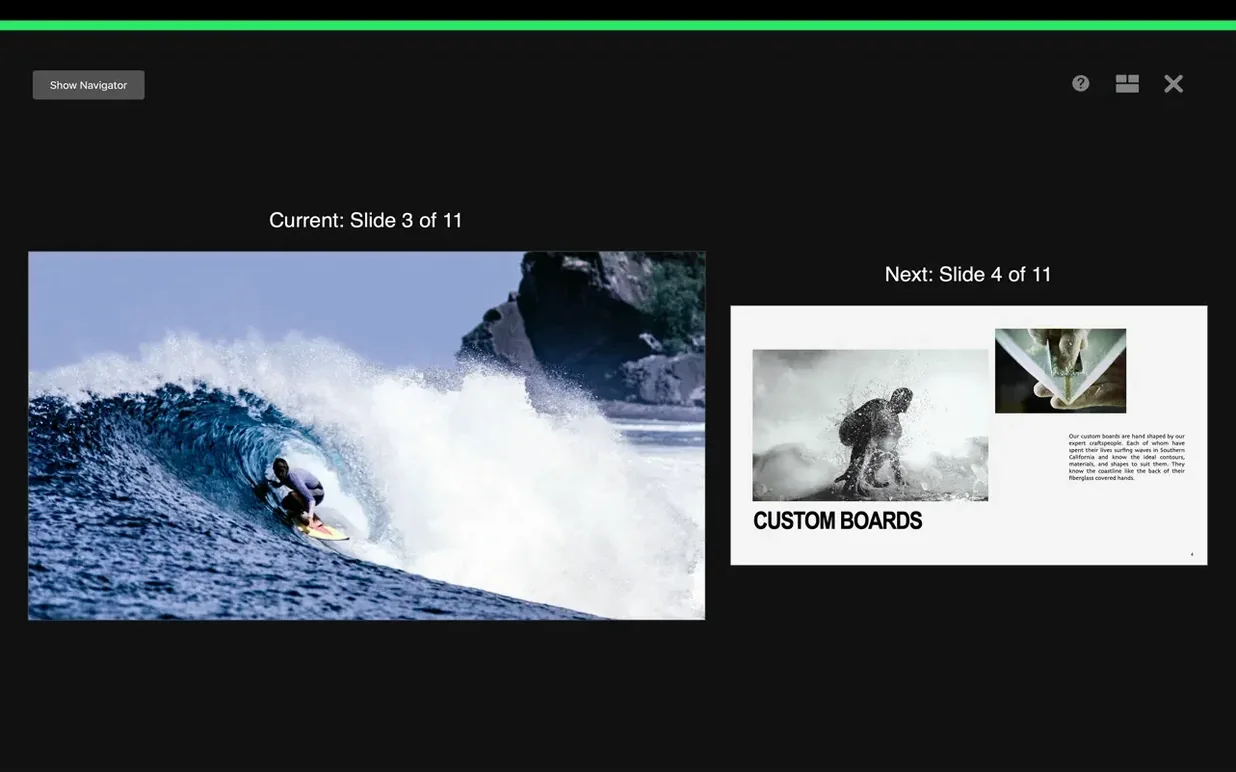
Before I wrap up, I open the presenter display on my MacBook screen while a test monitor shows the audience view. I add a few speaker notes to the first slide, set a timer for five minutes, and run through the deck once. The notes stay hidden on the big screen, and the timer glows red when I'm down to one minute. That's a small thing that saves me during actual shop talks.
Finally, I export a PowerPoint copy for a wholesale buyer who asked for it, then save a PDF version for my own records. The whole session — eight slides, some cleanup, a rehearsal — fits inside a half-hour coffee break.
Fewer odd pauses between slides in the editor
Version 15.3.1 isn't a headline-grabbing overhaul, but a couple of things changed how I work day-to-day. The bug fixes Apple mentions are hard to pin down — I just notice fewer odd pauses when switching between slides in the editor, especially on larger decks with lots of images. That alone makes the app feel snappier now.
The new transitions and builds are the real addition. Shift slides an element smoothly into a new spot, radial wipe reveals content from the center outward, and character blur fades text in letter by letter with a soft defocus. I find myself using radial wipe on title slides for a quiet dramatic effect — it draws the eye without feeling like a 90s PowerPoint trick. Character blur works nicely for quote slides where I want the words to land gradually.
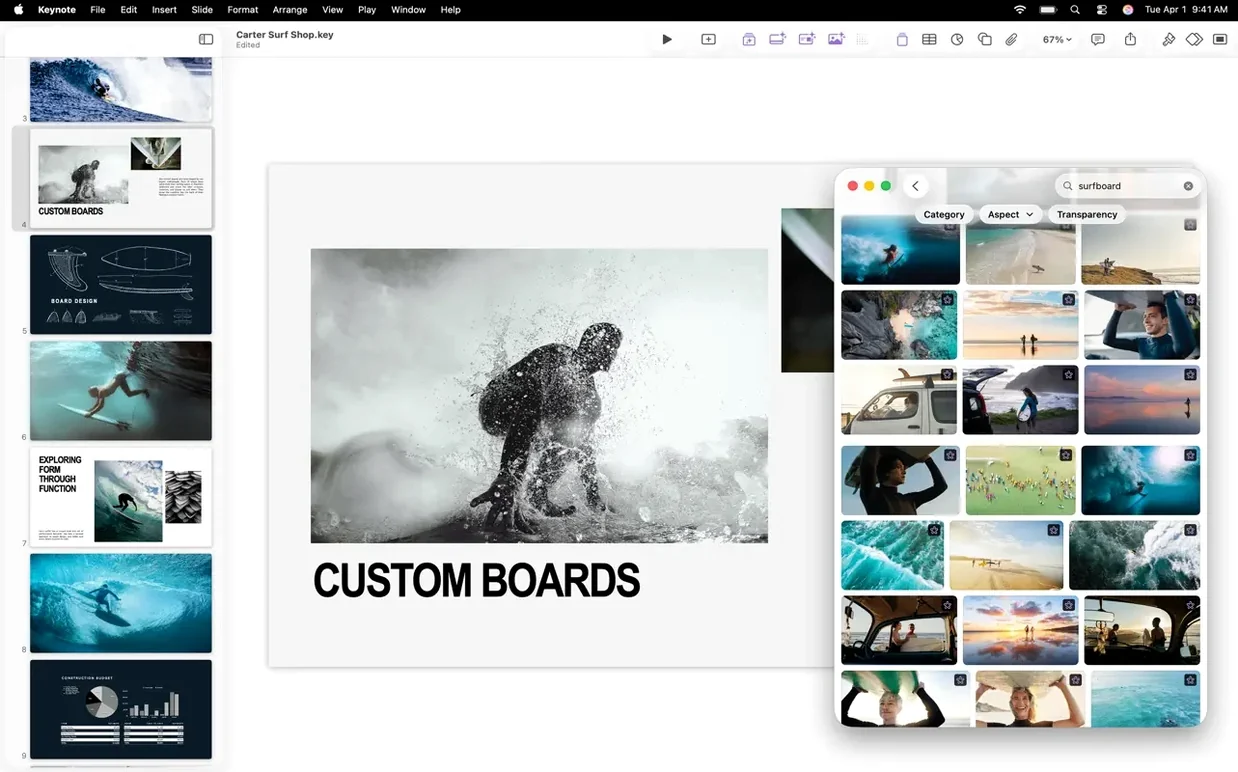
One workflow improvement that saves me clicks: the Content Hub now handles image replacement with less fuss. Right-click a photo in your deck, choose "Replace Image," and the picker shows recent photos, stock options, and your own libraries grouped together. Before this, I'd dig through Finder folders to swap a placeholder. Now I do it from inside the app, which keeps my train of thought intact.
How Keynote compares with similar Mac apps
Keynote versus Microsoft PowerPoint. PowerPoint is the heavyweight — more templates, deeper charting tools, and the Windows ecosystem behind it. But it feels hefty on a Mac, and its animation timeline is clunkier than Keynote's. If your slides are data-heavy and need Excel charts embedded live, PowerPoint wins. For clean, visual decks where you care about how things move, Keynote is the lighter, faster tool.
Keynote versus Deckset. Deckset takes a completely different approach: you write in Markdown, and it generates slides from a theme. There's no drag-and-drop layout, no animation timeline, no image masking. That's perfect for a developer giving a code talk, but useless for a maker showing product photos. Keynote gives you the canvas; Deckset gives you a stylesheet. They solve different problems.
Keynote versus Google Slides. Slides lives in the browser and shares in real time — that's its superpower. But its animation options are basic, and exporting to PDF often shifts elements around. Keynote, once you download it, works offline, renders precisely, and handles high-res images without compression artefacts. I use Slides for quick collaborative drafts and Keynote for anything that faces an audience.
Tip: if you're looking for a keynote 15.1 download because a newer version won't run on your Mac, older installers usually come packaged as a keynote dmg you can drag straight to Applications. Some folks still search for a keynote 7 download for older systems, and a keynote torrent might surface those legacy builds when the App Store no longer offers them. Just match the version to your macOS release.
Version 15.3.1 is a maintenance update with a few nice extras:
- Bug fixes and performance improvements keep things stable.
- New transitions and builds — shift, radial wipe, and character blur — give you more ways to move between slides.
- Swapping images in presentations is quicker now, straight from the Content Hub.
- macOS 15.6 or later
- Apple Silicon or Intel Mac
Questions from the stall
Can Keynote open Microsoft PowerPoint files?
Yes. You can import and edit PowerPoint presentations directly in Keynote.
What export formats does Keynote support?
It exports to Microsoft PowerPoint, PDF, HTML, movie files, and image files.
Can I annotate slides while presenting?
On an iPad, you can annotate with Apple Pencil or your finger while presenting.
Notes from other shops 0
Sign in or open a shop account to leave a note.
No notes yet. If you've used this on a shop Mac, tell me how it went.