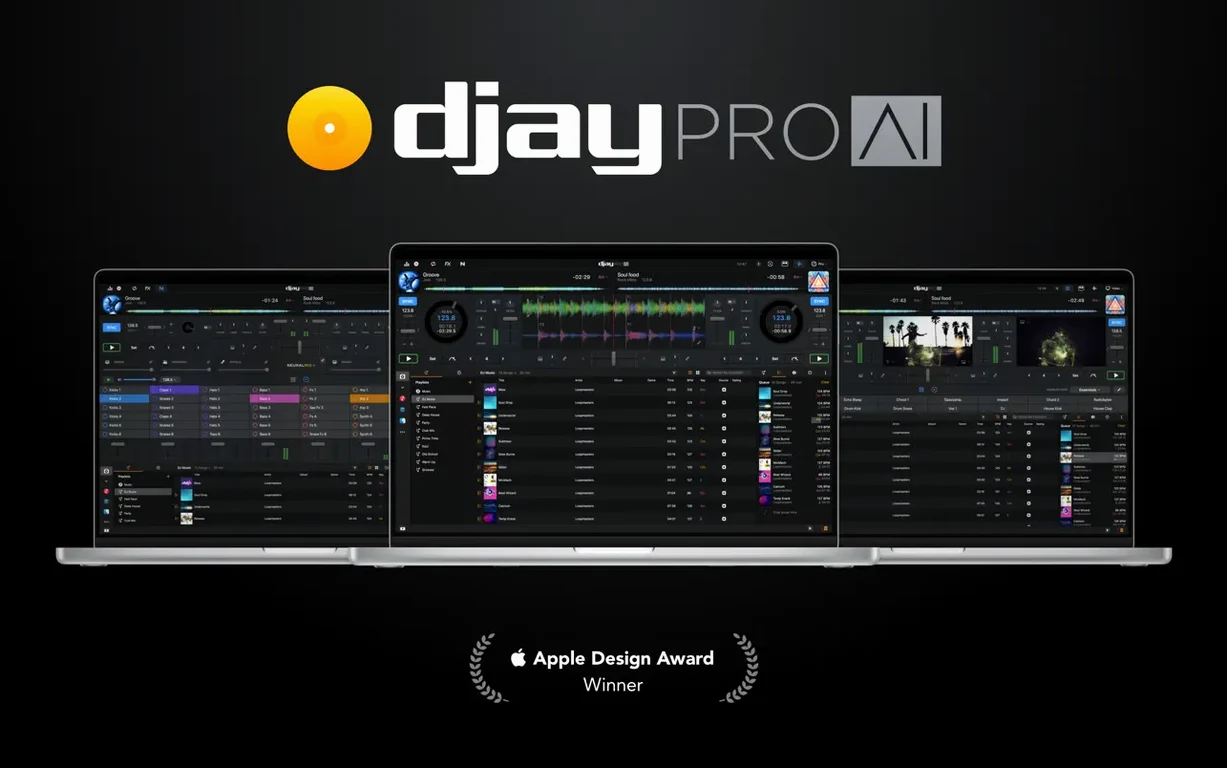
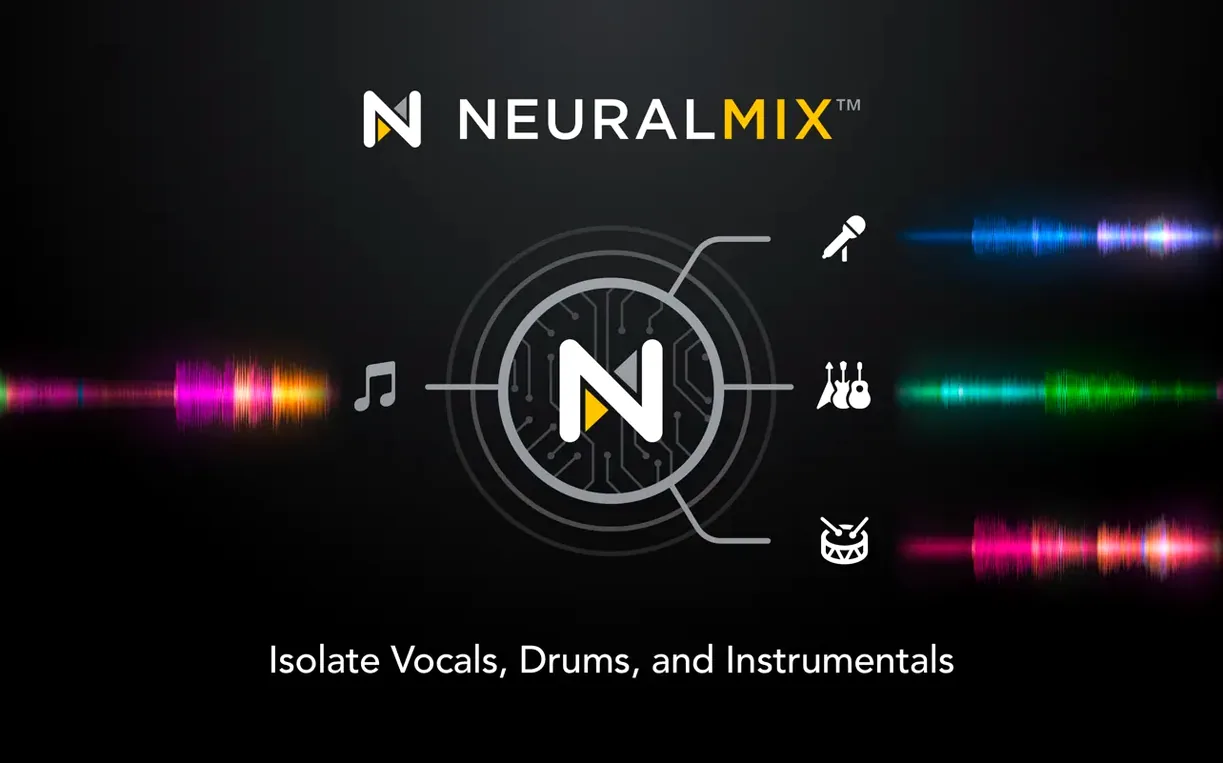
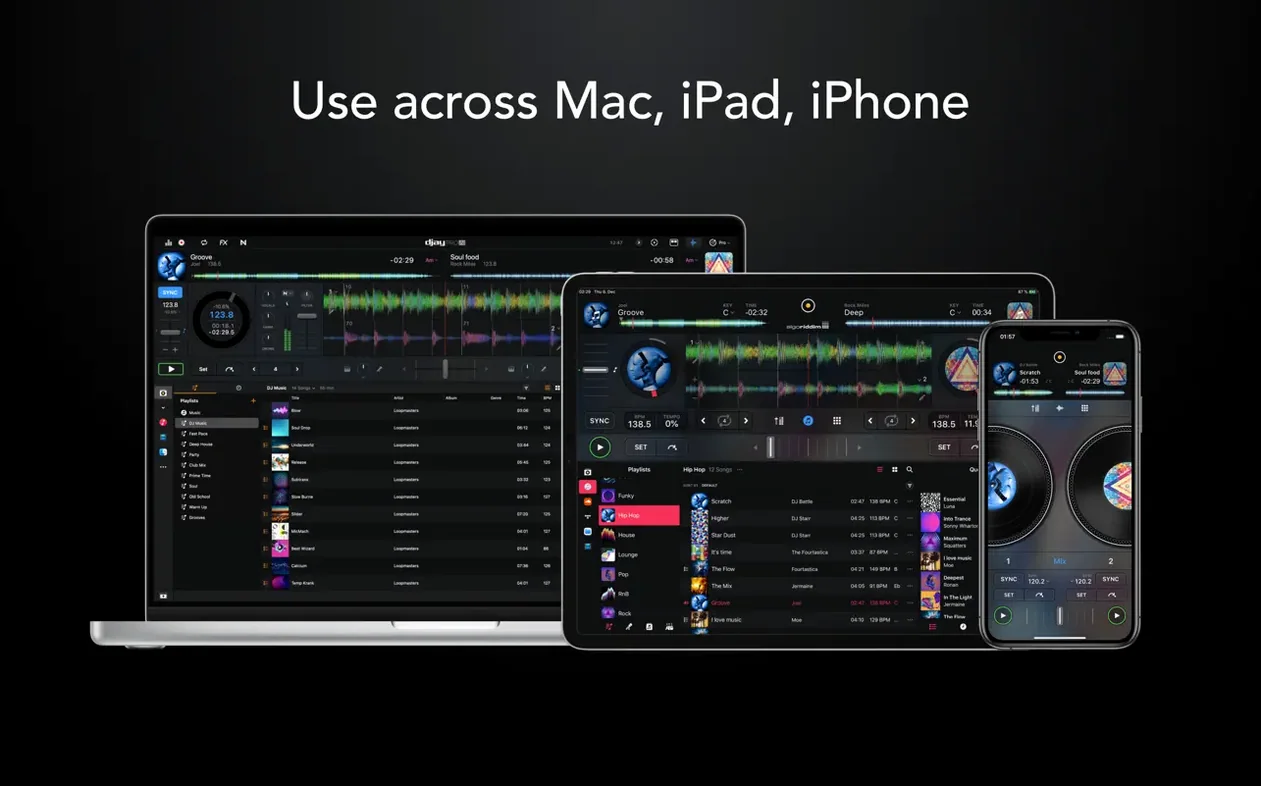
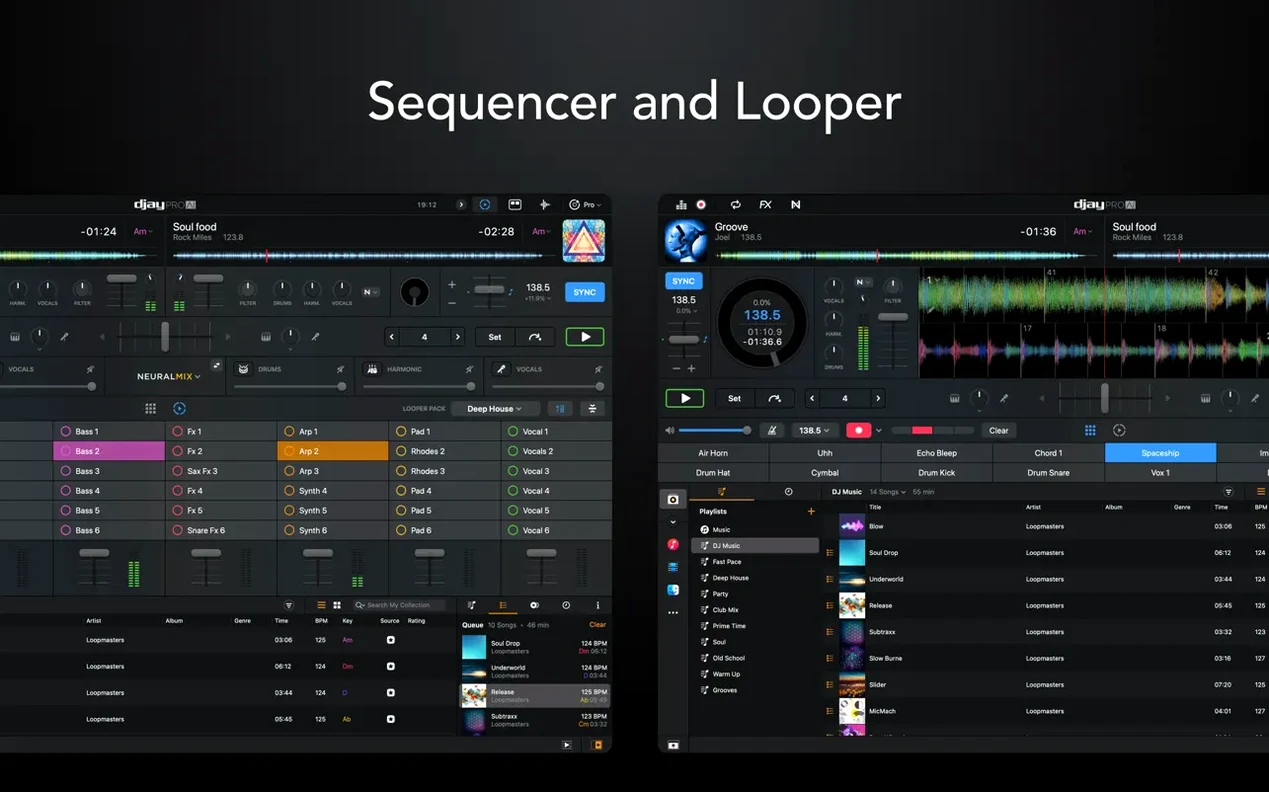
You've got a set list that moves from 70s soul into a modern house re-edit, and the two tracks are nowhere near the same key or tempo. In djay Pro, you pull the original apart — isolate the drums and a bassline, drop the vocal completely, and layer in a loop from your sequencer. That kind of on-the-fly reconstruction is what the deeper toolset is built for.
| Detail | What you get |
|---|---|
| Decks | Four-deck mixing with HD waveforms |
| Stems | Real-time vocal, drum, bass, and instrumental separation |
| MIDI | 100+ controllers supported, plus Ableton Link |
| Effects & sequencing | 40+ built-in audio effects and a beat sequencer |
Stem separation is the obvious headliner, but the sequencing tool is what ties a set together for me. You can program a kick-and-hi-hat pattern that sits under a stripped-back intro, giving you a rhythm bridge while you cue the next track. The high-definition waveforms are genuinely useful when you're nudging beat grids on the fly, and the MIDI actions added in 5.6.9 let you map beat-jump duration changes to a controller pad — small things that cut down screen time during a set.
Shift-drag the waveform to nudge beat grids
Once you settle into djay Pro's main workspace, a handful of small touches stay hidden until someone points them out. A few I'd flag for any new user:
- Shift-drag on the waveform to nudge the beat grid without opening a menu. If you're mid-transition and a track drifts, this keeps your hands moving instead of hunting through dropdowns.
- The crossfader curve lives in preferences, not on the interface itself. It's a one-time tweak that changes how abruptly or smoothly your fader cuts — worth adjusting before you play out.
- Right-click any effect slot to save the current chain as a preset. If you stumble onto a reverb-delay-filter combo that works for a specific transition, you'll want it back later without rebuilding it.
- Holding Option while clicking a Neural Mix knob resets that stem to full volume instantly. The manual mentions it, but most people discover it by accident.
- The Automix queue respects your sort order. Drag tracks in the queue panel to reorder them, and Automix follows — it doesn't just run down whatever column you sorted by last.
These aren't features that sell the app, but they're the kind of thing that makes a two-hour practice session feel less like you're fighting the software.
Set beat grid marker before your first track
djay Pro ships with sensible defaults, but a few settings are worth visiting before you load your first track. I keep coming back to the same handful on every fresh install:
- General → Analysis → Set beat grid marker to first downbeat. By default, the grid often lands on the first transient it finds. Switching this means your cue points and loops start on the one, not somewhere in the middle of a bar.
- Audio → Built-in Output → Latency buffer. The default buffer is safe but adds noticeable delay on some Macs. Drop it to 128 or 256 samples if your machine can handle it — your fader cuts and cue triggering will feel more immediate.
- Advanced → Automix → Transition length. The factory setting is fine for background listening, but if you're using Automix at a party, shorten it so the crossfade doesn't overlap two vocals. Eight to sixteen bars usually sits right.
- Controller → MIDI → Enable "Show active mappings." When you're learning a new controller layout, this overlays labels on screen so you're not memorizing blindly. Turn it off once the muscle memory kicks in.
- Library → Beatport/Beatsource LINK streaming quality. The default is often set to a lower bitrate. Push it up to 256 kbps AAC if your connection and speakers warrant it — the difference is audible on a decent system.
None of these require deep technical knowledge. They're quick switches that make the app feel more responsive and better tuned to how you actually mix.
Don't blindly trust the auto-analyzed key and BPM
I see the same patterns when someone new downloads djay Pro for Mac and jumps straight into a session. Most of them aren't obvious until you've been burned once.
The biggest one is trusting the auto-analyzed key and BPM without listening. djay's analysis is solid, but it occasionally misreads a track with a long ambient intro or a half-time section. If a harmonic mix sounds off, it is off — key detection didn't misread it because the algorithm is broken; it misread it because the track's structure confused it. Trust your ears first.
Another common stumble: loading stems on every track by default. Neural Mix is impressive, but it also hits the CPU. If you're not planning to isolate vocals or drums during a set, leave it off until you need it. Your Mac's fans will stay quieter, and waveforms render faster.
New users also tend to over-fill the sequencer. Programming a kick, snare, hi-hat, percussion, and a synth stab all at once sounds busy through a PA. Start with two elements — a kick and a closed hat, or a snare and a rim — and build from there. Less is more once the room fills up.
Finally, forgetting to set cue points before a gig. It's tempting to rely on the first-downbeat detection, but if you're playing tracks you haven't rehearsed with, dropping a manual cue on the first beat of the intro and another on the drop takes thirty seconds and saves you from an awkward silence later.
Open-format DJs bouncing between eras and keys
djay Pro isn't a one-size-fits-all tool, and the people who stick with it tend to share a few traits. It's not just about genre — it's about how you approach music.
Open-format DJs who bounce between eras, keys, and BPM ranges benefit from the stem separation more than anyone. Pulling a vocal from a 1980s track and laying it over a modern house beat is the kind of move that defines a set, and djay Pro makes it a two-second operation rather than a production project.
Controller-based performers who already own a supported piece of hardware get the tightest integration. With over 100 MIDI controllers recognized, the plug-and-play mapping means you're not spending an afternoon assigning knobs. The RANE System One support added in 5.6.9 extends that even further with native display feedback.
Video mixers are an underappreciated group here. If you're playing at a venue with screens, djay Pro's video mixing side lets you blend visuals alongside audio, with transitions that sync to the crossfader. It's not a full video editor, but it's enough to put a cohesive show together without running a second app.
Producers who DJ occasionally find the sequencer and looper bridge the two worlds. You can sketch a beat pattern live while a track plays, then capture it as a loop and blend it into the next song. It's not a replacement for a DAW, but it fills the gap when you want to add something original mid-set.
If you're a casual listener who wants background music for a dinner party, Automix handles that fine — but the deeper toolkit is aimed at people who treat a DJ set as a performance, not a playlist.
Walk into a studio with every piece of gear plugged in at once
When you first run a djay Pro Mac download and open the app, the feature set can feel like walking into a studio with every piece of gear plugged in at once. Here's how I'd approach the first few sessions without getting overwhelmed.
Day one: feed it music and do nothing else. Point the library at your local folders and let the analysis run. While it churns through your collection, open a single deck and practice cueing, nudging the platter, and setting manual cue points. Don't touch stems, don't open the sequencer, don't map a controller. Get comfortable with the waveform display and the basic transport controls.
Day two: introduce Neural Mix one stem at a time. Load a track you know intimately, then isolate the drums. Listen. Bring them back and isolate the vocals. Notice where the separation artifacts appear — they're minimal but present, and knowing what they sound like means you won't be surprised during a set. Try cutting the bass from a track while playing another underneath it. That one technique alone changes how you approach blends.
Day three: add hardware or a controller. If you own a supported controller, plug it in and let djay Pro recognize it. The default mapping is usually sensible. Practice the same basic moves from day one — cue, play, nudge — but from the hardware. The goal is to build muscle memory so you're not staring at the screen.
Day four: record a short mix and listen back critically. The built-in recording captures exactly what comes out of the master output. Play it in your car or on headphones and note where the transitions clashed or the levels dipped. Adjust your beat grid, your cue points, or your gain staging and try again.
If you're coming from another DJ app, resist the urge to replicate your old workflow exactly. djay Pro's stem-based mixing opens up transitions that weren't possible before, and leaning into that early will get you further than trying to make it behave like something else.
A fresh build of djay Pro AI, version 5.6.10, landed on the Mac App Store. Algoriddim posts the full rundown on their site, so head there if you want the fine print.
- macOS 10.15 or later
- Apple Silicon or Intel 64-bit Mac
Questions from the stall
Does djay Pro work with motorized platter controllers?
Yes, version 5.6.9 specifically improved support for 45 RPM playback with motorized controllers, and the app works with more than 100 MIDI controllers overall.
Can I create my own beats inside djay Pro?
Absolutely. It includes a built-in sequencer you can use to layer kick drums, snares, and hi-hats right over playing tracks.
Notes from other shops 0
Sign in or open a shop account to leave a note.
No notes yet. If you've used this on a shop Mac, tell me how it went.