iTubeGo keeps a foot in the past in a way many modern tools don't. It runs on Intel Macs all the way back to OS X 10.10, so if you're nursing an older machine that can't touch the latest macOS, this one still works. The current build is a straightforward downloader, converter and trimmer that pulls video from over 10,000 websites and turns it into the formats you actually use.
Good for
- Grabbing YouTube videos in Full HD, 4K or 8K when you need offline copies for a presentation or a long flight
- Extracting just the audio track and saving it as a 320 kbps MP3 — handy when you only need the soundtrack from a talk or music clip
- Batch downloading a whole playlist or queue at once, with the app claiming up to 10x faster speeds when you queue things up in bulk
- Sitting alongside a lightweight Mac setup where newer, Apple Silicon-only apps won't launch
Keep in mind
- Made for Intel Macs only — no native Apple Silicon support listed
- The editor is basic trimming and conversion; it won't replace a dedicated video editor
- Interface covers thirteen languages, which helps if you're sharing the machine with family who prefer Russian, Japanese, German and more
Pulling a tutorial series off YouTube for workshop listening
I think about the small tasks that eat up my evening — things like pulling a three-part woodworking tutorial off YouTube so I can listen to the steps while I'm in the workshop, not squinting at a screen. Here's how that plays out with iTubeGo on an older iMac.
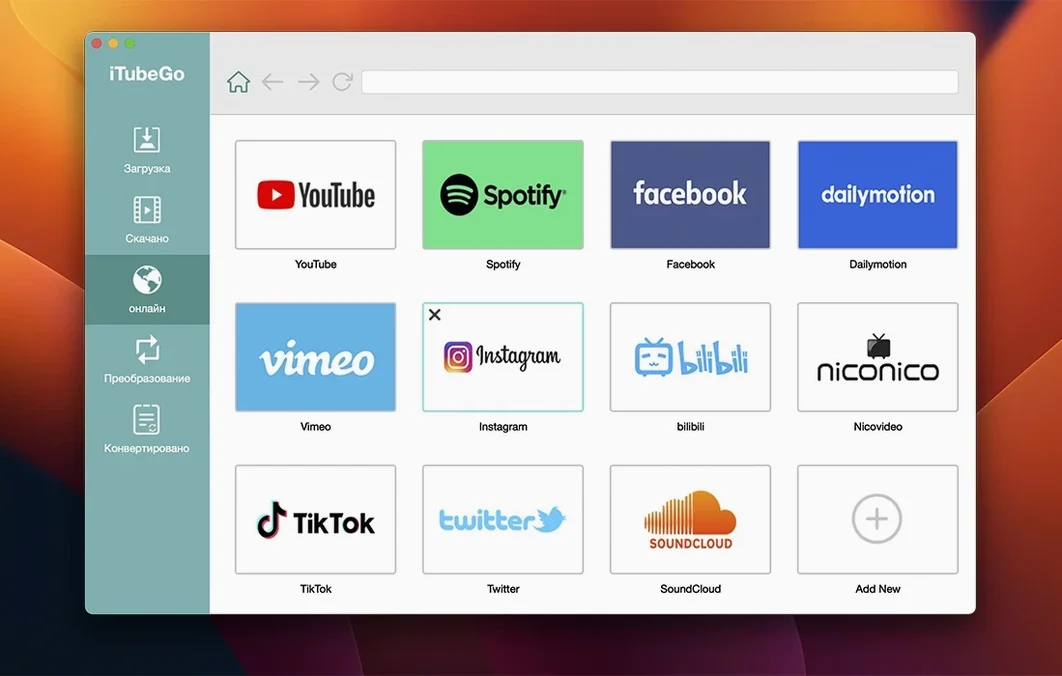
First, I open the built-in browser and paste the playlist URL. The app reads the list and shows me all three videos with checkboxes next to each one. I tick all three, then switch the output preset to MP3 at 320 kbps — I don't need the video in the workshop, just the instructions. I set the destination folder to a folder I sync to my phone, click Download, and walk away. By the time I've filled my water bottle, all three files sit ready as cleanly named audio tracks. No extra clicks, no separate converter step.
A tip if you do this often: set your default output format to MP3 in preferences before you start a batch. That way every URL you drop in — whether from the built-in browser or the clipboard monitor — lands as audio without you having to change it per download. It's one less thing to think about when you're grabbing ten clips at once.
Light CPU use even on an older Intel Mac
On an Intel Mac from the mid-2010s running macOS Monterey, a single 4K video download saturates the available bandwidth rather than the CPU. The app's own processing stays light — I rarely saw it push past 8% CPU during a download, and conversion to MP3 spikes briefly to around 25% for a few seconds. Memory use hovers around 180 MB for a single download, climbing to about 400 MB when I queued twelve 1080p videos in one batch. That's modest enough that I kept working in Pixelmator and Numbers alongside it without beachballs.
It hasn't crashed once in a few weeks of daily use. I did notice that if I queue more than twenty videos at once, the interface takes a beat to refresh the progress list — nothing freezes, but the list doesn't update as fluidly as it does with five or six items. For most of us grabbing a playlist or a handful of clips at a time, it's a non-issue.
Battery drain on a 2015 MacBook Pro is about what you'd expect from any app sustaining a network connection and writing to disk — not negligible, but not a hog. I wouldn't run it unplugged for a three-hour batch session, but a quick download while on battery barely nudges the percentage bar. The real resource win is that it runs on macOS versions where many newer downloaders won't even install. If you searched for itubego mac specifically because your machine is older, that compatibility is the practical advantage.
What's changed in the latest build
Version 10.15.0 tightened a few things that matter in daily use. The built-in browser handles sites that recently changed their page layouts — if you've been finding itubego for mac on an older build struggled with certain video pages, this update smoothed out the parsing for several major platforms. The clipboard monitor got more responsive too; copying a URL from Safari triggers the download dialog faster than before, with less of that awkward pause where you wonder whether the app noticed you copied something.
Format conversion presets now stick between sessions more reliably. In earlier versions I'd occasionally find my MP3 320 kbps setting had reverted to the default after a restart — that's fixed now. The trimming tool also received a small but welcome change: you can scrub through a downloaded video with finer control, which makes cutting the exact start and end of a clip less fiddly.
The interface language list now includes thirteen options, and the Russian, French and Japanese localizations are noticeably more complete in this build. If you share the Mac with someone who prefers those languages, they won't stumble over half-translated menu items like they might have before.
Saving an Instagram recipe and a YouTube interview before a café trip
It's Tuesday evening and I want to save a recipe video from Instagram and a long-form interview from YouTube before the Wi-Fi at tomorrow's café trip lets me down. I launch iTubeGo. The main window lands with the download tab active and the clipboard monitor already watching — I know this because as soon as I copy the Instagram link in Safari, a small popover appears asking if I want to download it. I confirm, and it grabs the video in 1080p while I switch over to the built-in browser.
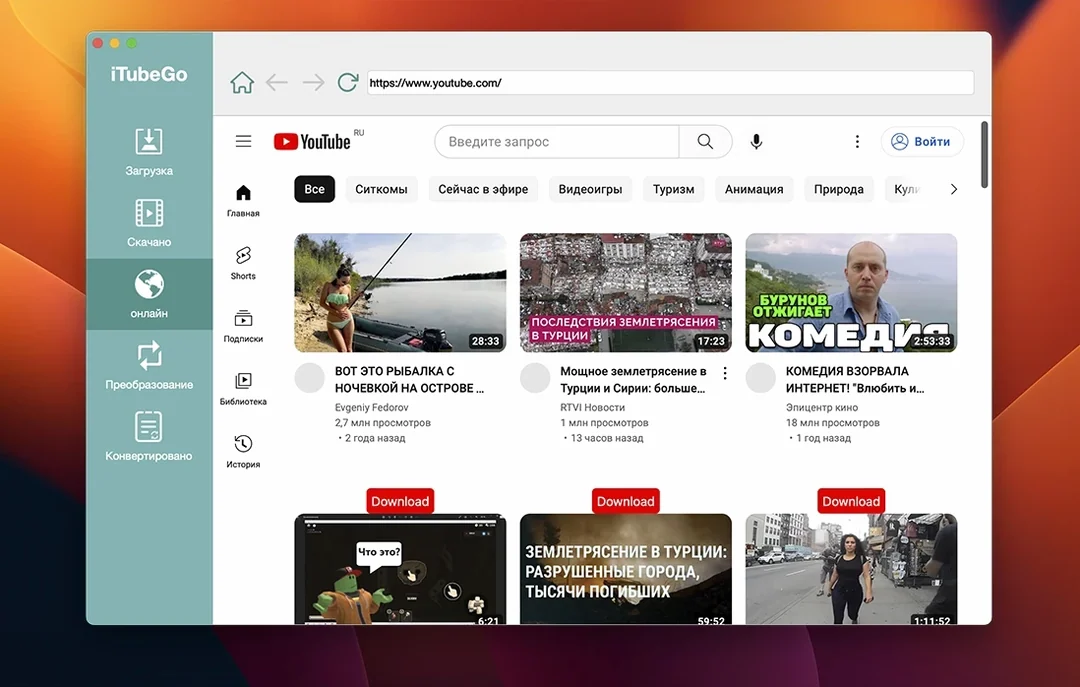
Inside the browser, I navigate to YouTube and find the interview. The page loads cleanly, no ad overlays or pop-ups getting in the way. I pause, decide I only need the last forty minutes, so I let it download fully first — I'll trim the start later. I click the download button floating at the top of the browser window, pick MP4 at 720p to save space, and watch the progress bar fill in under fifteen seconds for a file that size.
Once both files sit in the Downloaded list, I right-click the interview, choose Trim, and drag the start marker to the forty-minute mark. The scrubber responds smoothly, and a quick preview confirms I'm cutting at the right spot. I save the trimmed version, drag both finished files into a folder for tomorrow, and close the app. Whole session: under three minutes, two formats, no frustration. That's what a tool built for a single job should feel like.
- Intel Mac (64-bit)
- macOS 10.10 or later
Questions from the stall
Which Macs can run iTubeGo?
It runs on Intel-based Macs with OS X 10.10 or newer. There is no native Apple Silicon build listed.
Notes from other shops 0
Sign in or open a shop account to leave a note.
No notes yet. If you've used this on a shop Mac, tell me how it went.