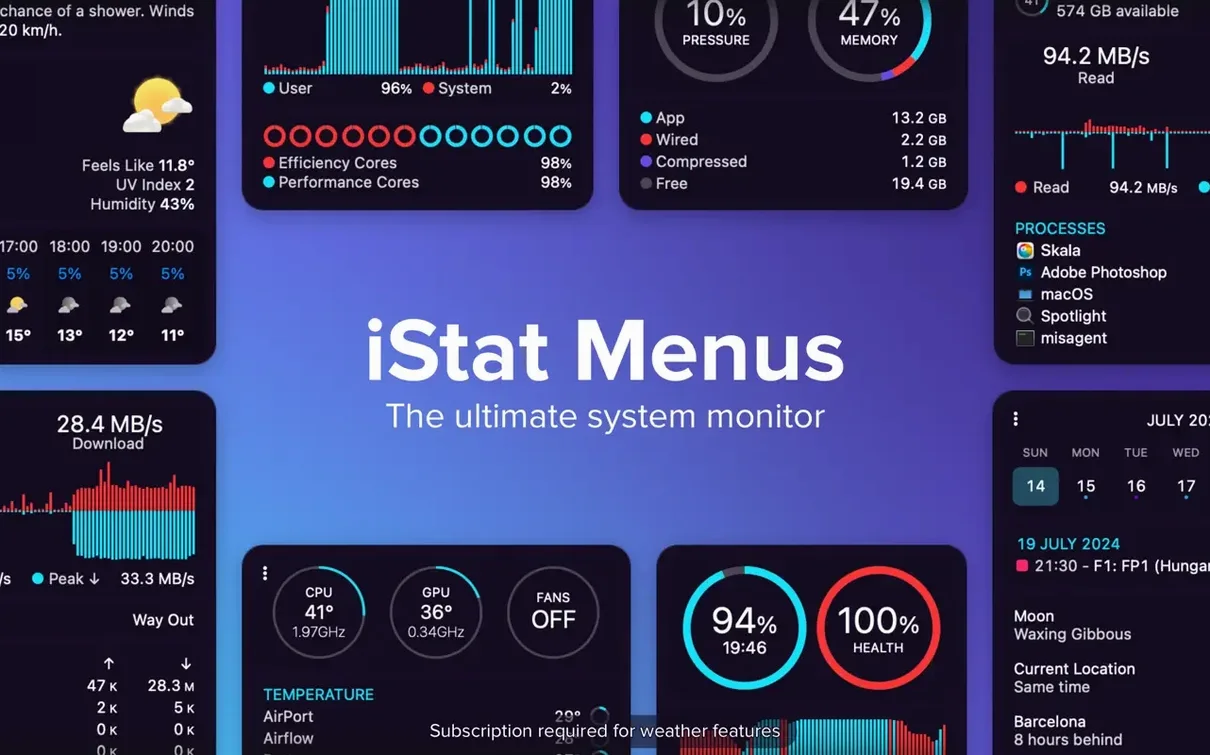
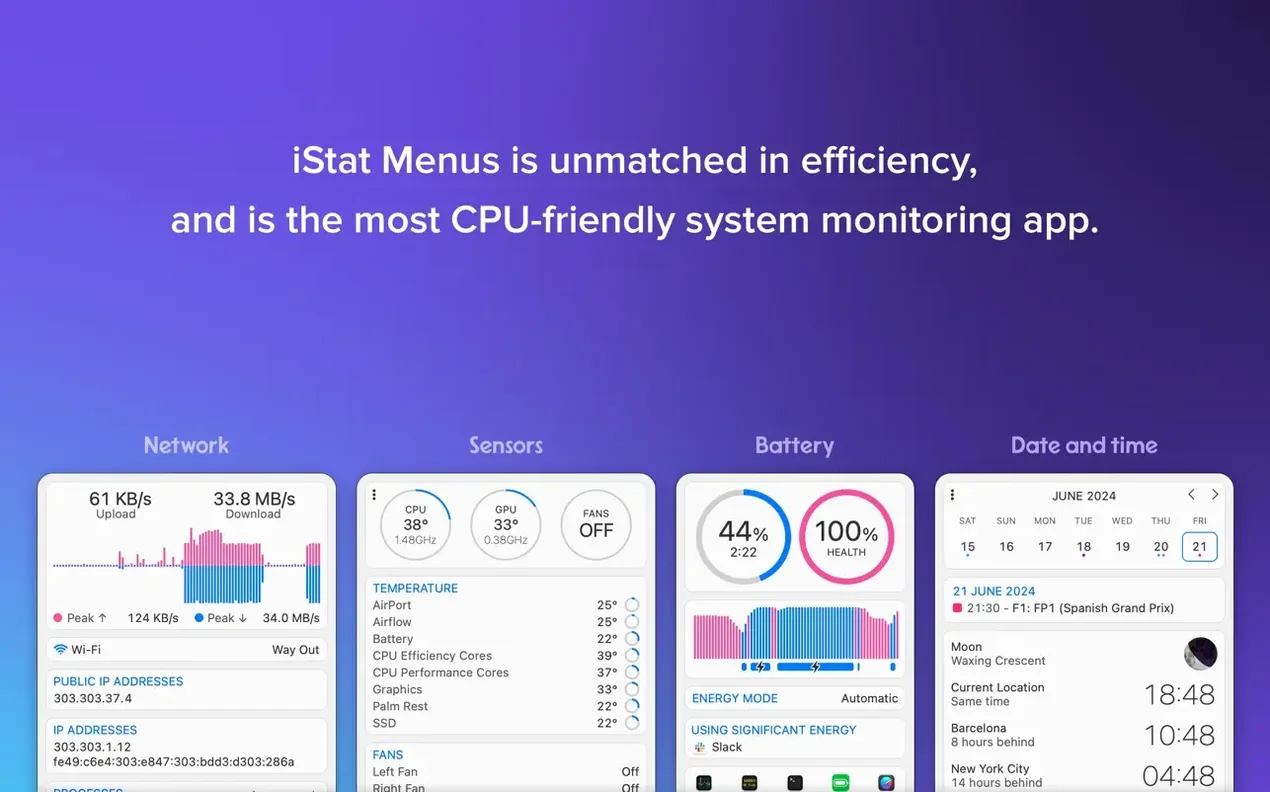
You’ve just kicked off a render that maxes out the CPU. Your fans spin up, but you don’t know how hot things are actually running. You glance at the menu bar and there it is—a small, live readout confirming the die temperature and fan RPM without breaking your focus.
Track what’s eating memory
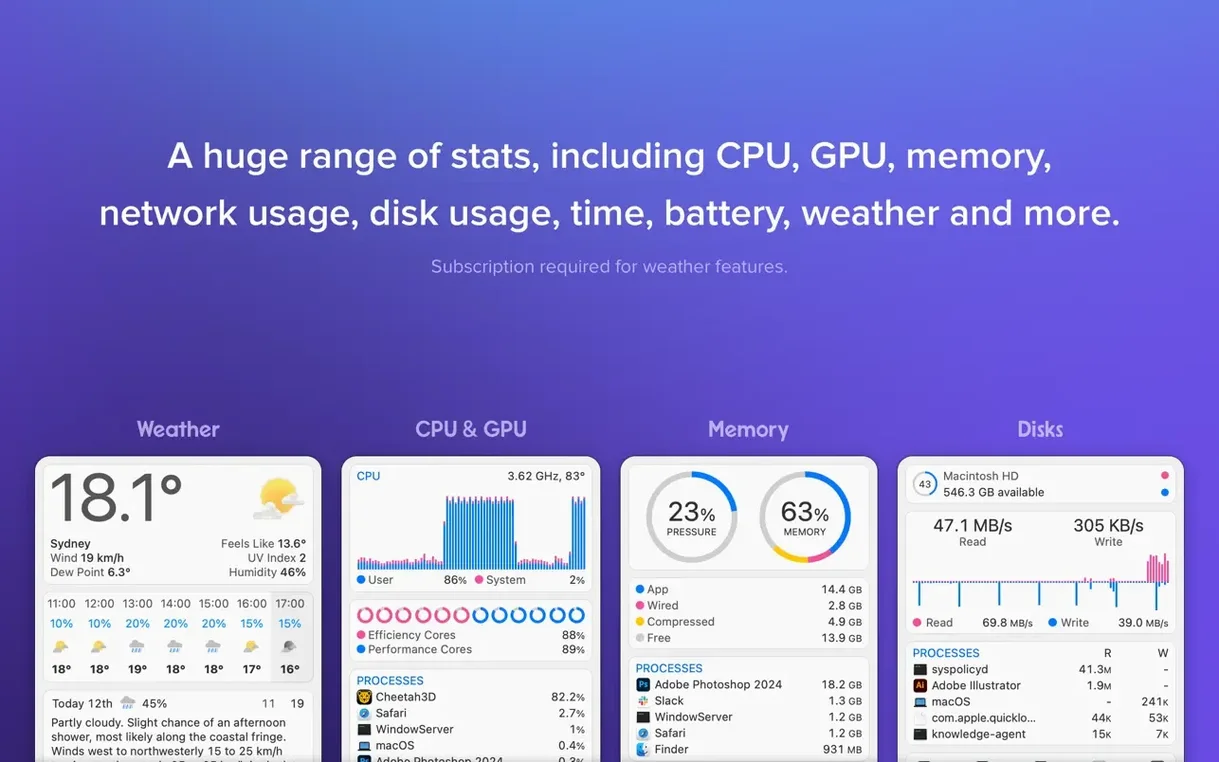
Rather than guessing which browser tab or background agent is dragging things down, iStat Menus lists the hungriest processes in order. It’s a practical way to spot a runaway helper or a design app that hasn’t released RAM after closing a large file.
Keep an eye on disk health
Beyond free-space graphs, you can watch read and write activity in real time and check S.M.A.R.T. status. For anyone with large media libraries or active projects, it’s a quiet early-warning system that lives in the menu bar.
Put sensors and forecasts where you want them
The optional helper unlocks temperature and fan speed readings, while version 7.50 adds astronomy observing conditions alongside the detailed weather forecasts that were already there. Wind speed, dew point, moon phases—it all sits neatly next to your clock.
Glance instead of opening an app
Macs come with Activity Monitor, but it lives in a window you have to summon. iStat Menus puts the numbers in the menu bar, which changes how you use them—you glance instead of opening an app, and you catch problems earlier.
MenuMeters offers free, lightweight menu bar graphs for CPU, memory, disk, and network. It gets the basics right, but it doesn't show temperatures, fan speeds, S.M.A.R.T. health, weather, or astronomy data. If you only want a bandwidth arrow and a CPU bar, it does the job. If you want the fuller picture without opening half a dozen utilities, iStat Menus covers more ground in less space.
TG Pro focuses on temperatures, fan control, and diagnostics. It's excellent for that narrow lane—detailed sensor logs, automatic fan rules, and a clear cooling overview. But it doesn't touch memory pressure, per-app network stats, or weather. Many people actually use both together: TG Pro for deep thermal management, iStat Menus for the broader at-a-glance dashboard. The fan speed rules in iStat Menus cover the common case (adjusting behavior when on battery), though TG Pro gives you finer control if you need per-sensor curves.
Little conveniences you might not notice right away
A few features sit one click deeper than the obvious graphs and numbers, and they make daily use smoother once you know about them:
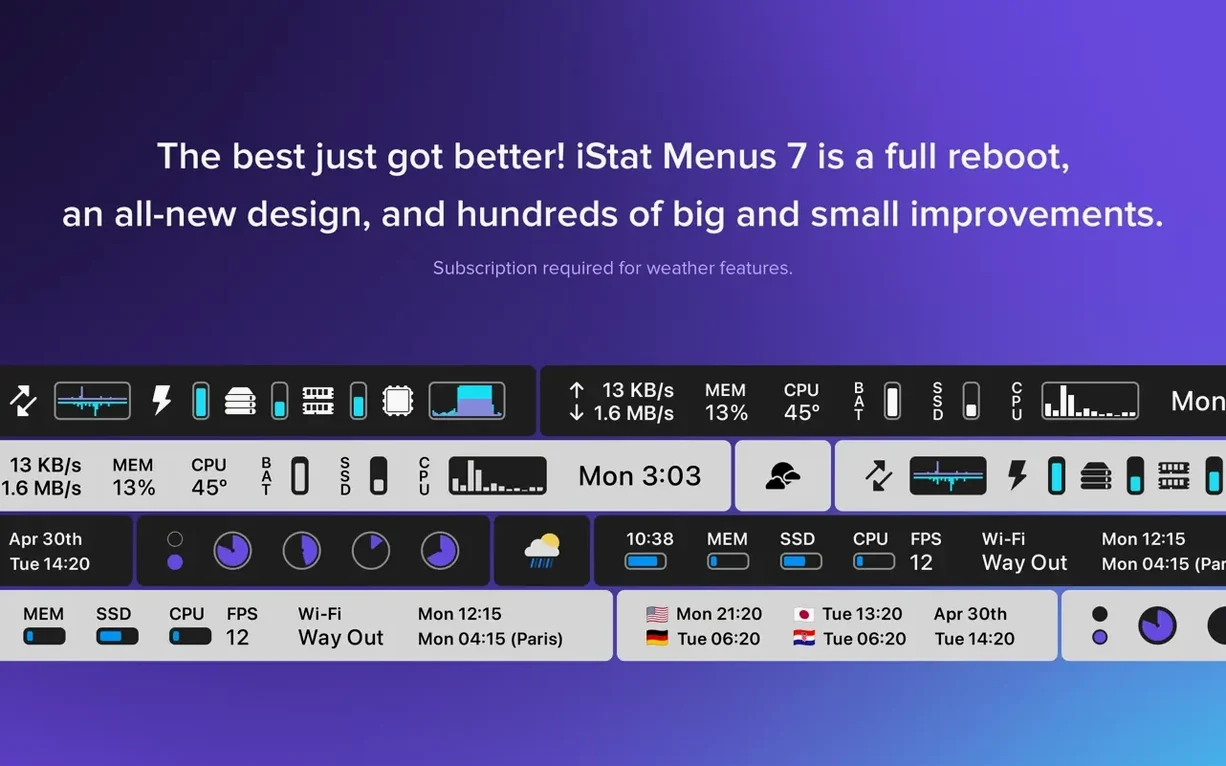
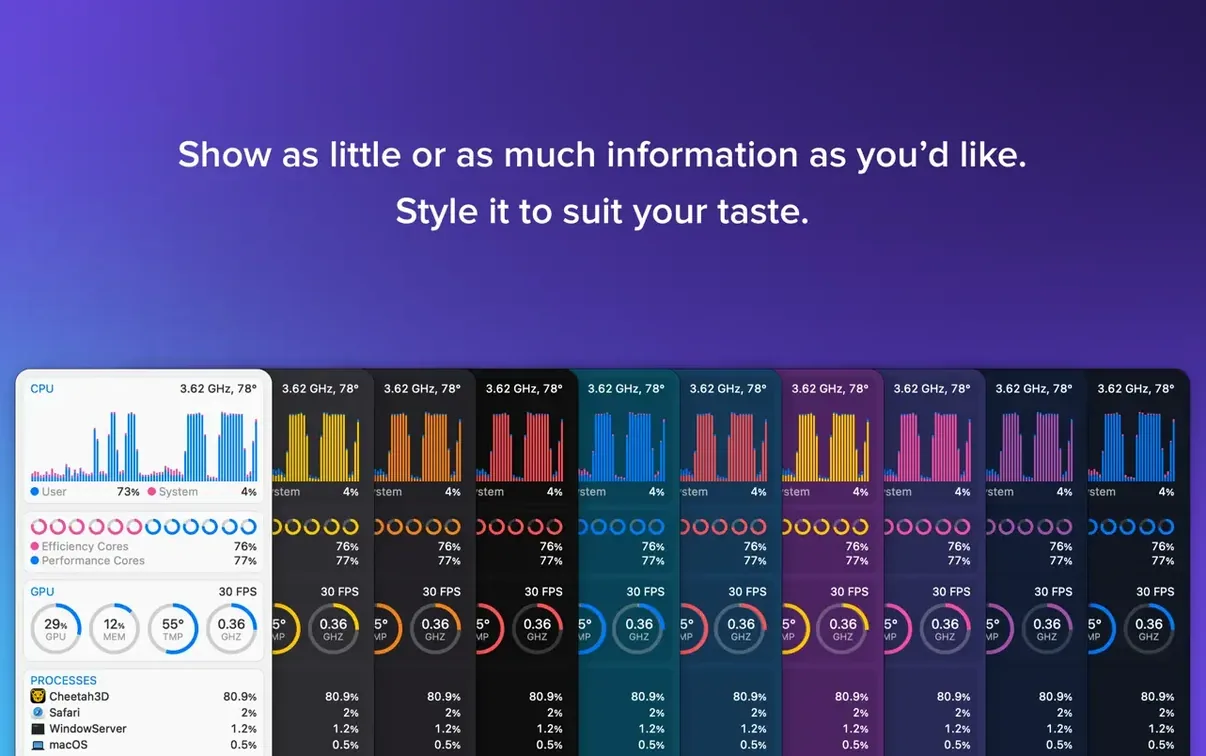
- Click a menu bar item to see the breakdown. The CPU graph in the bar shows load; clicking it opens a dropdown with per-core history, uptime, and the processes chewing cycles right now. Same pattern works for memory, disk, and network—the summary lives in the bar, the detail sits behind a single click.
- Reorder items by dragging. You can slide the memory monitor next to the CPU graph, or put the clock and weather together. The arrangement sticks across restarts, and it helps when you want related stats grouped.
- Compact mode for tight menu bars. If you're on a smaller screen or you already have a lot of extras up there, many items can switch to a condensed width that shows just the number, no label. CPU can become a two-digit percentage; memory can shrink to a pie slice.
- Network per-app tracking. Beyond the total upload and download graphs, the dropdown names which applications are talking to the internet and how much data they've moved. Handy when something is saturating your connection and you want to pin it down fast.
- Keyboard shortcuts for dropdowns. You can assign a global hotkey to open any iStat Menus panel, so you're not always reaching for the mouse. Useful during full-screen work when the menu bar is hidden.
Tip: If you're using the calendar dropdown, try dragging a world clock city into the menu bar itself—it can show the time in another timezone right next to your local clock, no dropdown needed.
Stays well below one percent CPU
iStat Menus runs as a set of lightweight menu bar agents plus the optional helper. In everyday use on Apple Silicon and Intel machines running macOS 11 or later, the combined CPU footprint typically hovers well below one percent when polling at default intervals. Memory use stays modest—usually under 100 MB across all components—and I've never seen it creep upward over a long workday.
The app feels responsive. Dropdowns appear without lag, graphs update at the rate you set, and switching between dark and light modes follows the system appearance instantly. Version 7.50 hasn't introduced any noticeable slowdown compared to earlier 7.x builds, and the new astronomy forecasts load quickly even on a modest connection because the weather data payloads are compact.
On the stability side, crashes are rare. The helper occasionally needs a relaunch after a major macOS update—that's true of most tools that read hardware sensors—but the menu bar items keep running independently. If the helper isn't active, temperature and fan readings simply go blank until it restarts; the rest of the stats (CPU, memory, network, disk, time, weather) don't depend on it and carry on without interruption.
If you're running an older Mac or you're sensitive to background activity, you can lengthen the polling interval in preferences. Each item lets you set its own update frequency, so you could check disk activity every 30 seconds while keeping CPU updates at one second. That kind of granularity means you're not wasting cycles on measurements you don't need refreshed constantly.
The installer itself is a simple drag-to-Applications affair—open the disk image, copy the app, launch it. The helper installs on first run when you enable sensor readings, and it lives quietly in the background. No launch daemons that phone home, no background updater nagging you.
Version 7.50 brings a fresh Astronomy item and adds forecasts for seeing, transparency, cloud cover, and other observing conditions.
- macOS 11 or later
- Apple Silicon or Intel Mac
Questions from the stall
Why does iStat Menus need a helper component?
The helper enables the app to read hardware sensors for temperature and fan speeds, which aren’t available through standard macOS APIs.
Notes from other shops 0
Sign in or open a shop account to leave a note.
No notes yet. If you've used this on a shop Mac, tell me how it went.