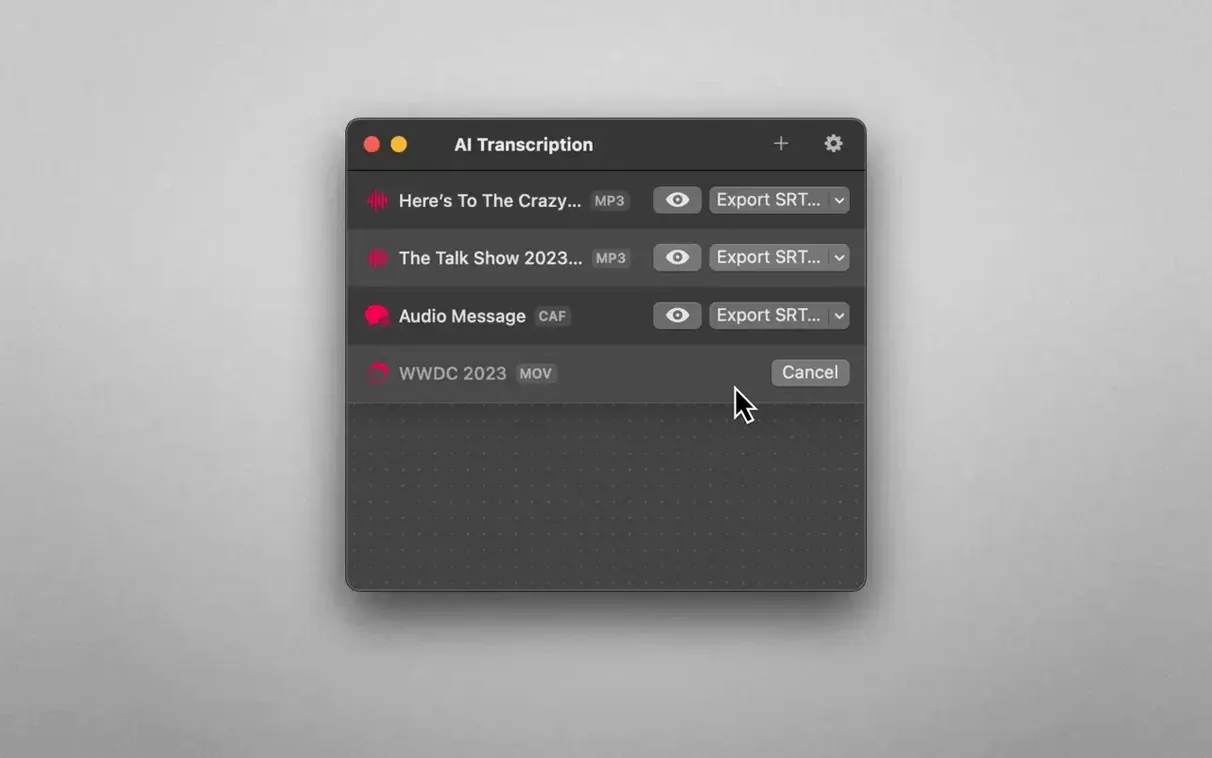
AI Transcription runs on any Mac that can handle macOS 14.6 or newer, and it feels just as comfortable on Apple Silicon as it does on an Intel machine. That means if your Mac is from the last several years and you keep it reasonably up to date, you are good to go. No cloud accounts, no internet connection needed after the download — the heavy lifting stays on your own hardware.
| Detail | What you get |
|---|---|
| Transcription engines | OpenAI Whisper, Apple Speech Recognition |
| Input formats | MP3, WAV, CAF, AIFC, M4A, MP4 |
| Export formats | Plain text, CSV, SRT, WEBVTT |
| Interface languages | English, German, Spanish, Italian, French, Portuguese, Japanese, Korean, Simplified Chinese |
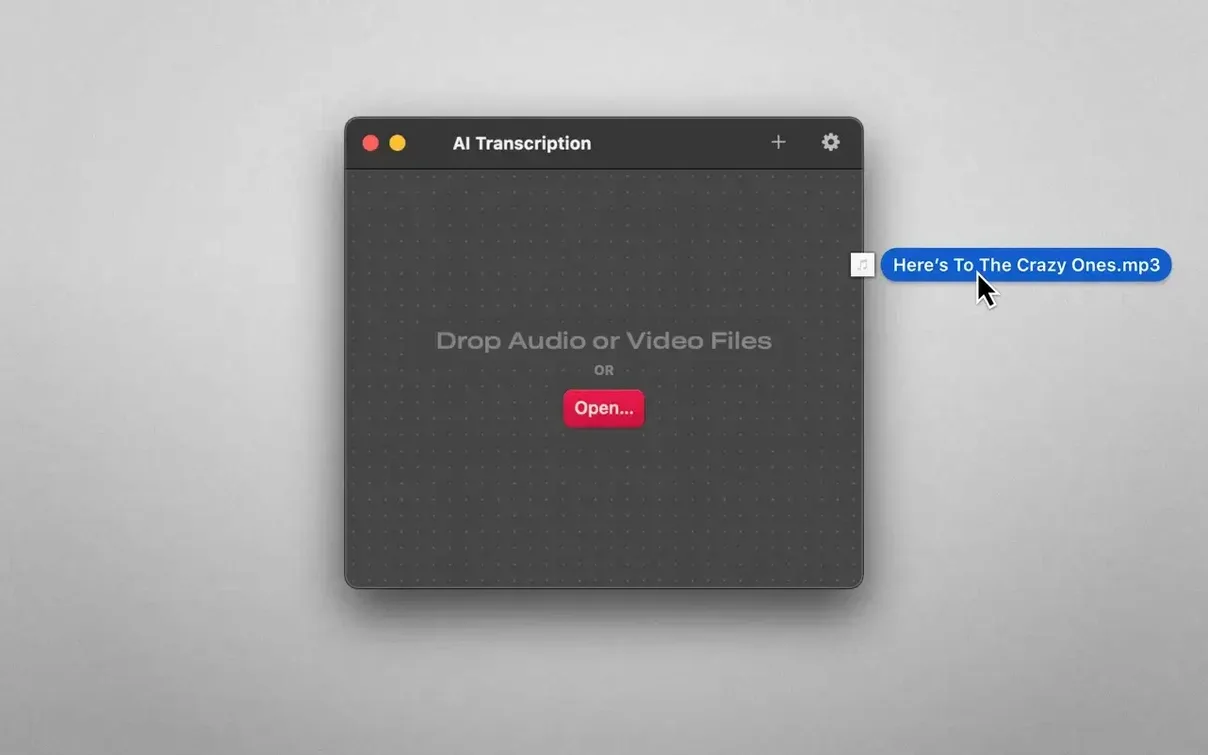
You drag a file in, the app chews on it locally, and you get a transcript you can save as a plain text file, a CSV for spreadsheet work, or SRT and WEBVTT if subtitles are what you are after. Because it uses both Whisper and Apple's own speech recognition, you can pick the engine that works better for your recording. It handles MP3, WAV, M4A, CAF, AIFC and MP4 files without fuss. Everything happens offline, so client recordings, personal voice memos and meeting notes never leave your shop.
Turn on Whisper for messier recordings
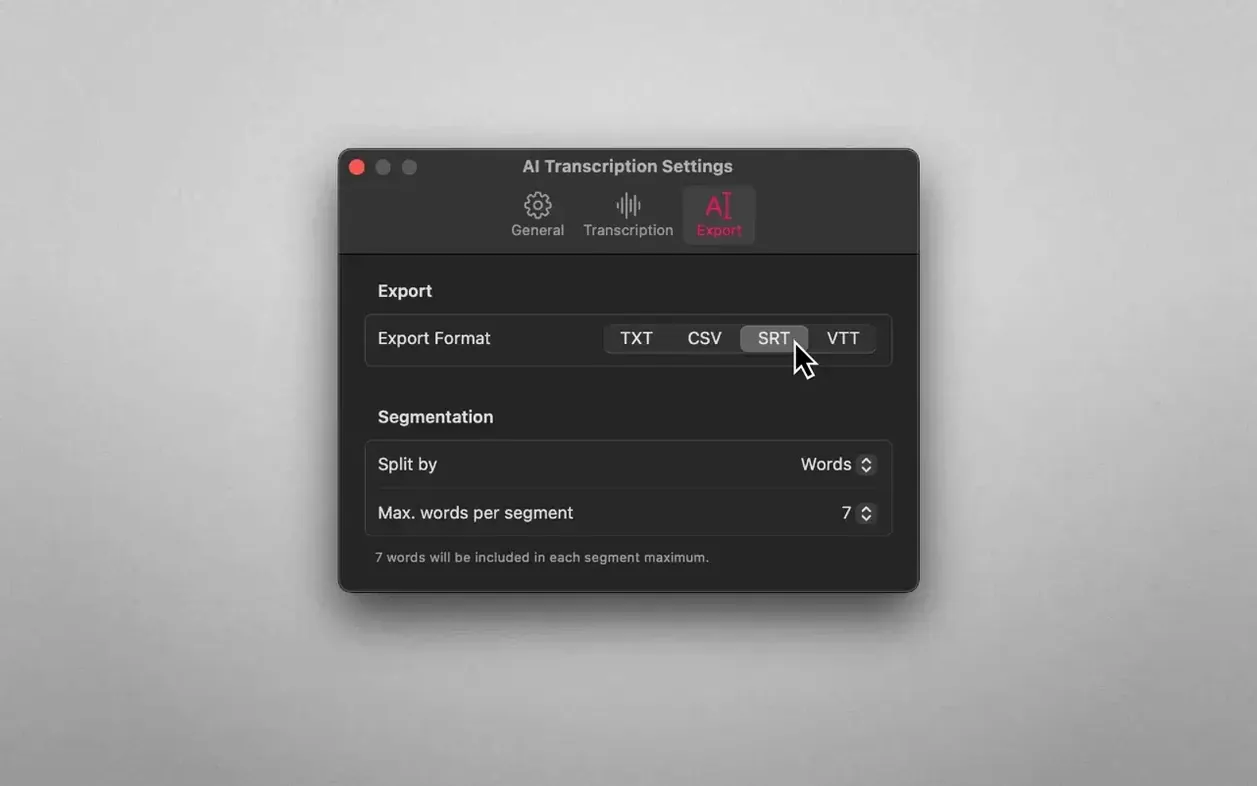
The defaults are sensible, but a couple of switches make a real difference once you know what kind of audio you work with most. Open the preferences pane and look at these three first:
- Transcription engine. Whisper catches more nuance and handles accents better than Apple Speech Recognition, but it is slower on a big file and warms up your Mac. If you are just skimming a clean voice memo, Apple's engine finishes faster. For interviews with background hum, stick with Whisper.
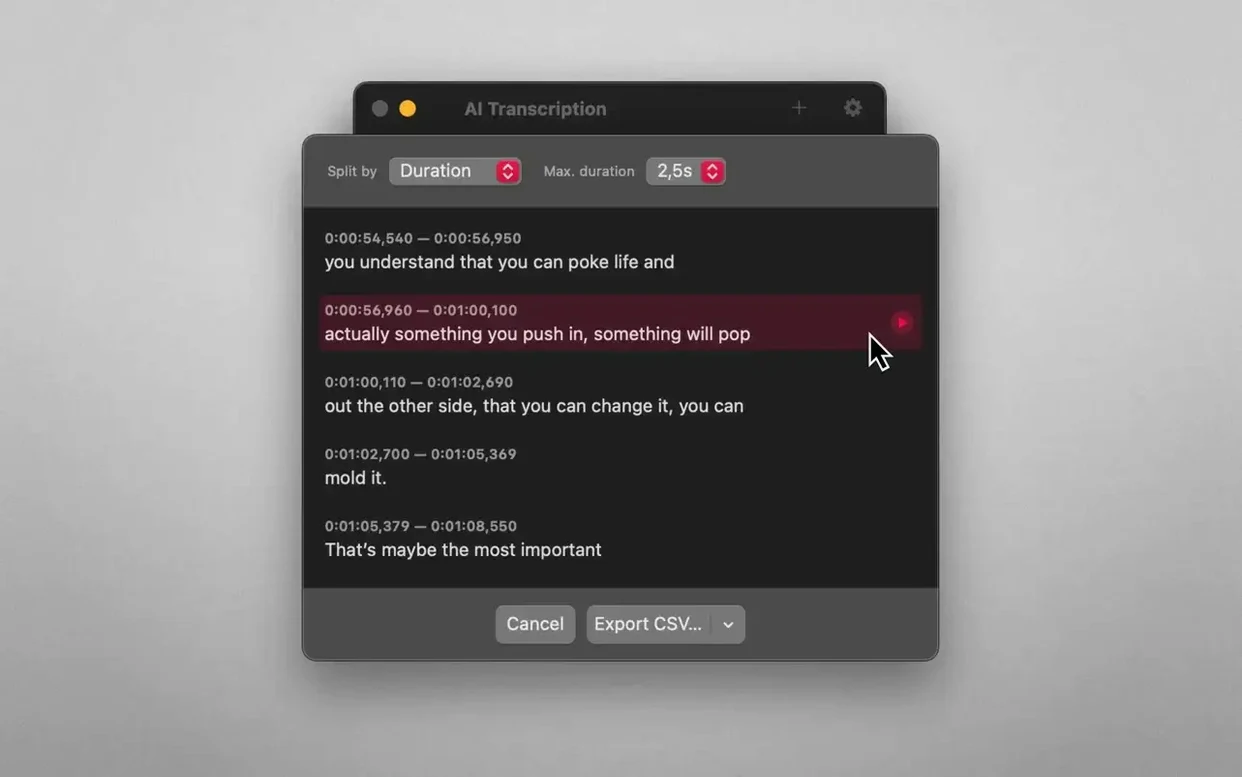
- Segment splitting. The app can split transcripts by word, sentence, or a time duration you set. For subtitles, pick by duration and try 4 to 6 seconds per segment. For a readable document you will edit later, by sentence is the one.
- Output folder. By default transcripts land next to the source file. I point mine to a dedicated folder called Transcripts on the desktop so nothing gets lost among old recordings.
Tip: If you transcribe the same type of recording every week — say, a podcast interview — set these preferences once and leave them. Switching engines mid-project can produce slightly different wordings and throw off your rhythm when you edit.
What to do when the export button stays gray
The app is straightforward, but a few things trip people up, especially on the first few runs.
Whisper takes forever on a long file
That is normal. Whisper processes audio in chunks and the larger the file, the longer it needs. A two-hour recording on an older Intel Mac can take fifteen minutes or more. If you need a rough draft fast, cancel the job, switch to Apple Speech Recognition, and run it again. Save Whisper for the final pass when accuracy matters more than speed.
Transcript comes out as one giant block of text
You probably left the splitting setting on by word or did not set a duration. Go back into preferences, change it to by sentence, and re-transcribe. The app does not re-split an existing transcript, so you have to run the file through again.
M4A files recorded on an iPhone do not open
Some voice memo apps save M4A with a variant codec that Whisper stumbles over. The quick fix: open the file in QuickTime, export it as audio-only with the same M4A container, and drag the new copy into AI Transcription. It adds a minute of work but clears up the issue every time.
Export format confusion
If you export as CSV and open it in Numbers or Excel and everything looks jumbled, check that the splitting is set to by sentence or by duration. CSV with word-level splitting creates a row per word and looks messy in a spreadsheet. SRT and WEBVTT exports always split by time segment regardless of your preference, so they are safe for caption work.
A start-to-finish workflow: podcast interview to clean transcript
Let me walk through a realistic task. You have a thirty-minute MP3 of a podcast interview recorded in a slightly echoey room. You need a clean text document to pull quotes from, plus an SRT file for the video version.
1. Set up the engine and splitting
Open preferences. Pick Whisper for the engine — the echo means you want the stronger model. Set splitting to by sentence. This gives you readable paragraphs to edit later and keeps the SRT export manageable.
2. Drag in the file
Drag the MP3 onto the app window. A progress bar appears. On an Apple Silicon Mac a thirty-minute file takes roughly three to five minutes with Whisper; on Intel it may push closer to eight. Go pour a coffee.
3. First export: plain text for editing
When the transcript appears, export as plain text. Open it in your favorite text editor. Read through while the audio is fresh in your mind and fix speaker labels, proper names, and any words Whisper guessed wrong. The sentence splitting means each line is a natural chunk, so you can jump around easily.
4. Second export: SRT for the video
Go back to the app. Without changing anything, export again, this time as SRT. The app ignores your sentence-splitting preference for SRT and builds time-coded segments automatically. Open the SRT in a subtitle editor or drop it straight into your video timeline. The timestamps are usually close enough that you only need minor adjustments for the echoey parts.
5. Archive the project
Save the plain text file and the SRT into a project folder alongside the original MP3. If a client asks for a revision six months from now, you have the source recording and the transcripts together. The app does not store a history, so keeping your own folder structure pays off.
- macOS 14.6 or later
- Apple Silicon or Intel 64-bit Mac
Questions from the stall
Does AI Transcription need an internet connection?
No. All transcription work is handled locally on your Mac using OpenAI Whisper and Apple Speech Recognition.
Which audio and video formats does it support?
You can feed it MP3, WAV, CAF, AIFC, M4A and MP4 files.
What export formats are available for transcripts?
You can save your transcript as plain text, CSV, SRT or WEBVTT.
Notes from other shops 0
Sign in or open a shop account to leave a note.
No notes yet. If you've used this on a shop Mac, tell me how it went.