
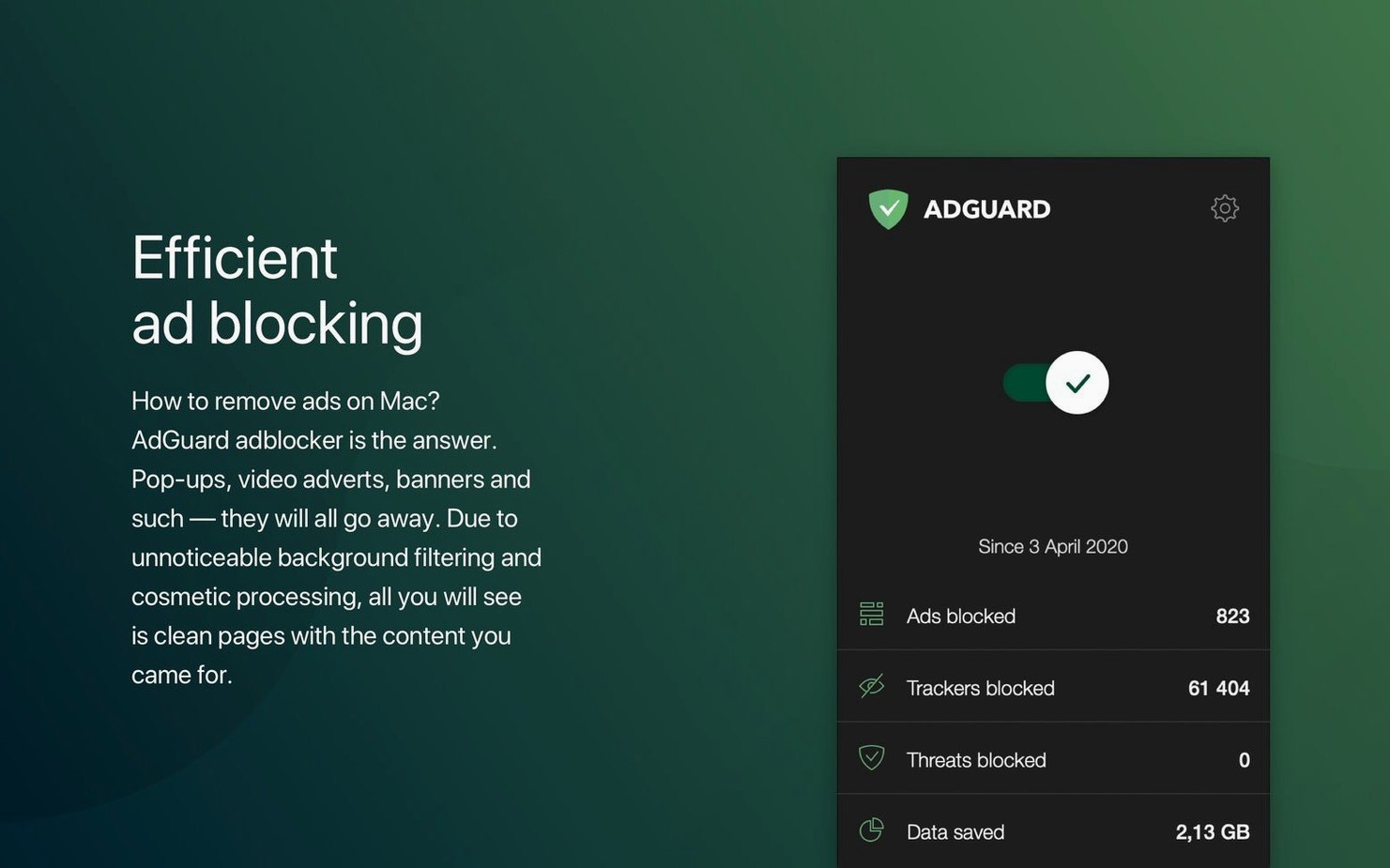
AdGuard is built for Mac users who don't want to install a separate ad blocker for every browser. It works at the system level, so the filtering happens before web pages even load.
- Block ads everywhere. Safari, Chrome, Firefox, even browsers that don't offer extensions—AdGuard handles them all. One setup, and you're covered.
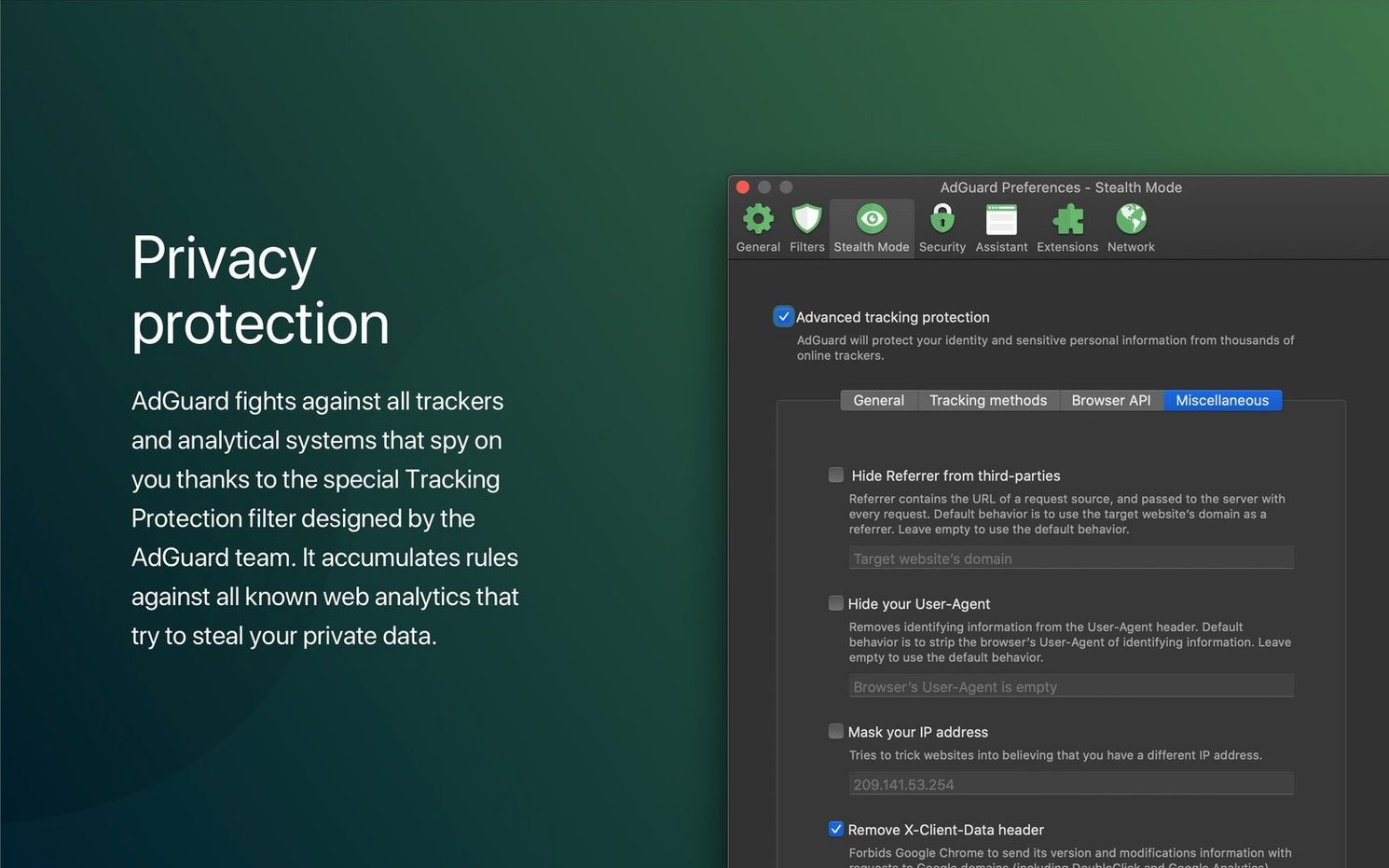
- Stop trackers from building a profile on you. The app hides personal data from analytics systems and tracking scripts. Your browsing habits stay your own.
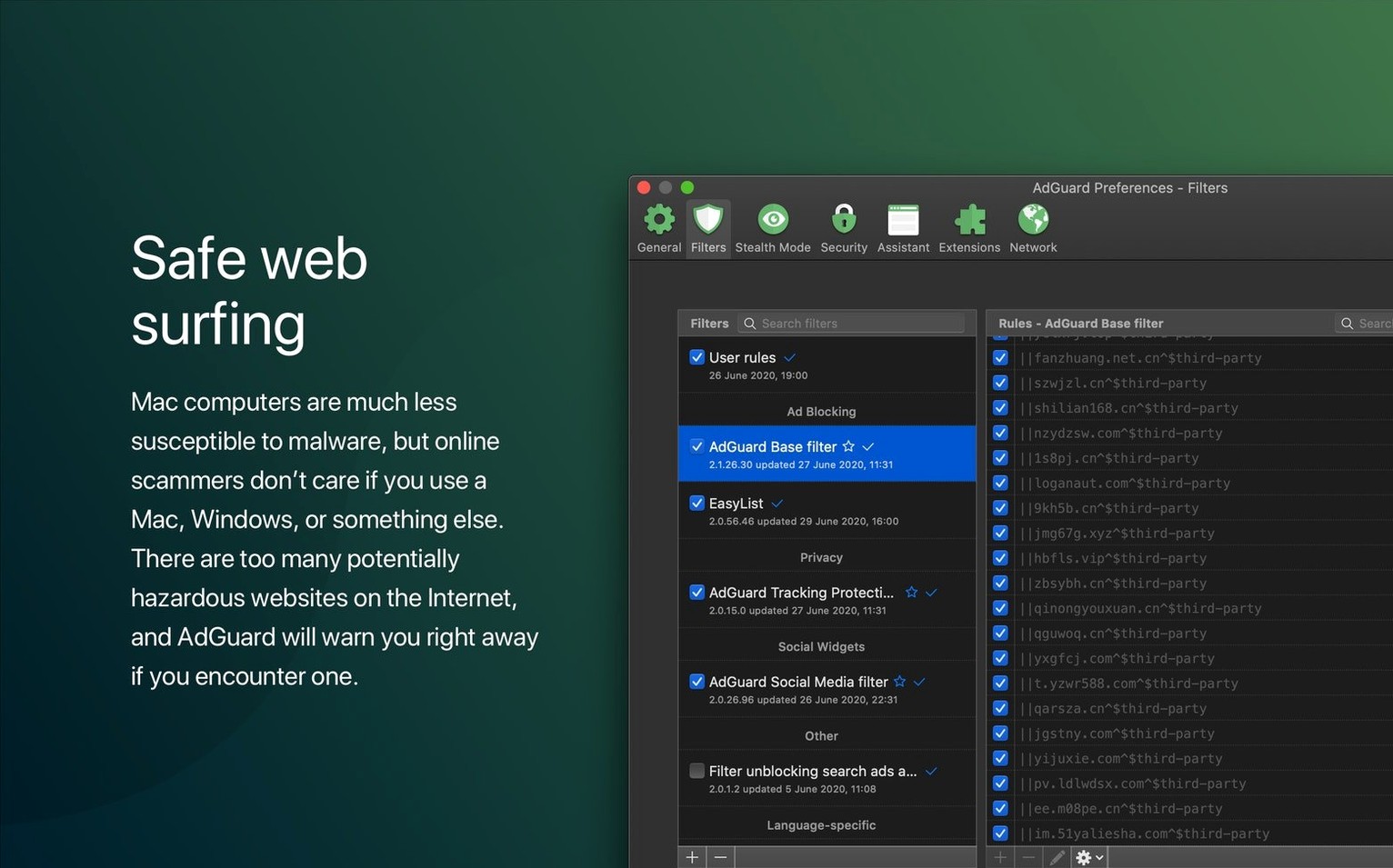
- Catch threats before they reach you. A spyware filter and a website scanner work together to flag dangerous activity and block known malicious domains.
- Keep things simple. The interface is clean and straightforward. Dark mode is there when you need it, and the app runs natively on both Apple Silicon and Intel Macs.
What I'd use it for: peace of mind on a shared family Mac. Set it once, and you've protected every browser every user opens—without fielding questions about pop-ups or strange redirects.
Taming auto-play chaos halfway down a news page
Some sites are fine until you scroll past the third paragraph, then the auto-play videos and inline promos kick in. Here's how I deal with those in AdGuard without blocking the whole page.
- Open the site and let it load normally. You'll see the filter icon in the menu bar showing how many items were blocked on that page. Click it for the quick panel.
- If something slipped through—a newsletter popover, a sticky video—don't close it yet. Right-click the offending element and choose Block element from the AdGuard menu. A selection outline appears as you hover.
- Click the element you want gone. AdGuard shows a preview of what will be blocked and suggests a rule. You can widen the rule to catch similar elements across the site, or keep it narrow if it's a one-off.
- Hit Block. The page refreshes silently and the element is gone. That rule now lives in your User filter, so every visit to that domain stays clean.
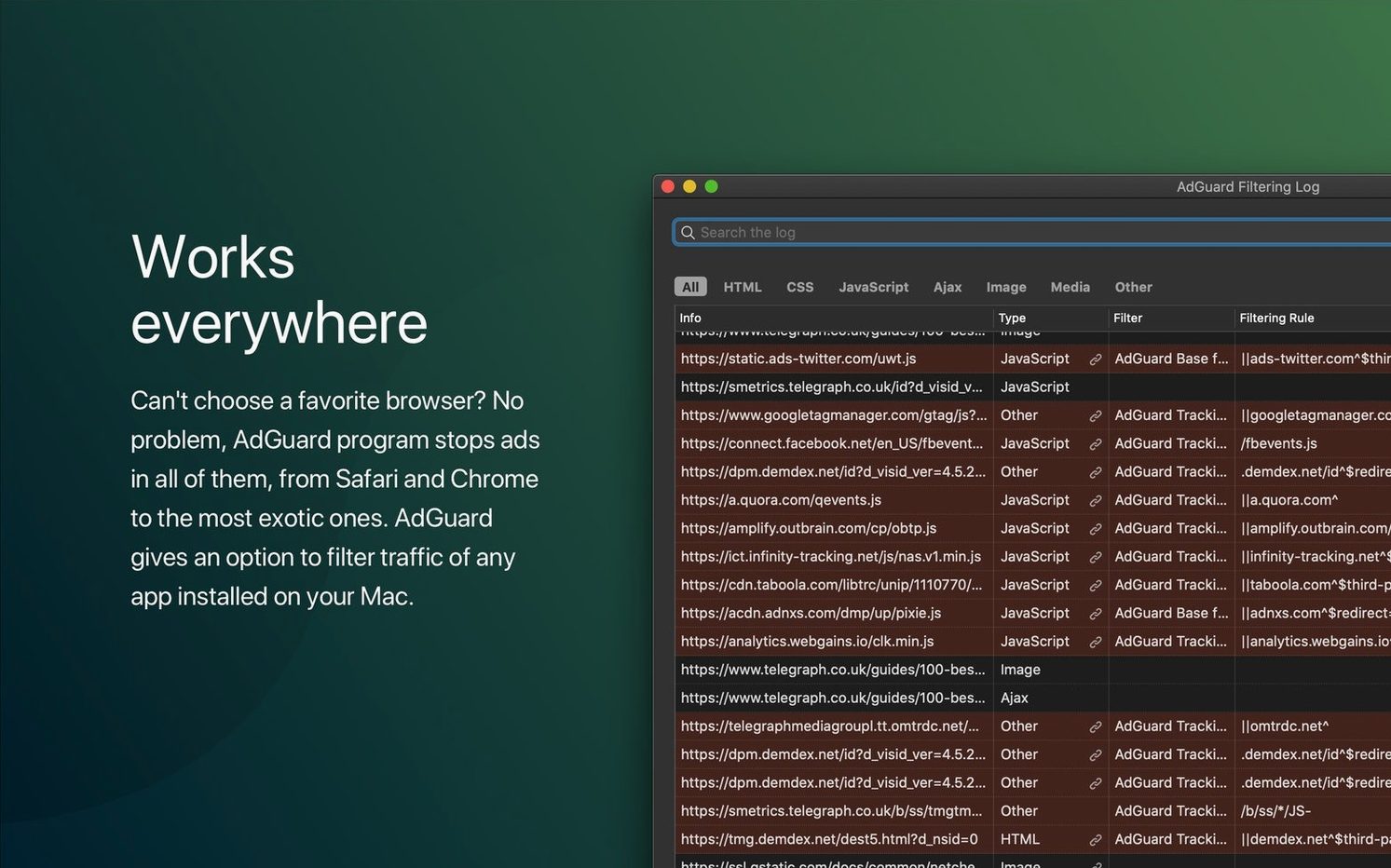
- Check the filtering log (under the AdGuard menu bar icon) a few days later. It shows every request the app handled, which helps you spot tracking domains that piggyback on legitimate content. You can block those with a right-click too.
Tip: when you're blocking elements on a site you visit often, use the preview panel to test the rule on a few different pages before committing. Some sites shuffle CSS classes between visits, and a slightly broader selector saves you from blocking the same thing twice.
A keyboard shortcut for pausing protection I overlooked
AdGuard packs a few shortcuts I didn't notice until I'd been using it for weeks. Nothing essential—just things that make the daily friction disappear.
- Pause filtering from the keyboard. The menu bar icon has a "Pause protection" option, but you can also set a keyboard shortcut in System Preferences. I use
Control-Option-Afor the rare moment a site breaks and I need to check if AdGuard is the cause. One tap, reload the page, done. - Drag-and-drop rule import. Got a custom filter list from a privacy forum? Just drag the text file onto the AdGuard window while the Filters tab is open. The app parses it and adds the rules without any import wizards or dialogs.
- Copy filtered URL. In the filtering log, right-click any blocked request and choose "Copy URL." Useful when you're troubleshooting why a specific resource won't load, or when you want to share a tracking domain with someone.
- Quick toggles for individual filters. The main window groups filters by category—ad blocking, privacy, security, annoyances. You can turn off an entire category with one click, or expand it and disable a single filter. I keep the "AdGuard Annoyances" filter off most days and only enable it when I'm reading recipe blogs.
Another thing: the menu bar icon changes subtly when filtering is paused or when an update is available. It's a tiny colored dot, easy to overlook, but useful once you learn to glance at it.
Switching to custom DNS filtering for a more personal blocklist
Out of the box, AdGuard works well. But three settings make it feel more like your own.
Switch to DNS filtering. By default, the app uses its own DNS resolver for basic ad and tracker blocking, but you can pick a different provider on the DNS Protection tab. I use the AdGuard DNS with "Family protection" to catch adult content alongside ads—handy if the Mac is shared with kids. Other options include Cloudflare for speed, or a custom DNS-over-HTTPS address if you run your own server.
Enable HTTPS filtering for all apps. The preference is under Network → HTTPS filtering. It's on for browsers already, but the checkbox for "Filter HTTPS protocol in applications" is often off. Turn it on and AdGuard can inspect traffic from desktop apps that phone home with tracking data—think electron apps, RSS readers, or weather widgets. The certificate installation takes about ten seconds and the app walks you through it.
Adjust the stealth mode sliders. Stealth Mode lives under the Privacy tab, and it's more granular than the name suggests. You can strip tracking parameters from URLs, spoof your time zone, or disable browser push notifications without touching Safari's preferences. I leave most options on their default, but I always enable "Remove X-Client-Data header from HTTP requests"—it's a Chrome-specific header that sends a hardware fingerprint to Google, and AdGuard strips it silently.
How much RAM the network extension idles at on an M1
I was curious how much overhead a system-wide filter adds, so I kept an eye on Activity Monitor for a few days. The main process, AdGuard Network Extension, idles at around 80 to 120 MB of RAM. On an M1 Mac with 16 GB, that's background noise. CPU use spikes briefly when a heavy page loads—maybe 3 to 5 percent for a second—then drops back near zero. I haven't noticed any browser slowdowns, and page-render times feel the same as with uBlock Origin in Firefox.
Stability has been solid through version 2.18.0.2089. The app survived a macOS point update without re-installing the network extension, which earlier versions sometimes needed. I've had one crash in about three weeks of daily use, and it was during a rapid filter-list refresh while I had twenty tabs open across two browsers. The app reopened itself and resumed filtering within seconds.
A note on memory if you're using an older Intel Mac with 8 GB of RAM: the filtering engine can push toward 200 MB when you're browsing image-heavy sites with lots of third-party scripts. It's not a dealbreaker, but you'll notice it if you're already tight on memory. Turning off HTTPS filtering for applications (the checkbox mentioned above) trims about 30 to 40 MB in my casual testing.
If you're looking for an adguard osx solution that doesn't bog down during long sessions, this one holds up. I've seen questions about Adguard Mac torrent downloads floating around, and if you go that route, just verify the filter update service is enabled so it keeps blocking properly. Same goes for anyone searching Adguard torrent or Adguard crack Mac—the real thing updates its filters silently and doesn't trip macOS security warnings. An Adguard cracked Mac build can work well if you manually refresh the filter subscriptions now and then to keep the system-level blocking effective.
AdGuard just pushed out version 2.20.2.2629 for the Mac. The detailed changelog lives on their official site, so head there if you want the full list of what's been tightened up under the hood.
- macOS 10.15 (Catalina) or later
- Apple Silicon and Intel 64‑bit Macs
Questions from the stall
Does AdGuard work with all browsers on my Mac?
Yes, it filters traffic at the system level, so it works with Safari, Chrome, Firefox, and any other browser you use.
What does the spyware filter do?
It blocks requests to known spyware and tracking domains, preventing malicious or nosy scripts from gathering your data.
Is there a simpler version of AdGuard for Mac?
AdGuard Mini for Mac is a lighter, separate app from the same developer that focuses on Safari content blocking.
Notes from other shops 0
Sign in or open a shop account to leave a note.
No notes yet. If you've used this on a shop Mac, tell me how it went.