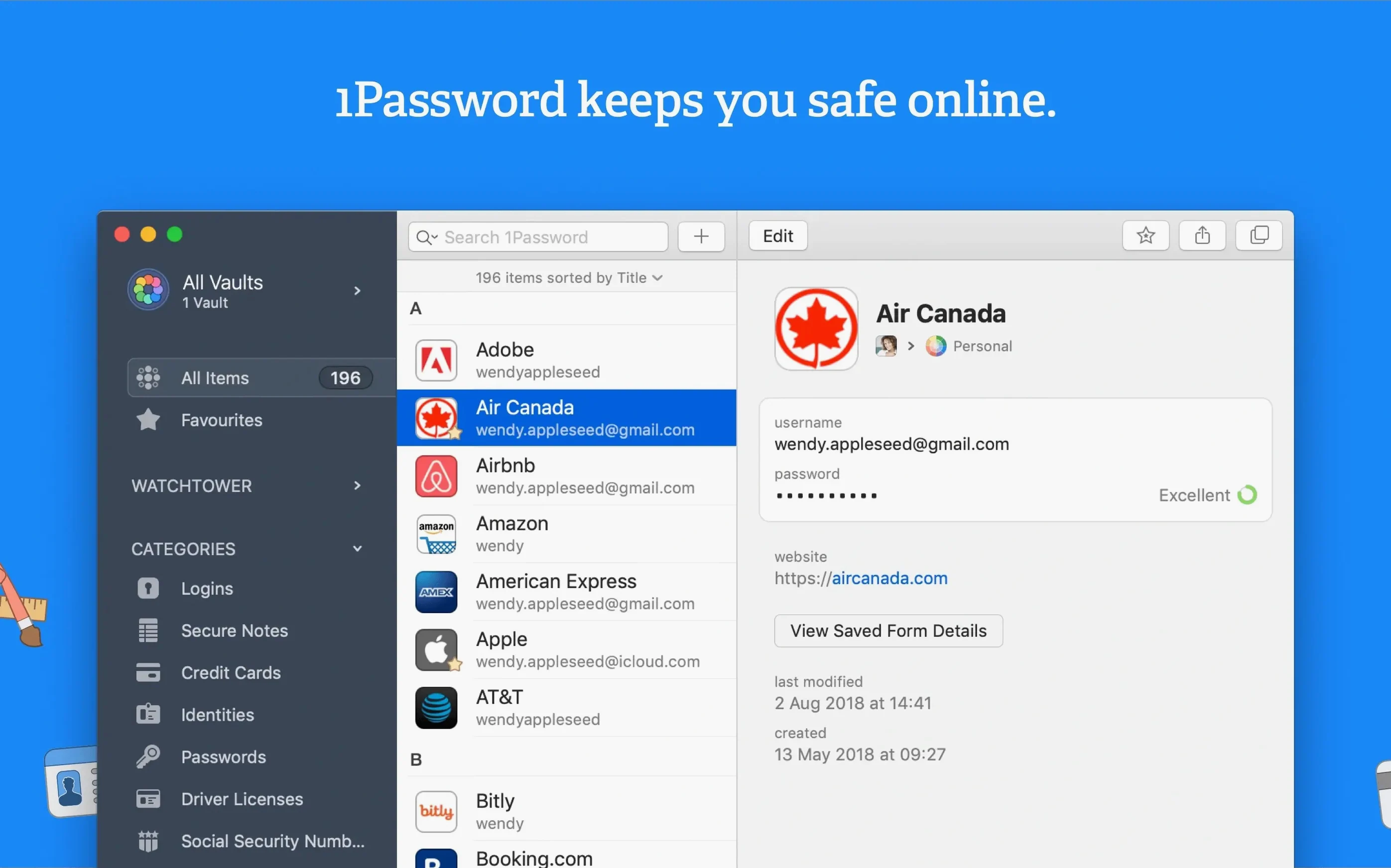
Runs on any Mac with macOS 10.12 (Sierra) or newer and an Intel processor — so even my aging shop iMac keeps up just fine. 1Password is a place to keep every login, card number, and secure note you’d rather not store in a spreadsheet.
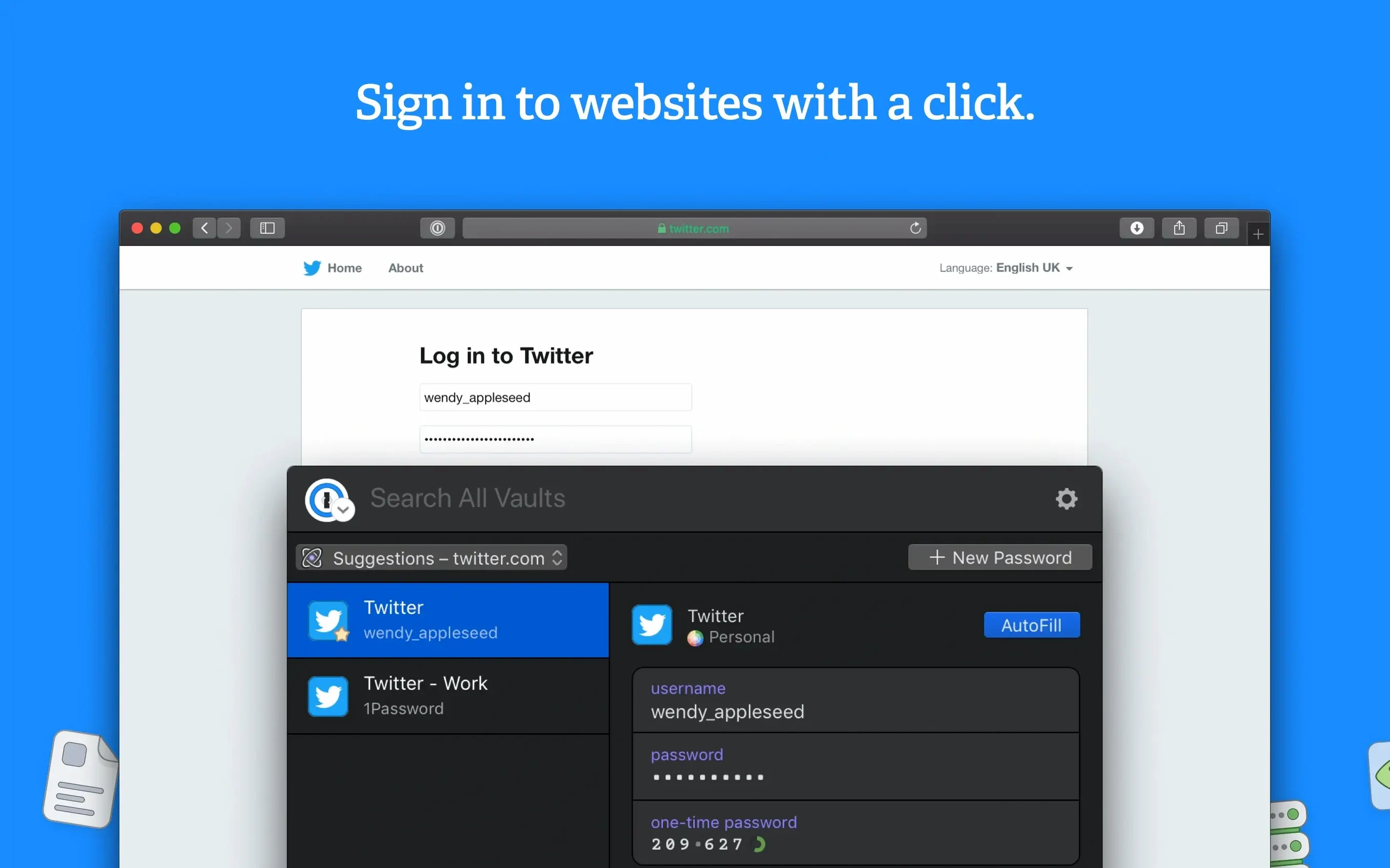
- Saves usernames and passwords right when you sign in — no copying and pasting.
- Fills entire forms with one click, which cuts down on typing mistakes.
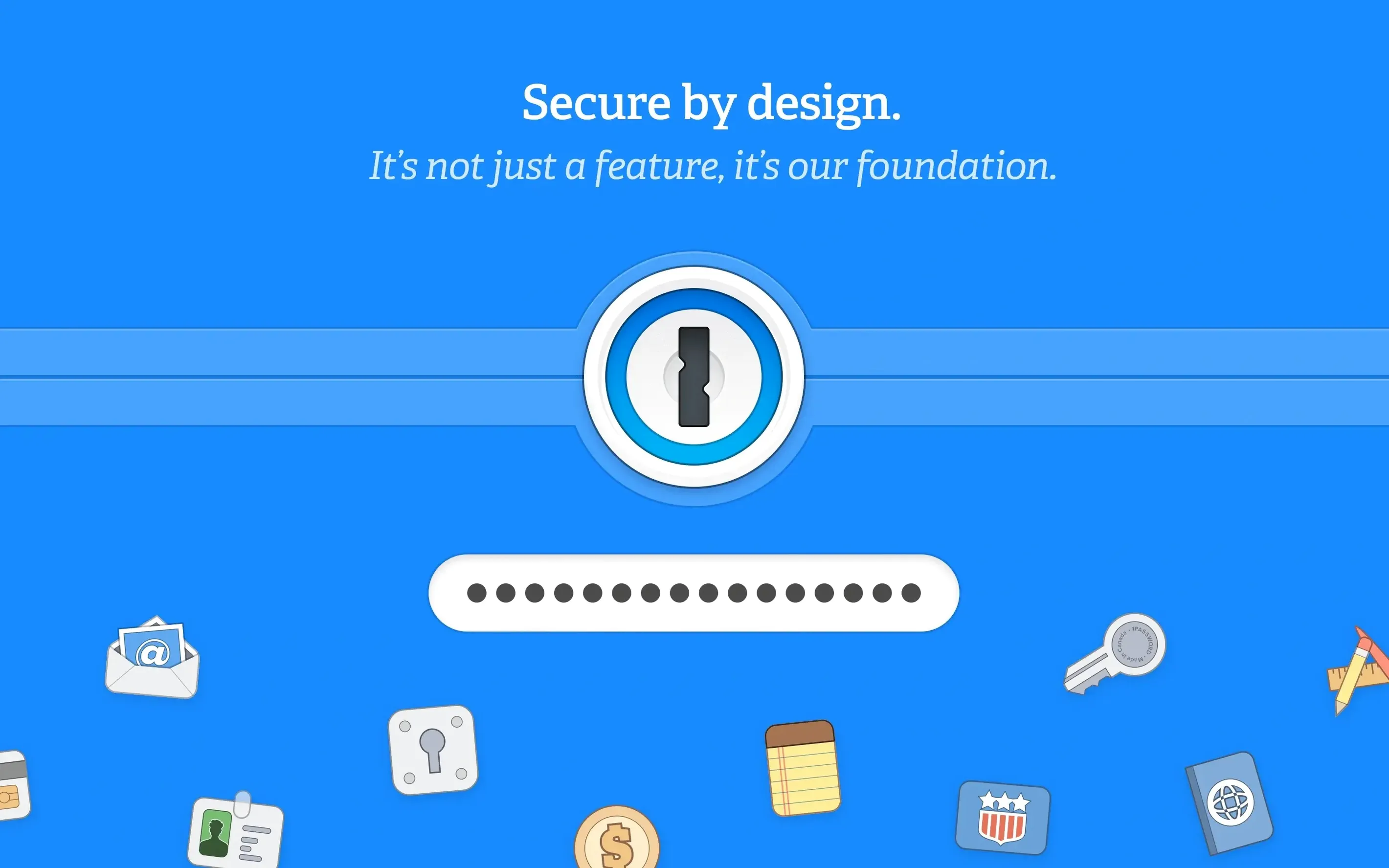
- Locks everything behind a master password only you know.
- Watchtower flags weak, reused, or compromised passwords, plus sites that lack two-factor authentication.
- Holds financial data and sensitive notes, not just logins.
- Speaks 19 interface languages — handy if you share a family machine.
It’s the kind of tool that quietly removes friction from a dozen small tasks every day, and the security checks help you tidy up accounts you forgot about.
Browser extension bridges Safari, Chrome, and Firefox logins
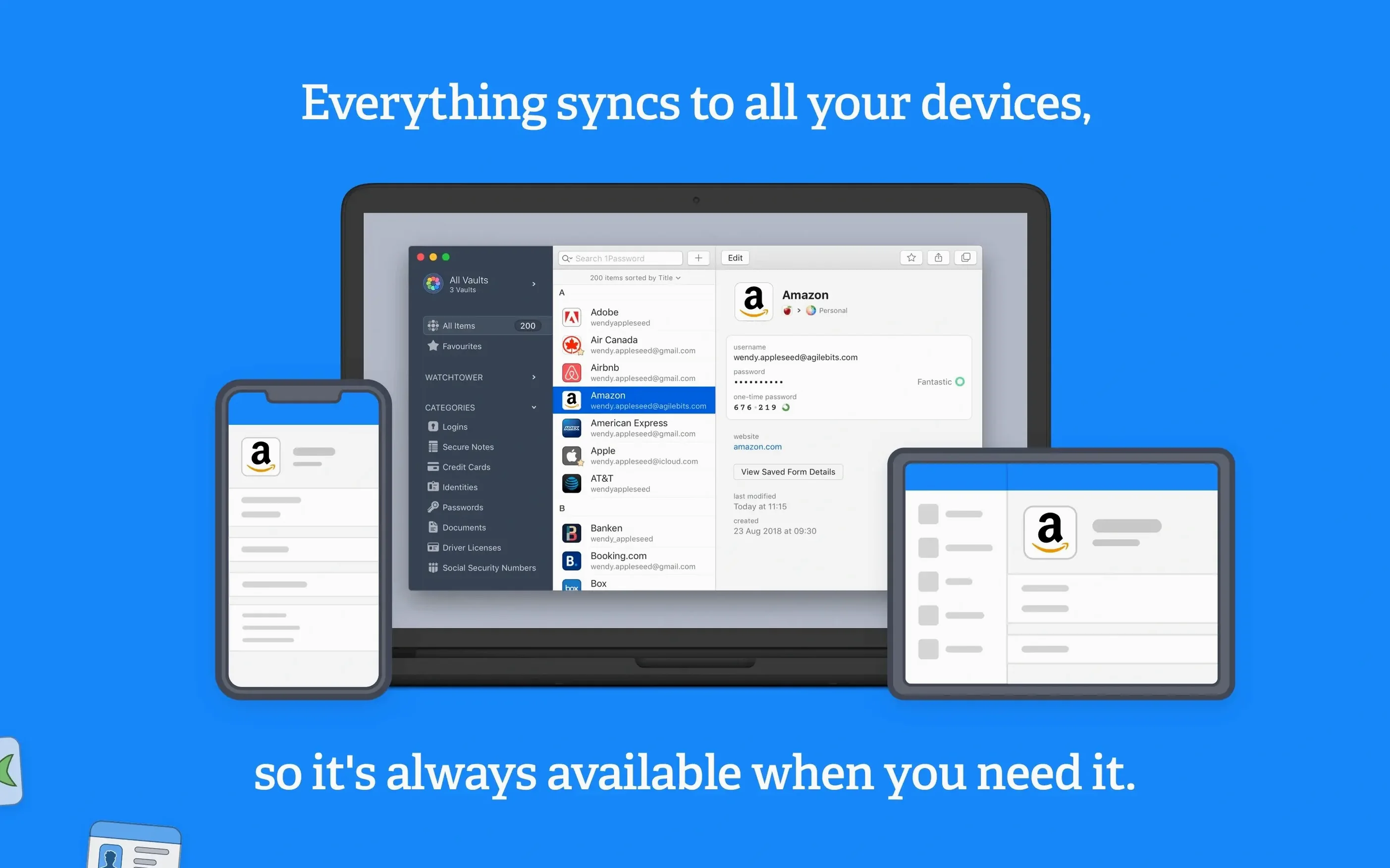
1Password doesn't live in a bubble. The browser extension talks to Safari, Firefox, Chrome, and Brave, so the login you saved on your MacBook shows up on your iMac without any extra steps — provided both vaults sync through the same account. The system-wide Quick Access bar (summoned with a keyboard shortcut you can set in Preferences) floats over any app, which means you can pull a server password into Transmit or a license key into an email without opening the main window.
On the macOS side, it hooks into a few spots you might not notice at first. The menubar icon sits there whether your browser is open or not, and it can lock and unlock the vault independently. If you use Spotlight, 1Password items won't show up — that's by design, and it's the right call. But you can drag entries out of the app into other windows, and the drag creates a plain-text copy only if you hold the Option key, which I appreciate every time I almost leak a password into a chat window.
What I'd use it for: pairing it with Apple's Keychain Access for a belt-and-suspenders setup. I let iCloud Keychain handle Wi‑Fi passwords and Safari autofill for casual browsing, while 1Password stores banking logins, software licenses, and the kind of credentials I'd be in real trouble without.
Standalone vault without a subscription landed in version 7
The jump to version 7 brought a proper standalone vault architecture that didn't require a subscription to function — something a lot of small-shop owners I know specifically wanted. 1Password 7.9.4, the build I've got here, tightened up a few Watchtower checks that were giving false positives on sites that had recently fixed their certificate chains. Earlier 7.x releases would sometimes flag a site as "unencrypted HTTP" when the redirect to HTTPS was merely slow; the later builds got smarter about that.
Another quiet improvement: the duplicate-item detection became more forgiving about slightly different URLs saved for the same service. Running the "1Password duplicate item" cleanup used to list near-copies that were actually intentional — like staging vs production logins for the same domain. The refined matching logic in later 7.x releases groups those more sensibly, so you spend less time squinting at lists and second-guessing your own naming.
The extension handoff between the main app and browsers also got less brittle. Older versions occasionally lost their connection after a macOS security update and required a full browser restart. In 7.9.4, that reconnection is faster and usually just needs a quick toggle of the extension off and on again.
Fix the “couldn’t connect to helper” browser error
The most frequent headache I see mentioned: the browser extension reports "1Password couldn't connect to the helper." Nine times out of ten, the mini app in the menubar is running but the main app has been quit. Opening the full 1Password app once usually restores the link. If it doesn't, check that "Keep 1Password mini running in the menu bar" is ticked in Preferences > General — this one checkbox trips up more people than it should.
Another snag: after a macOS upgrade, the app sometimes asks for the master password far more often than before. That's usually because the system-level keychain permissions reset, and 1Password can no longer store a small unlock token there. The fix is to open Keychain Access, delete any old 1Password entries (they'll be labelled under the app's name), then re-enter your master password and let the app create fresh ones.
If you've downloaded the app from outside the Mac App Store — say you grabbed a "1password mac download" from the developer's site or a trusted archive — and macOS blocks it with a Gatekeeper warning, right-click the installer and pick Open from the shortcut menu. The standard double-click won't offer the override button. This catches beginners constantly, especially on macOS Catalina and later where the security prompts are less explicit about the workaround.
A rarer one: vaults that refuse to sync and sit there with a spinning indicator. Disabling and re-enabling the sync method (iCloud, Dropbox, or the 1Password account) usually kicks it back into gear. Just make sure you've got a local backup of your vault first — exporting an unencrypted copy from File > Export is your safety net before you touch sync settings.
Reusing an old master password unlocks the whole vault
The biggest one I've spotted among friends who are new to it: using the same master password they've used elsewhere. The master password is the single key to everything in the vault. If it's been in a breach, or if it's the same as their email login, the whole setup unravels. A short phrase with a number and a separator — something you can remember but nobody would guess — works better than a complex string you'll forget by next Tuesday.
Another early mistake: ignoring the "1Password duplicate item" suggestions for months, then bulk-deleting everything the tool flags without checking. Some of those duplicates are intentional — same bank, different account type, different answers to security questions. Clean them up manually, and only zap the ones you're certain are dead.
Beginners also tend to save everything as a Login when a Credit Card or Secure Note item type would do the job better. The credit card type auto-formats the number and expiration fields, and it won't accidentally get filled into a username field on the wrong site. Secure Notes can hold software keys, router passwords, and door codes without the app expecting a URL to match against.
Tip: turn on Watchtower notifications in Preferences early. The dashboard is useful, but the small nudge that says "three of your passwords showed up in a breach" is what actually makes you act on it.
- macOS 10.12 or newer
- Intel 64-bit processor
Questions from the stall
Can 1Password check for duplicate items?
Yes — Watchtower looks for reused passwords across your saved logins so you can spot duplicates and update them.
Notes from other shops 0
Sign in or open a shop account to leave a note.
No notes yet. If you've used this on a shop Mac, tell me how it went.