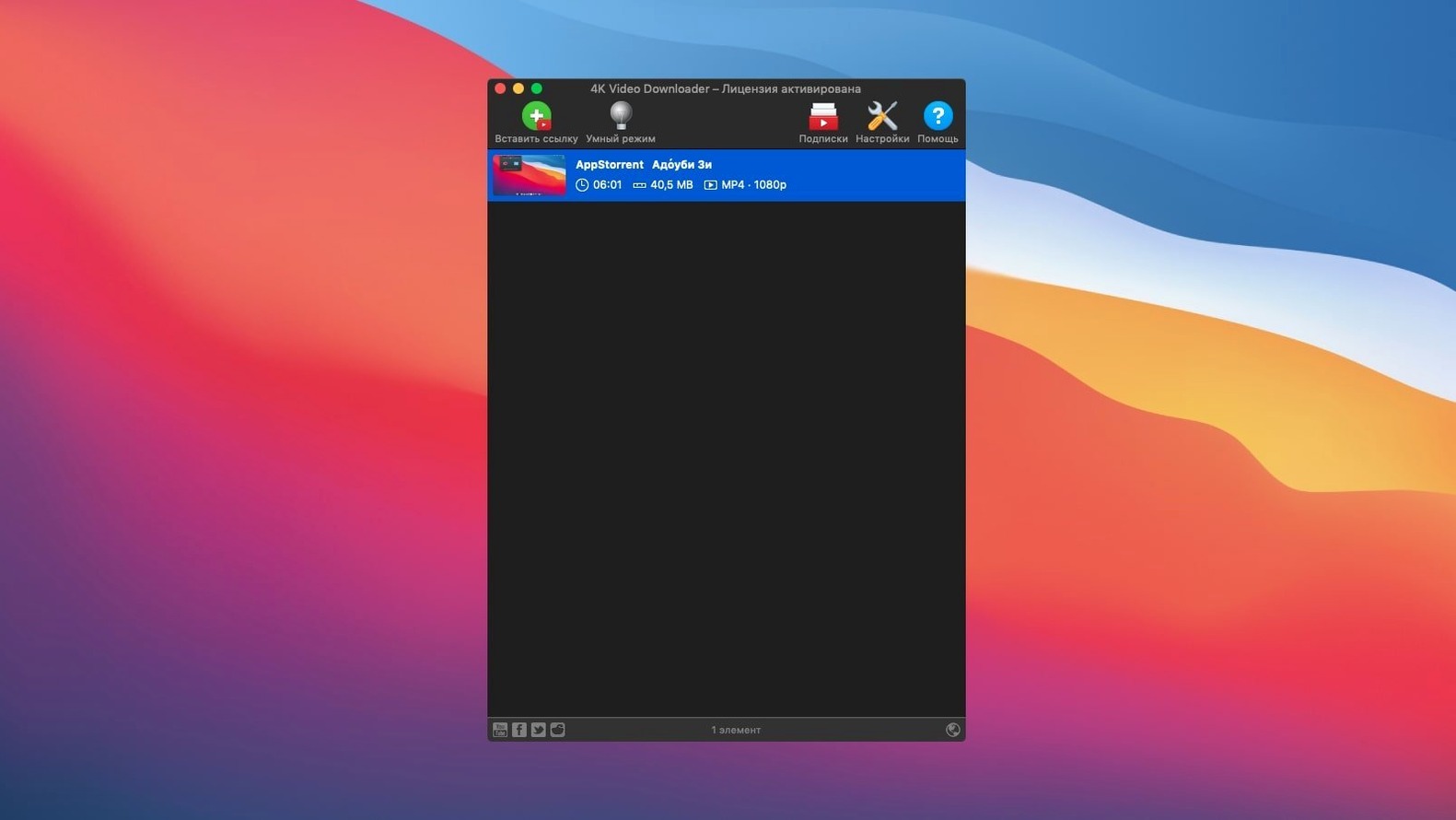
People who teach online courses, run event nights, or just want a flight-friendly copy of a playlist tend to keep 4K Video Downloader in their dock. It's a straightforward Mac app for pulling videos, audio, and subtitles from a handful of major sites.
A quiet update that keeps your downloads flowing
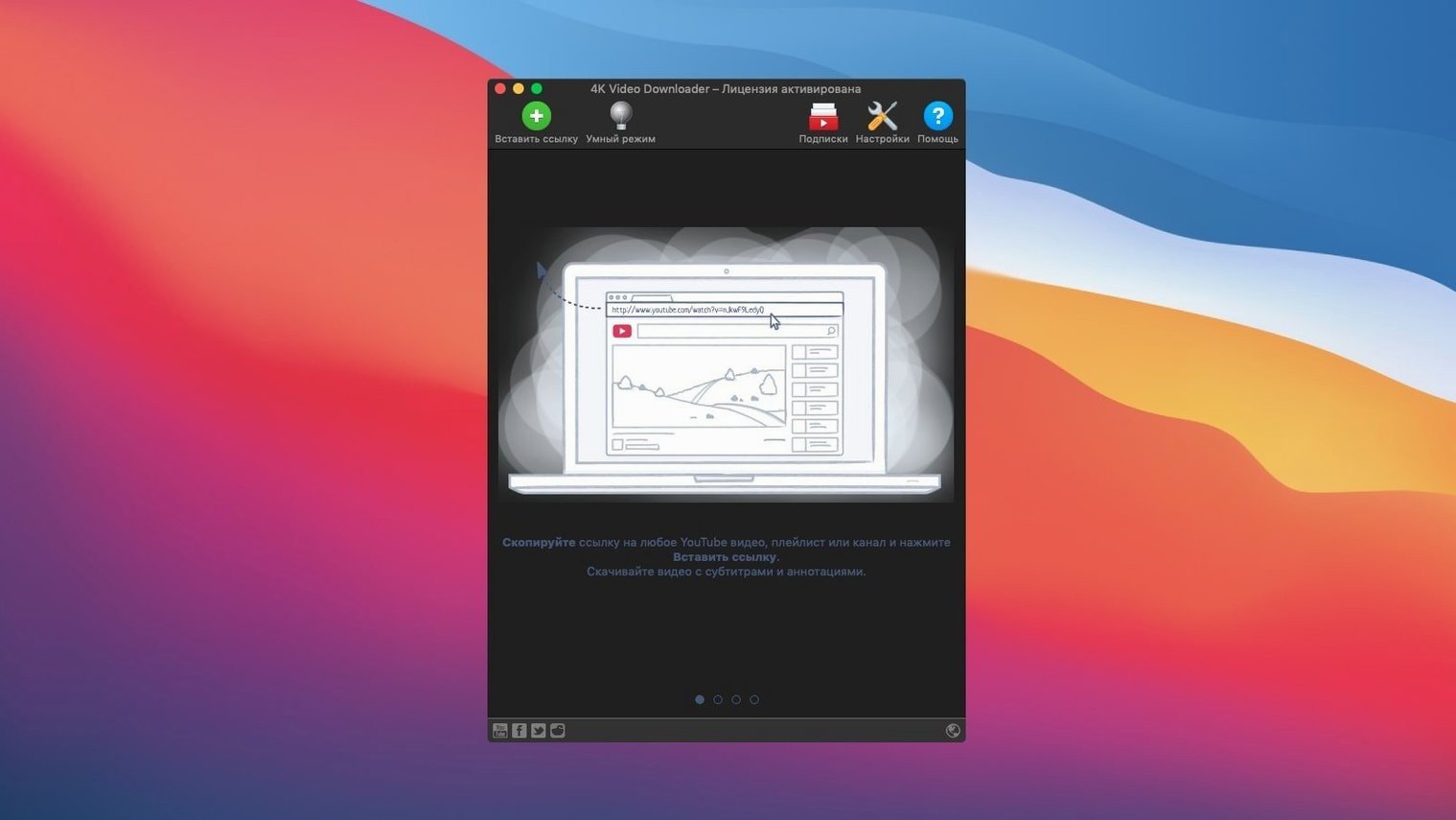
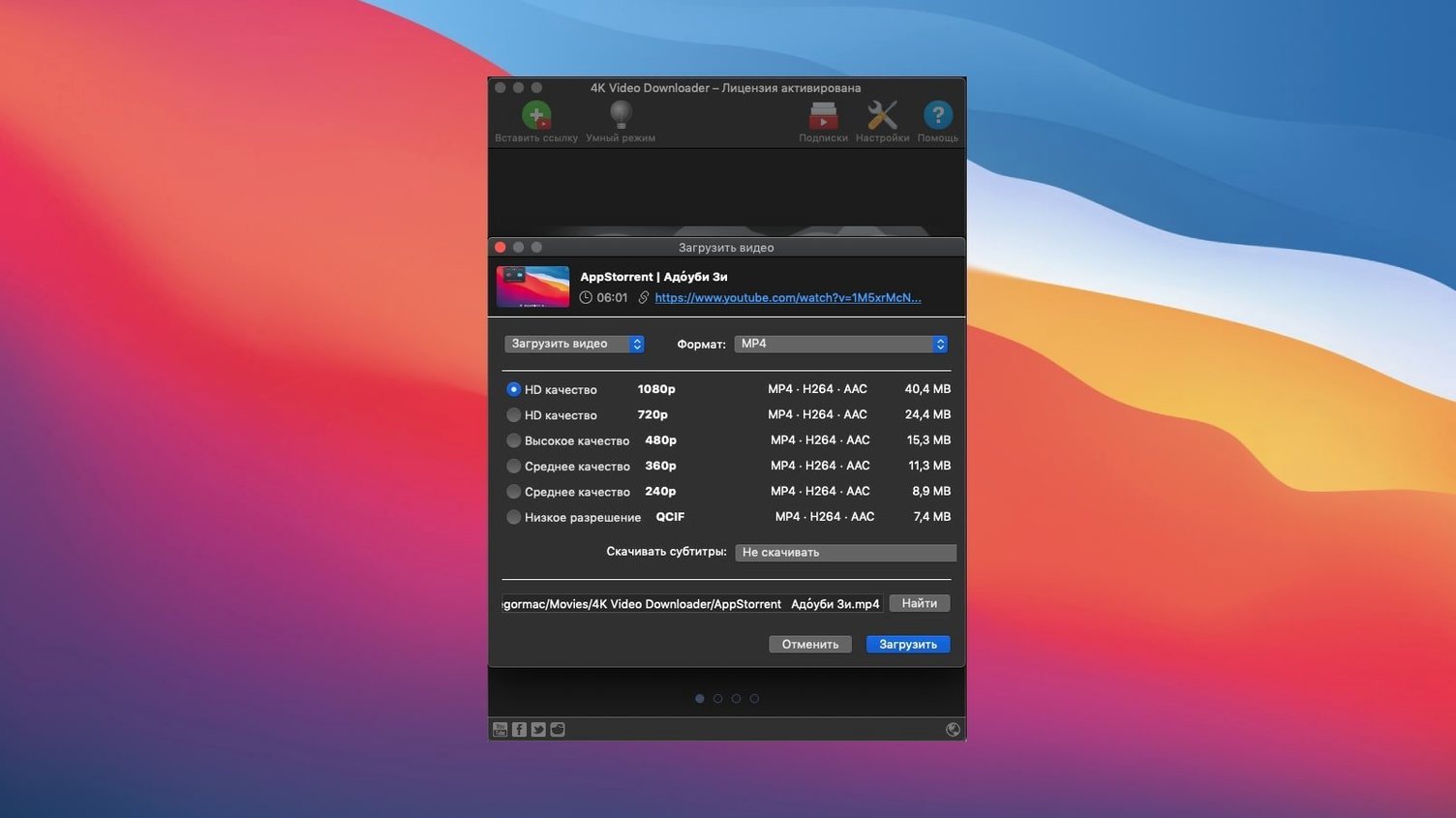
Version 26.3.5 is a stability and compatibility update — no new buttons to learn, no feature list reshuffled. The download workflow stays the same: copy a link, paste it into the app, pick a format. It still builds M3U files for playlists, which is handy if you download a whole channel and want to play it back in order later. Subtitle support remains flexible too; you can pull them as a standalone SRT file or have them embedded inside the video, whatever suits your editing setup better.
Grabbing playlists, channels, and audio from 10+ sites
All the core capabilities are still here. You can save full YouTube playlists and channels, grab embedded YouTube videos from regular web pages, and pull audio from SoundCloud. The supported sites list includes Vimeo, Flickr, Facebook, DailyMotion, and Instagram. Output formats cover the practical spread — MP4, MKV, M4A, MP3, FLV, and 3G — so you can target a video editor, a media player, or an audio-only library without converting again. The app runs on Intel Macs from macOS 12 upward and speaks sixteen interface languages. If your routine is "save it now, watch it later," the current build does what you'd expect without fuss.
The download step that hands files off to your Mac apps
4K Video Downloader doesn't try to be a media library or a player — it does one job and hands off cleanly to the apps you already use. I see it as the quiet middle step between a browser tab and Finder.
For video work, downloaded MP4 or MKV files drop right into Final Cut Pro, DaVinci Resolve, or iMovie without re-wrapping. If you pull subtitles as a separate SRT, apps like HandBrake or Subler can soft-embed them later with timing intact. The M3U playlist files the app generates are plain text, so VLC, IINA, or Elmedia Player read them instantly — useful when you download a whole channel and want to queue it up for an offline evening.
On the audio side, M4A and MP3 files land in your Music app or a folder that DJ software like djay or Serato watches. The clipboard integration plays nicely with macOS too: copy a link in Safari or Firefox, and Paste URL inside the app picks it up without dragging windows around. It's not a flashy ecosystem play, just a tool that fits between the browser and whatever comes next.
ClipGrab does search, Downie does one-click — here's where this fits
There are a few other downloaders that overlap with this one, and they each lean a slightly different direction.
ClipGrab is lighter and free, with a single-window interface and a built-in search field. It handles YouTube and Vimeo well, but it doesn't do full channel downloads or generate M3U files. If you grab one video at a time and never touch playlists, it's enough. If you archive whole channels or need subtitles pulled automatically, 4K Video Downloader pulls ahead.
Downie supports a much wider range of sites — hundreds — and feels more Mac-native in its design. It does playlists and subtitles too. The trade-off is complexity: Downie's per-site extractors update frequently, and sometimes that means waiting for a patch when a site changes. 4K Video Downloader supports fewer platforms but tends to be less finicky with YouTube specifically, which is where most people spend their download time.
JDownloader is the power-user option. It handles almost anything with a URL, including file lockers and captchas. It's also Java-based, heavy on system resources, and overkill if your needs stop at YouTube, Vimeo, and SoundCloud. For a focused Mac app that doesn't require a whole runtime, 4K Video Downloader stays leaner.
1080p lands at full speed without pinning the CPU
On an Intel MacBook Pro from a few years back, a 1080p video lands about as fast as the connection allows — I didn't measure artificial throttling, and the app doesn't peg the CPU during downloads. The work happens in short bursts: parsing the link, then streaming the file to disk. Memory use sits modestly, typically under 200 MB even with a queue of twenty videos lined up.
Playlist and channel downloads are where patience matters. The app fetches metadata for each item before the download starts, so a 50-video channel can take a minute of scanning before the first file begins. After that, it churns through steadily. I haven't seen failed downloads cascade into a stuck queue — if one video errors out, the rest keep moving, and the log shows what tripped.
Stability under macOS 12 and later is solid. The app doesn't spawn background processes after quitting, and it handles sleep/wake cycles without corrupting in-progress downloads. One quirk: pasting a very long playlist URL while Smart Mode is active can freeze the interface for a few seconds while it parses. It recovers, but it's worth knowing if you batch-paste a hundred links at once.
Switch from MP4 best-quality to a daily-work setup
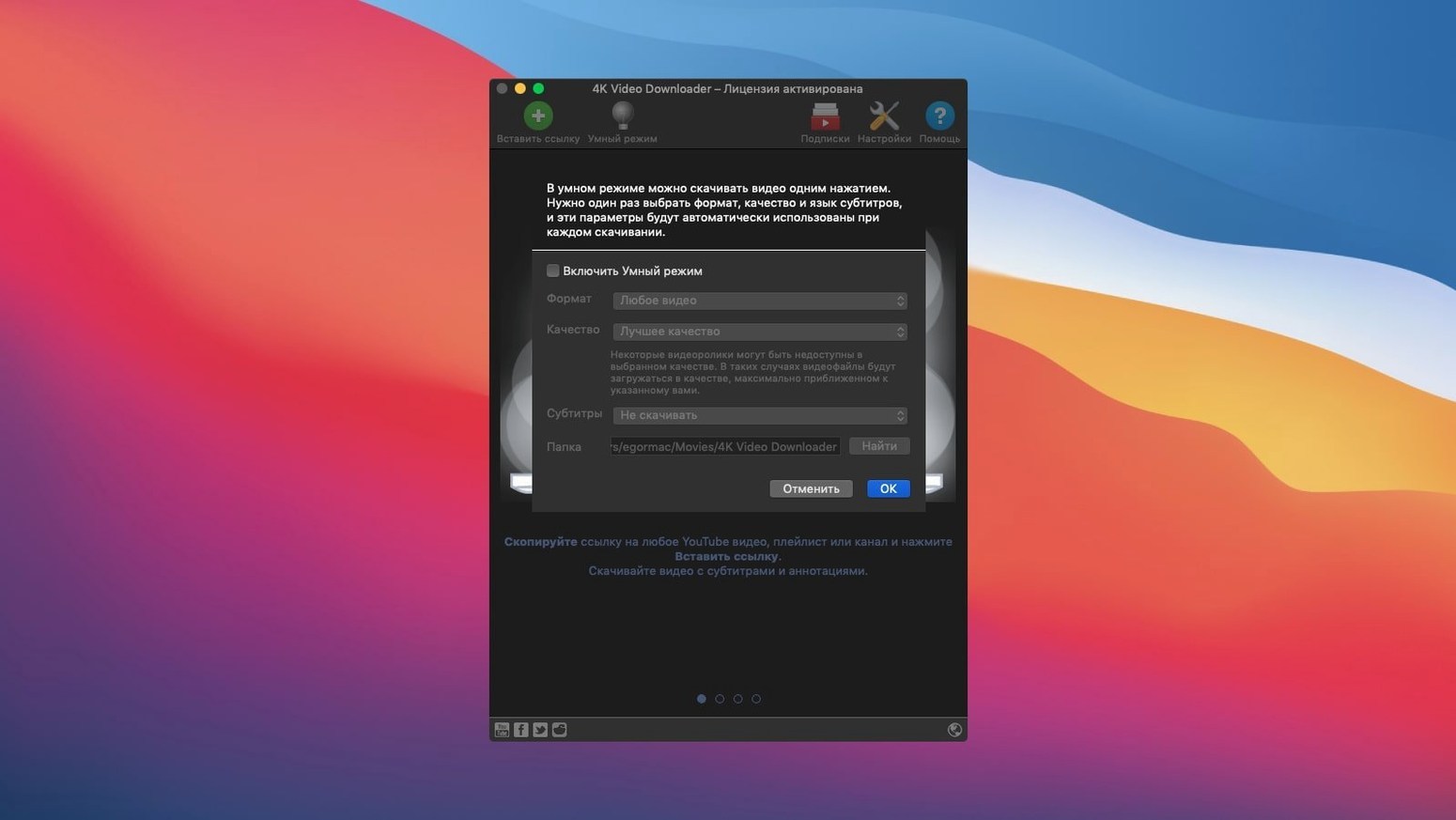
Out of the box, the defaults are sensible for casual use — MP4 at best quality, no subtitle download, output to a "4K Video Downloader" folder in Movies. A few quick changes make it fit daily work better.
- Turn on Smart Mode early. It's a toggle that locks your format, quality, and output folder across every download. Set it to M4A if you treat the app as a podcast grabber; set it to MKV with embedded subtitles if you archive talks or lectures. You can still override it per-link, but having a default saves clicks.
- Change the output folder to something synced or watched. Point it at a folder your media server scans, or an iCloud Drive folder if you want downloads available across devices. The default Movies folder works but isolates downloads from the rest of your library.
- Decide on subtitle handling. "Embed subtitles in video" keeps everything in one file, which is tidier for playback. "Download as separate SRT" is better if you edit captions later or use them in a different project. There's no wrong choice, but switching mid-session can leave you with a mix of both styles.
- Check the clipboard monitor preference. It can auto-detect copied links and pop up a download prompt. Some people love it; others find it intrusive when copying YouTube links for other reasons. Try it for a day and see which camp you fall into.
Tip: If you download music from SoundCloud or YouTube playlists, set Smart Mode to M4A at 256kbps before you start. The app remembers it, and you won't need to re-encode later for a phone or iPod.
- macOS 12 or newer
- Intel processor
Notes from other shops 0
Sign in or open a shop account to leave a note.
No notes yet. If you've used this on a shop Mac, tell me how it went.