Smart Mode skips the format picker
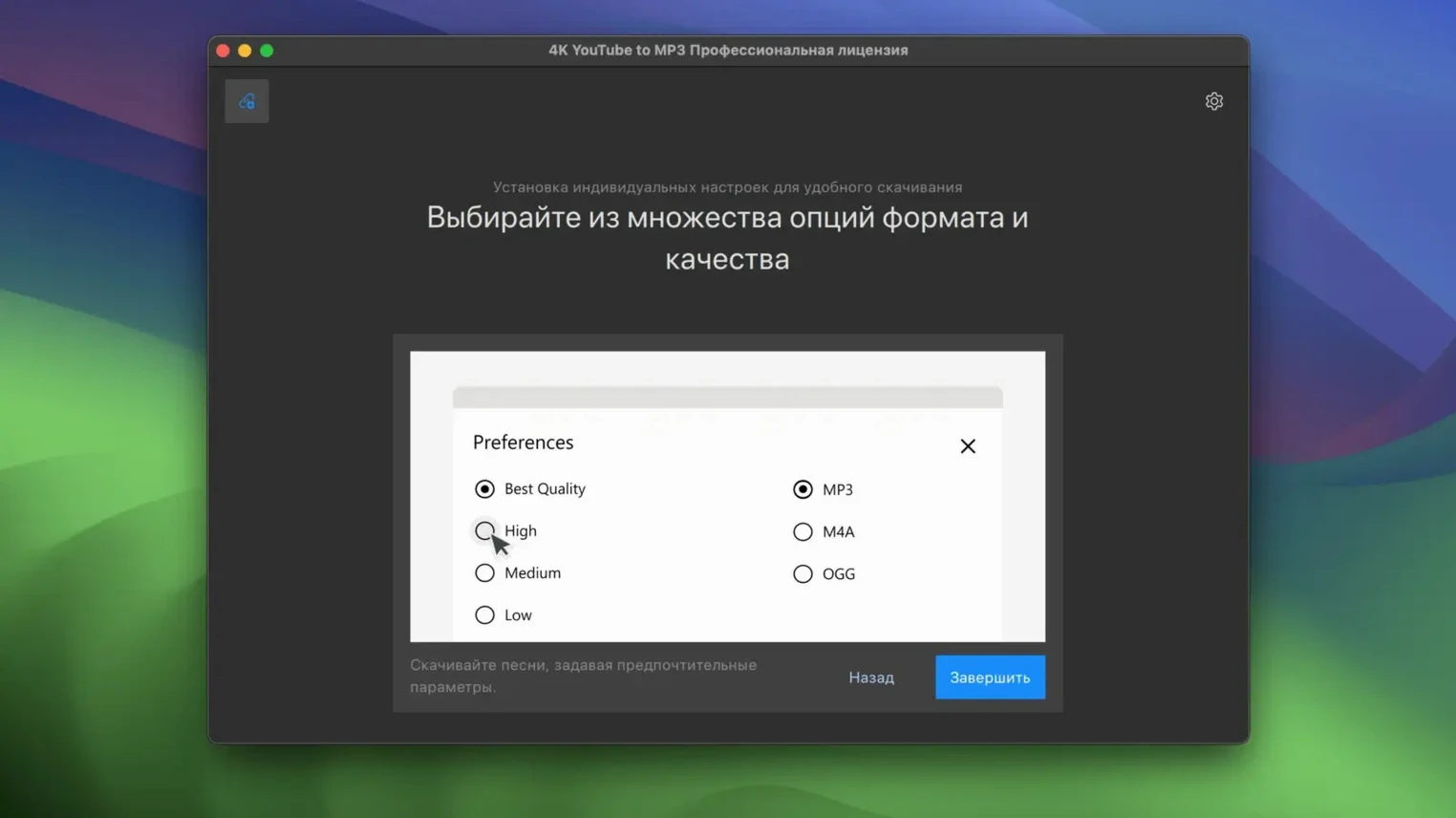
Turn on Smart Mode once, and every download after that lands as your chosen audio format — no more clicking through dialog boxes for each track. It remembers MP3 at 320kbps or whatever you set, so a batch of SoundCloud links converts with the same settings automatically.
Parses full playlists in one go
Paste a playlist URL and the app pulls every track name into a clean list. You pick which ones to grab, and it works through them while you handle other things — handy for grabbing a live set or a lecture series as separate audio files.
Multi-source extraction beyond YouTube
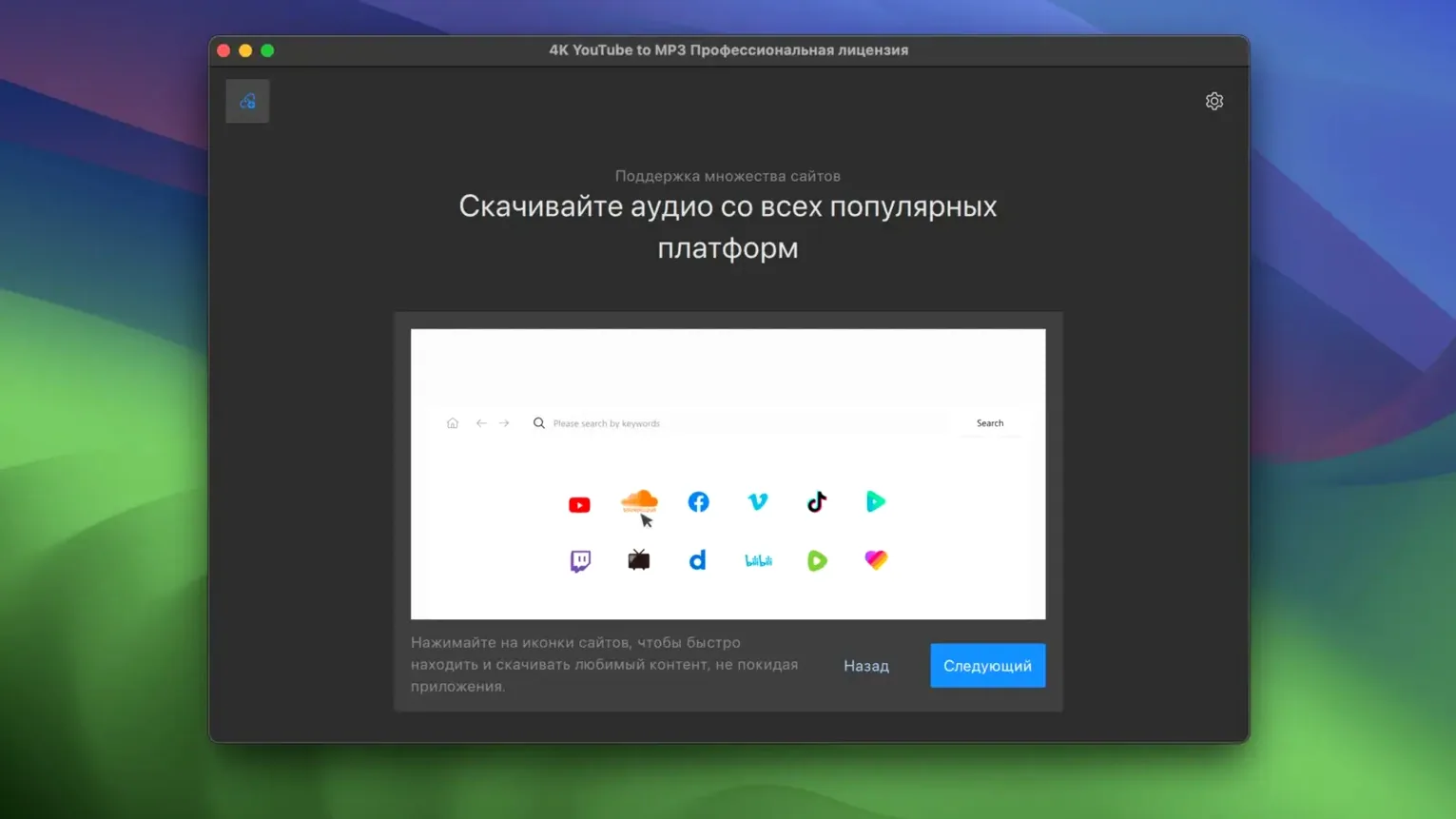
VEVO music videos, SoundCloud uploads, and Facebook clips all work the same way. The converter treats each source as an audio opportunity, not just a video link, so your music library and field recordings collection grow from wherever you find sound worth keeping.
A real-life workflow: building a road-trip playlist from scattered sources
Say you're putting together a few hours of offline audio for a long drive — some tracks from a YouTube music channel, a live acoustic set on SoundCloud, and a couple of VEVO videos where the official audio just sounds better. Doing this one link at a time with manual format picks would take half the morning. Instead, the whole job fits into about four minutes.
The steps go like this:
- Set Smart Mode. Open preferences, pick MP3 at 320kbps, and turn Smart Mode on. That's your format locked in for everything that follows.
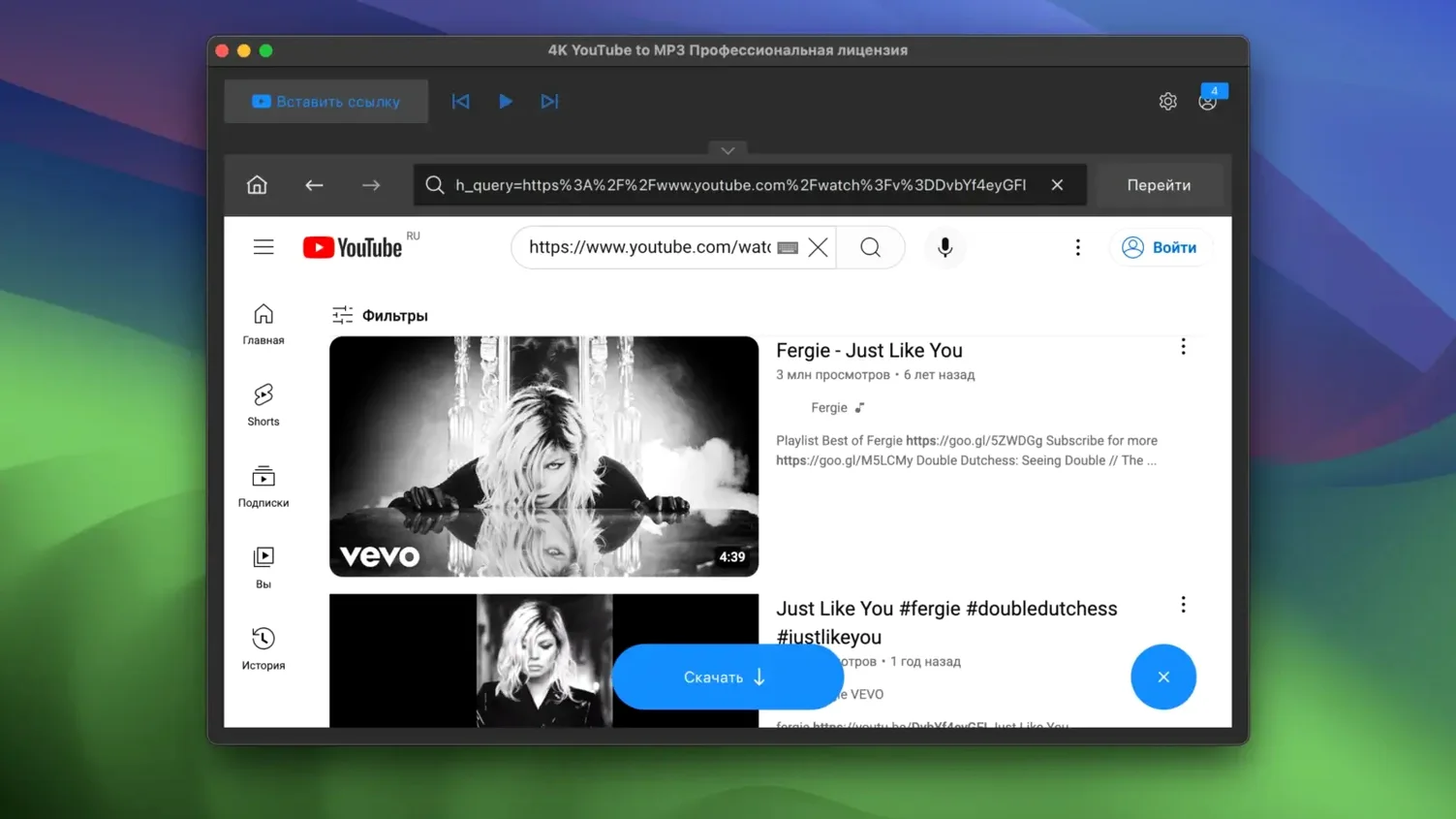
- Grab the playlist first. Paste the YouTube playlist URL into the main window. The app pulls in every track title. Untick the two you don't need, leave the rest checked.
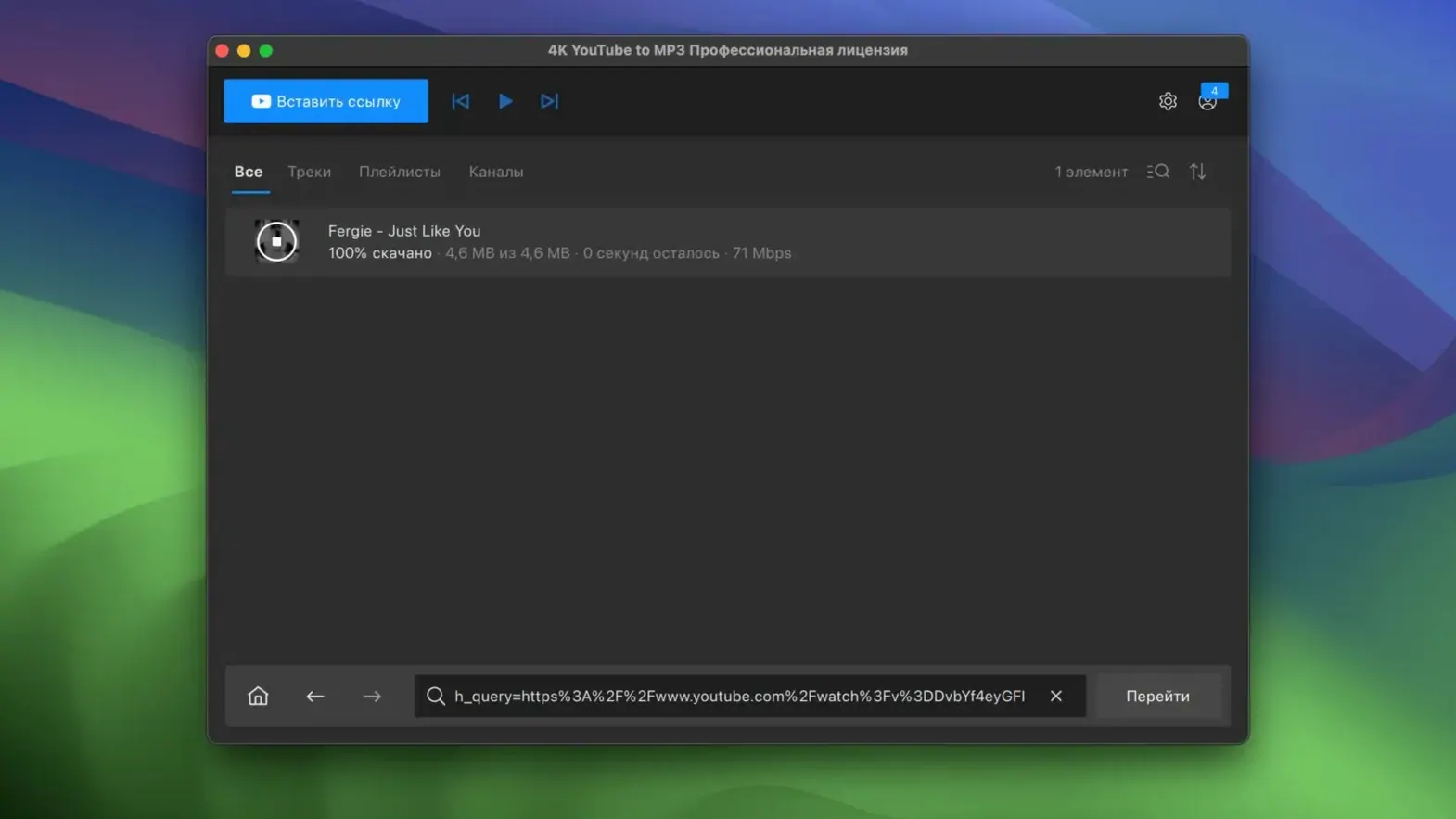
- Queue the SoundCloud set. Copy the SoundCloud link and paste it while the playlist is still downloading. It joins the queue without interrupting anything.
- Add the VEVO singles last. Paste two VEVO links — these are individual tracks, no playlist to parse. They slot into the queue and convert in the same batch.
- Check the destination folder. By default everything lands in the Music folder inside a
4K YouTube to MP3subfolder. All files are named and tagged, ready to drag onto a phone or USB stick.
The real time-saver is that you don't touch a format dialog once. Smart Mode handles the output, the queue handles the order, and you spend those minutes checking track lengths instead of babysitting conversions.
Paste links without clicking the URL field
A few features sit quietly in the interface without calling attention to themselves. Once you know they're there, you'll use them regularly.
- Paste and auto-parse. You can paste a link from your clipboard without clicking into the URL field — the app watches for a valid YouTube or SoundCloud link and starts parsing immediately. On busy days when you're copying links from a browser, this removes a click every time.
- Right-click track splitting. Inside a parsed playlist, right-click any track and choose "Remove" to skip it before download begins. It's faster than unchecking tiny boxes, especially on a trackpad.
- Drag-and-drop links. Instead of pasting, you can drag a URL straight from Safari's address bar into the app window. It feels natural after the first try and works for single links or playlist URLs.
- Format indicator in the status bar. The bottom edge of the window shows your current Smart Mode format at a glance — small text, easy to ignore, but reassuring when you're downloading a mix of sources and want to confirm you're not accidentally set to OGG.
These aren't headline features, but they're the kind of thing that makes the difference between an app you tolerate and one you reach for without thinking.
Three friction points and their fixes
Even straightforward software has its friction points. Here are three things people bump into with 4k youtube to mp3 and what to do about them.
Playlist parsing stops partway through
A long playlist — say, 80 tracks — sometimes shows only the first 20 or 30. This usually means a slow network connection timed out during the metadata fetch. The fix is simple: paste the playlist again on a more stable connection, or use a shorter segment of the playlist by copying the URL from a specific video within it. The app treats that as a starting point and parses from there forward.
Facebook video links return "unsupported"
Not every Facebook video plays nicely with extraction, especially private or age-restricted posts. If a public video fails, check that the link is the full desktop URL (not a fb.watch shortened link — those redirect in ways the parser sometimes misses). Switch to the full facebook.com URL and paste again. That resolves most cases.
Files land in an unexpected location
If you changed the output folder once then forgot, new downloads end up somewhere you don't expect. Open preferences, check the "Output folder" path, and set it back to your usual directory. While you're there, confirm Smart Mode is still on the format you want — it's easy to toggle something by accident during a settings visit weeks ago.
When someone types 4k youtube to mp3 download mac into a search bar, they're usually hoping for exactly this kind of trouble-free extraction across multiple sources. The app delivers that, and knowing these small fixes keeps it that way even when edge cases crop up.
- macOS 12 or newer
- Intel-based Mac
- Interface language: English
Notes from other shops 0
Sign in or open a shop account to leave a note.
No notes yet. If you've used this on a shop Mac, tell me how it went.