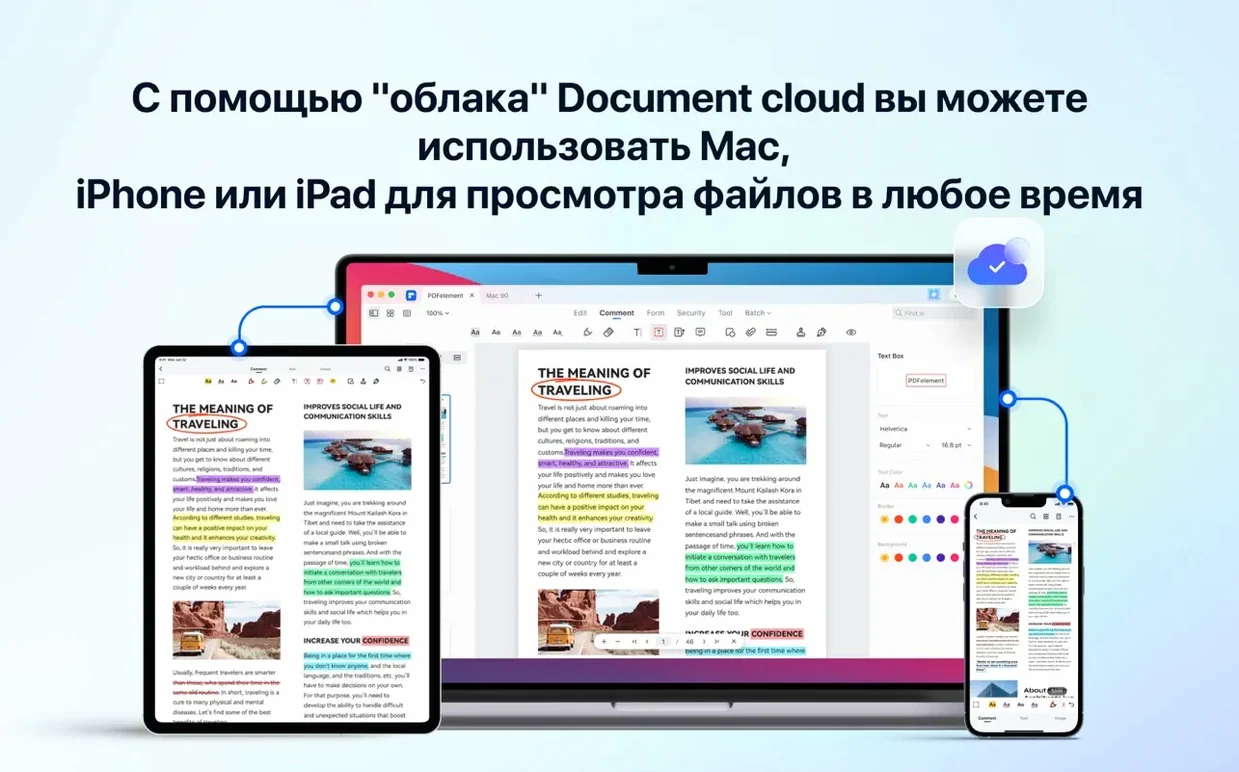
The current 12.1.28 build brings OCR straight into the package, so recognising text in scanned contracts or image-heavy handbooks no longer needs a separate download. That small change pushes it closer to the set of tools a Mac user tends to gather over time.
Batch Bates numbering and archiving paper trails
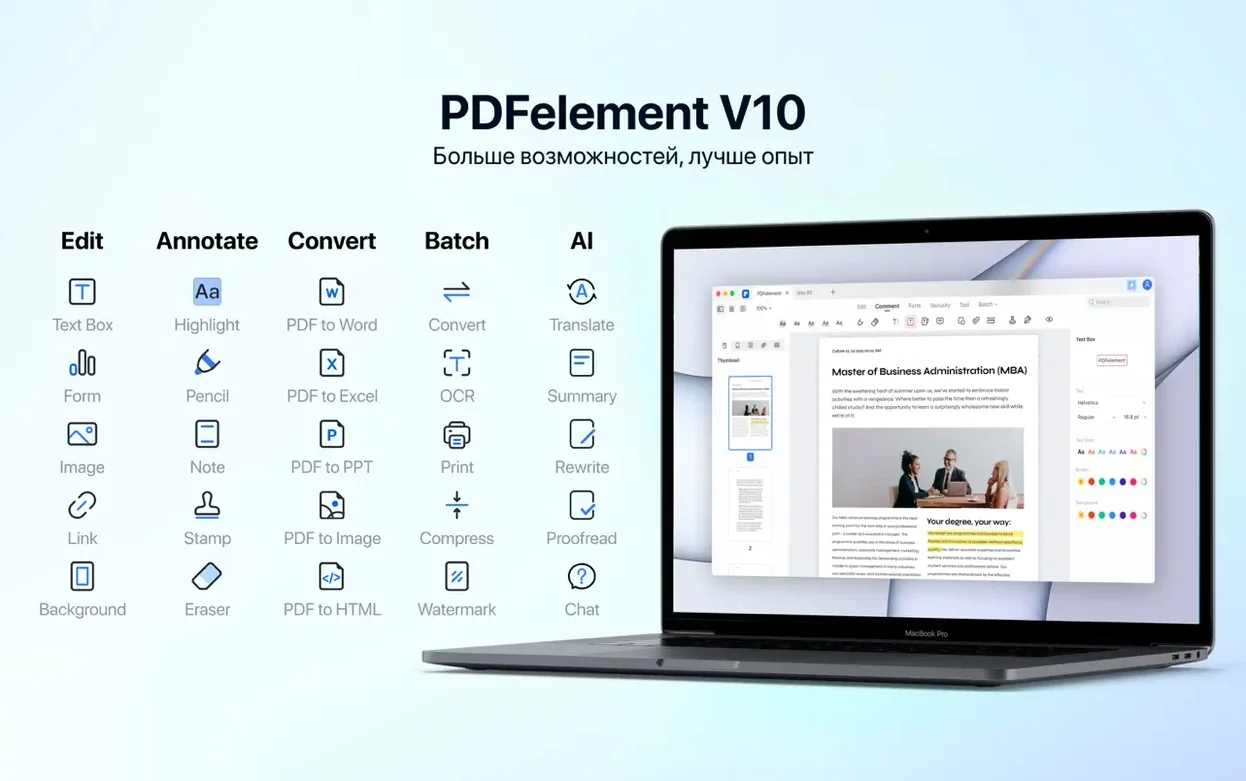
- Digitising paper records with 29-language OCR and saving to PDF/A for archiving.
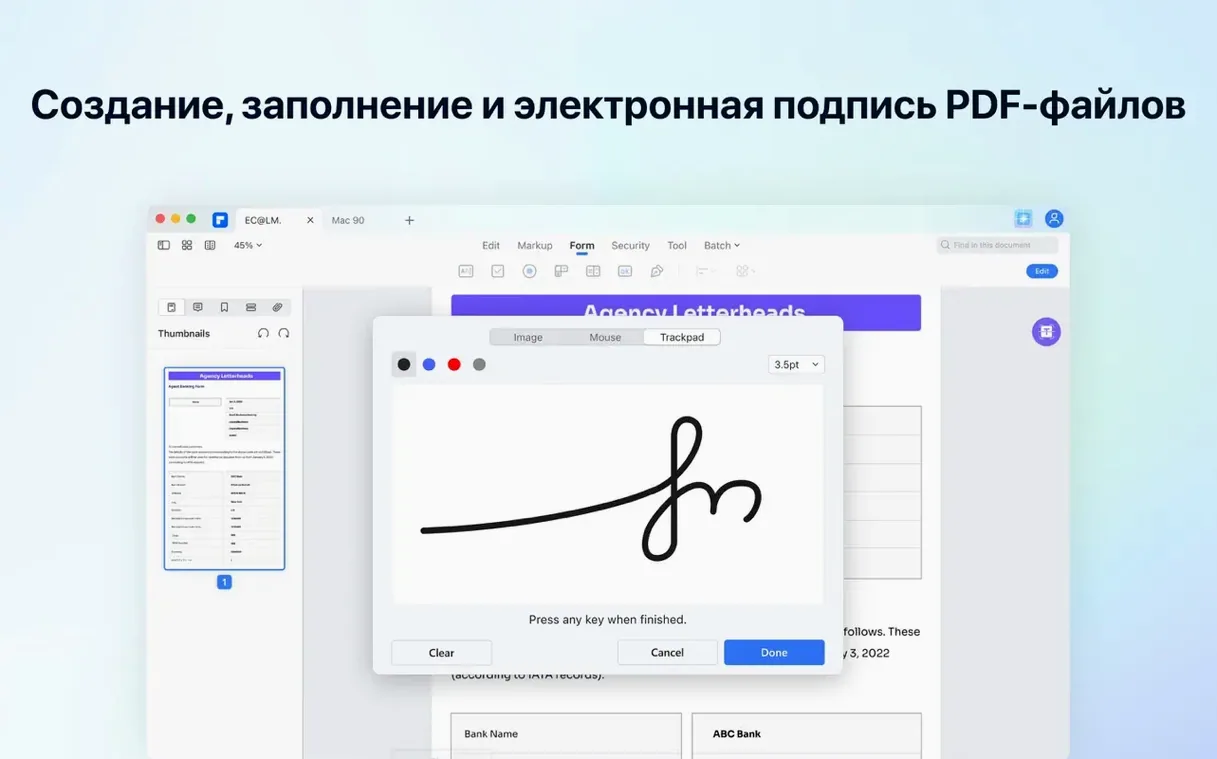
- Marking up proofs and filling forms with digital signatures, then sending them on without leaving the app.
- Applying Bates numbering across a batch — handy if legal or discovery documents land on your desk.
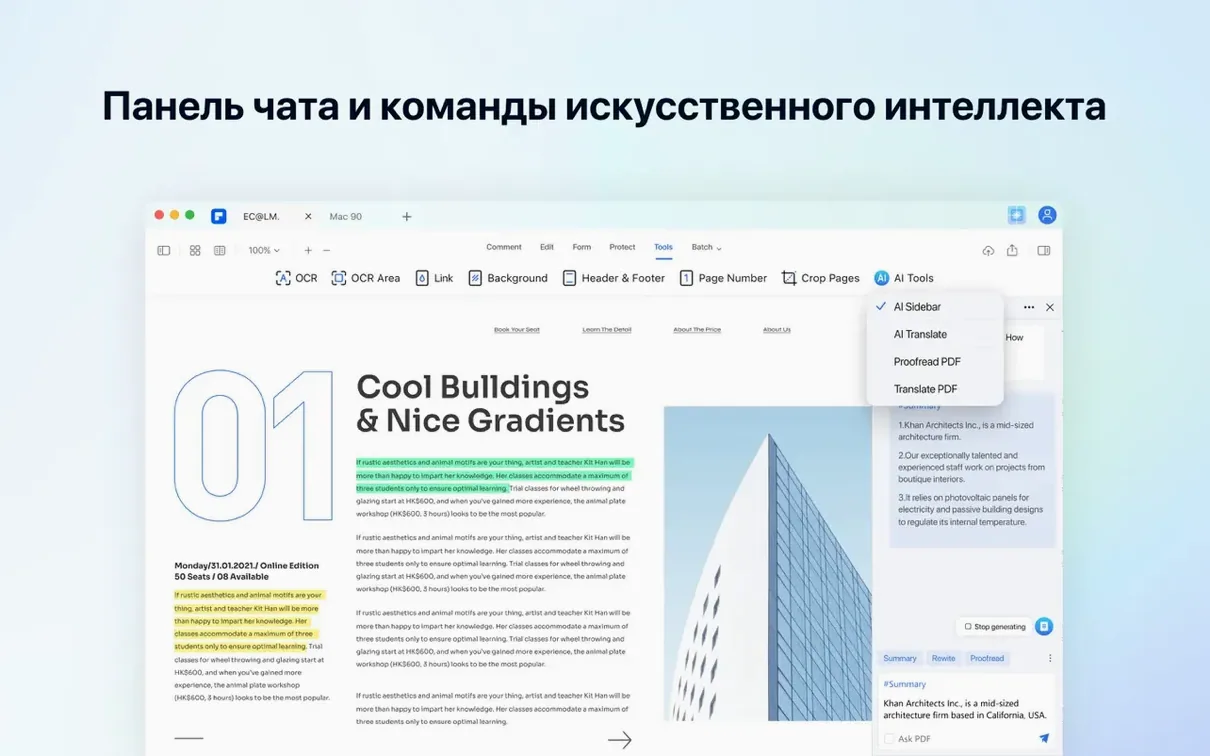
- Letting the built-in AI handle first-pass reading, summaries, and translations of dense reports.
Overlaps with Preview until heavy editing is needed
- Interface languages are broad — Russian, Arabic, Dutch, Japanese, and seven others — but the app expects macOS 11 or later.
- Its tool set overlaps with Preview and Quick Look for light tasks, so it earns its spot when annotation, conversion, or batch work becomes a daily rhythm.
Editing tools hide behind a word-processor layout
Most of them come from treating PDFelement like a reader rather than an editor. The first few times you open it, the interface can feel closer to a word processor than a simple viewer, and habits from Preview don't always carry over.
- Editing text without switching to Edit mode first. You click a paragraph expecting to type, and nothing happens. The toolbar has a distinct Edit button — if you stay in reading mode, you can highlight and annotate but not touch the underlying text.
- Forgetting to run OCR before editing a scanned document. A scan is just a picture of text until you tell the app to recognise it. People open a scanned contract, try to select words, and assume the file is broken. The OCR button is right there in the toolbar, but it doesn't run automatically.
- Applying Bates numbering to the wrong page range. The batch tools default to all pages, and if you only need stamps on exhibits C through F, you have to set that range before you commit. Undoing a Bates run across a 200-page PDF is a slow cleanup job.
- Using the AI tools as a substitute for reading. The summarisation and Q&A features are solid first passes, but I've seen people trust a machine summary of a lease clause without checking the original. The AI doesn't know your jurisdiction.
- Exporting to PDF/A without checking the embedded fonts. PDF/A is strict about what it allows. If your document uses a display typeface that won't embed, the validation can fail silently and you won't know until someone rejects the file. Stick to common fonts for archival exports.
Scan a paper form straight into fillable fields
This is the kind of task that makes you glad you have more than Preview. Say you run a small shop and need to send a vendor application — a paper form someone handed you at a trade show — back to ten different suppliers, each with their own details filled in.
Start by scanning the paper form to a clean PDF or dropping a phone photo of it into PDFelement. Open the file and hit OCR. Pick the correct language from the 29 available — if the form has bilingual sections, choose the primary one and run a second pass on problem areas later. The recognition takes a few seconds on a single page.
Once OCR finishes, switch to the Form tab. PDFelement can auto-detect form fields, but on a paper form there are no digital clues to guide it, so you'll place them yourself. Drag text fields onto the name and address lines, checkboxes onto the yes/no options, and a drop-down list for anything with fixed choices like "shipping method." Resize each field so it fits the blank space neatly.
Test the form by filling every field with sample data — tab through them to check the order makes sense. Adjust the tab sequence in the field properties panel if it jumps around. When you're happy, save the file. You now have a master template. For each vendor, open the template, fill in their details, add a digital signature from the Protect tab, and export a flattened copy. Ten suppliers, ten clean files, no printing.
Quick Look previews stay fast even for large PDFs
PDFelement doesn't live in a bubble, and the people who get the most from it tend to weave it into the Mac's existing document flow rather than treating it as a replacement for everything.
- Finder and Quick Look. Quick Look still handles fast previews — tap the spacebar on a PDF, skim it, move on. PDFelement is for the moment you need to act, not just glance. I keep it in the Dock and drag files onto it from Finder windows.
- Mail and Messages. Annotate a proof in PDFelement, save it, and attach it to a reply. Nothing special here, but the compression options in the export dialog help keep attachments small enough that corporate mail servers don't bounce them.
- Scanner software and Image Capture. If your scanner outputs JPEG or PNG, PDFelement's OCR handles image files directly — no need to convert to PDF first. Drop a batch of scanned receipts into the app, run OCR, and search for "office supplies" across all of them at once.
- Word processors and spreadsheets. The conversion engine goes both ways. Pull a PDF into an editable Word document when a client sends you a "final" contract that suddenly needs changes. Export a Numbers sheet to PDF and add form fields on top for a clean invoice template.
- Third-party PDF utilities. People sometimes look for a PDFelement crack Mac or a Wondershare PDFelement torrent because they assume the tool overlaps fully with free alternatives. In practice, the batch OCR and form creation sit above what the built-in Mac tools offer, and those features are what you're actually after. The freeware path — hunting down a PDFelement torrent or a Wondershare PDF Element torrent — can give you an older build, so check that the OCR module this version ships with is included and activated.
Set OCR to match your multilingual documents
The defaults are reasonable, but a few tweaks make the app feel less like a generic office tool and more like something fitted to your workflow.
- OCR language. The recognition engine defaults to English. If you work with multilingual documents, set your primary language in Preferences > OCR before your first scan — switching after the fact means re-running the recognition.
- Default save format. Under Preferences > File, you can set the output format for conversions. If most of your exports go to editable Word docs, set that as the default so you're not picking it from a menu every time.
- Measurement units. The ruler and grid used for form design default to inches. Switch to millimetres in Preferences > General if your print shop or government forms use metric — it saves a mental conversion step on every field placement.
- Auto-save interval. PDFelement keeps a recovery folder, but the auto-save frequency is conservative out of the box. Shorten it to five minutes if you're doing heavy editing sessions on large files.
- Redaction appearance. The default redaction overlay is a solid black box. In Preferences > Redaction, you can change the fill colour and add custom overlay text — useful if you need to mark redacted areas with exemption codes like "FOIA (b)(6)."
A fresh build with one welcome change: OCR is now included right in the package.
- macOS 11 or later
- Intel architecture
Questions from the stall
Does it recognize text in scanned documents?
Yes, OCR is built into this version and supports text recognition across 29 languages.
Can I use it for legal or archival documents?
It supports Bates numbering for legal sets and PDF/A output for long-term archiving.
What can the AI tools handle?
The built-in AI can read, summarize, and translate documents, which speeds up reviewing long reports.
Notes from other shops 0
Sign in or open a shop account to leave a note.
No notes yet. If you've used this on a shop Mac, tell me how it went.