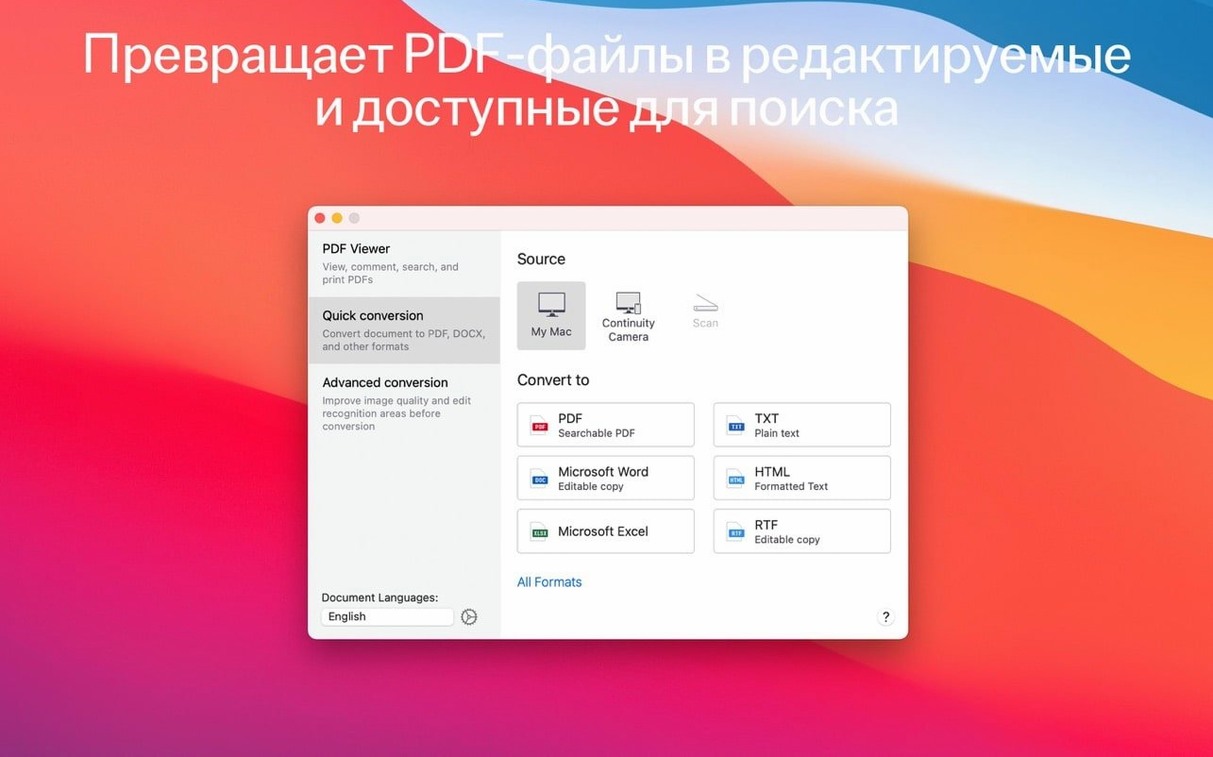
The current version of ABBYY FineReader PDF keeps its focus sharp on reliable document conversion. There aren't flashy new additions this round, just a steady, capable tool that's ready to handle messy stacks of paper. If you're opening it for the first time, here's where I'd start.
Turn a printed page into an editable DOCX in one pass
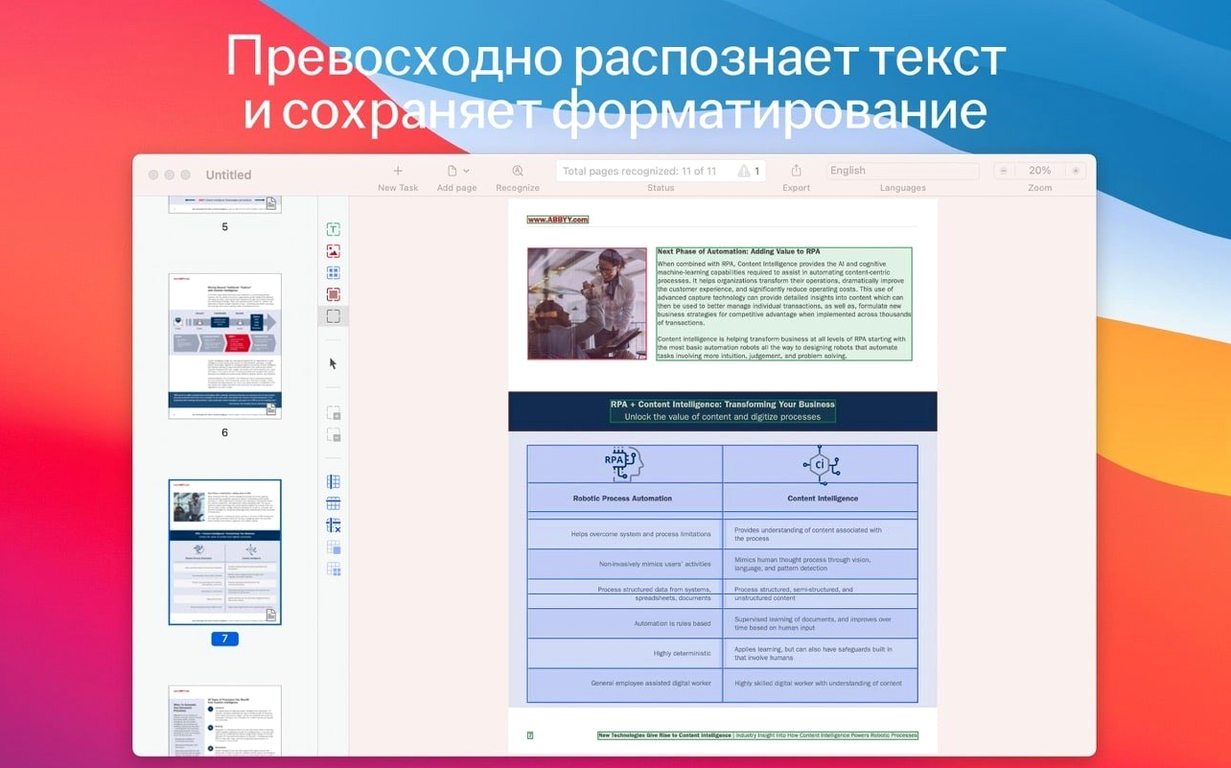
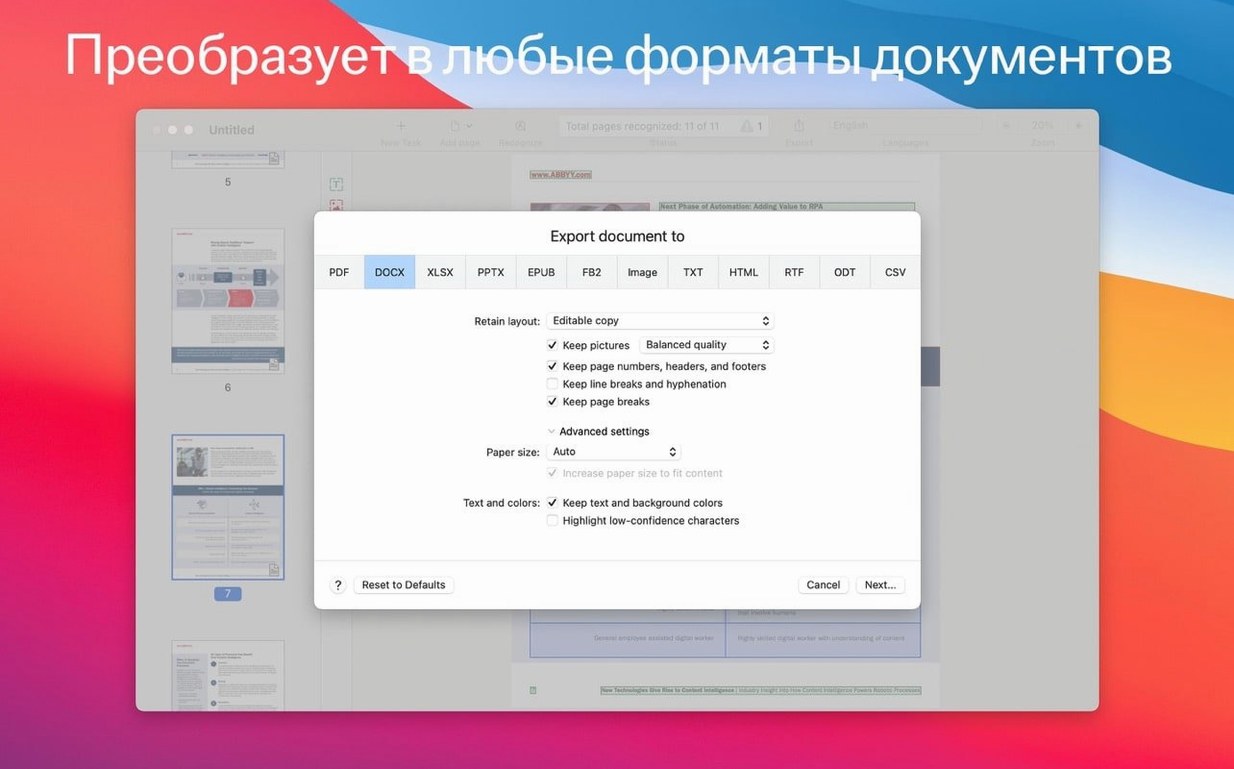
- Turn a scan into a clean DOCX. Grab a printed page with mixed text and a photo. Use Continuity Camera to pull it in from your iPhone, or just open a JPEG. Let it run recognition, then save as DOCX. The formatting holds up surprisingly well — tables, columns, and images usually land where they should.
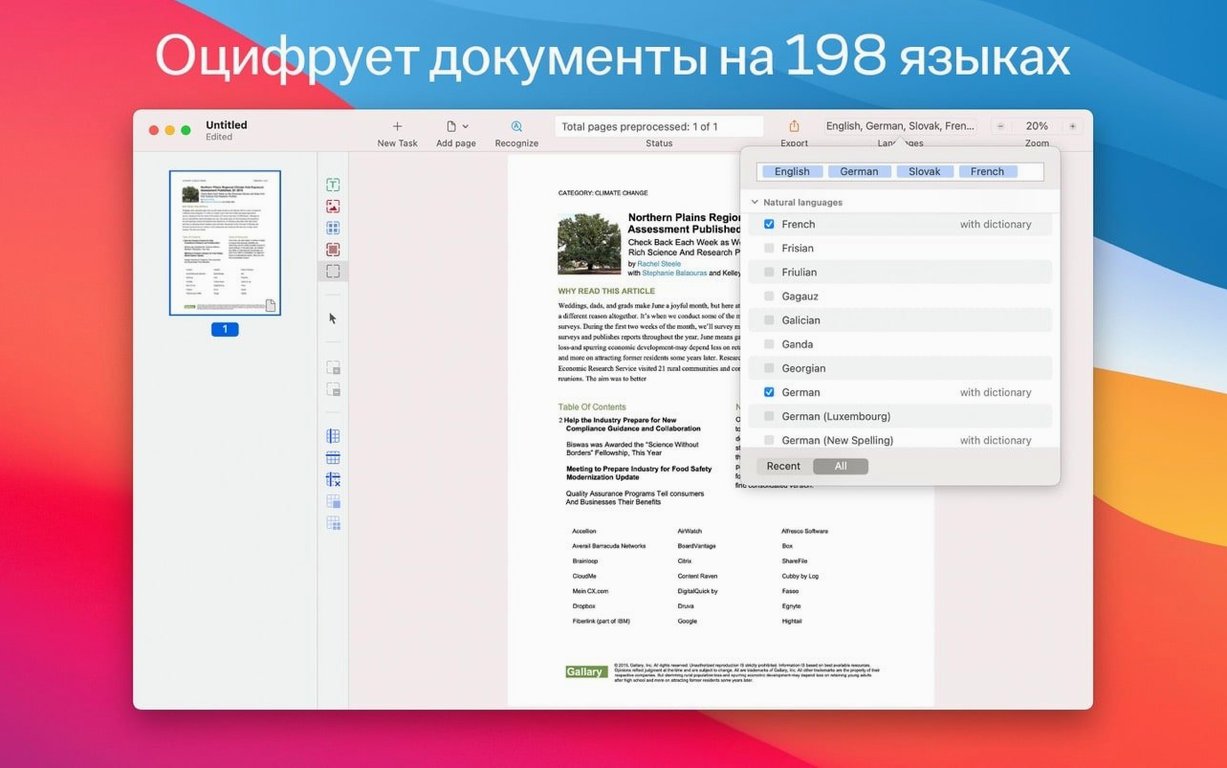
- Make a truly searchable PDF. Open a scanned contract or manual that's just a flat image. Run the OCR and save it back as a searchable PDF. Now you can find a client name or part number with a quick Command-F. It handles 198 recognition languages, so multi-language documents aren't a problem.
- Set up a long-term archive. Choose PDF/A when you save something you'll need in a decade. It embeds everything the file needs to stay readable, which is handy for tax records or final project deliverables.
- Add a password to a sensitive file. Before you share a proposal or invoice, use the built-in protection to lock it down. Simple, and you don't need another tool for it.
Those four steps cover most of what a small shop actually needs. After that, explore the dark mode for late-night paperwork, or try converting a spreadsheet scan directly to XLSX. The app supports export to ODT and RTF too, so you're never stuck in a single format.
Where beginners usually trip up
Most mistakes I see come from expecting the app to think like a scanner. It doesn't — it thinks like a layout editor, and that's worth remembering.
- Running OCR on an already-digital PDF. If the text is already selectable, you don't need recognition. Opening a born-digital PDF and hitting the OCR button can flatten nice vector text into a mess of glyph guesses. Check first: select some text with your cursor. If it highlights, skip straight to export.
- Feeding it crooked phone photos. A quick snap of a crumpled receipt works, but a badly angled page confuses the layout engine. Flatten the paper, shoot straight down, and let the built-in viewer's deskew handle small tilt. If half the text is skewed into a corner, no amount of recognition language support will fix it.
- Converting everything to DOCX. A page full of numbers and columns often lands better as XLSX. A legal affidavit with footnotes? DOCX. A simple letter you only need to search? Searchable PDF keeps the original look without a layout rebuild.
- Ignoring the language setting. With 198 recognition languages available, it's tempting to leave the default on English. But if a German contract or a French invoice comes through, set the recognition language before running it. The difference in accuracy is noticeable.
Tip: The import from iPhone works best when you capture through Continuity Camera inside the app, not from the Photos library. The camera path gives you a preview and a straight-on frame before recognition starts.
Speed and system feel
In daily use, FineReader PDF sits comfortably in the middle of the pack. It's not instant, but it's not sluggish either. A ten-page scan with mixed formatting takes maybe twenty or thirty seconds to recognize on a typical Intel Mac, and converting that result to DOCX adds a few seconds more. Long documents — fifty pages or more — don't cause beachballs or lock up other apps, but the fan may spin up during a batch conversion. That's expected for an x86 64-bit app doing dense layout mapping.
Memory use stays reasonable. With three documents open and a conversion running, I never felt the system gasping for RAM. The app holds steady even when you're flipping between the viewer and the OCR editor. If you're on an older machine, close finished documents regularly and it'll stay smooth.
Stability has been solid. I've thrown some genuinely awful scans at it — coffee-stained invoices, low-resolution fax pages, a receipt photographed through a car window — and it hasn't crashed once. It may return messy output, but it doesn't give up. That matters more than raw speed when you're working through a pile of paperwork at 9 p.m.
Rescue tables that turn into text soup
- Tables come out as text soup. This happens most often with scans that have very light gridlines or no lines at all. Try running recognition again with the document type set to recognize tables specifically. If that doesn't help, export to XLSX rather than DOCX — the spreadsheet path gives the layout engine a clearer target.
- The app won't open after installation. This is the Gatekeeper step. Mount the disk image, launch the Open Gatekeeper friendly app, and press Enter in the Terminal window when it asks. Then drag the app into Applications and start it normally.
- Recognition is painfully slow on one document. Check the page count first. A hundred-page scan will take a while. If it's a short document and still crawling, restart the app and run a single page to see if the speed improves. Sometimes a stuck background job from a previous conversion is the culprit.
- Text is recognized but the font looks wrong. That's font substitution, not a bug. FineReader maps recognized characters to installed fonts. If the original used a typeface you don't have, the output will look close but not identical. You can adjust fonts after export in your word processor.
- Password protection won't apply. Make sure you're saving as PDF, not exporting to DOCX or RTF. Password protection is a PDF-only feature. Also check that you haven't selected PDF/A or PDF/UA for the output — those specialized formats have restrictions that can block encryption.
Most of these are solved with a second pass or a small setting change. The app rewards a little patience — and once you know which export format fits which document, it stops being a guessing game.
- macOS 11 or later
- Intel-based Mac
Notes from other shops 0
Sign in or open a shop account to leave a note.
No notes yet. If you've used this on a shop Mac, tell me how it went.