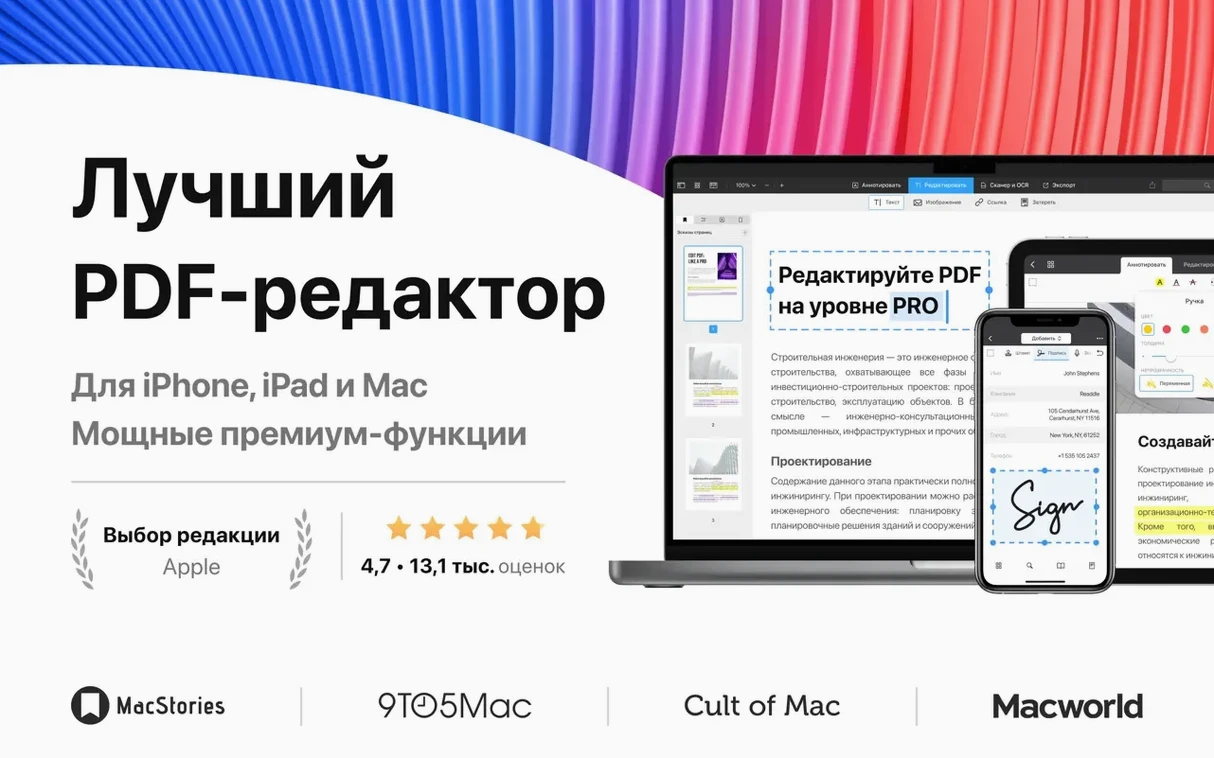
PDF Expert handles documents up to thousands of pages without slowing down, but what sets it apart are the tools you reach for after the first week. It’s built for more than just reading.
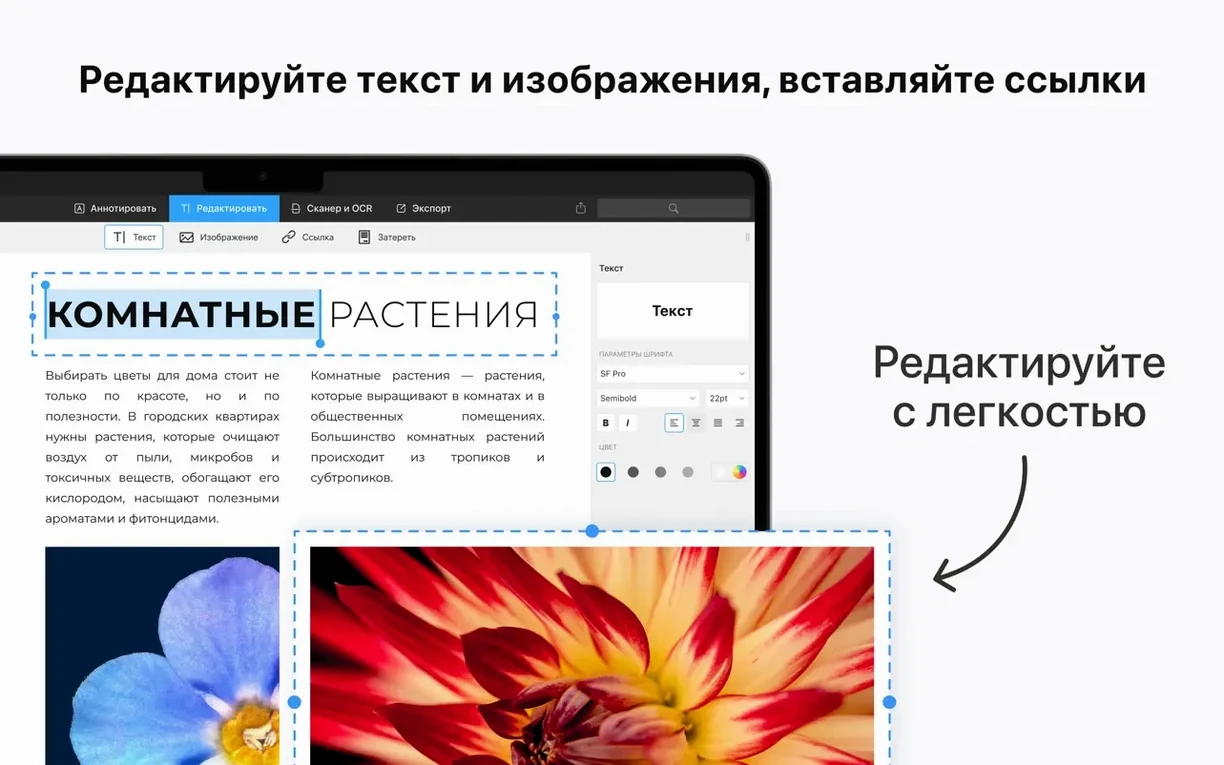
- Direct text and image editing. Adjust wording, fix a typo, or swap a product photo right inside the PDF, without round-tripping to the original file.
- Table of contents creation. Build a clickable TOC from existing headings, or add your own to stitch together a long report or presentation deck.
- Password protection. Lock a contract or invoice behind a password before emailing it — set permissions for viewing versus editing, too.
- Saved signatures and form filling. Store your signature once and tap to sign. Fillable form fields get recognized automatically.
- Handoff between Mac, iPhone, and iPad. Start marking up a floor plan on your Mac, then carry the same document to your iPad for a walkthrough without saving or sending anything.
What I’d appreciate as a shop owner is how the deeper features — signing, password-locking, image swapping — sit alongside the obvious ones without clutter. You don’t grow into a different app when the job gets serious; the same one scales with you.
Snappier text edits on Apple Silicon
Version 3.11 brought a handful of quiet improvements that matter more in practice than they sound in release notes. Text editing feels snappier on Apple Silicon — less of that half-second lag when you click into a paragraph. Image replacement got smarter about matching the original dimensions, so swapping a product photo or a logo usually lands without resizing gymnastics. The annotation toolbar can now collapse when you're just reading, which frees up screen space on a 13‑inch MacBook. And Handoff between Mac and iPad got a reliability bump; fewer moments of staring at a spinner while the document syncs across.
First days with PDF Expert — practical moves
Give yourself twenty minutes on day one to set up the things that stick. Here's what I'd do:
- Save your signature immediately. Open any PDF, tap the signature tool, sign a piece of paper and hold it to the camera, or draw on the trackpad. Save it. You'll use it more often than you think, and the first time a vendor emails a contract at 4:45 PM you'll be glad it's ready.
- Set a default password format. If you regularly lock invoices or client documents, head into preferences and decide whether the app should prompt for a password on every save or only when you ask. Saves a click each time.
- Practice image replacement once. Grab a PDF with a placeholder image — an old brochure or a sample flyer — and swap it with a PNG from your desktop. Notice how the app handles the bounding box. That muscle memory pays off later.
- Test Handoff with another device. Open a document on your Mac, walk to your iPad, and confirm it appears in the app switcher. If it doesn't, check that both devices share the same iCloud account and that Handoff is enabled in System Settings — this fixes most hiccups.
Tip: On first launch, if you see a sign‑in prompt, just close it. The app activates itself on the next launch without fuss.
Font mismatches when editing existing text
I see the same three habits trip people up, especially when they're moving from simpler PDF tools or coming straight from Preview.
Editing text without checking font availability. PDF Expert does a solid job matching fonts, but a PDF created on a Windows machine with obscure typefaces may not have exact matches on your Mac. The edited text can shift slightly. Before you rework a whole page, edit one sentence and look closely at the spacing. If it drifts, consider replacing the entire text block rather than patching individual words.
Forgetting to flatten annotations before sending. Highlights, sticky notes, and underlines are separate layers. When you email the PDF, the recipient might see your markups — or they might see nothing if their reader ignores annotation layers. For a finished document, use the "flatten" option so your notes become part of the page itself. This matters especially for forms you've filled out.
Over‑relying on the merge tool for large batches. Merging twenty contracts into one PDF works smoothly. Merging eighty scanned pages with mixed orientations and resolutions can stall the app. Split big jobs into chunks of twenty or thirty pages, merge those, then merge the resulting files. It saves frustration and keeps the undo history manageable.
How PDF Expert compares with similar Mac apps
PDF Expert vs. Adobe Acrobat Pro
Acrobat Pro is the heavyweight — deeper OCR, redaction tools, pre‑flight checks for print production, and a broader plug‑in ecosystem. But it carries all that weight visibly. PDF Expert strips away the prepress tools and focuses on what a shop owner, freelancer, or student actually does daily: edit text, swap images, sign forms, and merge documents. The interface doesn't feel like an airplane cockpit. For someone who isn't sending files to a commercial printer every week, PDF Expert covers the same practical ground with less clutter.
PDF Expert vs. Apple Preview
Preview is free, fast, and surprisingly capable for annotations and signatures. But you can't edit existing text in a PDF with Preview, and you can't add or remove images. That's the line. Preview reads and marks up; PDF Expert reads, marks up, and changes the content. If your PDF work stops at highlighting and signing, Preview is enough. The moment you need to fix a date on an invoice or replace a screenshot in a proposal, PDF Expert earns its place.
PDF Expert vs. PDFpen (now Nitro PDF Pro)
Nitro PDF Pro has strong OCR and form‑creation features that PDF Expert doesn't match. But PDF Expert's text editing feels more natural — click and type, rather than working inside text boxes that float over the page. For everyday editing and annotation, PDF Expert is quicker to navigate. Nitro pulls ahead when you need to create a fillable form from scratch or run OCR on a scanned document in multiple languages.
Preparing a wholesale order sheet from an outdated PDF
Let's walk through a real scenario — preparing a wholesale order sheet for a supplier, the kind of task that lands on my desk more often than I'd like.
9:15 AM. The supplier emails a PDF order form with outdated product codes. I open it in PDF Expert and immediately notice the toolbar is collapsed into a clean reading view — good, I can see the whole page. I tap the edit button and click into the first product code field. The text box appears inline, same font, same size. I type the new code, hit Tab to jump to the next field, and repeat. Three minutes, and the form is current.
9:20 AM. The form still shows last season's product photo in the header. I right‑click the image, choose "Replace Image," and select the updated JPEG from my product folder. It lands at the exact dimensions of the original — no resizing, no repositioning. I save a copy as "Q4_Order_Sheet.pdf" so the original stays intact.
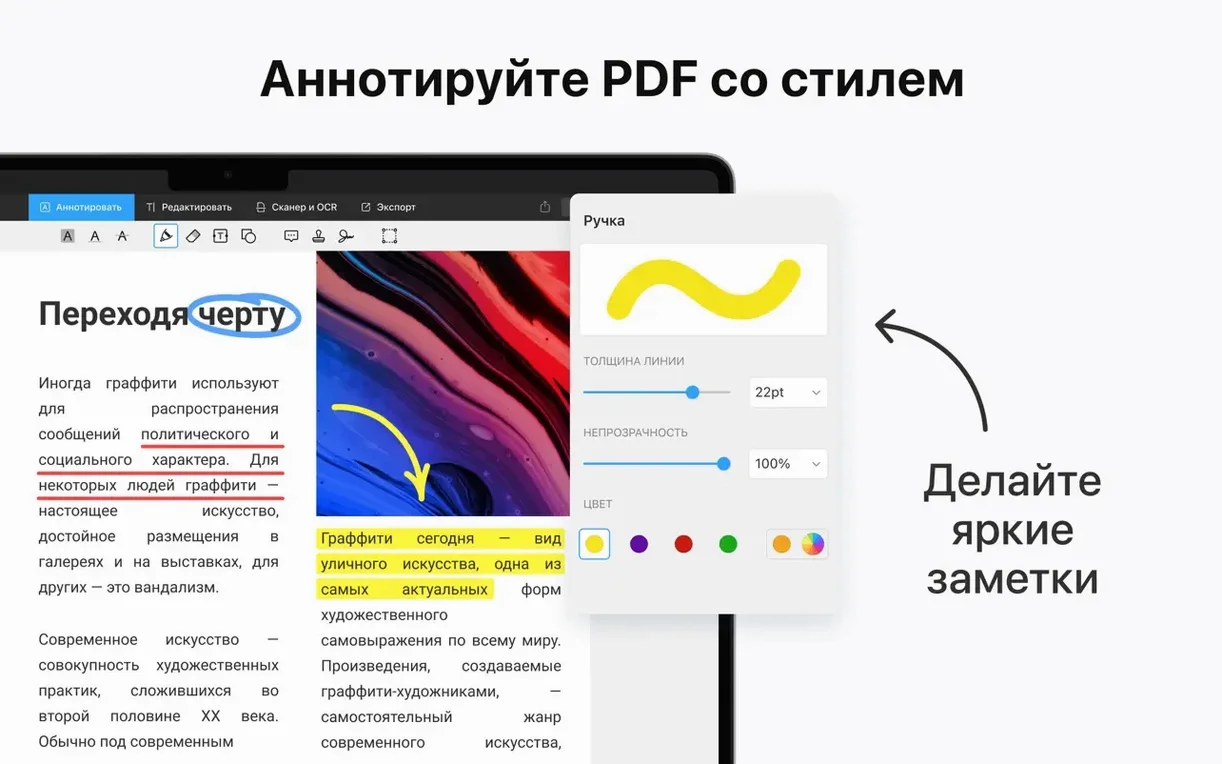
9:25 AM. I want the supplier to see specific quantities highlighted. I switch to the annotation toolbar, pick a yellow highlighter, and sweep across the quantity column. Then I add a sticky note next to the shipping address: "Call before shipping — new loading dock entrance on Oak Street." The note sits as a small icon; hover to read, or flatten it later if I want it permanent.
9:30 AM. Before sending, I realize I need to attach a second document — a page of terms from another PDF. I open the "Merge Files" tool, drop in my order sheet and the terms PDF, arrange the order with a drag, and hit merge. One file, clean pagination. I add a password so only the supplier can open it, type a quick note about the new dock, and email it.
9:35 AM. Later that afternoon, I'm at a coffee shop with just my iPad. The same document appears in PDF Expert there, annotations and all. I add one more highlight after a phone call with the supplier, close the app, and the change syncs back to my Mac before I'm home.
That's the rhythm PDF Expert settles into — not a tool you open just to "work with PDFs," but something you reach for when a document needs to change hands, in better shape than it arrived.
- macOS 12 (Monterey) or later
- Works on both Apple Silicon and Intel 64-bit Macs
Questions from the stall
Can I edit existing text in a PDF with PDF Expert?
Yes. You can click into any text block and change wording, correct typos, or adjust formatting without leaving the document.
Does PDF Expert work on Apple Silicon Macs?
It runs natively on both Apple Silicon and Intel Macs, and requires macOS 12 or later.
Notes from other shops 0
Sign in or open a shop account to leave a note.
No notes yet. If you've used this on a shop Mac, tell me how it went.