Nitro PDF Pro is for Mac users who need to edit documents directly, without converting files back and forth between apps.
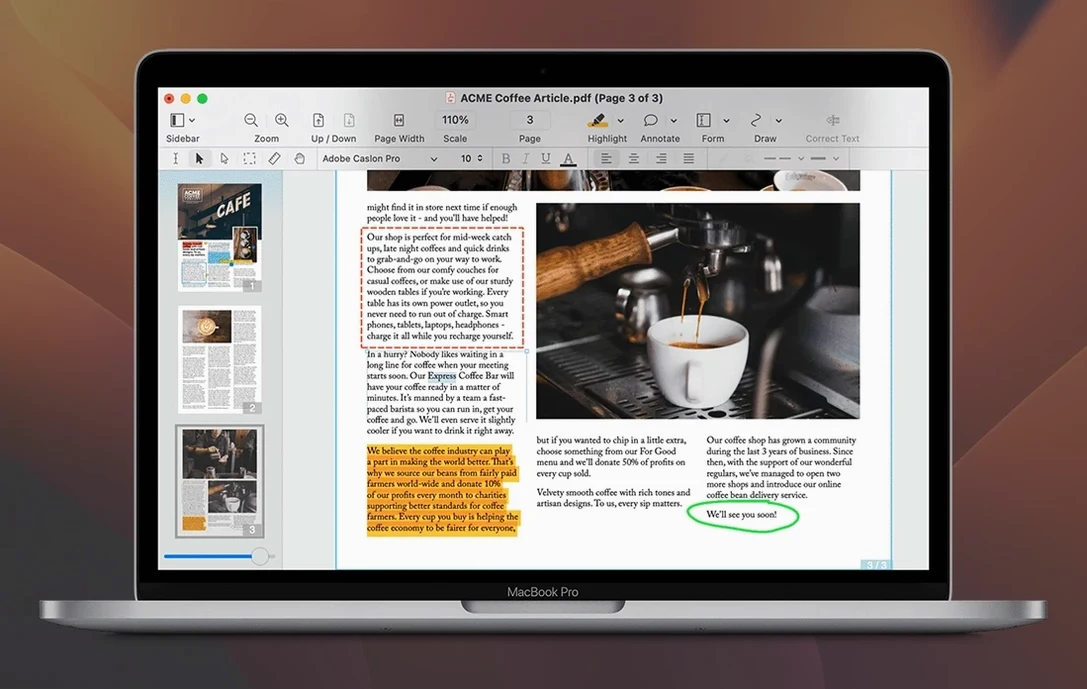
PDF editing — Edit text right on the page using adjustable text blocks. Move, resize, or delete images without leaving the PDF.
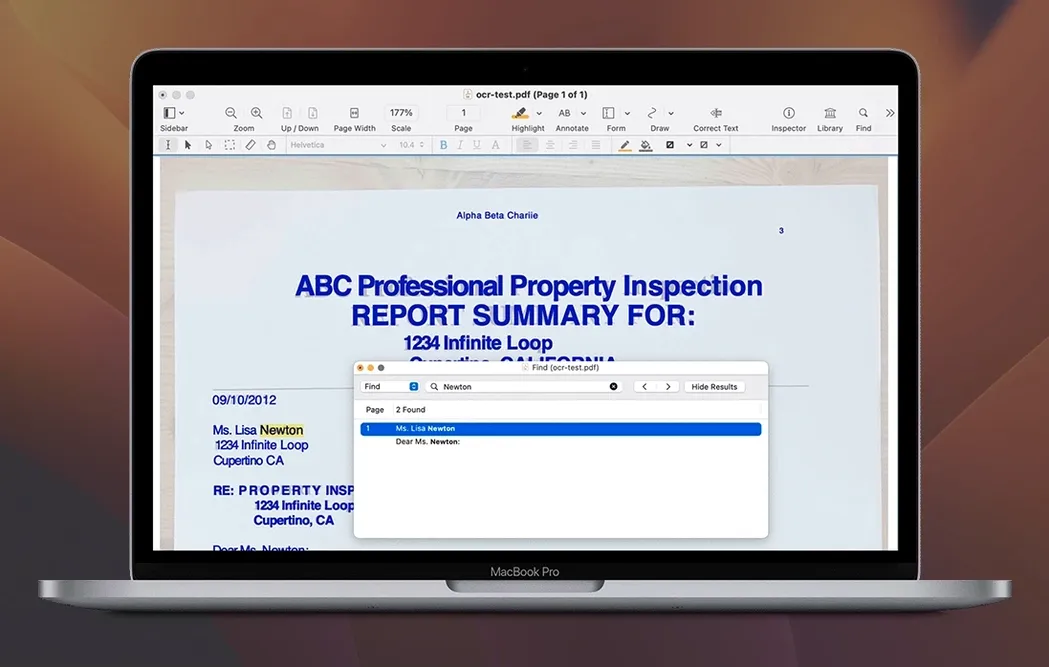
OCR — Turn scanned paper documents into searchable, selectable text you can copy and edit.
Markup and review — Highlight, underline, and strikethrough text. Add, view, and extract annotations and file attachments as comments come in.
Forms — Create fillable forms that work across platforms, or fill in ones you receive.
Combining files — Merge related documents into a single PDF portfolio, or convert a website into a multi-page PDF with hyperlinks intact.
Batch processing — Apply the same action to multiple files at once, which pairs well with Automator workflows you might already use on your Mac.
A little workflow: polishing a scanned contract for a client
I get a fair number of scanned agreements sent my way — suppliers, event bookings, wholesale orders. Here’s a path I follow when one lands as a slightly crooked, image-only PDF and I need a clean, signed copy back out the door.
I open the file and let OCR do its first pass. Even on a decent scan, I check a couple of text blocks where letters touch or the original paper had a crease. Nitro PDF Pro places editable text blocks right over the image, so I can tap into a misspelled company name and fix it without retyping the whole paragraph. The font matching isn’t perfect, but for a contract that just needs to read correctly, it’s enough.
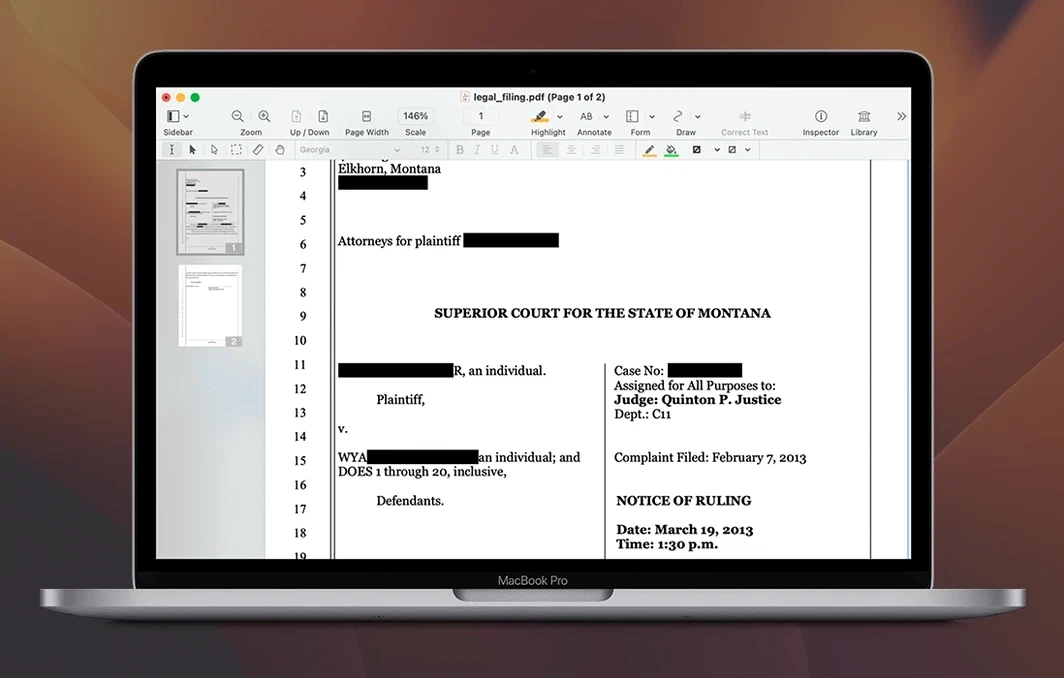
Next I add a header with my shop name and the date — something I do through the Headers & Footers tool. I save that setup as a preset so the next contract gets the same treatment in two clicks. If there’s an awkward page break splitting a clause, I drag images or text blocks to nudge the flow. Then I flatten the annotations so my markup won’t budge when the recipient opens it on a different reader. Before exporting, I run a quick redaction pass over the supplier’s bank details from an old page I forgot was still in the file — the redaction tool blacks it out and removes the underlying content, not just a drawn rectangle.
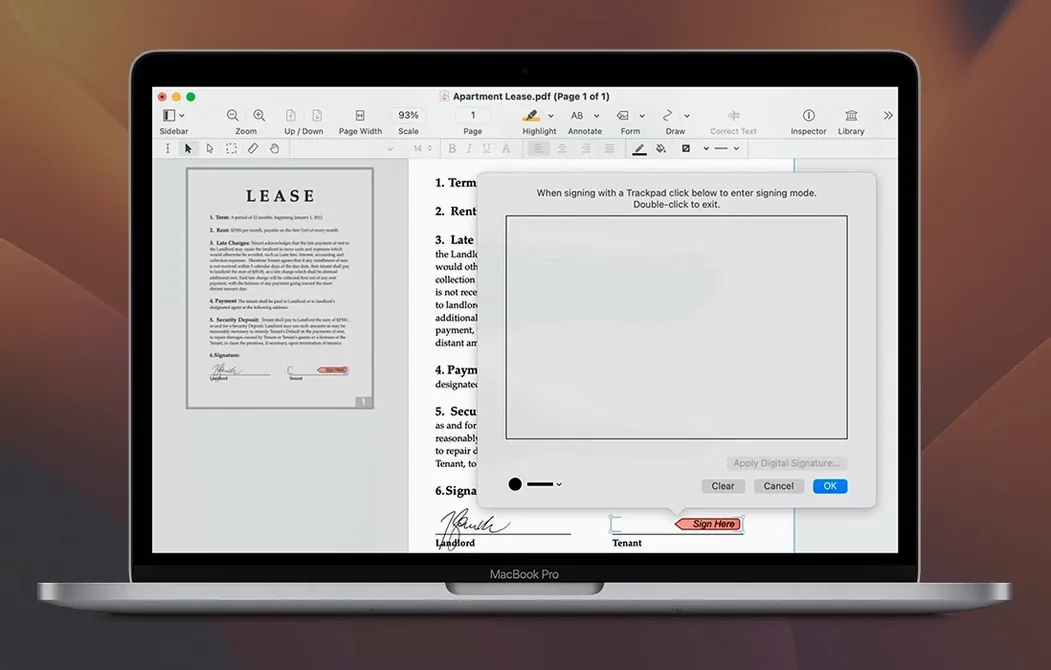
When I’m ready to sign, I pull in a scanned signature image I keep on the desktop, resize it to fit the signature line, and place it. The whole routine takes under four minutes once you’ve done it a few times, and you avoid printing, pen, and scanner entirely.
Right-click tricks and keyboard habits you’ll actually use
Some features hide behind right-clicks or keyboard habits you might not try unless someone points them out. A few I’ve learned to lean on:
- Copy rich text from columns. When you drag-select across a two-column layout, the copy respects the column flow — paste it into Pages or a text editor and the reading order stays intact, which is not something every PDF tool gets right.
- Audio annotations. If you’re reviewing a designer’s mockup or a fabric spec sheet, you can record a voice note right onto the page. The recipient plays it back inside the PDF — handy when typed comments would take too long.
- Editable table of contents. For longer catalogs or price lists you send to stockists, you can build a clickable TOC that updates as you add or remove pages.
- Website-to-PDF. Give it a URL and it pulls the page into a multi-page PDF with hyperlinks preserved. I use this to archive product listings from suppliers who might change their site later.
- Attachment handling. You can view and extract file attachments other people have embedded, which saves the “can you resend that spec sheet?” email. You can also attach your own files — say, a care instruction card — right into the PDF.
Next to PDFpen, PDF Expert, and Acrobat—what feels different
If you’re looking at a nitro pdf pro for mac free download, you’ve probably already run into PDFpen, PDF Expert, and Adobe Acrobat. They all live in roughly the same neighborhood but feel different to work in day to day.
PDF Expert is slick and fast for reading and light annotation. Where Nitro pulls ahead is the depth of editing — moving images inside the original file, redacting properly, and working with form fields that actually survive on Windows machines. PDF Expert feels like a reader that learned to edit; Nitro feels like an editor first.
PDFpen (now Nitro’s sibling, really) shares a lot of DNA, but Nitro PDF Pro adds batch processing, audio annotations, and portfolio creation that PDFpen doesn’t surface as prominently. If you regularly merge project folders into a single portfolio with a custom TOC, that’s a real separator.
Adobe Acrobat is the heavy lifter, and for prepress or accessibility tagging it still sets the standard. But it’s also the most complex app of the bunch. Nitro gives me the editing, OCR, and form tools I reach for without layers of panels I never touch. For a small shop, that shorter path from open to done matters.
Some folks who search for a nitro torrent or a nitro pro torrent are trying to get Acrobat-level editing without Acrobat-level overhead. Nitro PDF Pro lands in a comfortable middle — more capable than a lightweight viewer, less sprawling than a full creative-suite tool.
- macOS 10.14 Mojave or newer
- Intel or Apple Silicon Mac
- 1 GB RAM
- Up to 2 GB free disk space
- Display resolution 1280×800 or higher
Questions from the stall
Does Nitro PDF Pro include OCR for scanned documents?
Yes, the official Mac documentation confirms it includes OCR that makes scanned documents searchable and editable.
Notes from other shops 0
Sign in or open a shop account to leave a note.
No notes yet. If you've used this on a shop Mac, tell me how it went.