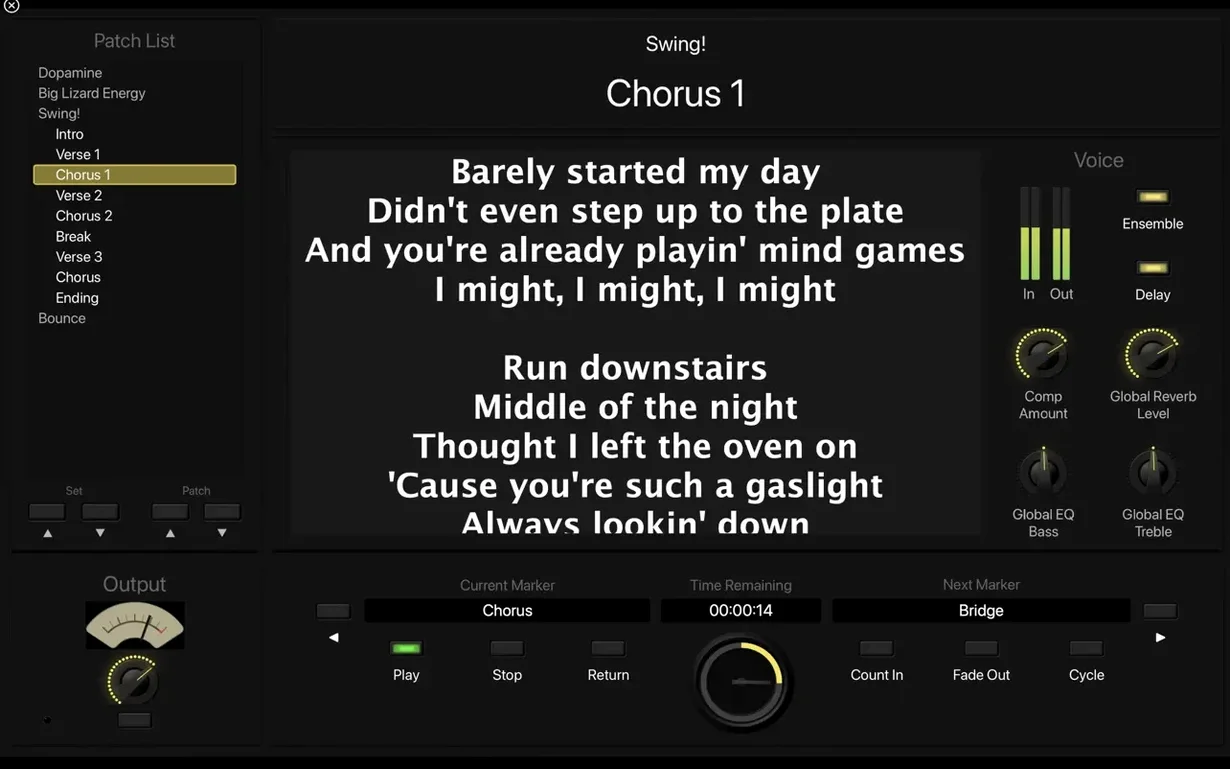
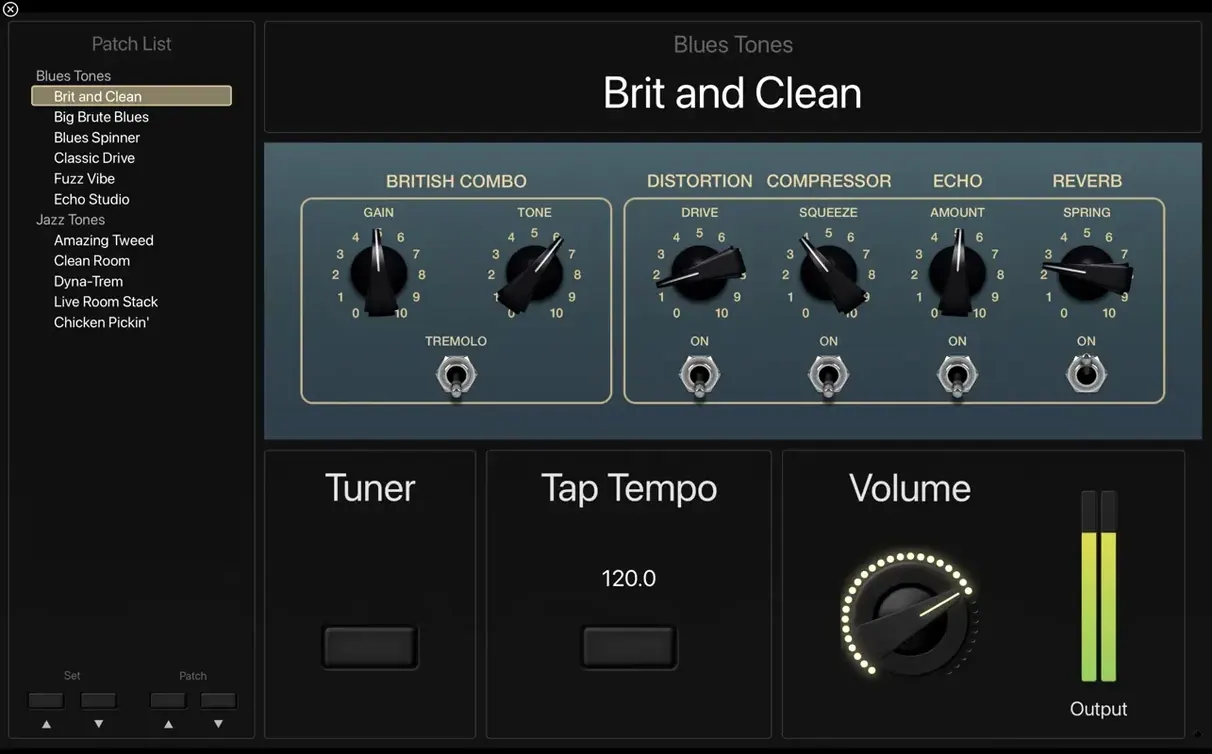
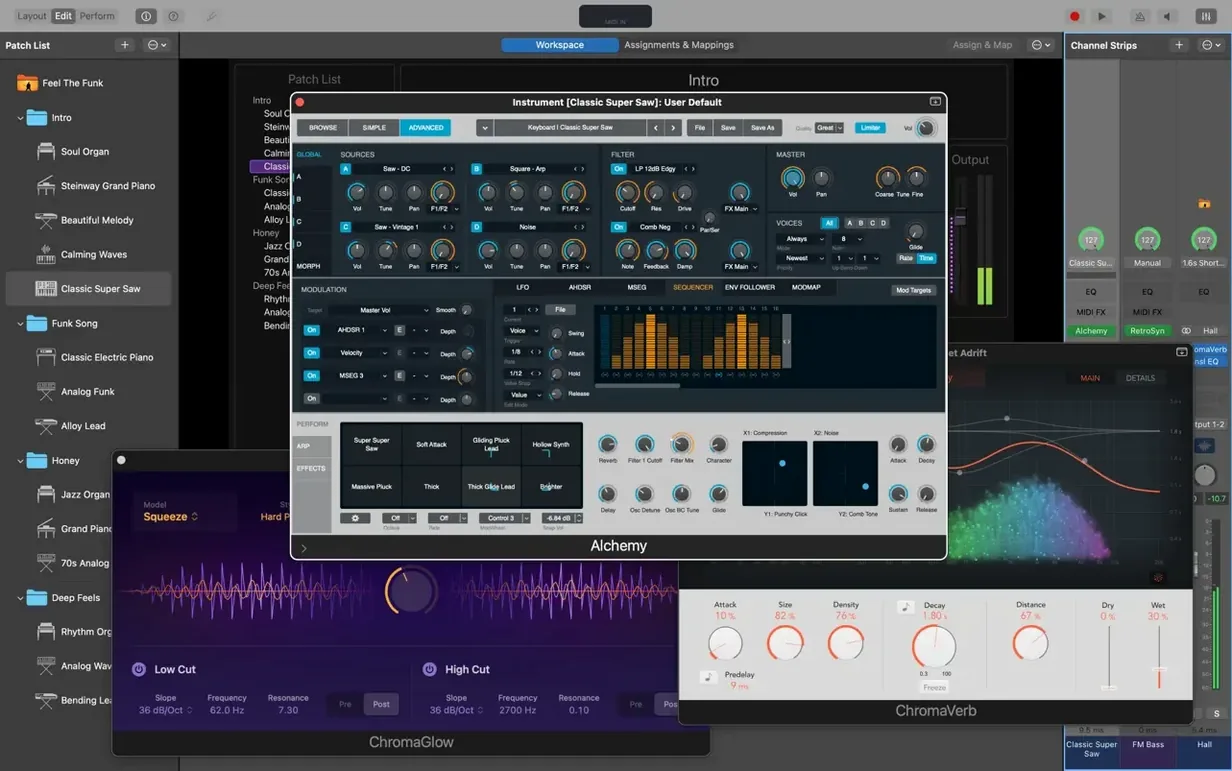
With version 4.3.1, MainStage fixed an issue that blocked incoming MIDI SysEx messages. Sampler instruments also load the correct sounds again, and you can once more type numbers directly into the Add Channel Strip window — a small but welcome return for anyone building complex sets in a hurry.
How it fits next to Logic Pro and GarageBand
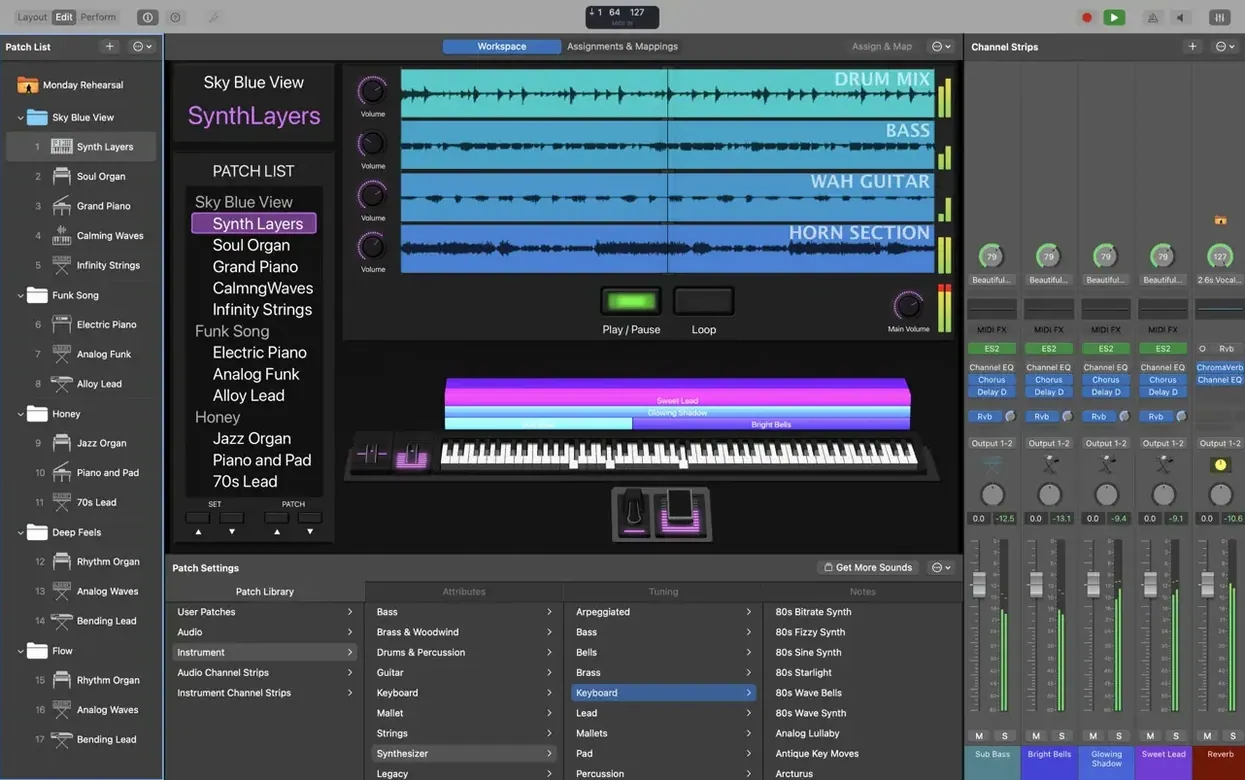
If you already create tracks in Logic Pro or GarageBand, MainStage slots right into that workflow. It puts the same instruments and effects — Amp Designer, Pedalboard, Space Designer, tape delays, stereo delays — into a full-screen view built for the stage. You can pull in sounds from both apps and back them with the Playback plug-in for stereo or multichannel backing tracks. The bundled 4,600 Apple Loops lean heavily into dance and electronic genres, so a set can start taking shape without much programming. A full-screen tuner sits ready for guitar and bass players, and the Touch Bar on a MacBook Pro lets you edit and move around workspaces without reaching for the trackpad.
Patch switching without dead air
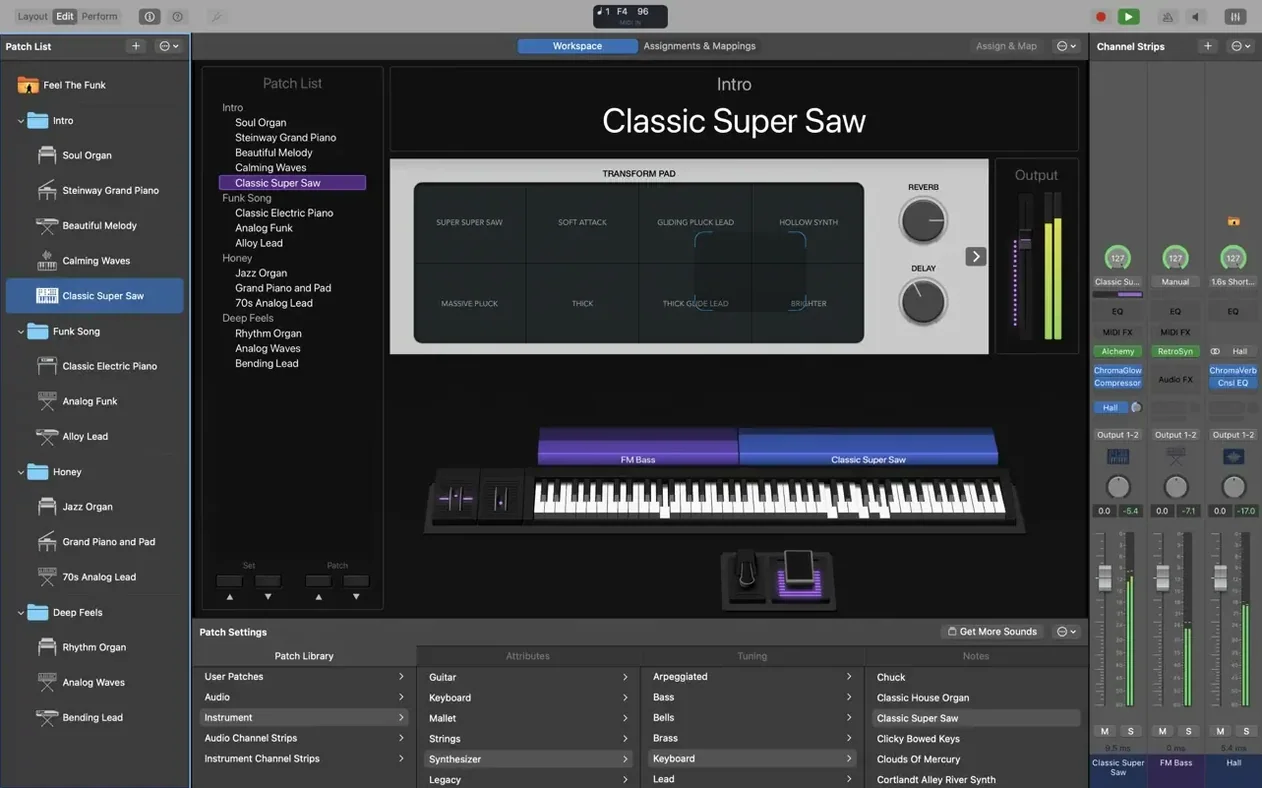
The real test of a live rig is what happens when you change sounds. MainStage switches between patches without interrupting audio, so a held chord or a reverb tail rings out naturally. It works with any 64-bit Audio Unit plug-ins you already own, treating your Mac like a host for everything from channel strips to third-party instruments. That puts it next to a DAW in the studio and next to a hardware mixer on stage — two roles that usually live on separate machines.
A night with a worship keys player
Picture a Sunday morning. The keys player walks in with a MacBook Air, a single USB cable, and an 88-key controller. Five songs, each needing a different feel — a soft pad for the opener, a punchy clav for the middle set, a swelling organ for the final song, plus a split patch that puts strings under the right hand and a bass tone under the left. Without MainStage, that's four hardware keyboards or a lot of frantic preset scrolling between verses. With it, each song is a patch. The player taps the right arrow once between tunes, and the next sound set is fully loaded — no dead air, no awkward silence while a keyboard boots a new preset. The Playback plug-in handles a click and guide track routed to the drummer's in-ears, while the main mix gets lush stereo pads from the 1,800 included patches. Setup takes three minutes, and the whole rig fits in a backpack.
SysEx messages finally flow again
Version 4.3.1 isn't flashy, but it quietly fixed a handful of things that broke real workflows. The blocked SysEx messages, for instance — if you use older MIDI controllers or hardware synths that talk via System Exclusive, that bug meant certain gear simply stopped responding mid-set. Now those messages flow again, so a pedalboard or rack synth that relies on SysEx for patch dumps or parameter changes works as expected.
The patch-switching glitch was subtler. Before the fix, typing a number into a parameter field — say, dialing in a delay time of 340 ms — could suddenly jump you to a different patch in the list if the Patch List had focus. For a player tweaking settings during soundcheck, that meant losing your place and scrambling back. That's been patched. Sampler instruments also load the right sounds now, which matters when you've built a custom EXS instrument from field recordings or a drum one-shot collection and rely on it firing correctly every time.
Turn a held chord into rhythm with the Arpeggiator
A few things in MainStage don't announce themselves. The Arpeggiator MIDI plug-in is one — drop it onto a channel strip, and a simple held chord turns into rhythmic movement. Pair it with the Chord Trigger plug-in, and you can map full chord voicings to single keys, which is handy for players who want to layer complex pads with one finger while soloing with the other hand. The Transposer plug-in shifts incoming notes by a set interval; put it before a Vintage B3, and you can play in a comfortable key while the output sits in a horn-friendly range.
Smart Controls deserve a closer look. Each patch gets its own set of on-screen knobs and buttons, and you can map them to hardware faders or encoders on your controller. One common setup: map a knob to the drive on Amp Designer, another to reverb mix, and a button to bypass the Pedalboard. The labels update per patch, so you're not squinting at cryptic CC numbers during a show. If you're on a MacBook Pro, the Touch Bar switches context with your workspace — tap to toggle the tuner, jump between Edit and Perform modes, or nudge a Smart Control without opening a menu.
The Playback plug-in handles more than stereo backing tracks. It supports multichannel routing, so you can send a click track to the drummer's output while stems go to front-of-house. Markers placed in a backing track file appear inside the plug-in, letting you jump to a bridge or outro on the fly.
Set the audio output before you dial in levels
One I see often: forgetting to set the audio output device before building a whole concert. MainStage defaults to the system output, which might be the Mac's built-in speakers. A player spends an hour dialing in levels, then plugs in an audio interface at rehearsal and everything clips or goes silent. Set the output device first, then build.
Another mistake is treating every patch as an island. A concert file can hold dozens of patches, and if you duplicate a patch but forget to rename it, you end up with "Pad Synth" appearing five times in the Patch List. During a set, you'll guess wrong at least once. Give patches clear, show-order names — "1- Opener Pad," "2- Clav Split," and so on.
Beginners also overlook the difference between channel strip bypass and patch muting. Dragging a channel strip's volume slider down doesn't stop the instrument from using CPU cycles. If you have a CPU-heavy Sculpture synth sitting silent in a patch, bypass the strip or remove it entirely. A MacBook Air running a full Sound Library installation with multiple Alchemy instances can hit its ceiling faster than people expect.
Last one: the full Sound Library takes 57 GB, but the minimal install is only 6 GB. Some download a MainStage torrent or hunt for a MainStage free download and end up with a stripped-down library, then wonder where the Vintage Electric Piano went. If space is tight on your performance machine, install the full library on an external SSD and point MainStage to it — the instruments load fine over USB-C or Thunderbolt. And if you ever see a MainStage crack floating around promising "unlocked" content, just check that your Sound Library path is set correctly in preferences; the instruments aren't hidden behind a paywall. A proper MainStage download from a legitimate copy gives you the 1,800 patches and 750 sampled instruments right away.
Here's what changed in version 4.3.1:
- Incoming MIDI SysEx messages are no longer blocked.
- You can type numbers directly into the Add Channel Strip window again.
- Sampler instruments now load the correct sounds.
- macOS 15.6 or later
- Apple Silicon Mac
- Requires 64-bit Audio Unit plug-ins
- 6 GB free disk space for a minimal installation (57 GB for the full Sound Library)
Questions from the stall
Can I use my existing Logic Pro sounds in MainStage?
Yes, you can add sounds from both Logic Pro and GarageBand directly into your MainStage patches.
Does MainStage work with third-party plug-ins?
It supports 64-bit Audio Unit plug-ins, so any compatible third-party instruments or effects you own will load.
How much disk space does the full Sound Library need?
A minimal installation requires 6 GB of free space, while the complete Sound Library needs 57 GB.
Notes from other shops 0
Sign in or open a shop account to leave a note.
No notes yet. If you've used this on a shop Mac, tell me how it went.