Loopback 2.5.0 runs on any Mac with macOS 11 Big Sur or newer, including the latest macOS 27 release. It works on both Intel and Apple Silicon machines without a separate build. If you've been holding off because of a system update, this version clears the way.
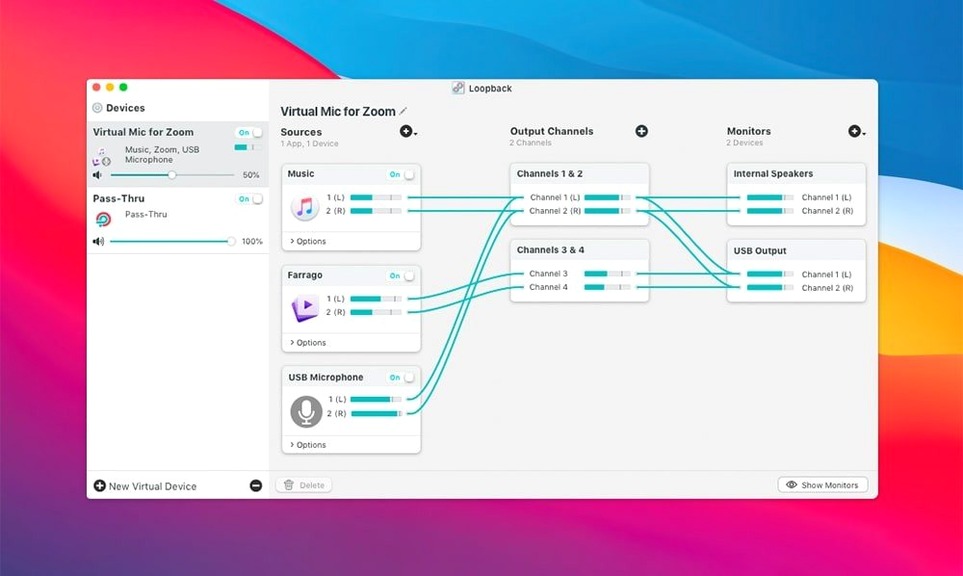
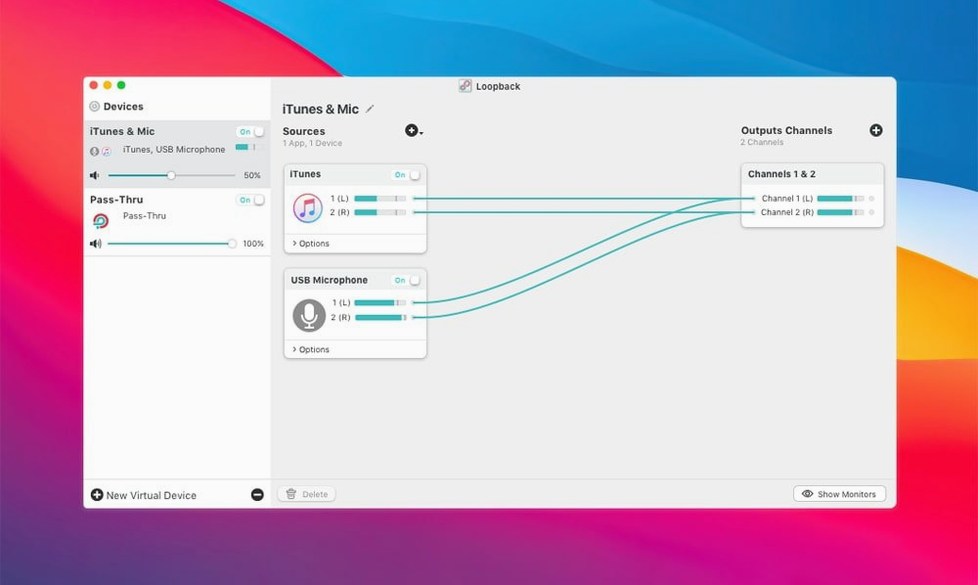
The core idea is simple: you grab audio from different places on your Mac and bundle it into one virtual input device. That device then shows up in any recording app, conferencing tool, or streaming platform. You might pull in your microphone from a USB interface, Spotify playing in the background, and a Skype call—all at once, with individual volume control.
It pairs naturally with Audio Hijack, Rogue Amoeba's other recording workhorse, but it's useful on its own. A common setup is using it with Elgato Game Capture hardware to record microphone commentary and game audio together on the same track. Podcasters use it to route co-host feeds through processing plugins before they hit a DAW. If you've ever wished you could send one app's sound into another without a mess of cables and adapters, this solves it.
Where it hits a sweet spot BlackHole and Caster miss
Loopback isn't the only way to move audio between apps on a Mac, but it sits in a sweet spot that the others don't quite hit. The two I'd compare it with directly are BlackHole and GroundControl Caster. Each one tackles the same basic problem with a different philosophy.
BlackHole is free and open source, which makes it the first stop for a lot of people dipping a toe into loopback mac setups. You install it, you get a virtual audio driver, and you can route audio into and out of it. That's the whole pitch. It works, but it's bare metal—no interface for adjusting levels, no way to combine sources visually, and troubleshooting means poking around in Audio MIDI Setup. If all you need is a single pipe from one app to another and you don't mind a little friction, BlackHole does the job. Once you need to mix a mic with app audio or create a multi-source virtual device, you're on your own.
GroundControl Caster comes at the problem from a podcast recording angle. It builds a virtual device and records at the same time, with some built-in processing. It's closer to an all-in-one recorder than a pure router. The routing part works fine, but it's tied to its recording feature set, and the virtual device is more of a means to an end. For screen recordings or game capture where you already have recording software you like, Caster adds a layer you might not want.
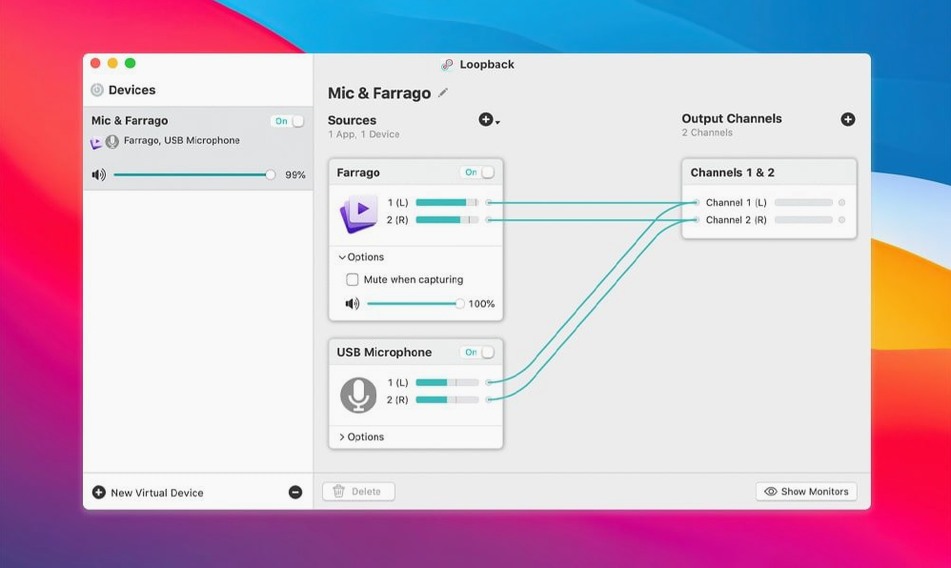
Loopback sits right in the middle—more polished than BlackHole, more focused than Caster. The wired interface gives you a clear picture of what's flowing where, and you can adjust every source independently before the combined signal leaves the virtual device. That visual clarity matters when you're three minutes from going live and something sounds off. You can glance at the canvas and see exactly which wire needs attention, instead of digging through multiple preference panes.
Barely a blip on Apple Silicon in daily use
On a Mac with Apple Silicon, Loopback is practically invisible in daily use. I've watched Activity Monitor while routing a microphone, two application sources, and a system audio pass-through into a single virtual device, and the CPU draw stayed below two percent. Memory usage hovers around 80 to 120 MB depending on how many virtual devices you have configured, which is modest for what it's doing. The ARK plugin that handles the audio pipeline got a bump to version 13.5 in this release, and Rogue Amoeba has been tuning that engine for years.
Intel Macs run it fine too—a 2019 iMac handles the same multi-source setup without breaking a sweat, though you'll see slightly higher CPU numbers on older chips. The key thing is that the audio processing doesn't spike. I haven't run into the kind of crackle or drift you get when a virtual audio driver falls behind the system clock and scrambles to catch up.
Stability has been solid across the 2.x releases. The move to macOS 27 support in version 2.5.0 didn't introduce any new quirks that I've noticed—the launch warning is gone, and existing virtual devices survive system restarts without needing to be rebuilt. If you're coming from a loopback crack or an older patched version, the genuine 2.5.0 build keeps everything running smoothly with the same familiar setup. No mysterious audio dropouts after waking from sleep, no kernel panics tied to the audio driver. It holds its ground.
The one resource note worth mentioning: each virtual device you create adds another audio stream the system has to manage. Four or five complex devices running simultaneously will push memory use higher, but that's an edge case. Most people set up one or two and leave them.
A streamer's evening, start to finish
Here's how a typical streaming session might go, to give you a concrete sense of where Loopback fits.
Mara runs a small Twitch channel where she plays indie games and chats with viewers. Her setup is a USB microphone, a pair of headphones plugged into a Scarlett interface, and OBS for streaming. She wants her viewers to hear the game audio, her voice, and the occasional sound clip she triggers from a soundboard app—all balanced so nothing overpowers anything else. She also wants to hear the game and soundboard herself, but not her own voice echoing back.
She opens Loopback and creates a virtual device called "Stream Mix." She drags a wire from her USB microphone, another from the game she's running, and a third from Farrago, the soundboard app. Each gets a quick level check. The microphone sits at the top of the mix, game audio a few decibels lower, soundboard clips riding just above the game. She names the finished device and flips it on.
In OBS, she selects "Stream Mix" as the audio input. That's it—one source, three layers of audio, all leveled before OBS ever touches them. In her headphones, she monitors the game and soundboard through the Scarlett output. Her own mic isn't in the monitor path, so there's no distracting latency or voice feedback. When a viewer asks a question mid-stream, she doesn't have to alt-tab into three different mixers to be heard clearly. The levels were set once and they hold.
The hidden monitoring pass-through checkbox
Some of Loopback's best features aren't obvious on first open. Here are a few worth knowing about.
- Monitoring pass-through. When you add a source, you can check a box to monitor it through any output device. It's a tiny toggle, but it solves the "I can't hear the other caller" problem in two seconds flat, without creating a separate monitoring chain.
- Mute and solo per source. Click the speaker icon on any wire to mute it; option-click to solo. If you're troubleshooting why a stream sounds muddy, soloing sources one at a time is the fastest way to find the culprit.
- Volume sliders with numeric readouts. You can type a number instead of dragging. When you're trying to match levels across sessions, "-6.0 dB" is more repeatable than "eyeballing the slider position."
- Virtual device reordering. You can drag virtual devices in the sidebar to change their order. It's cosmetic, but if you have five of them, putting "Stream Mix" above "Podcast Test" saves you a half-second of scanning every time you open the app.
- Copy-and-paste for sources. Right-click a wire, copy it, and paste it into another virtual device. If you've dialed in a compressor or EQ on a mic source in one device, you don't have to rebuild it from scratch for a second use case.
Turn off the menu bar icon if you don’t need it
Loopback ships with sensible defaults, but a few quick tweaks make it fit your workflow better. Open preferences and start here.
Turn off "Show in menu bar" if you don't need it. The menu bar icon gives quick access to virtual devices, but if you're the type who keeps a tidy menu bar, it's one more icon taking up space. The app is fast to open from the Dock or Spotlight.
Set your default output for monitoring. Under the Audio tab, pick the output device you use most—your main interface or headphones. That way, when you toggle monitoring on a source, it goes to the right place without an extra click every time.
Check "Automatically update virtual devices on wake." This is on by default, but confirm it. If you close your MacBook lid mid-session and reopen it, this keeps your routing alive instead of leaving you with a silent stream and a confused expression.
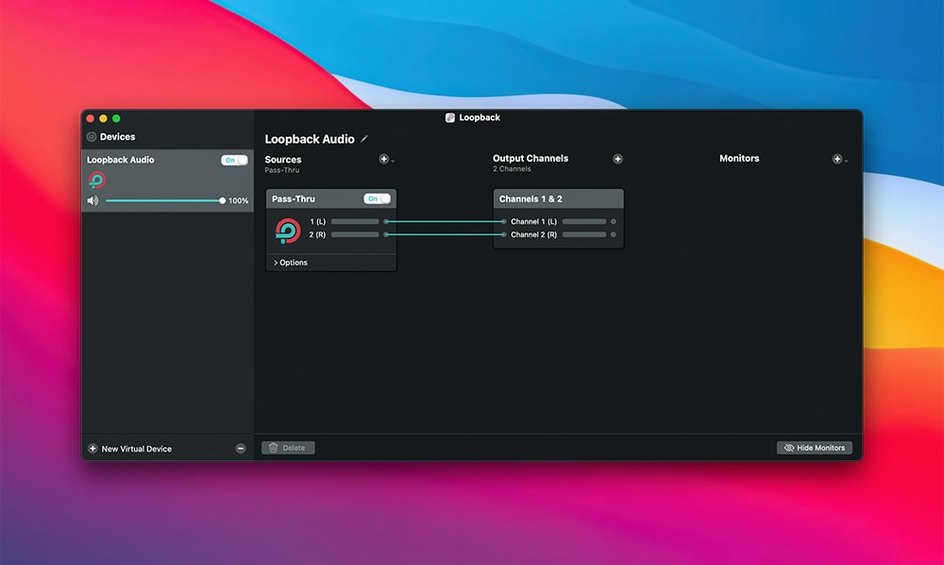
Rename your virtual devices early. The default names are "Loopback Audio" with a number appended. Change them to something descriptive before you have six of them and can't remember which one OBS is looking at. "Podcast Mix" and "Screen Cap + Mic" take ten seconds to type and save confusion later.
One more thing: if you're using a Loopback Mac torrent build or any version that wasn't signed by Rogue Amoeba, the settings above may not behave the same way. The ARK plugin in particular relies on a proper installation to communicate with macOS's audio subsystem. A clean install of 2.5.0 gives you the best experience—to get the most from a Loopback torrent, make sure you grant all the requested permissions on first launch so virtual devices stay put after a reboot.
Loopback doesn't record anything itself. It just creates the pipe. The rest is up to whatever software you point at it.
This release catches Loopback up with Apple's latest:
- Added support for macOS 27 so the app runs without compatibility hiccups.
- Removed the warning that used to appear when launching on macOS 27.
- Updated the ARK audio handling plugin to version 13.5 for better stability under the hood.
- macOS 11 or newer
- Works on Intel and Apple Silicon Macs
Questions from the stall
Does Loopback record audio by itself?
No. Loopback only routes and combines audio sources into virtual devices—it does not include recording functions. You pair it with an app like Audio Hijack or a DAW to capture the output.
What changed in Loopback version 2.5.0?
Support for macOS 27 was added, the launch warning on that system was removed, and the ARK audio handling plugin was updated to version 13.5.
Notes from other shops 0
Sign in or open a shop account to leave a note.
No notes yet. If you've used this on a shop Mac, tell me how it went.