A guitarist hands you a riff scribbled on a napkin. You open Guitar Pro, tap the rhythm on your desk to find the tempo, and start laying down the tab before the idea cools off.
Click through voicings with the chord builder
Open the chord builder—it sits right in the sidebar and lets you click through voicings until you hear the one that fits. While you're there, pin a few recent files on the homepage so your current projects don't get buried.
Can I make a quick backing track?
Yes. You can generate drum or piano backing tracks directly in the app. Pick a style, set the tempo with the metronome, and you've got something to play over in seconds.
How do I share a clean copy of a score?
Export it as a PNG with a transparent background. That gives you a clean graphic you can drop into a lesson plan, a poster, or a quick message to a bandmate without any extra cleanup.
MuseScore, Sibelius, and where Guitar Pro fits
If you're already on Mac and looking at notation tools, you'll likely run into MuseScore and Sibelius alongside Guitar Pro. They overlap in places but pull in different directions.
MuseScore is the open-source workhorse. It handles full orchestral scores, lead sheets, and traditional notation well, and it costs nothing to start. Where Guitar Pro pulls ahead is in the guitar-first details: tablature editing, the chord builder, and the built-in MIDI editor feel like they were designed by someone who actually plays. MuseScore can do tabs, but they're a side feature, not the heart of the app.
Sibelius is the heavyweight for engraving and formal scores. If you're preparing a chamber piece for publication, it's hard to beat. But for a songwriter sketching a bass line at midnight or building a practice loop with a drum track, Sibelius feels like bringing a drafting table to a campfire. Guitar Pro gets you to a playable version faster, and the metronome plus backing track generation keeps everything in one place.
The Apple Silicon support in Guitar Pro 8 also makes a noticeable difference on newer Macs. Scrolling through a long score, switching tracks, and playback all stay responsive, which matters when you're editing measure by measure.
Transcribing an evening project, start to finish
Here's how an evening usually goes for me when I'm transcribing something.
Open and pin. I launch Guitar Pro and pin the file I'll be working in from the recent section on the homepage. That way, if I close the lid for dinner, it's right there when I come back.
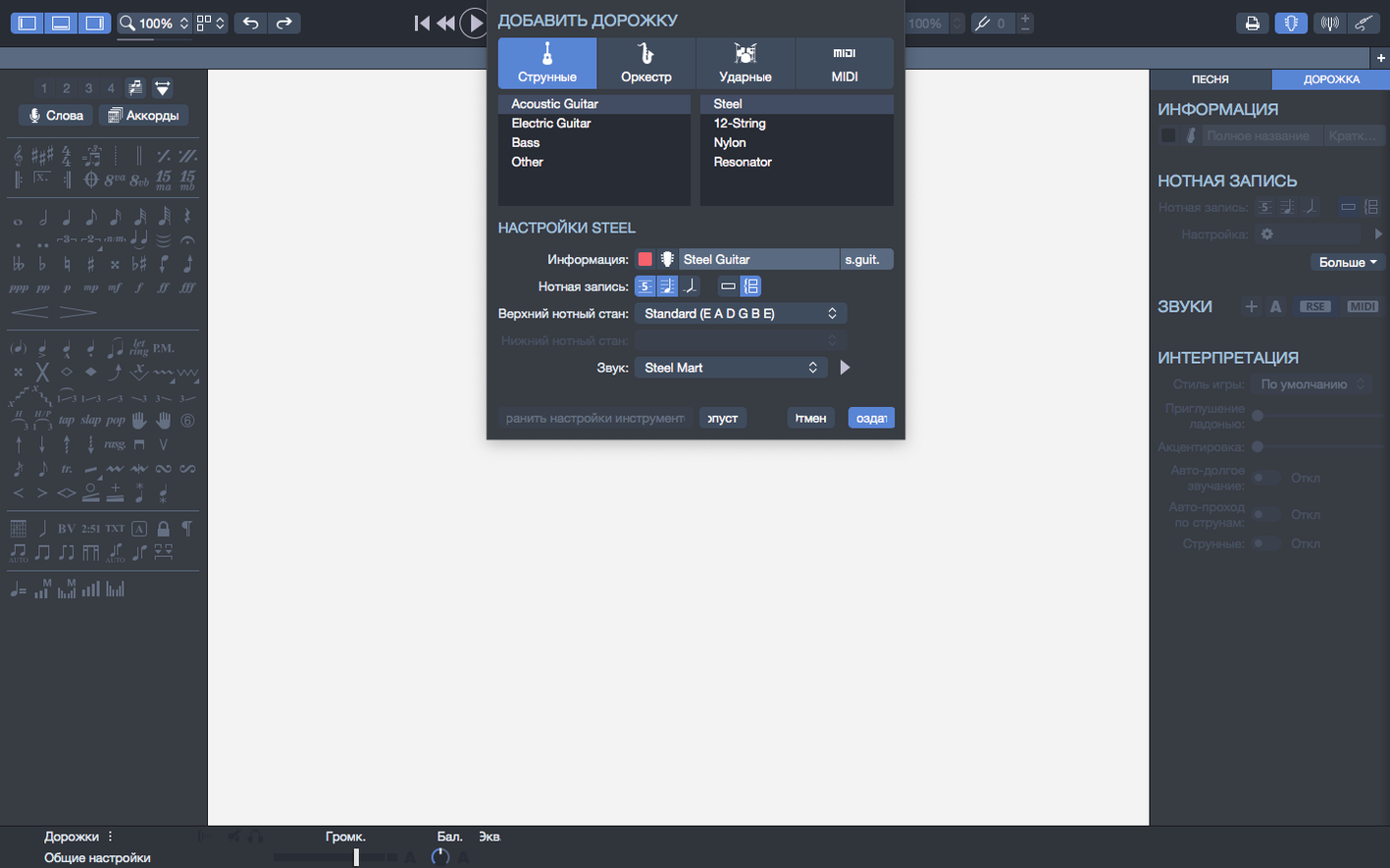
Set the skeleton. I pick the instrument—usually guitar or bass—and set the tempo with the metronome. I tap out the pulse until the click feels right, then lock it in. Time signature comes next.
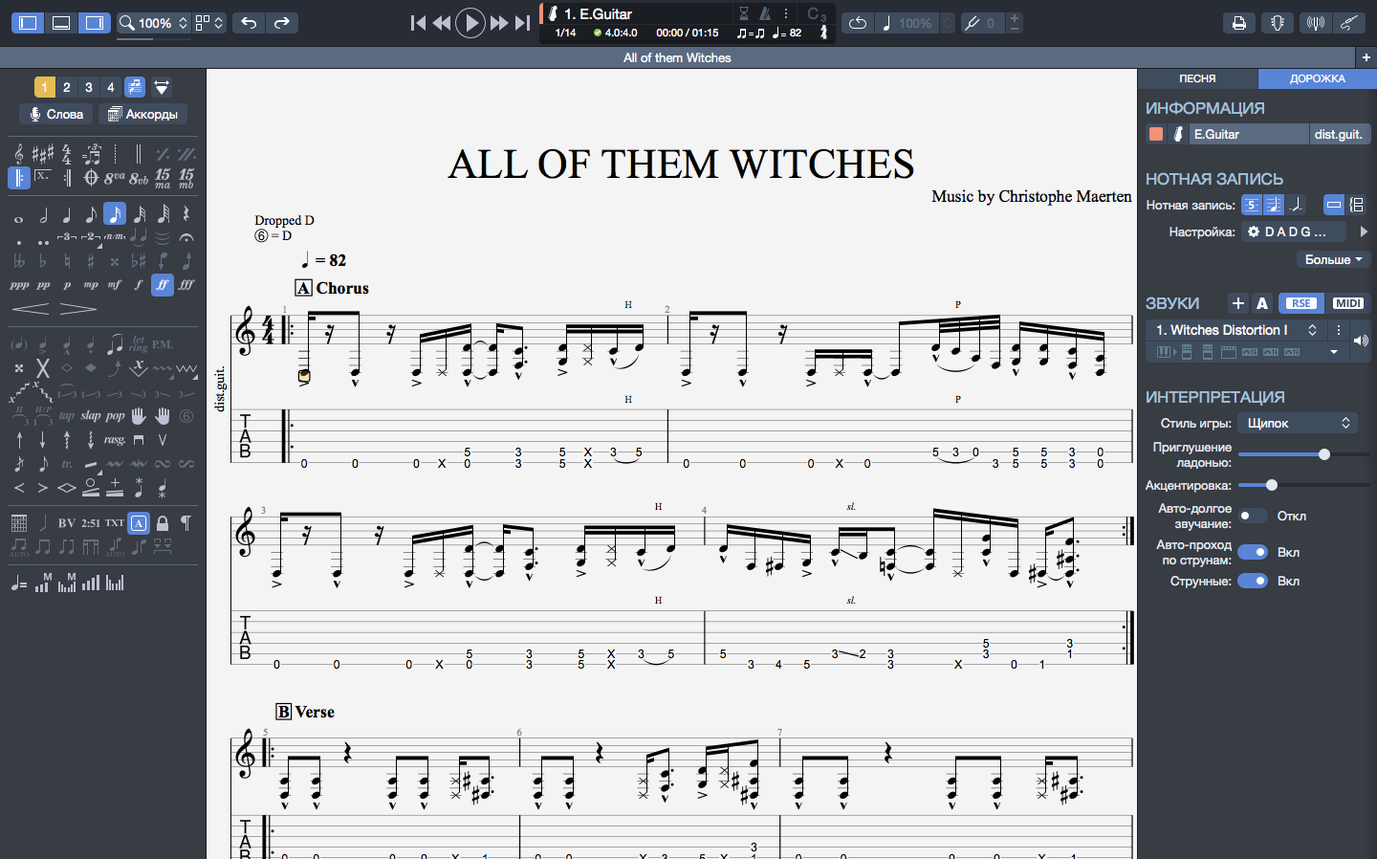
Enter the riff. I work in the tab view, typing fret numbers with the keyboard. The MIDI editor is open on the side so I can nudge note lengths and velocities without leaving the main window. If a chord sounds off, I open the chord builder, click through a few voicings, and drop the winner in.
Check the playback. I hit play and listen. The built-in player uses the score itself, so mistakes show up fast—a wrong note, a stumble in the rhythm. I fix them as I hear them.
Add a backing layer. If the riff needs context, I generate a simple drum track or a piano part, then play the whole thing together. It's a fast way to hear whether the idea has legs.
Export and share. When it's close, I export a PNG with a transparent background and send it to my bandmate. Clean graphic, no screenshots, no clutter.
Writing custom material for fifteen students a week
Imagine a guitar teacher who teaches fifteen students a week, from a twelve-year-old working on power chords to an adult revisiting fingerstyle after twenty years. Each student needs different material, and writing it out by hand eats up Sunday evenings.
This teacher keeps a folder of Guitar Pro files, one per student. For the beginner, they write short exercises—three-note patterns, simple chord changes—and export each as a transparent PNG to drop into a lesson sheet. For the fingerstyle student, they transcribe a section of a folk tune, using the chord builder to document the voicings above the tab. The MIDI editor helps clean up note lengths so the playback matches how the piece should actually sound.
During the week, they generate a simple drum backing track for the intermediate student's improvisation practice. Tempo set to 90, exported as audio, sent in a message. It takes five minutes. When a student asks for a slower version, they change the tempo in the file and export again. No re-recording, no searching for a play-along track online.
The pinned files on the homepage hold the current week's lessons, so the teacher opens the app and sees exactly what's in progress. That's the kind of small touch that keeps a busy schedule from spiraling.
A workflow: transcribing a bass line by ear
Here's a start-to-finish path for a specific task—notating a bass line from a recording, the way I'd do it if a friend sent me a track and asked for help.
- Load the audio and find the tempo. I play the recording outside the app, tapping the beat into the metronome until it locks. Then I write that number at the top of my notes—nothing official, just a scratch marker.
- Create a bass track. In Guitar Pro, I choose bass as the instrument, set the time signature, and enter the first few notes in the tab. I don't worry about perfection yet.
- Match the notes. I loop a two-bar section of the recording, playing low notes and testing them against the tab. When I find a match, I enter it. For quick runs, I slow the playback in the app and listen note by note.
- Refine the timing. The MIDI editor shows me where my entered notes drift from the grid. I drag lengths and velocities until the playback feels like the original, not like a robot reading a chart.
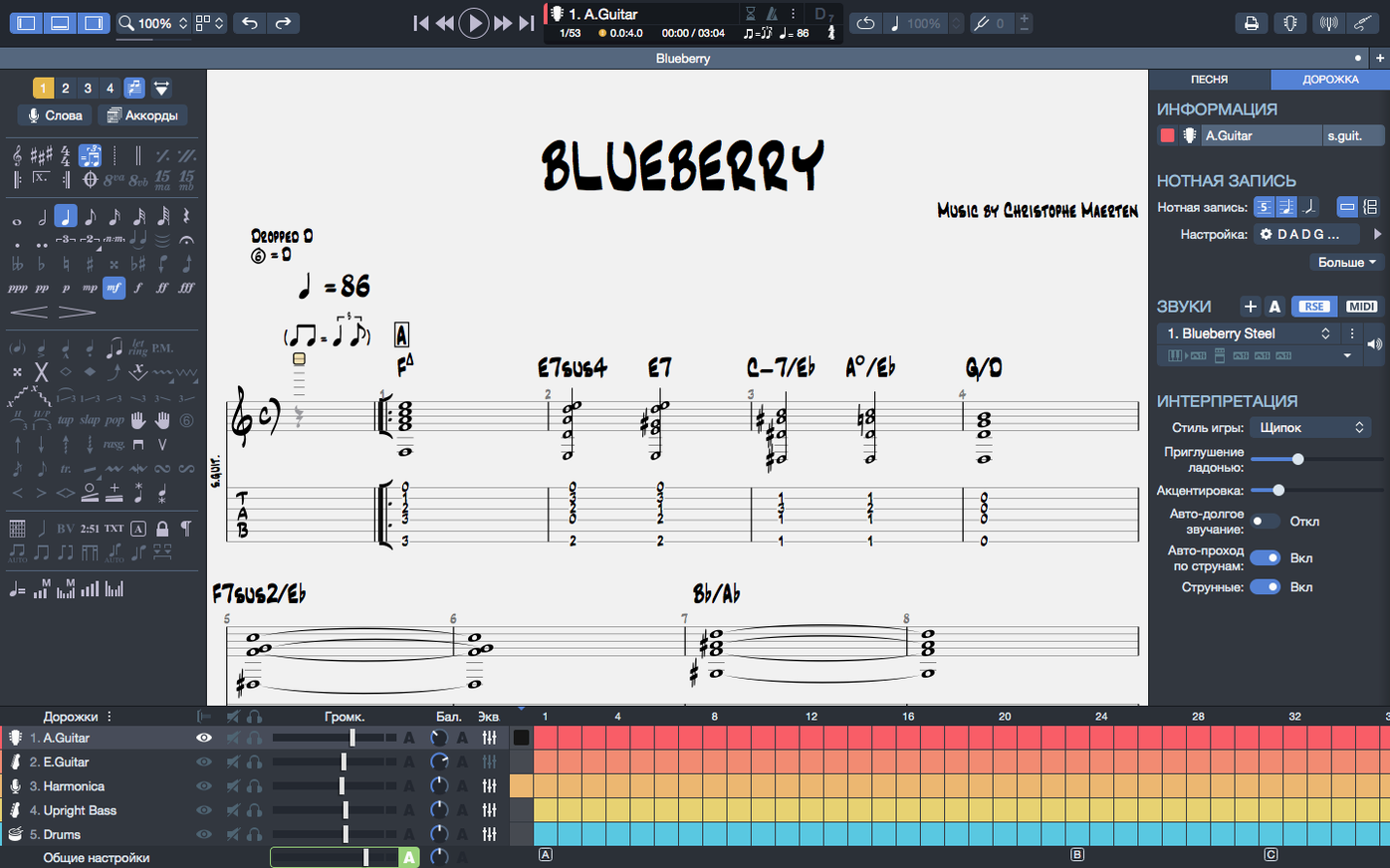
- Mark the chords. If the bass line implies harmony, I use the chord builder to add chord names above the staff. They transpose with the fingerings, so if I later shift the whole thing up a step, everything moves together.
- Export for practice. I export the score as an SVG so I can scale it cleanly on a tablet, and I keep a PNG with a transparent background for pasting into a practice document. Done.
Fixing that wrong-sounding arpeggio on playback
Most issues people hit with Guitar Pro are small, but they can feel big when you're in the middle of a transcription.
Playback starts weirdly. If an arpeggio at the very beginning of a score sounds wrong, that was a known issue in earlier builds. The current version plays them correctly, so if you're on an older setup, updating is the first move. If you're already current and something still sounds off, check that the arpeggio symbol is actually attached to the first note and not floating in an empty measure.
Stem directions won't change. Some scores have stubborn notes where the stem just won't flip. That was also fixed in the latest update. If you still see it, try selecting the entire measure rather than the single note, then applying the stem direction again.
Audio cuts out when you plug in headphones. This is a macOS quirk that Guitar Pro has improved. In the current version, playback continuity is better when devices are plugged or unplugged. If you still get silence after switching audio outputs, go into the app's audio preferences, reselect the output device, and hit play again. That usually re-syncs it.
Recent files feel cluttered. The homepage shows your recent work, but without the pin feature it gets noisy fast. Pin the two or three files you're actively using. The rest can scroll by without guilt.
Exported PNG has a background you didn't want. The transparent background option is there, but it's easy to miss. When exporting, look for the transparency setting and tick it before saving. That's the one that keeps your score clean on colored paper, dark slides, or a website.
The chord notation looks right but sounds wrong in playback. This usually means the chord diagram and the actual notes in the tab don't match. The chord builder places names and fingerings, but playback follows the notes. If you want the sound to match the label, make sure the tabbed notes reflect the voicing you picked. To chord names and fingerings, they transpose together, so if you shift the piece later, you won't end up with a chart that's right in shape but wrong in key.
Most of these are twenty-second fixes once you know where to look. The app is stable for daily use; it's usually a matter of a ticked box or an updated version.
A few practical fixes landed in version 8.1.5-31:
- Arpeggios at the very beginning of a score now play back properly—no more silent opening notes.
- Stem directions that refused to budge in certain cases can now be changed.
- Playback on macOS no longer stutters when you plug in or unplug headphones or an interface.
- macOS 10.13 or later
- Intel or Apple Silicon processor, 64-bit dual-core or better
- 4 GB RAM
- 2 GB free disk space
- Administrator rights for installation
Questions from the stall
Does Guitar Pro work on Apple Silicon Macs?
Yes, it runs natively on both Intel and Apple Silicon Macs with macOS 10.13 or newer.
What got fixed in the latest update?
Arpeggios at the start of a score now play correctly, stem direction changes work in more cases, and playback stays smooth when plugging or unplugging audio devices.
Notes from other shops 0
Sign in or open a shop account to leave a note.
No notes yet. If you've used this on a shop Mac, tell me how it went.